Riverside.FM Articles
Crop, Reposition, Reframe: Video Editing in Riverside.fm
Adjust the framing and cropping of individual videos during editing in Riverside.

Riverside.FM Articles
Adjust the framing and cropping of individual videos during editing in Riverside.
Riverside.FM Articles
The best settings for your Riverside recording studio to ensure your podcasts, livestreams, and recordings are of the highest quality.
Descript Articles
Descript sometimes produces transcripts that mix English with other languages (like German), even though the audio is clearly in one language.
Descript Articles
When editing in Descript, you have the option to burn captions directly onto your video. But should you use that feature for YouTube uploads? The short answer: usually, no. While you can burn in captions in Descript, uploading them separately to YouTube gives you and your viewers far more flexibility.
Riverside.FM Articles
Manage multiple guests without a hitch in Riverside by scheduling your recording sessions in advance.
Riverside.FM Articles
Riverside has introduced a new feature in their editor, allowing you to apply a brand kit to your edits in just one click.
Riverside.FM Articles
How to easily add background music using Riverside's new editor.
Riverside.FM Articles
Upload, Transcribe, Edit and Repurpose audio and video with Riverside.
Riverside.FM Articles
Riverside's powerful multi-track editing capabilities allow you to take complete control over your audio and video editing.
Riverside.FM Articles
Riverside announced that you can schedule an unlimited number of sessions in advance in the studio.
Descript Articles
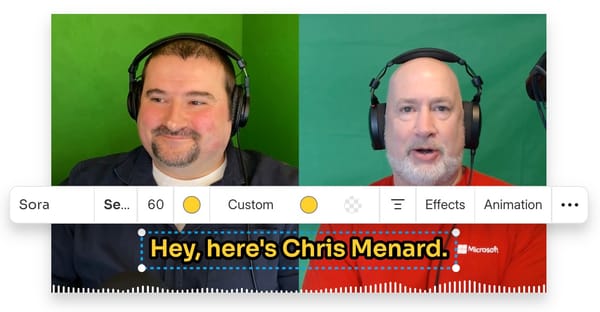
If you are looking to manage caption (or other object or layer) visibility in your Descript video for specific portions, this tutorial is for you. Whether you're creating educational content, presentations, or social media videos, there are times when you need to temporarily hide captions to prevent text
Descript Articles
Descript has recently updated its translation feature, moving out of beta and into a fully supported version. This update allows users to translate video compositions into different languages while also providing the option to dub the audio in the target language. This blog post will explore how to efficiently use