Riverside.FM Articles
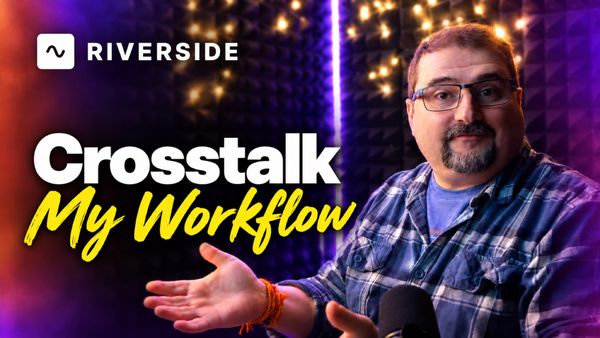
How to Fix Crosstalk in Riverside and Keep Both Speakers
Two ways to fix overlapping speech in Riverside — mute and hide one speaker, or duplicate the overlap and play both voices back-to-back so you don't lose either one.
Learn Riverside.fm with tutorials or one-on-one
Riverside.FM Articles
Two ways to fix overlapping speech in Riverside — mute and hide one speaker, or duplicate the overlap and play both voices back-to-back so you don't lose either one.
Riverside.FM Articles
Don't start from scratch. Pull any segment of a finished Riverside edit into its own standalone edit — keeping every cleanup, scene, and camera change you've already done.
Riverside.FM Articles
You've finished editing an interview in Riverside. You've removed the filler words, closed gaps, applied Magic Audio. Now you want to send each speaker's track to a separate piece of software for further mixing or video work — but you want those tracks to carry
Riverside.FM Articles
A common mistake I see in Riverside is creating a new studio for every episode. It seems like a reasonable way to stay organized — but it causes real problems down the line. Riverside has a better structure built specifically for this: studios for shows, projects for episodes. Here is exactly
Riverside.FM Articles
Removing filler words — the ums, uhs, and occasional "likes" — is one of the simplest ways to clean up a recording. Riverside does most of it automatically with AI, but there are some nuances worth knowing: which removal method to choose, how to adjust sensitivity, how to remove words
Riverside.FM Articles
One of the most useful workflows in Riverside is the ability to create multiple edits from the same recording and export each one differently. You can have a video version for YouTube, an audio-only version for podcast platforms, a shorter segment for social media — all from one set of source
Riverside.FM Articles
If you have an audio-only podcast and want to post it on YouTube or other video platforms, Riverside makes it straightforward. Upload your audio, add a cover image, and export as video — all in a few clicks. Here is the full workflow. Upload Your Audio File Start by uploading your
Riverside.FM Articles
Make the Riverside AI and Automations Yours!
Riverside.FM Articles
Riverside just rolled out a feature I've been wanting for a long time: the Content Planner. This new tool replaces the old Scheduler and brings everything related to planning, recording, and publishing into a single unified calendar view. The standout addition? You can now schedule social media posts
Riverside.FM Articles
Have you ever watched a podcast where the camera zooms in on the speaker making a point, then pulls back to the wide shot, and thought they had a camera operator doing it live? They almost certainly did not. It is all done in post-production, and if you use Riverside,
Riverside.FM Articles
If you're hosting your podcast with Riverside, there's a feature that's been highly requested since the hosting service launched — you can now create a website for your podcast directly on the platform. It only takes a couple of clicks, and you'll have
Riverside.FM Articles
If you've recorded an interview in Riverside and noticed that your guests' names and titles are missing when you open the editor, don't worry — this is expected behavior, and adding them back is straightforward. Why Names Disappear After Recording During a live recording session, Riverside