How to Turn Riverside Made for You AI Workflows On or Off

Until now, Riverside started working the second you stopped recording. Finish a session, upload a file, walk away for coffee — and by the time you came back there were magic clips, a magic episode, show notes, hooks, social captions and a blog post already sitting in your project. All generated with AI, all before you had touched a single frame.
That was a common complaint I heard from people using the platform: "I haven't edited the episode yet. Why is it making clips out of a rough cut?"
Riverside has now fixed that. You can tell it to hold off, do your editing first, and generate the AI assets afterwards — either automatically or on demand. Here is exactly where those controls live and how to set them up.
What Riverside Generates Automatically
Open any project and click the Made for You tab. If you have recorded recently, you will find a stack of assets already created: magic clips, a full magic episode, magic segments, hooks, show notes, a blog post, social captions and more.
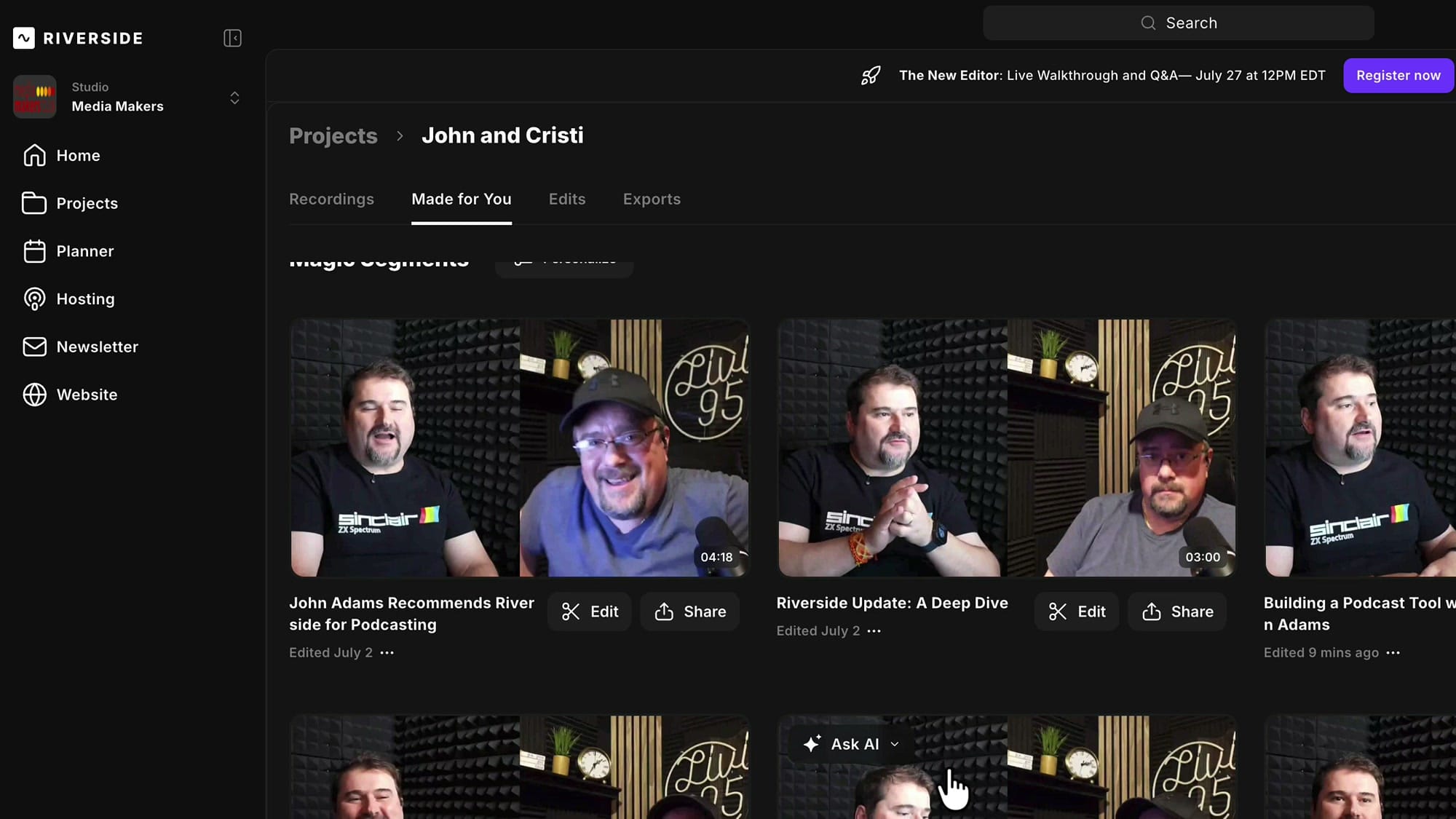
None of that is wrong, exactly. The problem is timing. These assets are built from the unedited recording, so the magic clips include the false starts, the magic episode includes the bit where your guest's dog barked, and the show notes summarise a conversation you were planning to trim by ten minutes. You end up regenerating everything anyway.
Where the Personalize Controls Live
Scroll to any section header in the Made for You tab — Magic Episodes, Magic Clips, Magic Segments, it does not matter which — and you will see a Personalize button next to it.
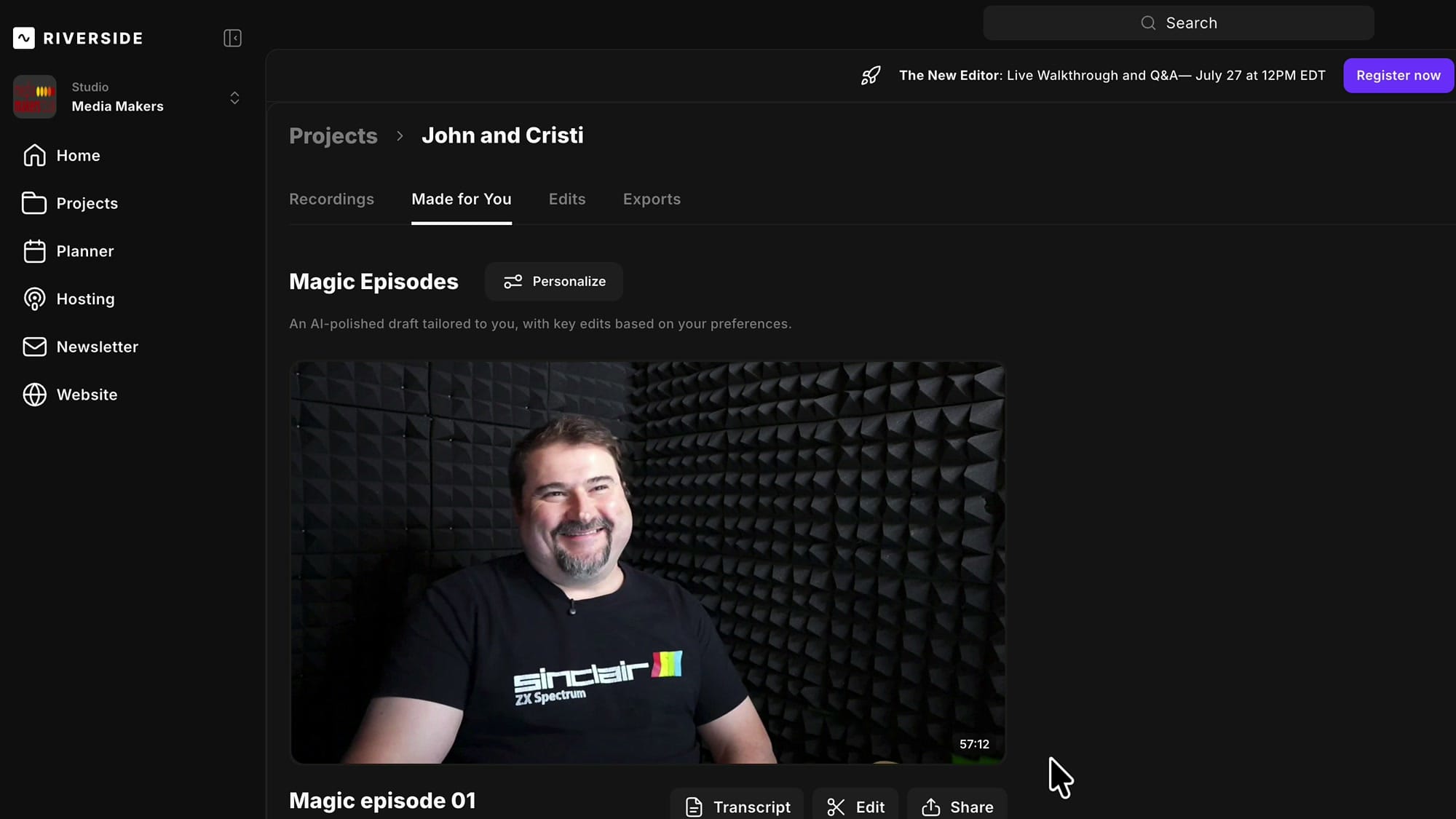
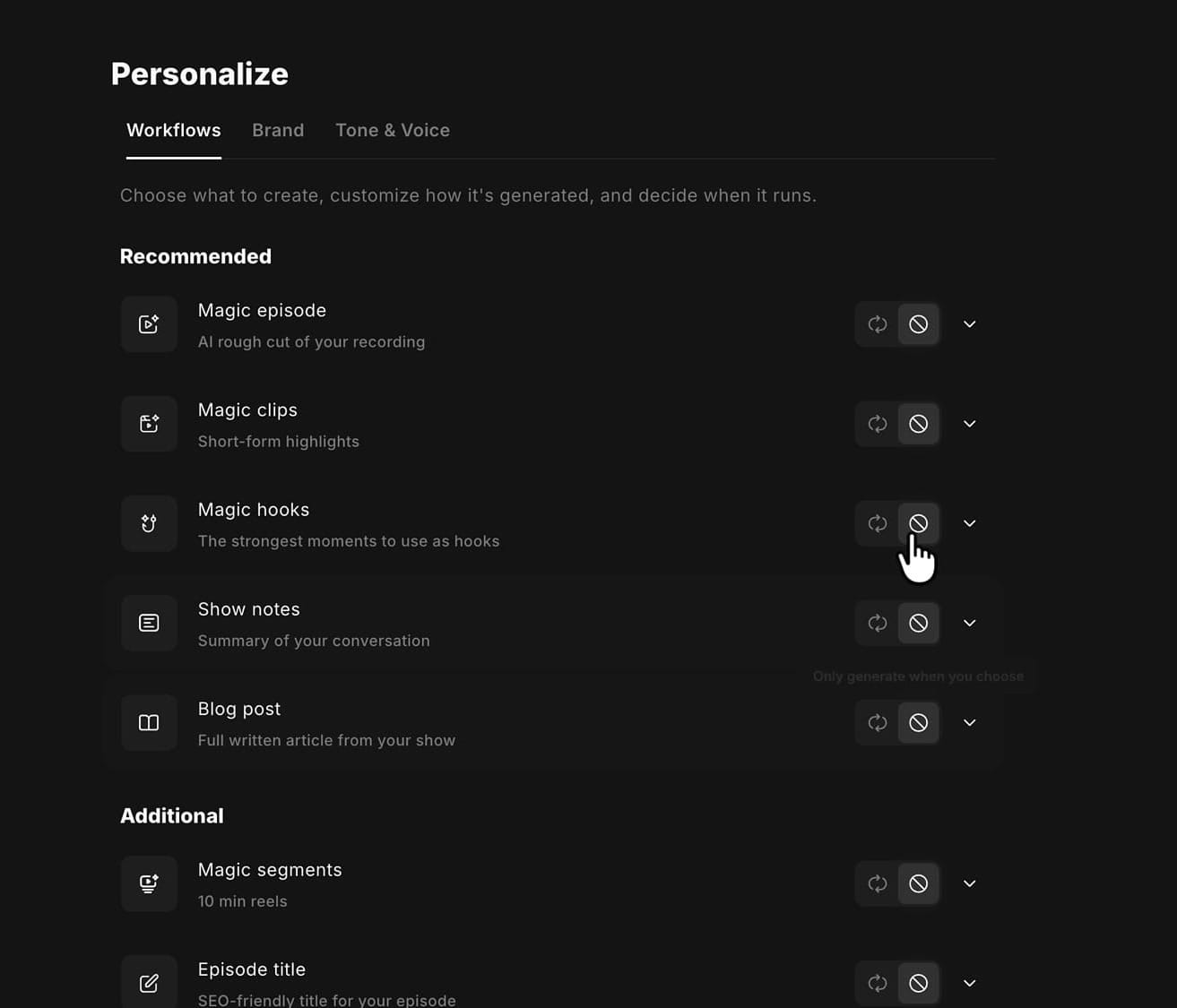
Click it and the Personalize panel opens on the Workflows tab. Riverside calls these post-recording jobs "workflows" now, and the panel sums up what it does in one line: choose what to create, customise how it is generated, and decide when it runs.
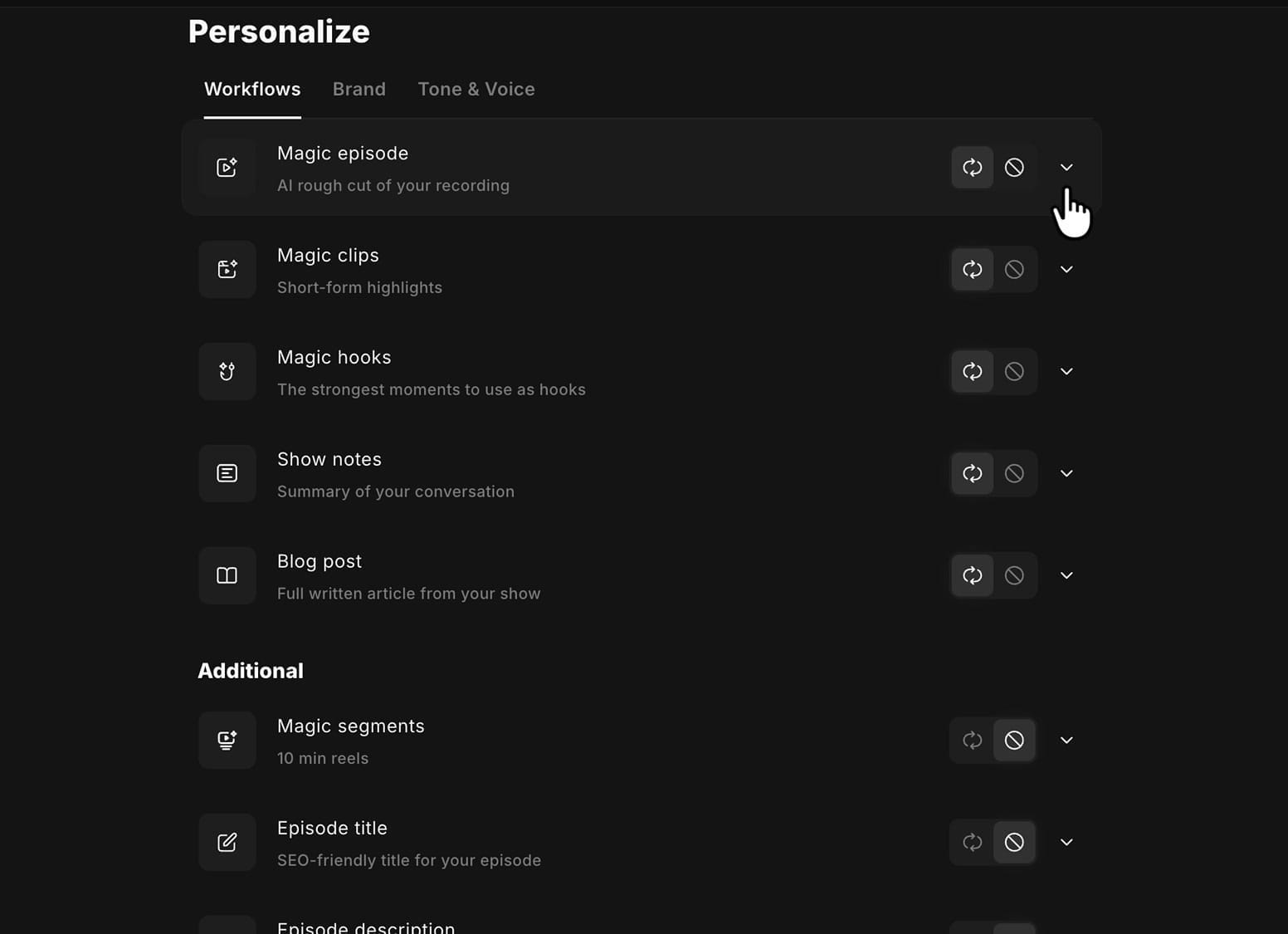
The list is split into two groups. Recommended holds the heavy hitters — Magic episode, Magic clips, Magic hooks, Show notes and Blog post. Additional holds everything else. If you have already spent time personalizing AI responses and automations in Riverside, this is the same panel, now with an on/off switch attached to every entry.
The Two Buttons That Control Every Workflow
On the right of each row are two small icon buttons. This is the new part, and it is the whole point of the update.
The circular-arrows icon means generate automatically after each recording. That is Riverside's old behaviour, and it is what the Recommended workflows are set to by default.
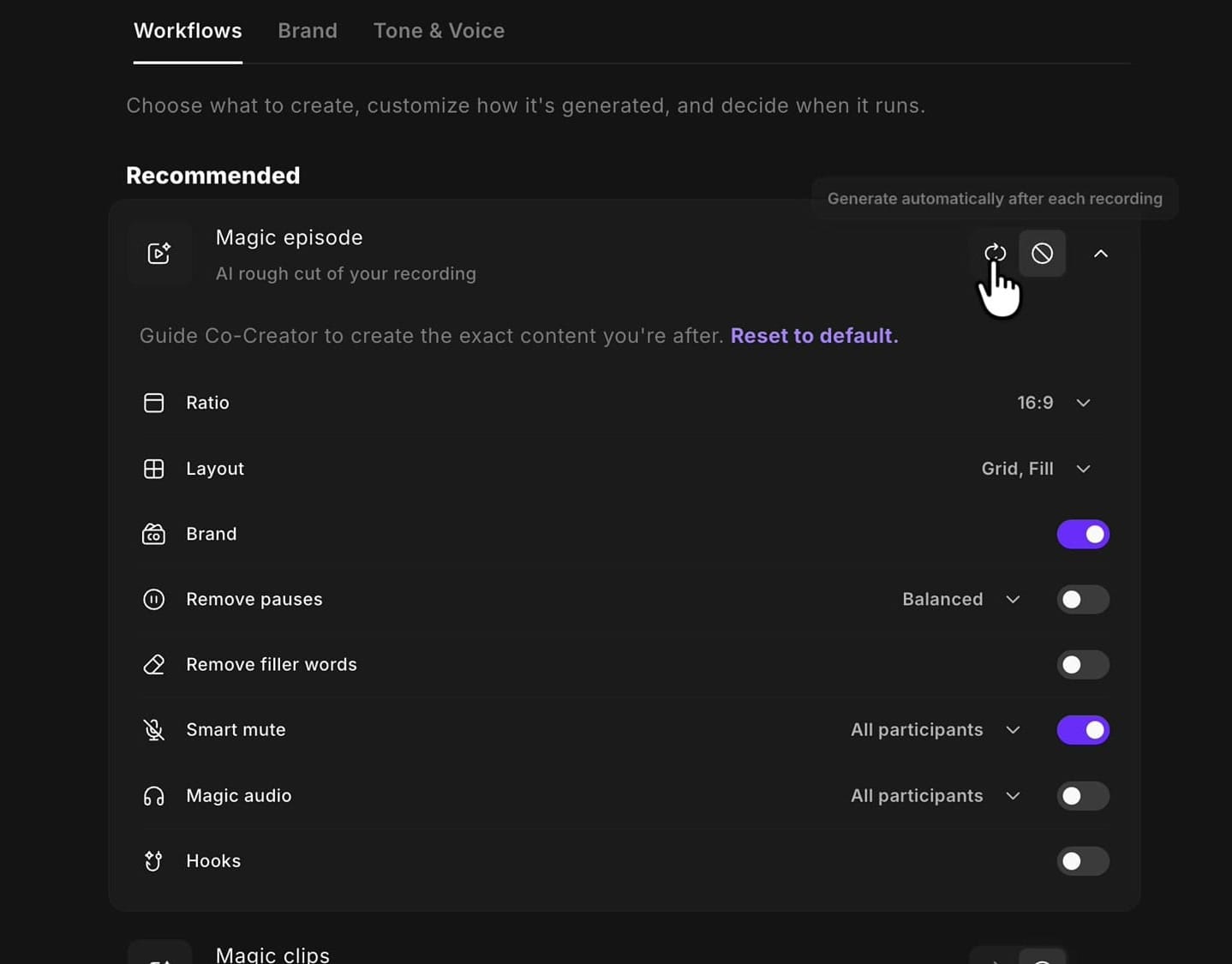
The circle-slash icon means only generate when you choose.
Turning the Automatic Workflows Off
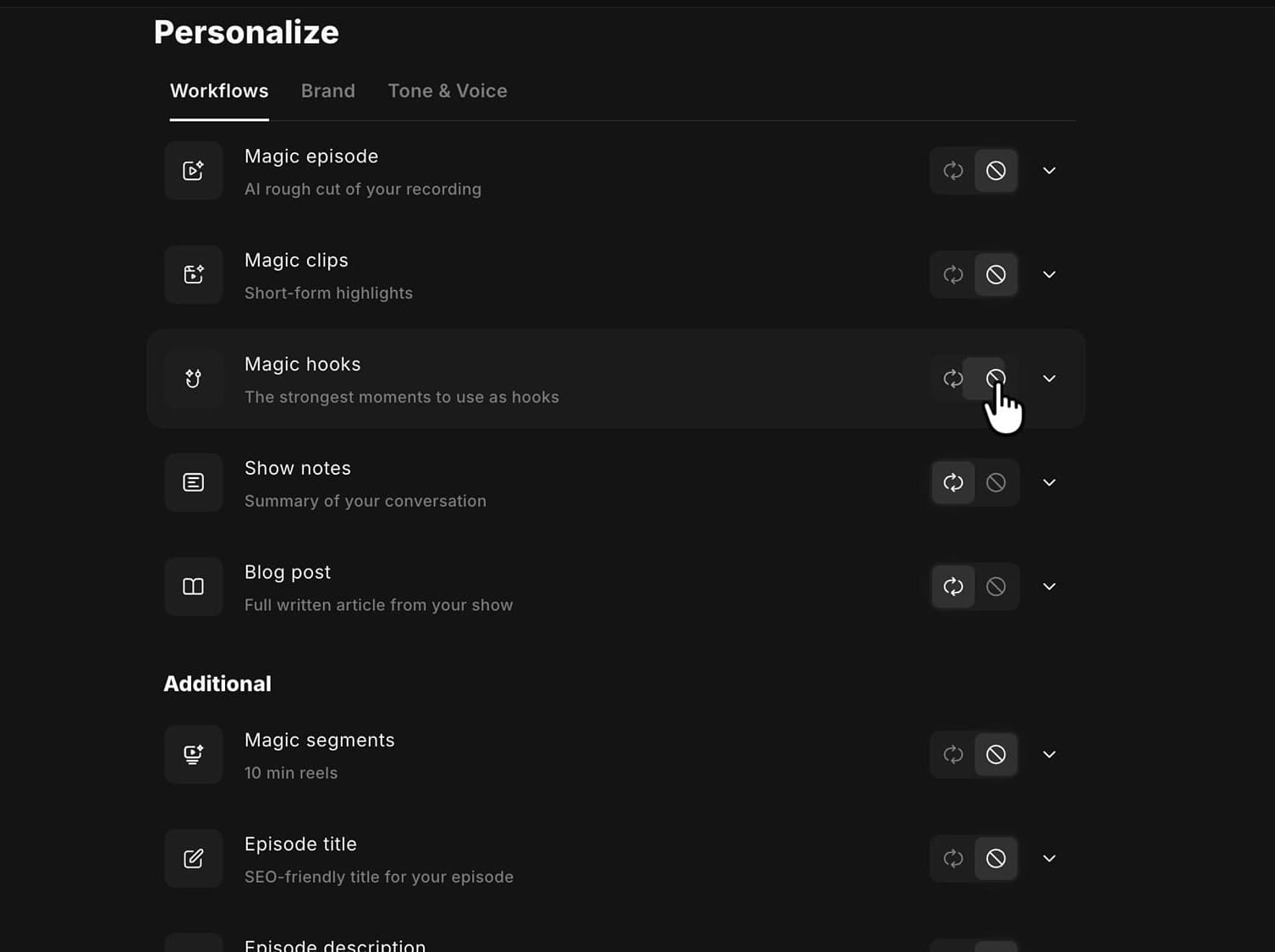
Click the circle-slash button on every workflow you do not want running unattended. I turned off Magic episode, Magic clips and Magic hooks, because those are the ones I want to build myself after the edit is locked.
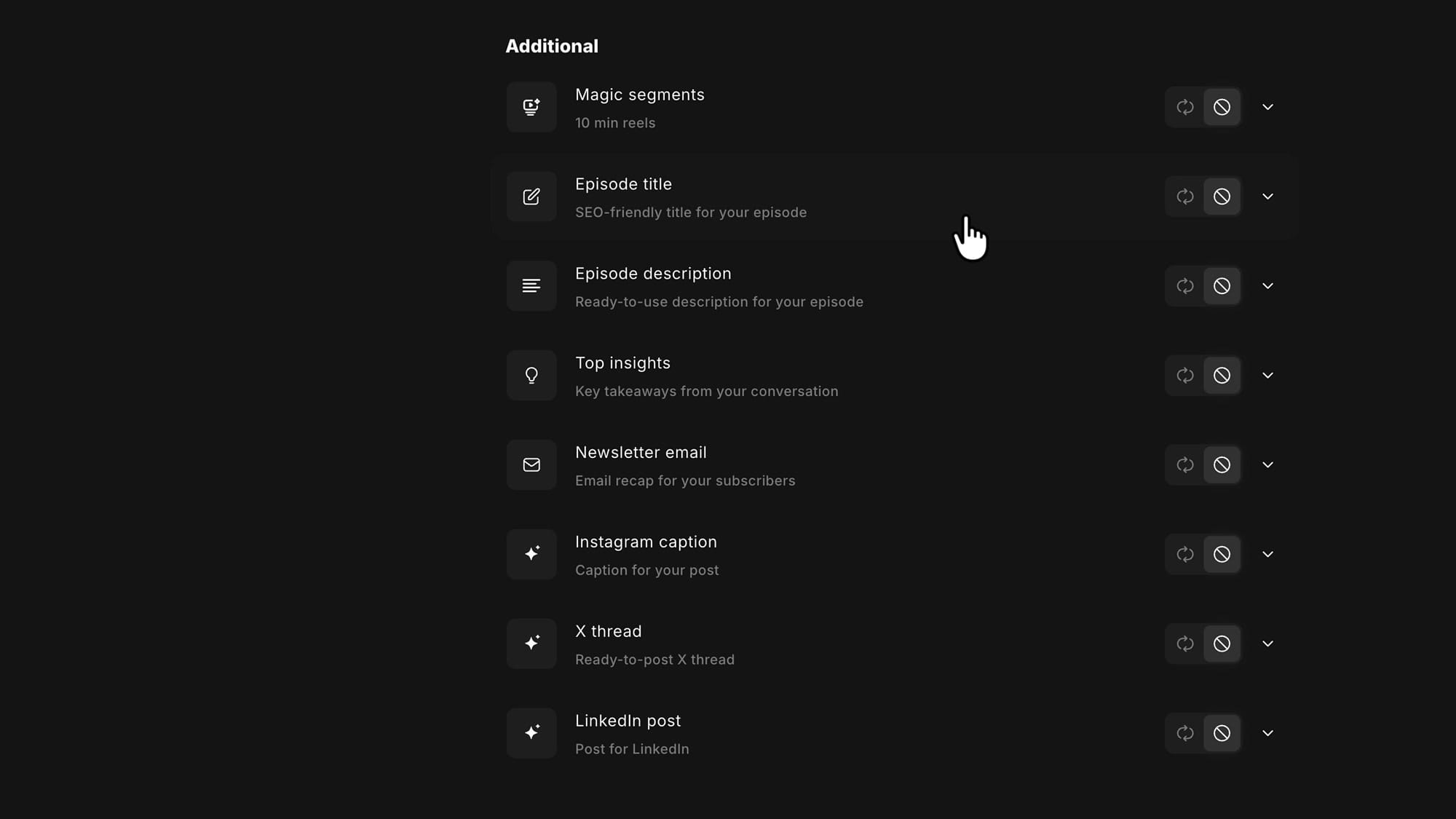
Scroll down past the Recommended group and you will find the Additional list: Magic segments, Episode title, Episode description, Top insights, Newsletter email, Instagram caption, X thread and LinkedIn post.
In my studio, most of these were already set to manual, and yours may be too — but check, because anything left on the circular-arrows setting will fire after your next session.
Two things to know about how these settings behave:
- They apply to future recordings. Whatever is already sitting in your Made for You tab stays there. The next session is the one that respects your new settings.
- Turning things off may speed up processing. Riverside is doing less work in the background after each recording, so you are not waiting on jobs you were never going to use.
If you’re eager to learn more about Riverside and wish to have a one-on-one Riverside coaching session, feel free to book a call with me.
I’m here to help you with any questions you have and to guide you through the best workflows, tips, workarounds, or just answer any questions you may have!
The Same Controls Are Inside the Editor
You do not have to go back to the project page every time. Open a project, go to the Recordings tab and start an edit from your recording. That opens Riverside's new editor, which is noticeably faster than the old one.
In the editor, look at the sidebar on the left. If it is hidden, open it with the panel button in the top-left corner. At the top of that sidebar, above your source files and edits, sit Brand and Personalize.
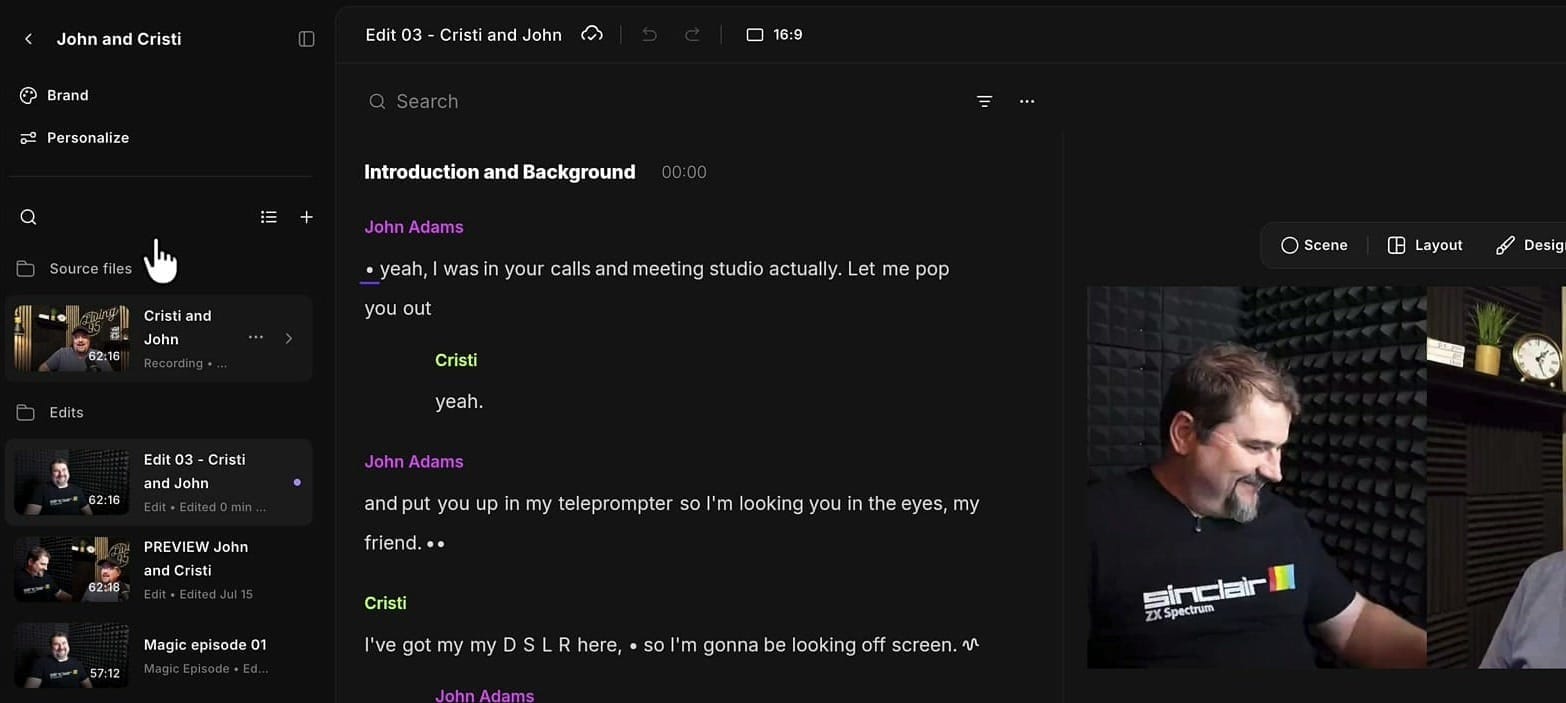
Click Personalize and you get the identical panel, with every choice you made earlier still remembered.
Customising What Each Workflow Actually Produces
Turning a workflow off is only half of it. Click the chevron on the right of any row — on or off, it does not matter — and the workflow expands into its own settings.
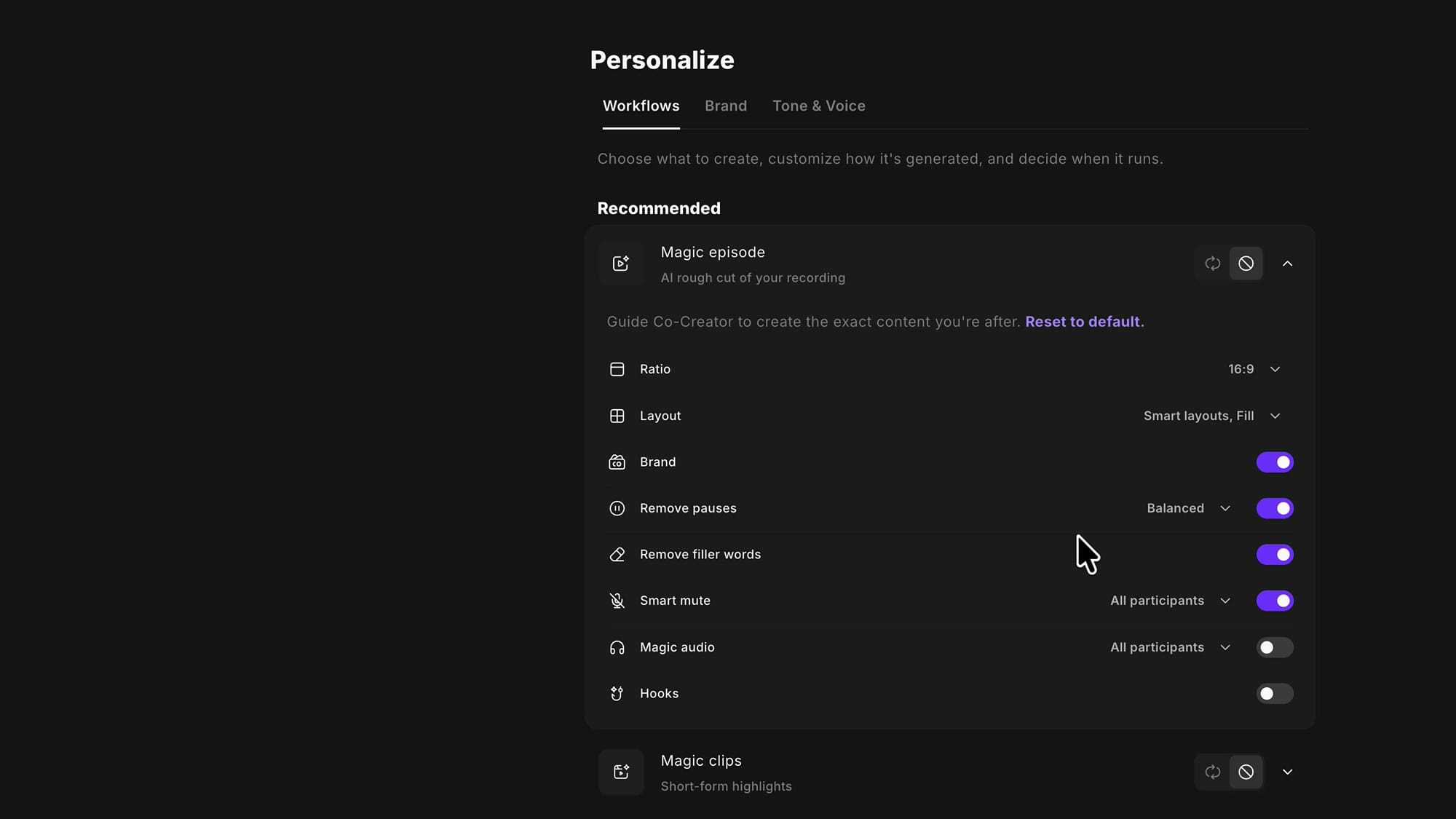
There is a Reset to default link at the top of every expanded workflow, so you can experiment freely and get back to the starting point in one click. Here is what the Magic episode settings do.
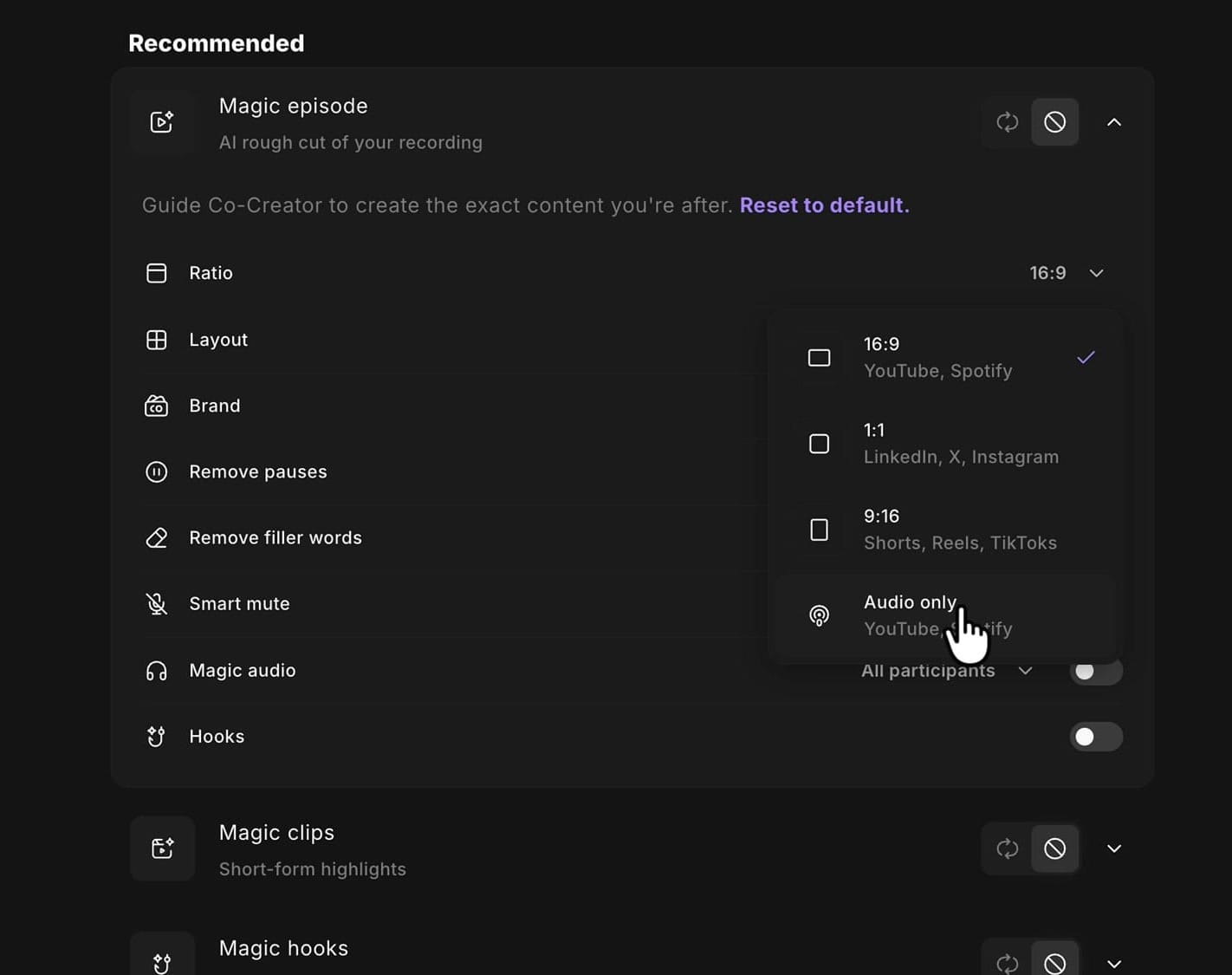
Ratio
Pick the shape of the output: 16:9 for YouTube and Spotify, 1:1 for LinkedIn, X and Instagram, 9:16 for Shorts, Reels and TikToks, or Audio only if you do not publish video at all.
Layout
The Layout panel decides how Riverside frames your speakers. Choose Fill or Fit, then either let Smart layouts auto-switch views based on who is talking, or pick a fixed look — Full screen, Picture in picture, Split screen or Grid.
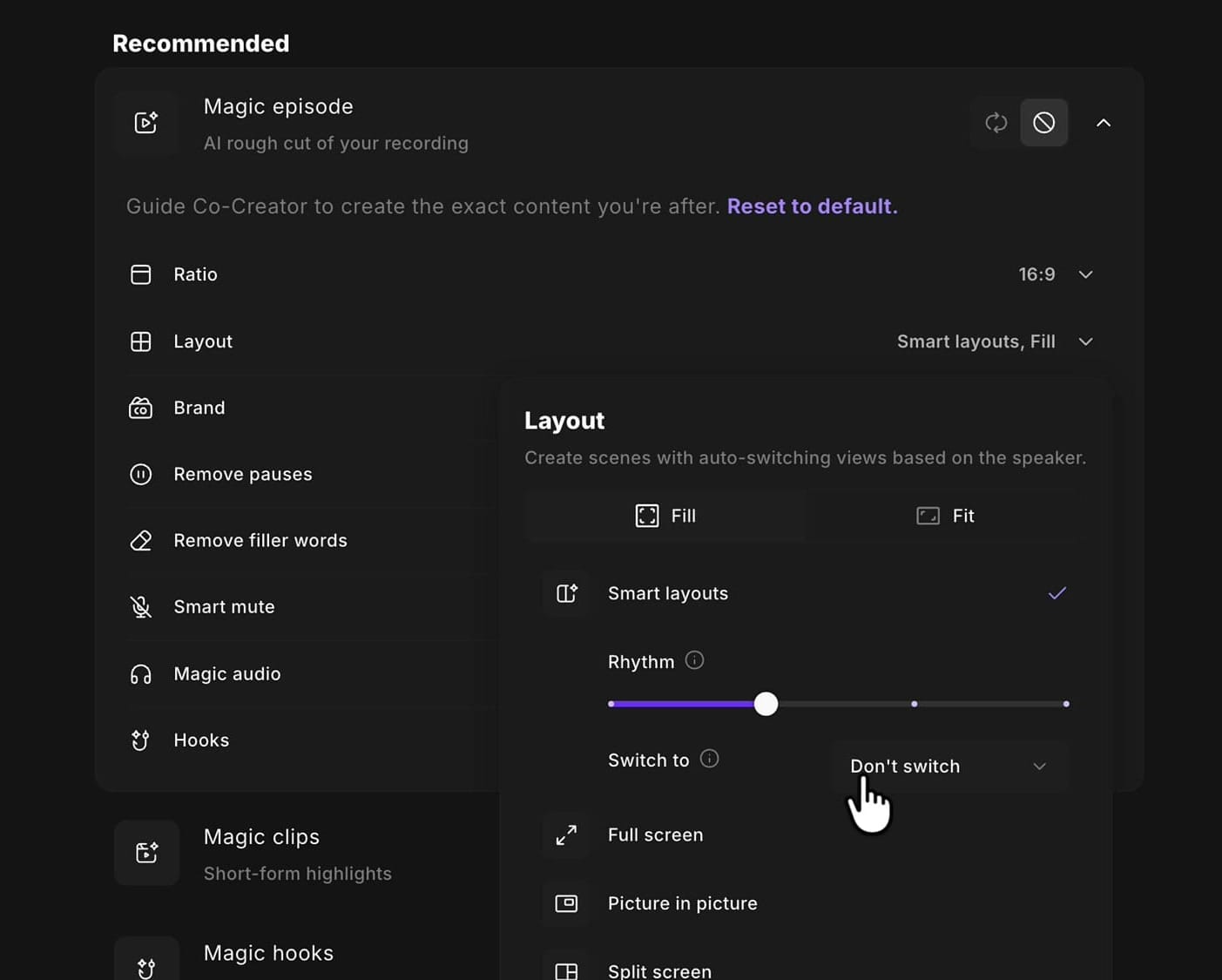
The Rhythm slider is the one worth playing with. Slide it one way and the camera changes more often, slide it the other way and it settles down. If you would rather do this by hand, turn Smart layouts off, set it to Grid, and save your own scene layouts instead.
Brand, Pauses, Filler Words and Audio
The remaining rows are straight toggles:
- Brand — applies your logo, colours and lower thirds automatically. Set this up once in the Brand Kit and every magic episode picks it up.
- Remove pauses — with a Balanced / more / less dropdown. If you prefer to handle gaps and pauses yourself, switch it off.
- Remove filler words — the same idea for the ums and ahs. Worth knowing you can also remove filler words manually after the fact.
- Smart mute and Magic audio — both let you target all participants or specific ones.
- Hooks — adds an attention-grabbing opener pulled from the strongest moment in the conversation.
Automation as a Head Start, Not a Replacement
Here is the way I think about it now. Go through your own editing routine and ask what you do to every single episode. If the answer is "tighten the gaps, strip the filler words, apply my brand, let the scenes switch on speaker" — that is four rounds of clicking you repeat every week, and Riverside can do all of it before you open the edits.
So configure those settings properly and leave Magic episode on. Turn off the workflows whose output you would rewrite anyway — the blog post, the social captions, the clips you want to pick yourself. You get a sensible rough cut waiting for you and nothing else cluttering the project.
None of it stops you editing. The magic episode is a starting point you open, adjust and finish like any other edit. It just means you start from something shaped like your show instead of a raw recording.
This is one of a run of improvements landing in the new editor I like — not another AI feature, just control over the ones that were already there.
Related guides
 Cristi Cotovan
 Cristi Cotovan
 Cristi Cotovan
 Cristi Cotovan
 Cristi Cotovan
If you're eager to learn more about Riverside and wish to have a one-on-one Riverside coaching session, feel free to book a call with me. I'm here to help you with any questions you have and to guide you through the best workflows, tips, workarounds, or just answer any questions you may have!