How to Remove and Restore Gaps or Pauses in Riverside

Long pauses and gaps can make podcast recordings feel slow and awkward. Riverside's Remove Pauses feature in the AI Producer panel lets you automatically cut gaps from your recording — and restore them if you remove too much.
This guide walks you through using the pause removal slider, understanding the different pace settings, and reverting changes when needed.
Where to Find Remove Pauses
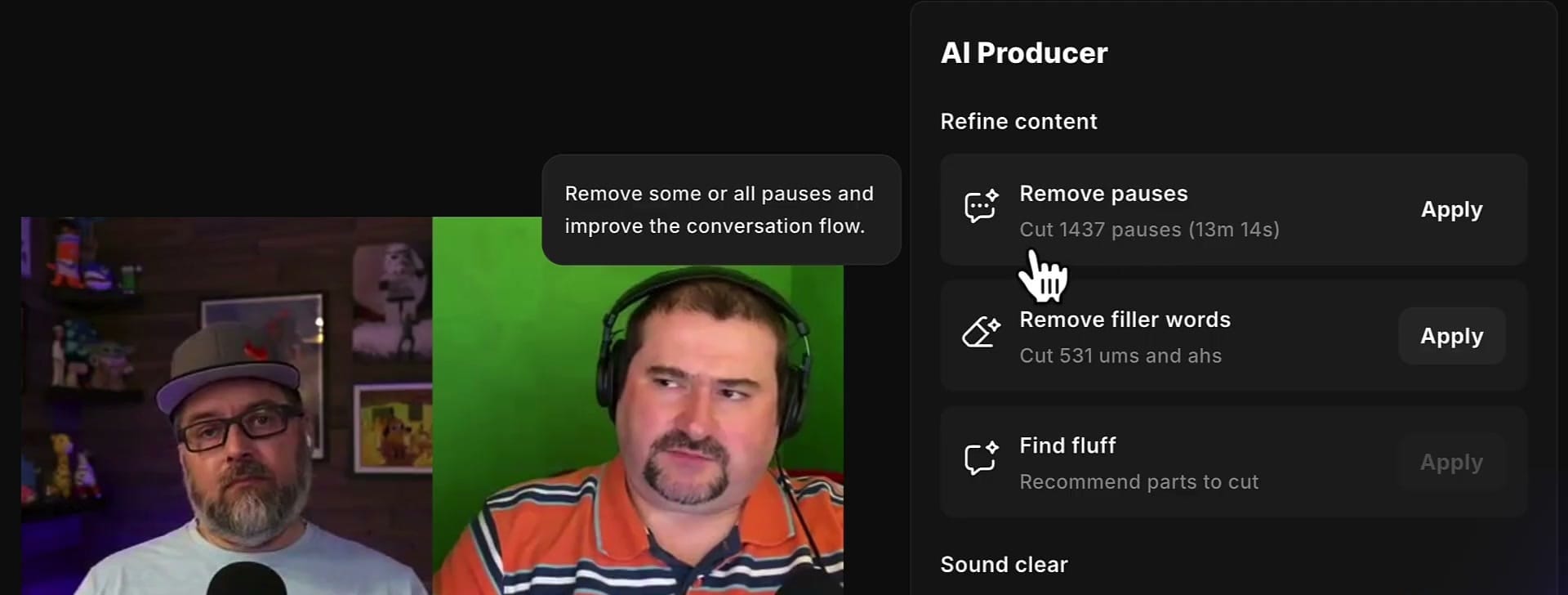
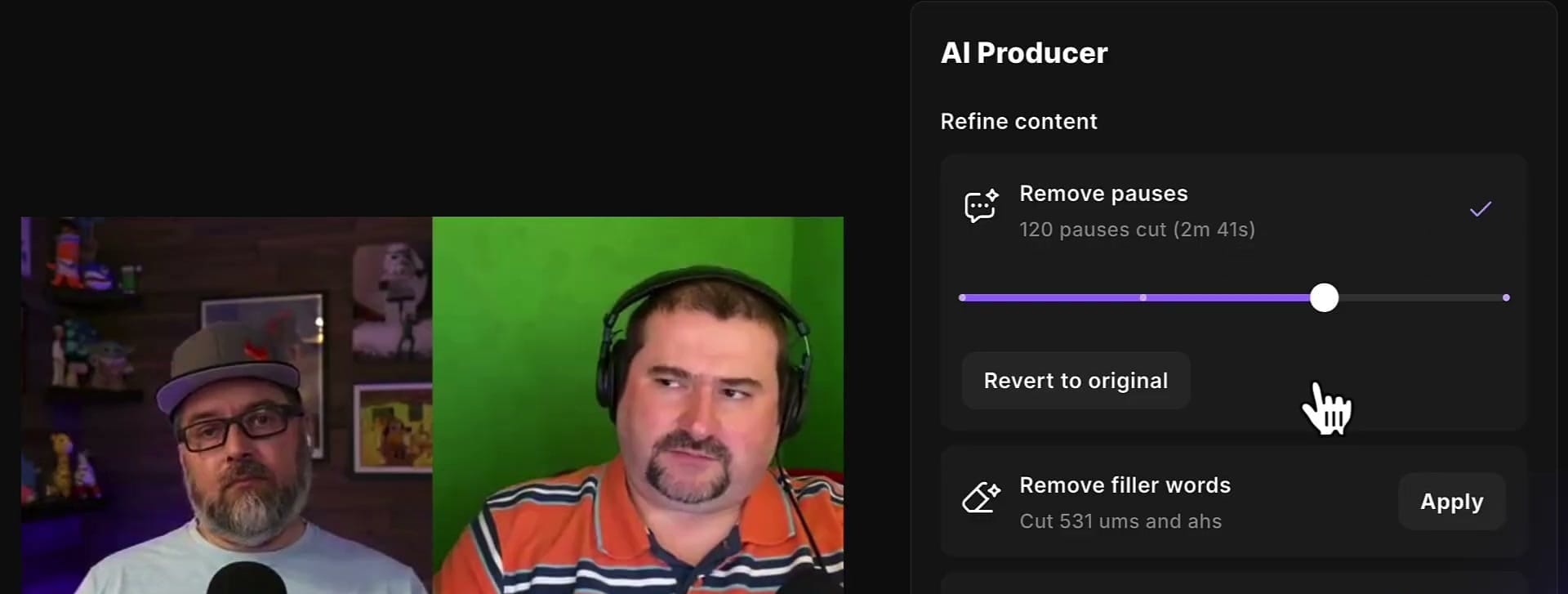
Open your project in the Riverside editor and click AI Producer in the right sidebar. Under Refine content, you'll see Remove pauses with a count of how many pauses were detected and the total time they represent.
Using the Pace Slider
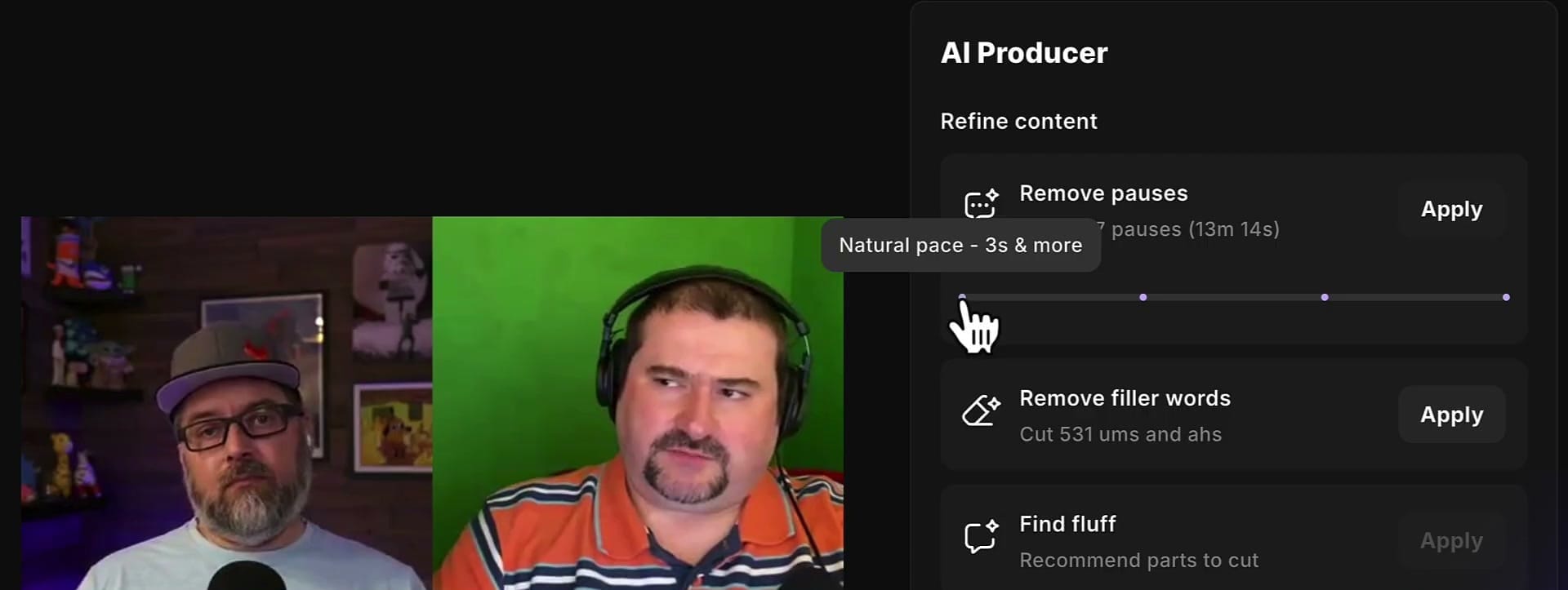
Click Apply next to Remove pauses. Riverside opens a slider that controls how aggressively pauses are removed. The slider ranges from Natural pace (gentle, only removes pauses 3 seconds or longer) to Super fast (removes pauses as short as 0.5 seconds).
Understanding the Slider Settings
As you drag the slider from left to right, Riverside removes progressively shorter pauses:
- Natural pace (3s+) — Gentle removal, keeps natural breathing room
- Balanced pace (1.5s+) — Middle ground, good for most podcasts
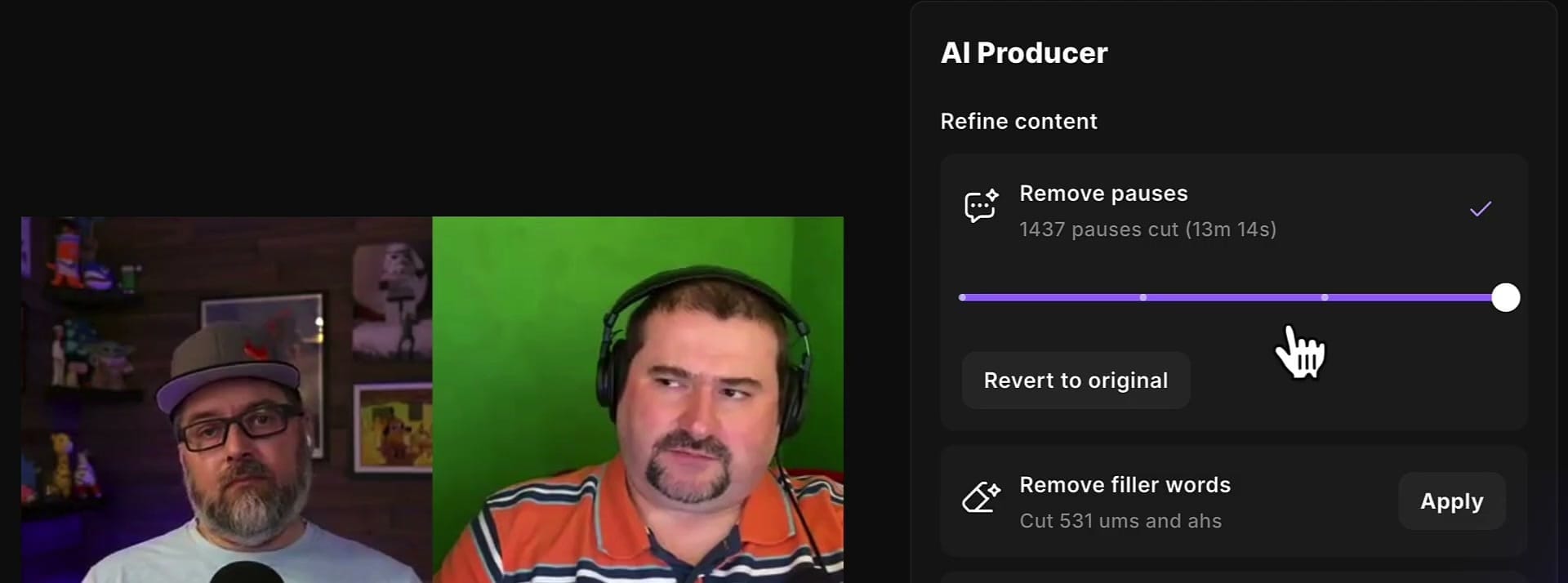
- Super fast (0.5s+) — Aggressive, removes nearly all gaps
Restoring Removed Pauses
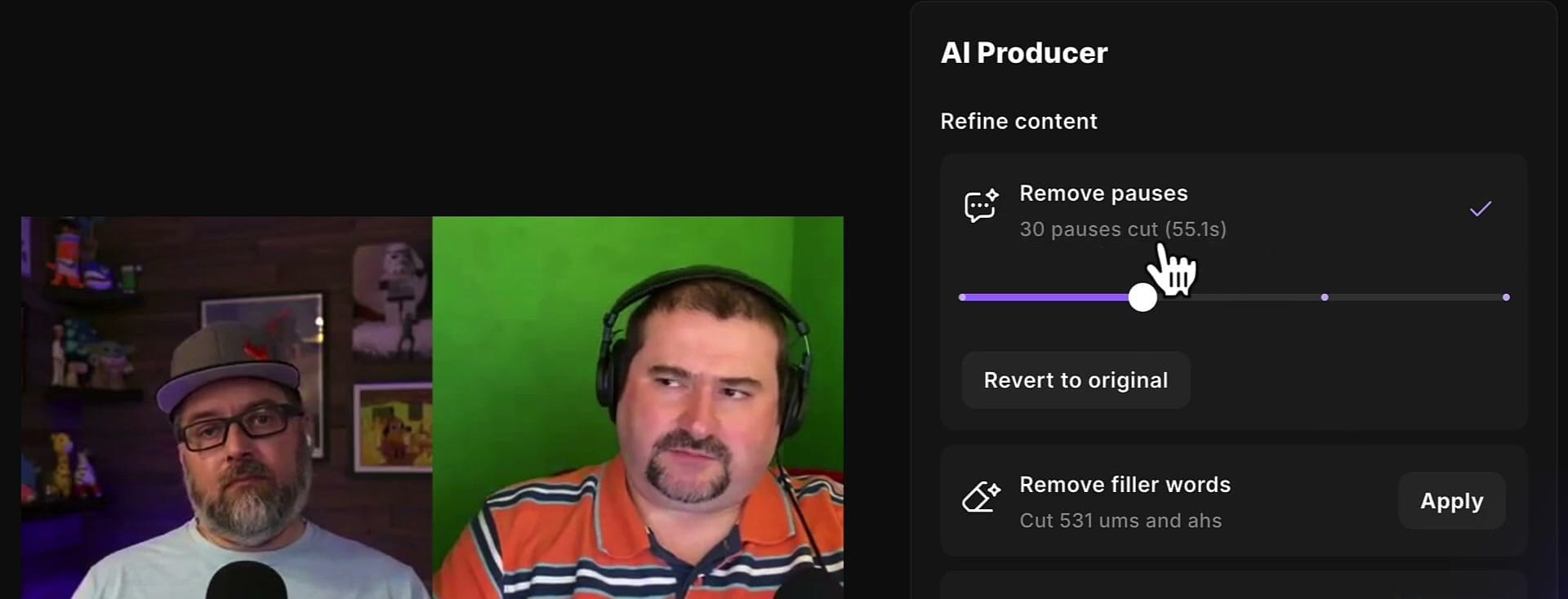
Made it too tight? Click Revert to original to undo all pause removal and start fresh. You can also readjust the slider to a different position — the changes update in real time.
Tips for Best Results
- Start with Balanced pace — it works well for most podcast conversations without making speech sound rushed
- Preview before exporting — play back sections to make sure the conversation still sounds natural
- Combine with other AI Producer tools — after removing pauses, use Remove filler words to cut "ums" and "ahs" for an even cleaner result
- You can always revert — pause removal is non-destructive, so experiment freely
Try Riverside
Ready to clean up your podcast recordings? Try Riverside free and use the AI Producer to remove pauses, filler words, and more — all without manual editing.
If you’re eager to learn more about Riverside and wish to have a one-on-one Riverside coaching session, feel free to book a call with me.
I’m here to help you with any questions you have and to guide you through the best workflows, tips, workarounds, or just answer any questions you may have!