How to Fix Crosstalk in Riverside: My Podcast Editing Workflow

When I edit my podcast in Riverside, crosstalk is one of the things I have to fix often. We talk over each other, we interrupt each other, and sometimes I simply can't help myself and jump in before my guest has finished his sentence.
The new Riverside editor lets you fix this much more elegantly than before, and if you need to, you can keep both speakers instead of sacrificing one of them. Here is the workflow I use.
Spot the Crosstalk in the Timeline
In this episode I'm talking with Bret Fisher, and at a few points I start talking before he is done. You can see it in the timeline because Riverside colors every speaker differently. Bret is green, I'm purple, and where the two colors sit on top of each other, our speech is overlapping.
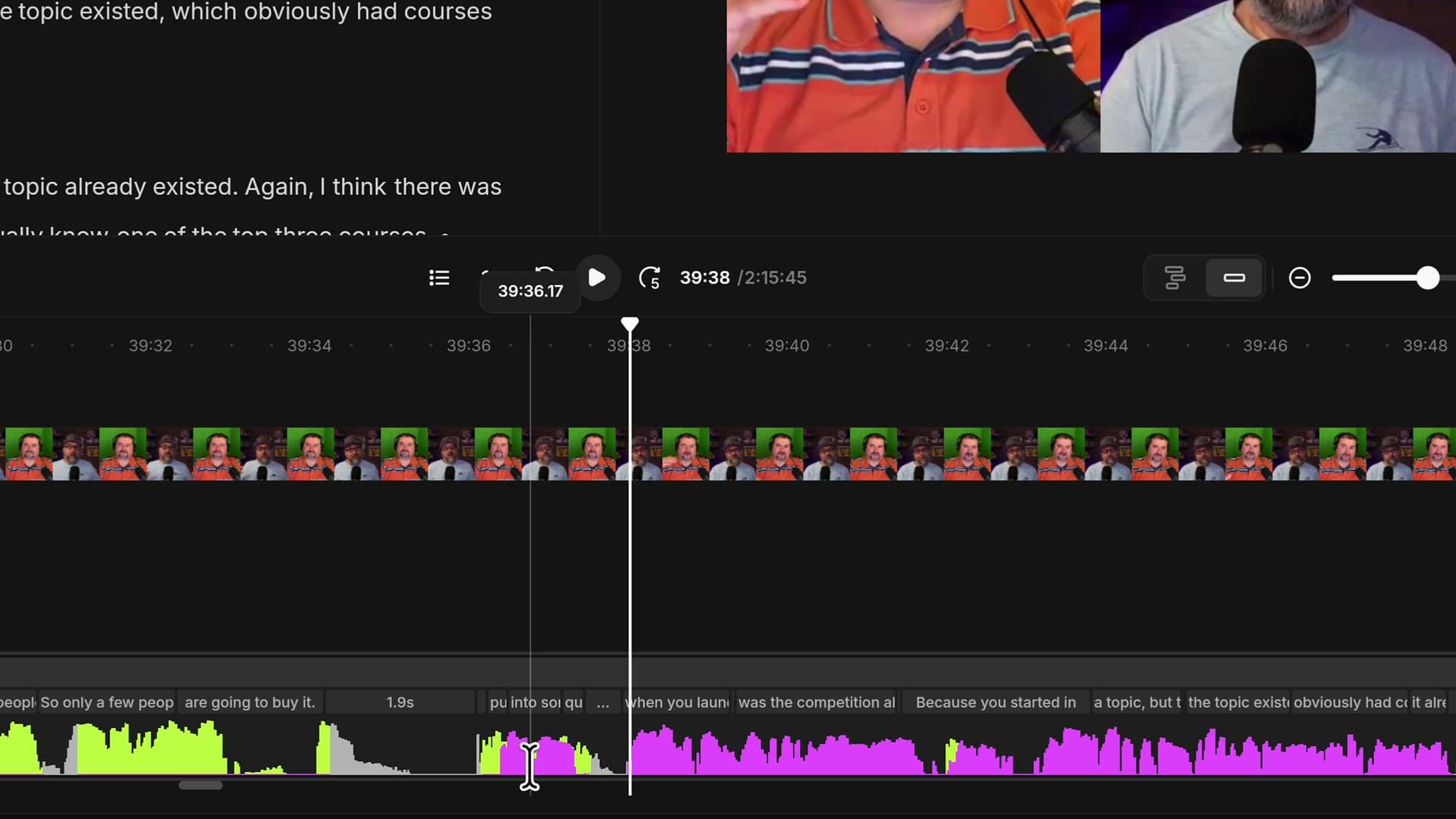
There are two ways to fix this. The first is to mute the person who is interrupting. The second, which the new editor makes possible, is to keep both speeches and move them apart so they play one after the other.
Option 1: Expand the Tracks and Mute the Interruption
At the bottom of the editor the speaker tracks are merged by default. To see each person on their own lane, click the Separate tracks button above the timeline (or press Shift+E). Now everyone's speech is very clear, and you can decide who to mute.
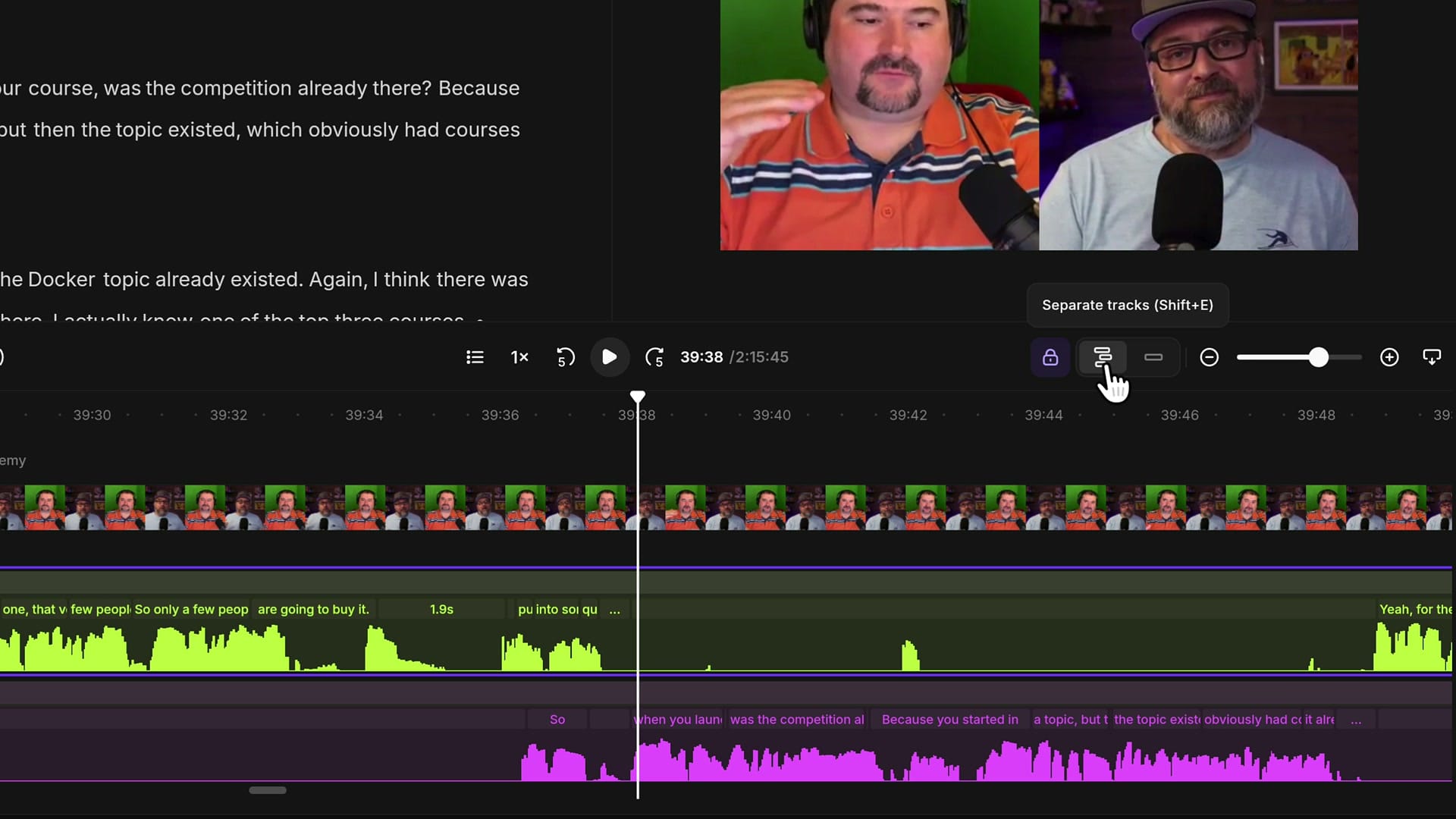
Play the overlap and listen. In my case Bret had one more thing to say, and I jumped in with "So the..." That part of mine adds nothing, so it can go. Drag a selection on just your own track over the words you want to remove, then click the mute button in the toolbar or press M.
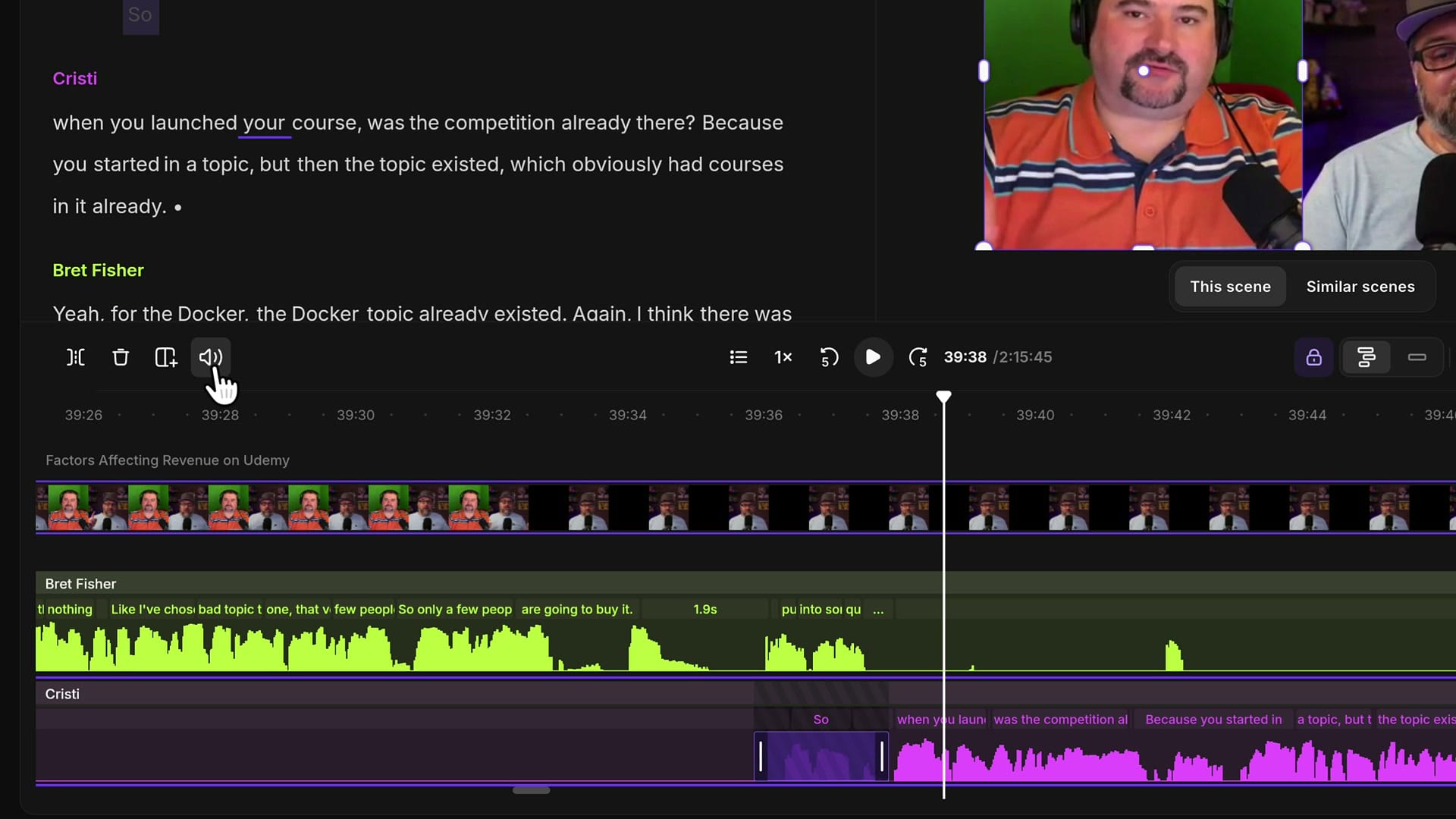
That solves the audio problem. The only thing left is that you can still see me moving my mouth on screen. Most viewers won't notice it, but if it bothers you, I'll show you how to cover it with scenes further down. If you just need to silence a few words, I go into more detail in how to mute a speaker and bleep words in Riverside.
Option 2: Keep Both Speakers by Moving One Segment
Muting works when the interruption is filler. But what if both people said something worth keeping? Then I want to move my track forward, let Bret finish, and play my part after him. This is the thing the Riverside editor couldn't do before: change the offset between the speaker tracks.
Unlock the Tracks
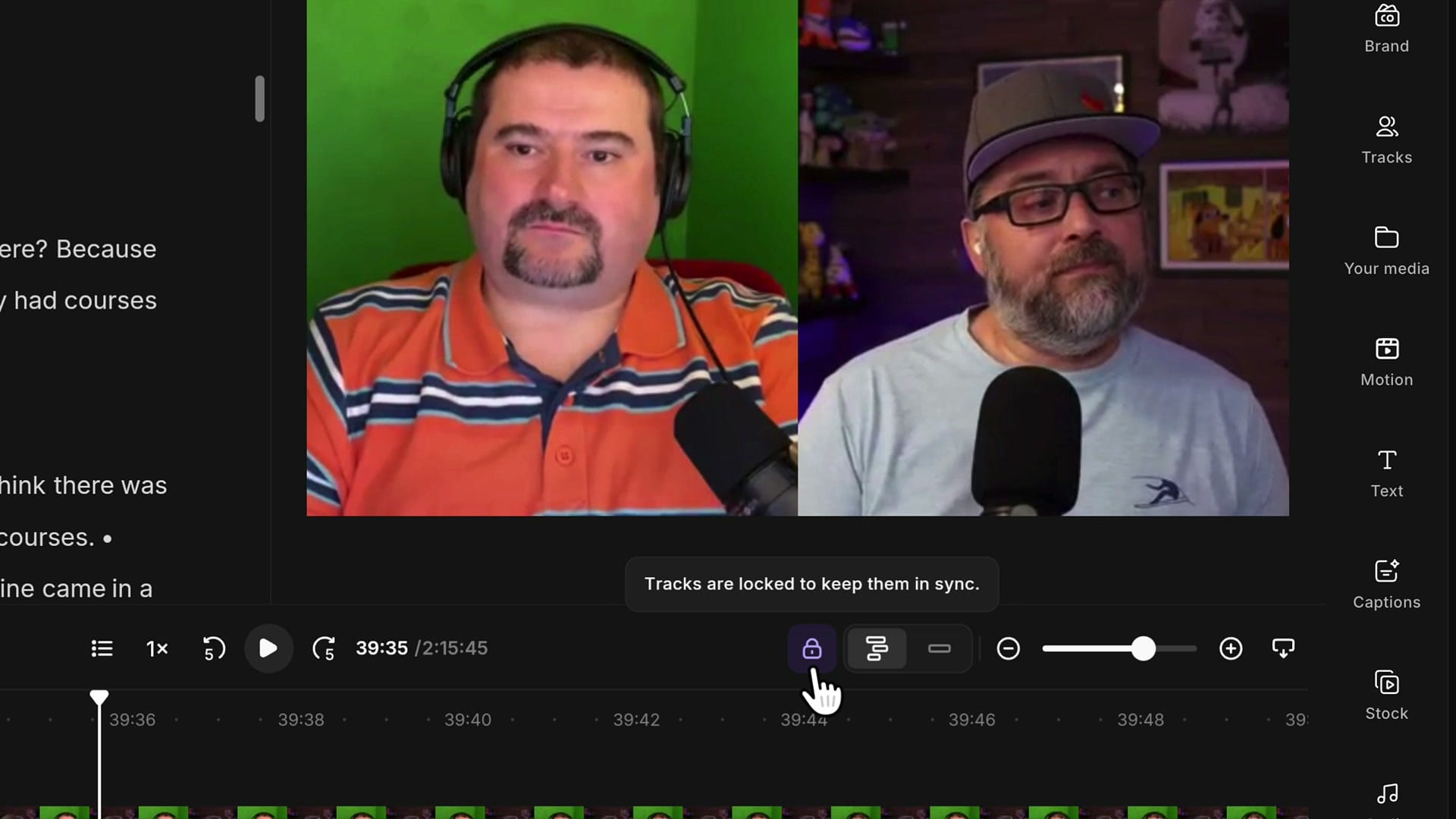
Don't move a whole track. That would push everything after it out of sync. Instead, you isolate a small segment and move only that. As a protection, Riverside locks the tracks together. Look for the lock icon in the timeline toolbar. The tooltip says "Tracks are locked to keep them in sync." Only turn it off when you really want to move a piece of a track.
Split Out the Segment You Want to Move
The segment I want to move is my speech, from where I start talking over Bret to where I finish, so that I can push it forward and make room for him.
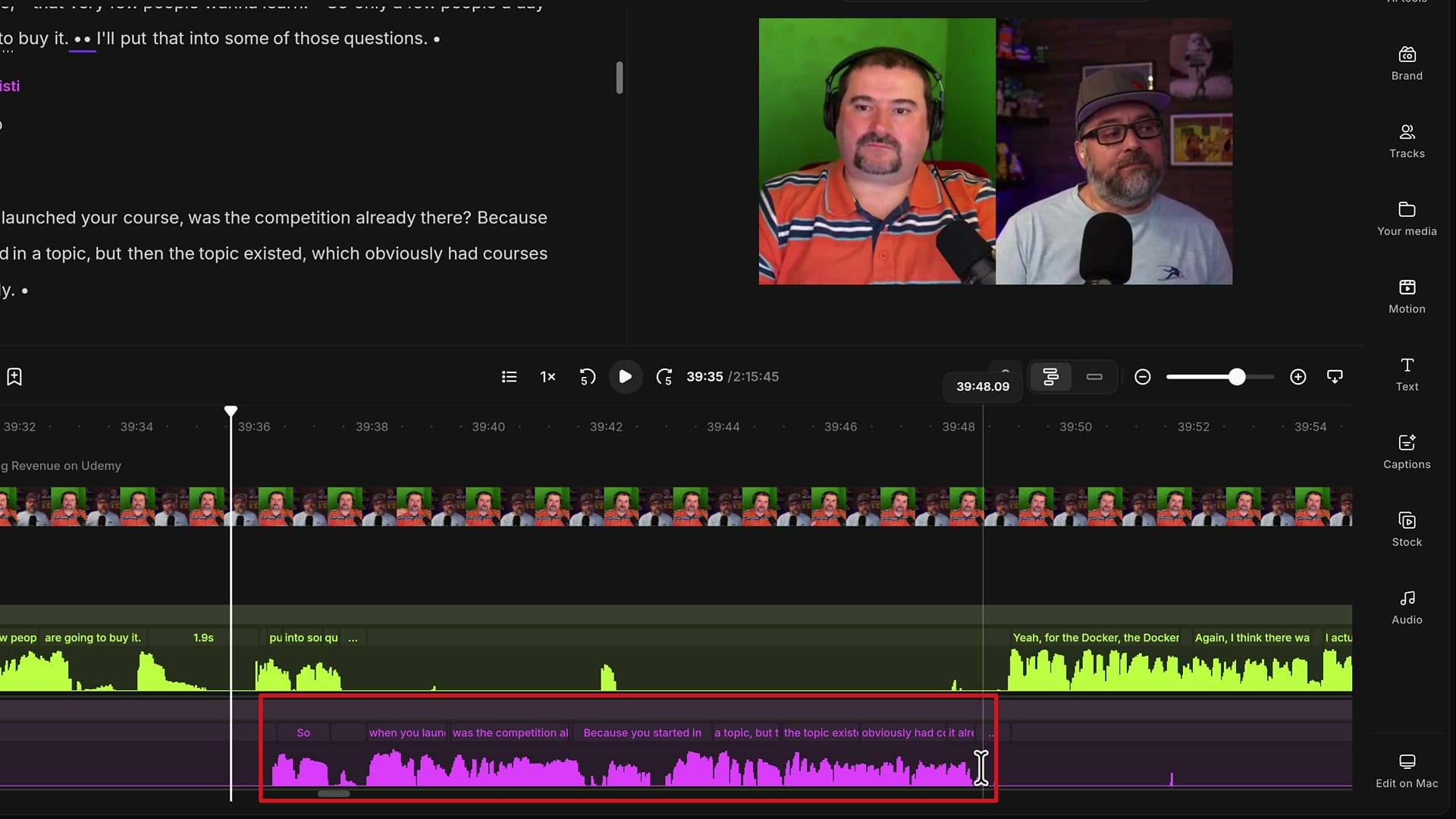
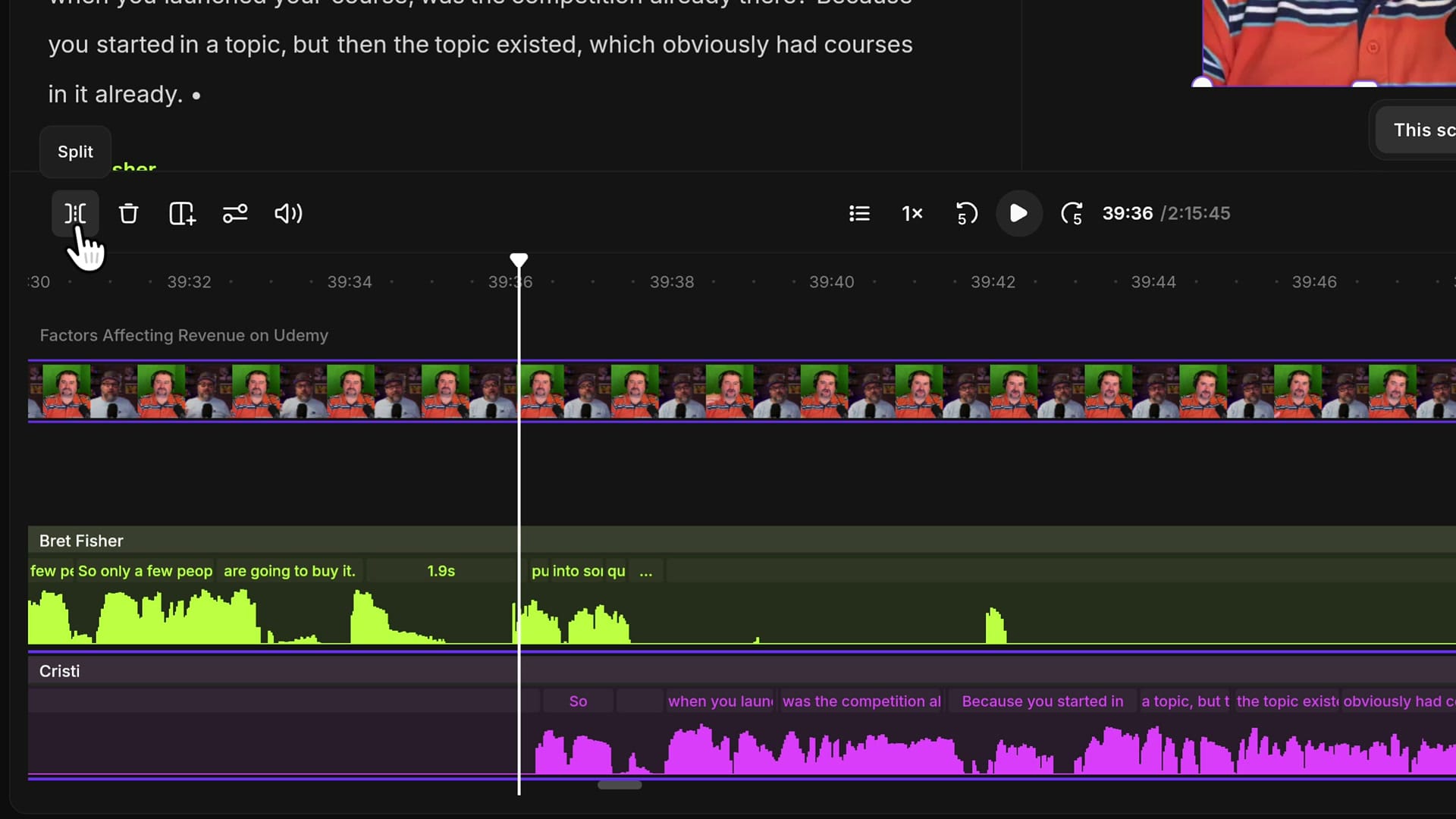
Click on your own track just before you start talking. You're not making a selection here; clicking the track simply tells Riverside which clip to cut. Then press S, or click the Split button at the left of the timeline toolbar. Because my track was selected, only my track was split. Do the same at the end of the segment: click your track and press S again.
Slide It Forward
Now grab the piece you isolated and slide it forward until it starts after the other speaker finishes. Play it back, and the two speeches no longer overlap.
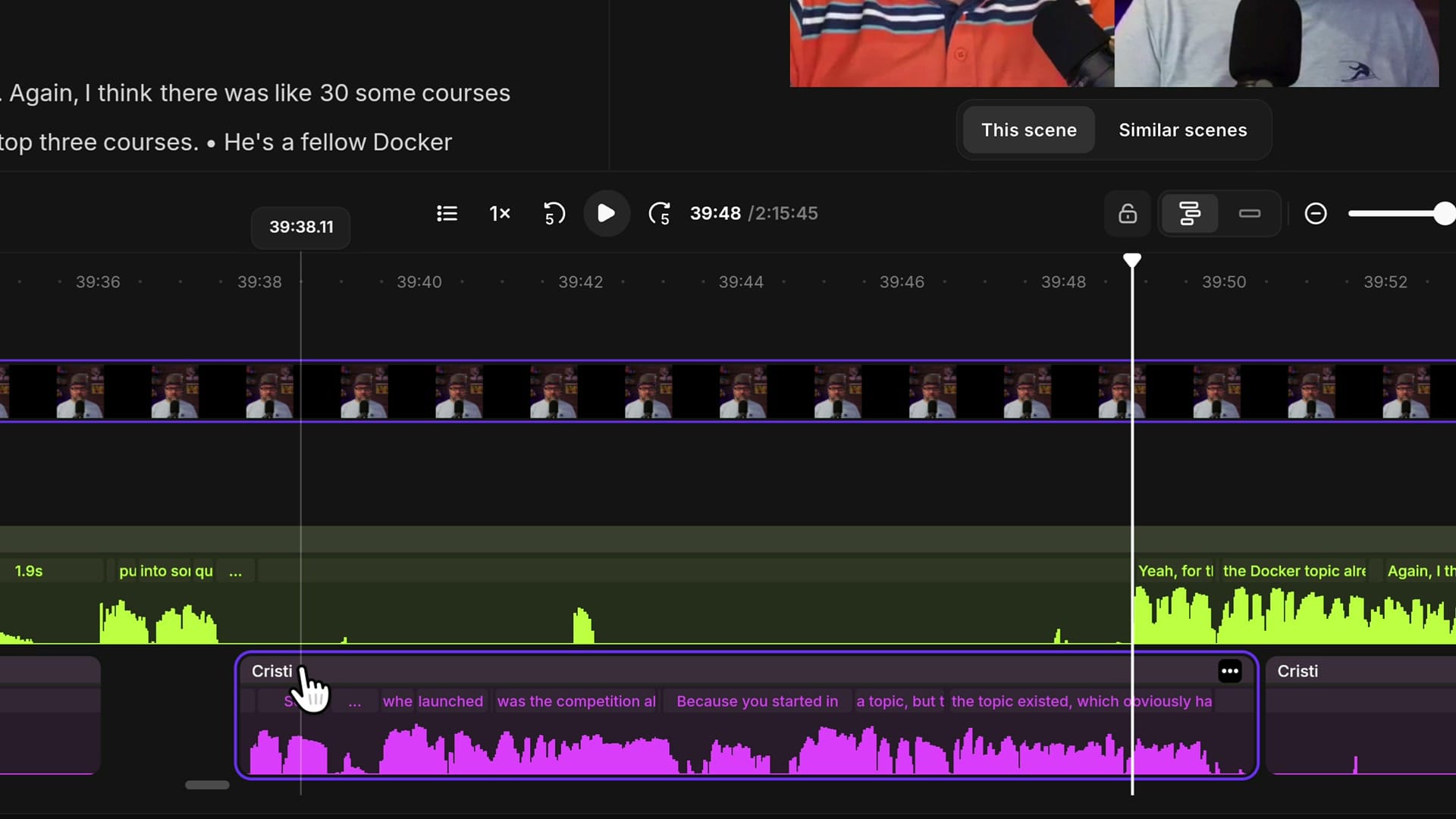
Fill the Video Gap and Mute the Restored Audio
Moving the segment has a downside. It leaves a gap on my track, and a gap on the video track means black video. In the preview, my side of the screen goes black.
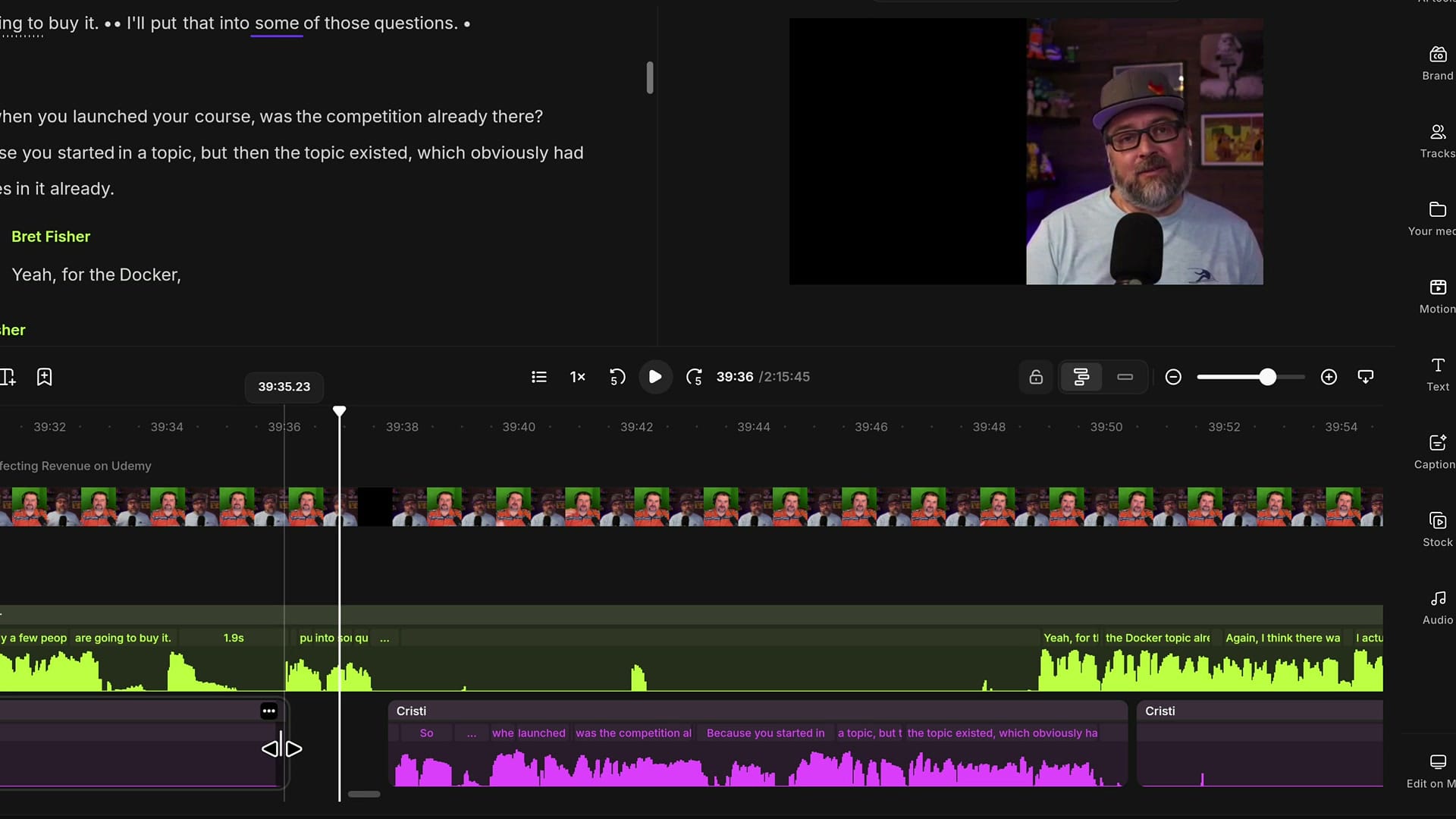
To fix it, take the clip before the gap and drag its edge to expand it back into the empty space. Because editing in Riverside is non-destructive, this also brings back the audio you originally cut, the same way you can restore removed gaps. In my case that's my "So the..." again. Select that restored piece and mute it.
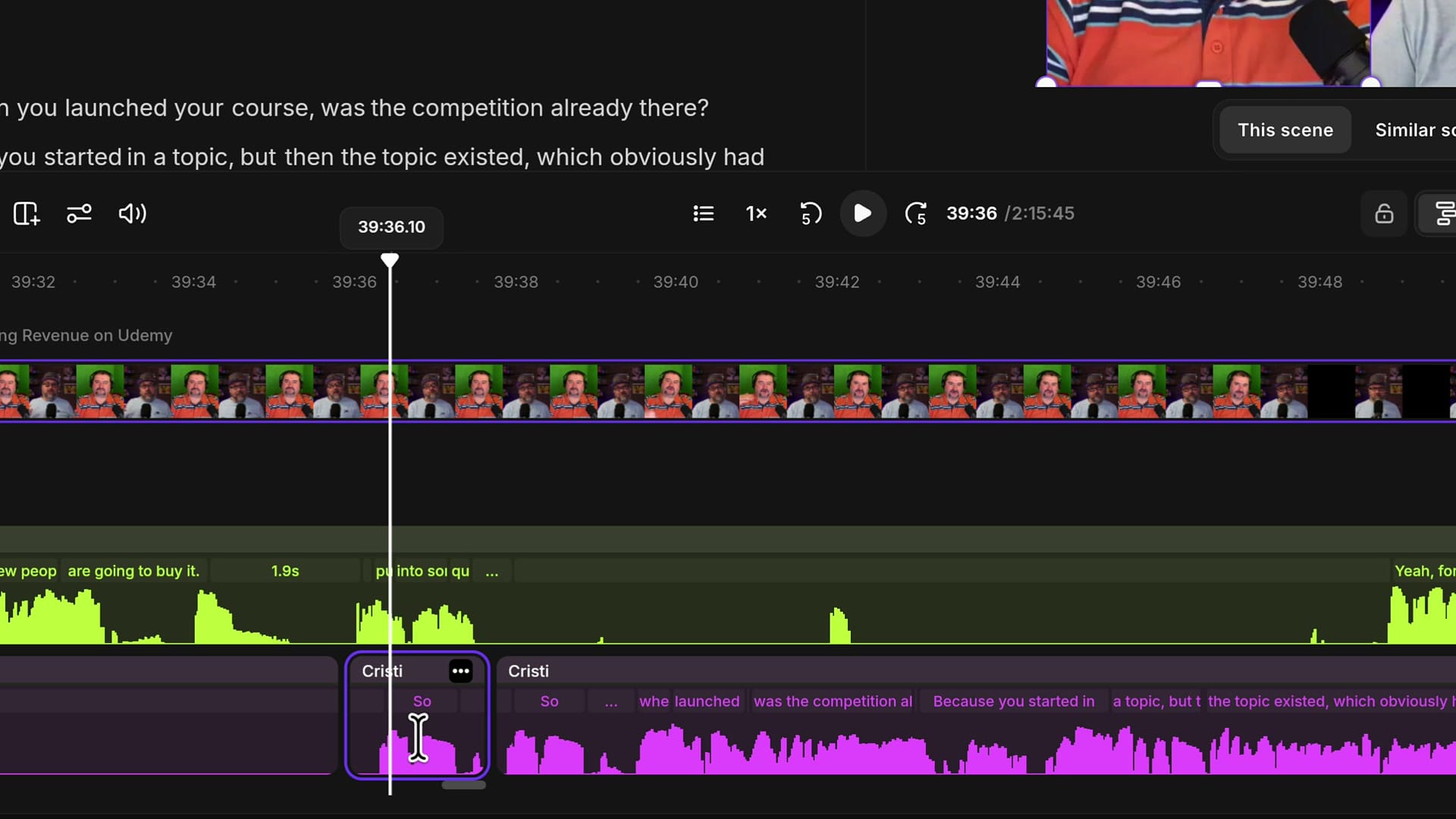
Now the crosstalk is repaired. Bret finishes his sentence, and my question comes right after it.
Use Solo Speaker Scenes to Cover the Edit
One thing may still look odd: while Bret is finishing, you can see me talking with no sound coming out. If that bothers you, keep the previous speaker full screen until they are done, then switch back to the person who talks next.
Bring your playhead to the point right after Bret finishes and insert a scene. Click the New scene button above the timeline, or press / (forward slash). Then move the playhead back to where we were both on screen before the edit and press / again. You now have a short scene that starts and ends around the problem area. If you need to fine-tune where it starts, see how to adjust a scene break location.
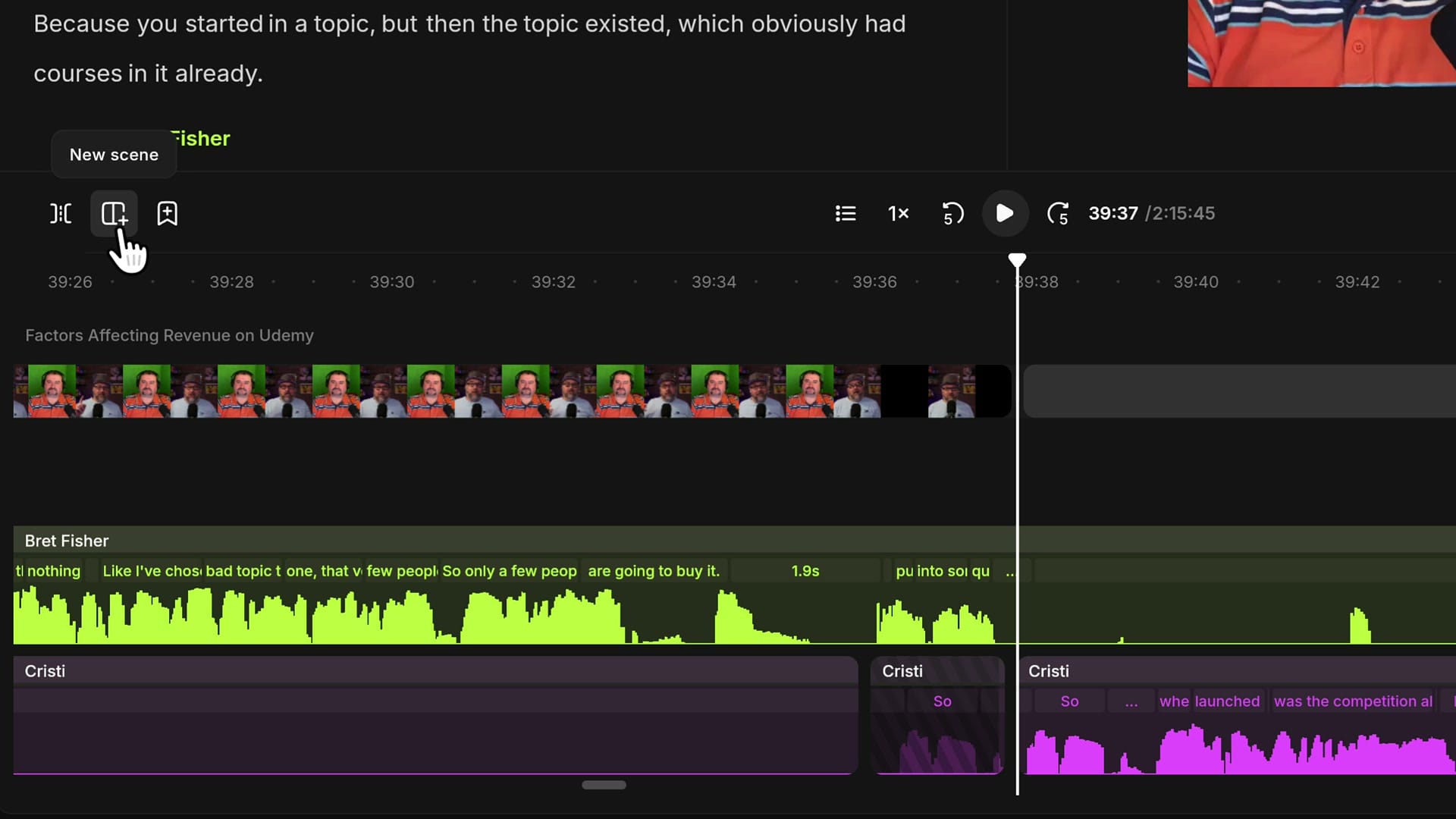
With that scene selected, open Layout and pick a Solo speaker layout.
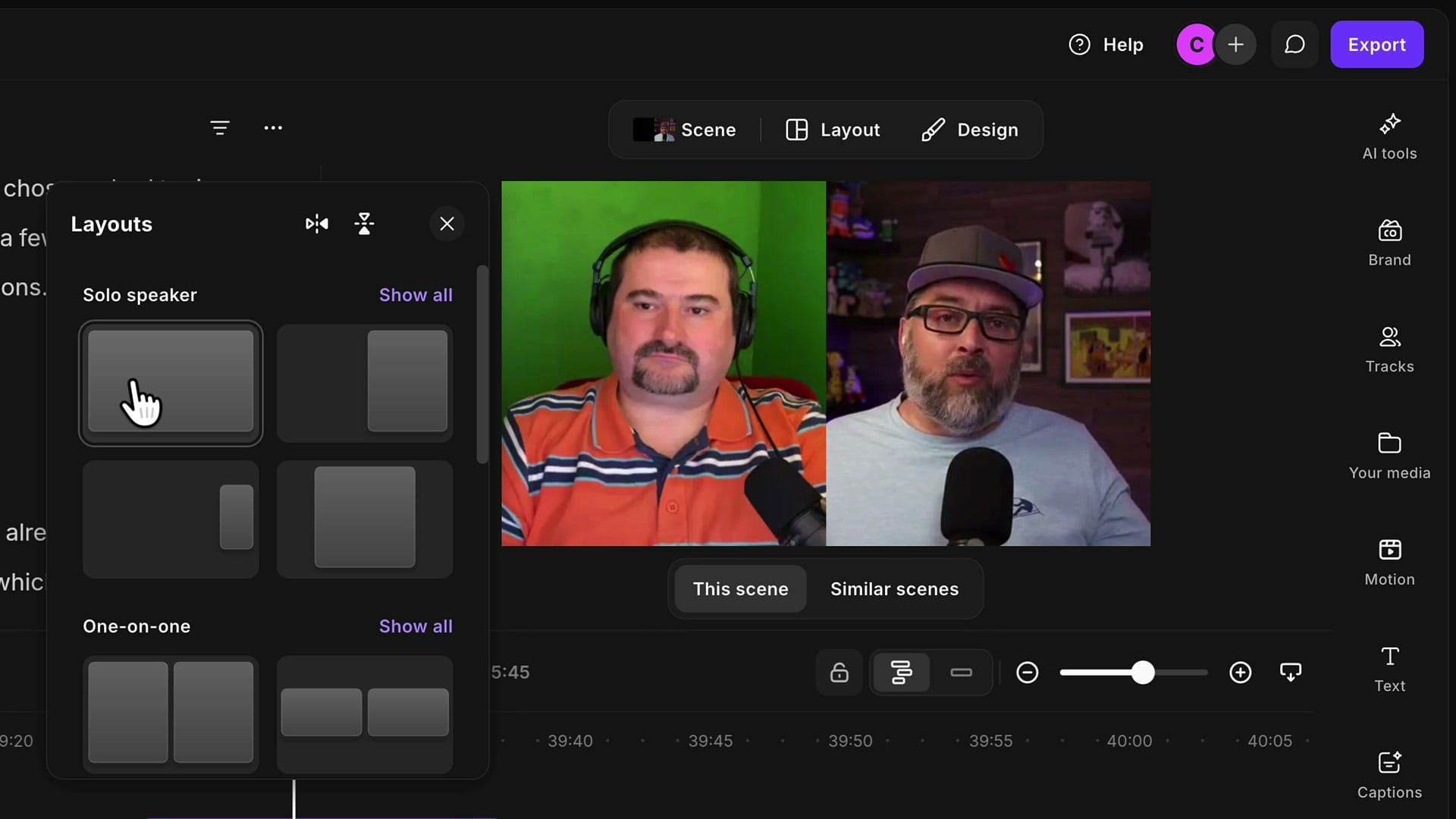
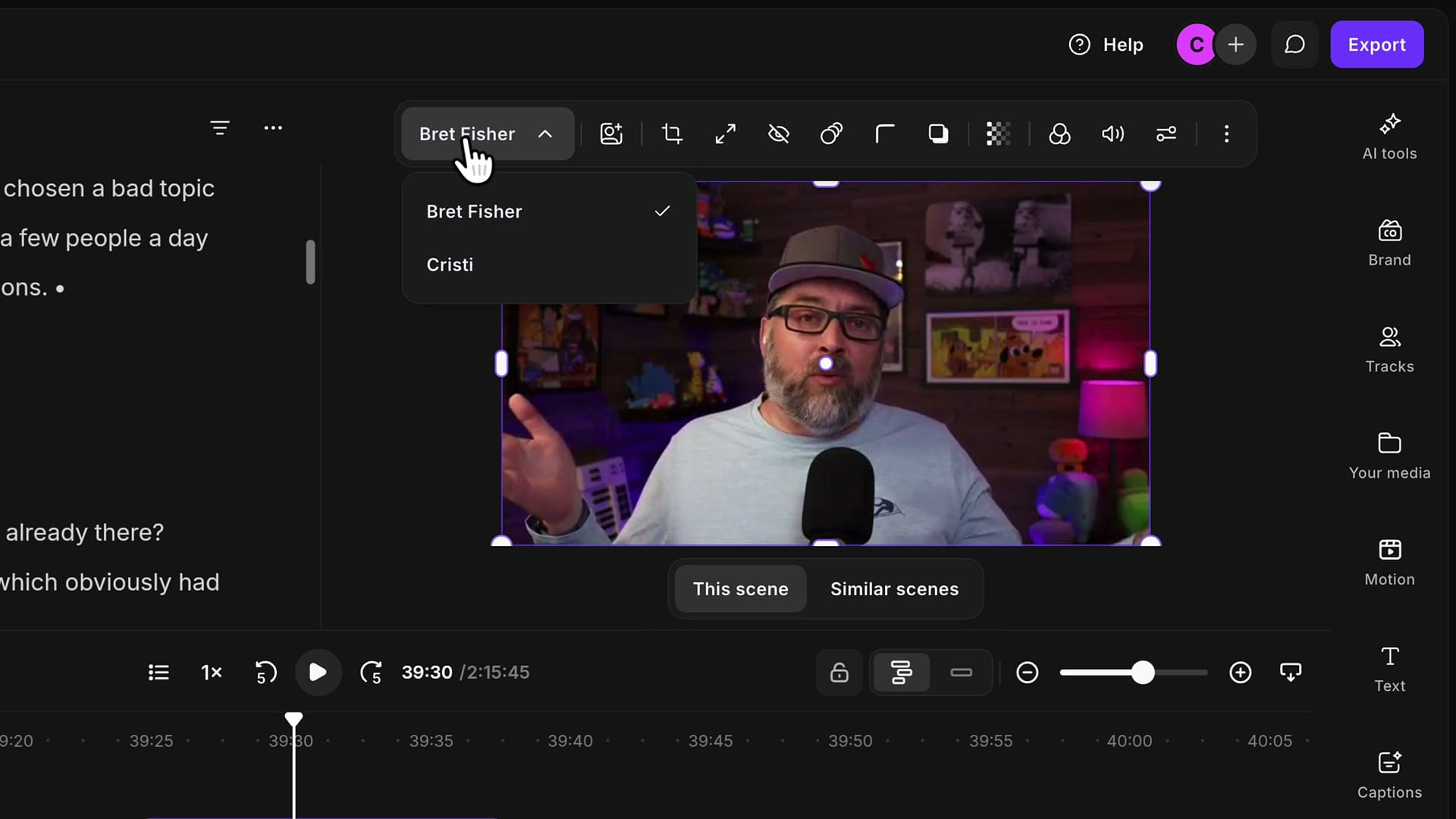
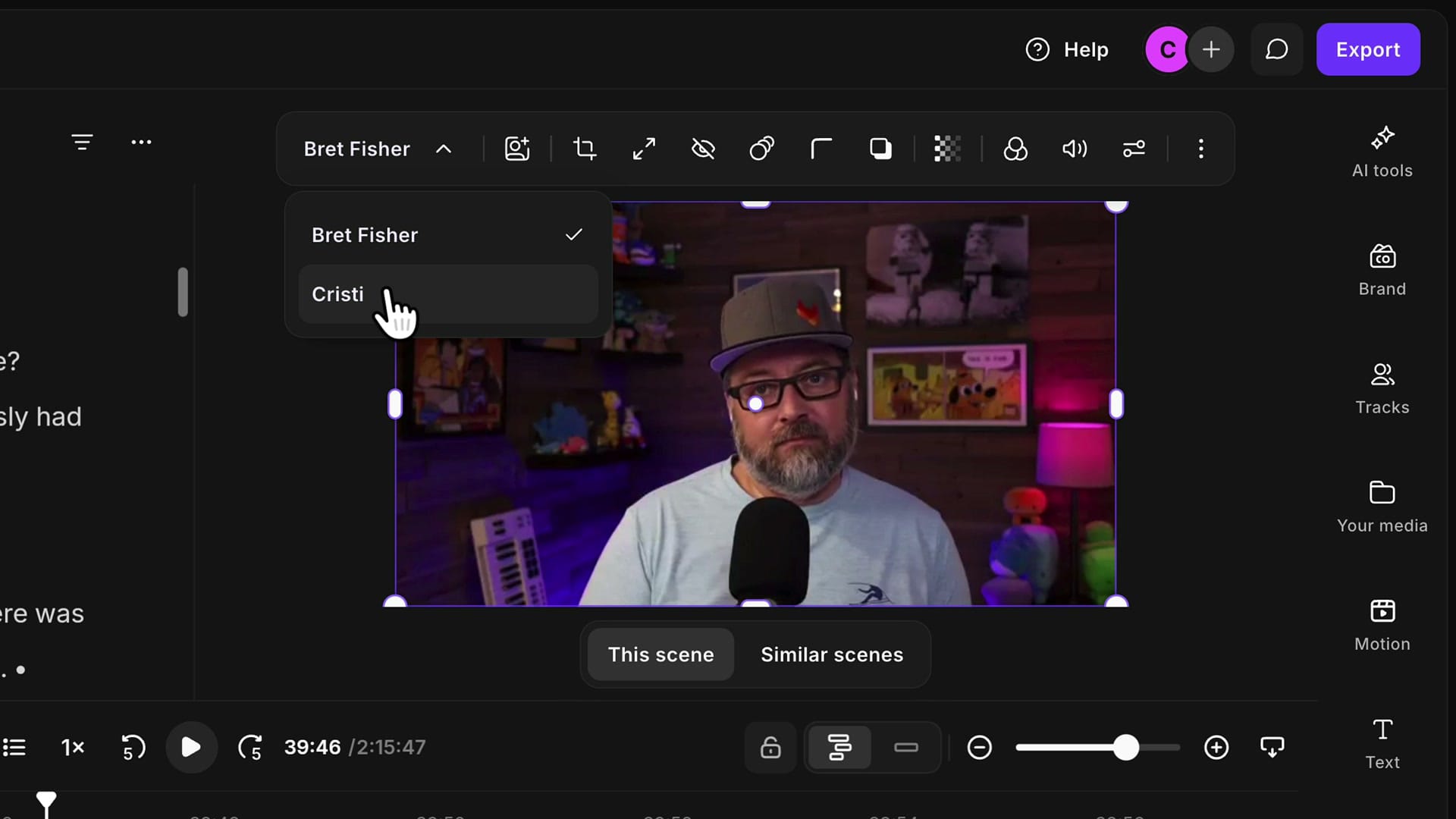
If the wrong person shows up, select the video in the preview and use the speaker dropdown in the toolbar to choose who appears in that solo scene. For this one I want Bret full screen while he finishes his thought. Play it back: he finishes, and the picture moves to me as I start talking.
Fix the Next Overlap on the Other Track
Moving my segment forward created a new problem. My speech now runs into Bret's when he starts talking again. The fix is the same, just on his track this time. Click Bret's track where he starts talking, press S to split, and slide his segment forward until he waits for me to finish.
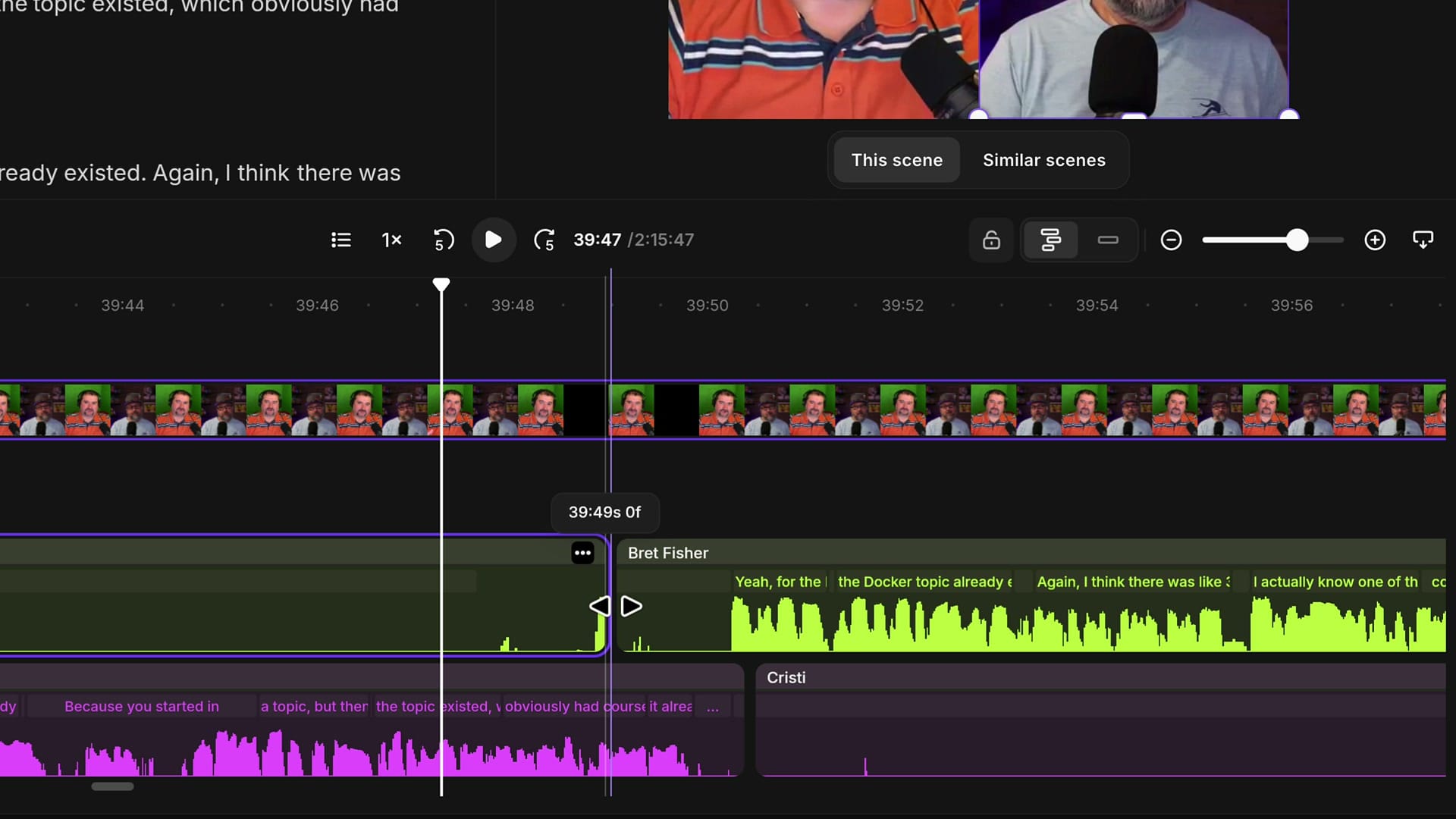
Then expand the piece of Bret's track before it to fill the gap. If a little sound comes back with it, select the whole expanded piece and mute it.
Adjust the Scenes for the Second Speaker
Expanding Bret's clip repeats a bit of his video, so while I'm talking it can look like his mouth is moving again. Cover it the same way: insert a scene just before he starts talking, and another one around the part where I'm talking. Inserting scenes only isolates that segment so you can treat it differently visually. It doesn't affect the audio.
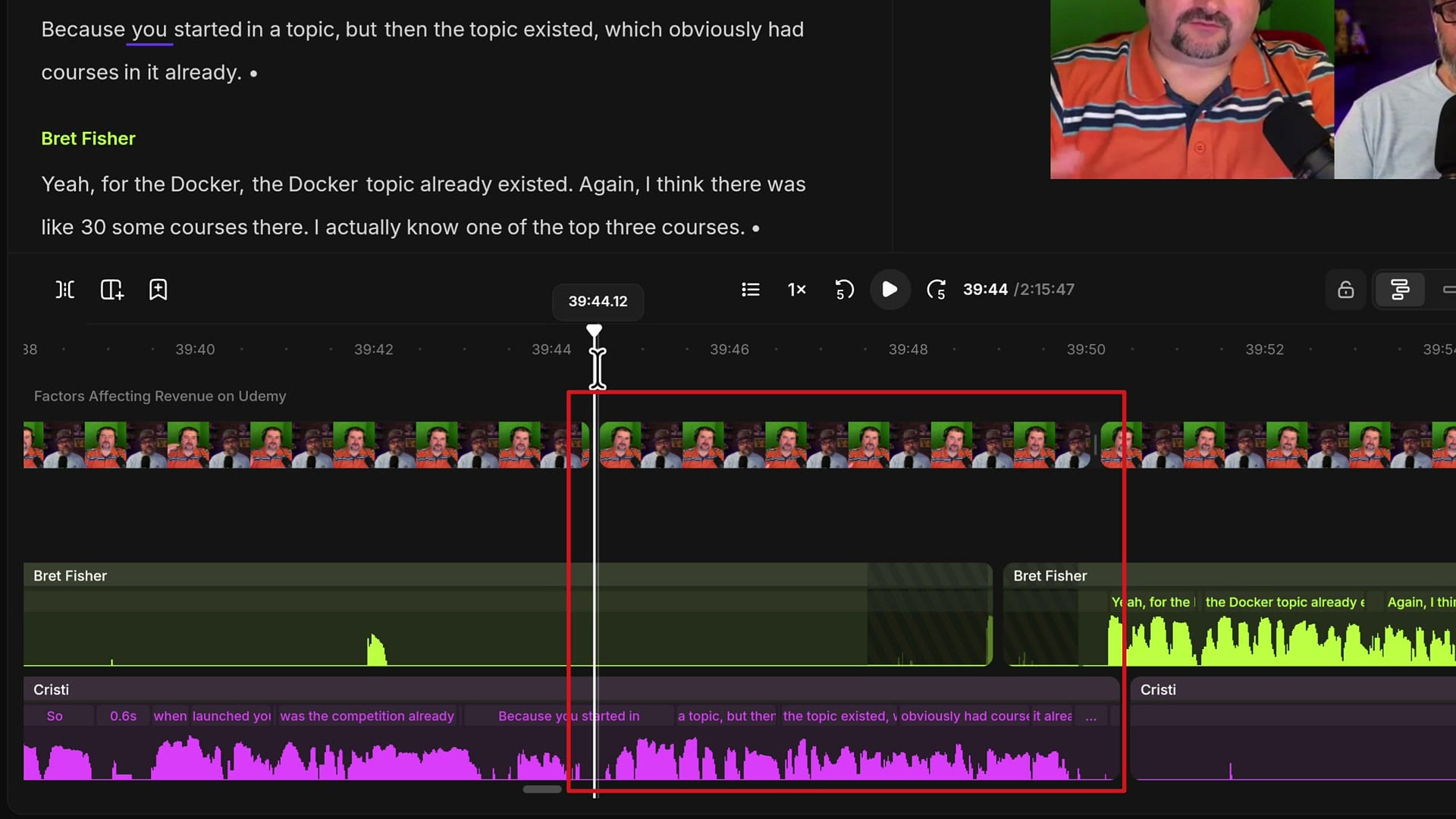
In that short scene, go to Layout, choose Solo speaker, and this time switch the dropdown to yourself. When the scene ends, the edit goes back to both speakers side by side.
Why I Use This Workflow
It takes a little bit of acrobatics with the tracks, but I really appreciate this flexibility. I no longer have to mute somebody and sacrifice one track or the other in a crosstalk section. Here is the whole workflow in short:
- Expand the tracks (Shift+E) so each speaker has their own lane.
- Filler interruption? Select it on one track and mute it with M.
- Worth keeping both? Unlock the tracks, split the segment with S on both ends, and slide it forward.
- Fill the gap by expanding the previous clip, then mute the audio that comes back.
- Cover the picture with short scenes (/) and a Solo speaker layout on whoever is talking.
If you are new to working with separate speaker tracks, my guide to multi-track editing in Riverside is a good place to start, and how I break scenes and change camera angles covers the rest of the scene work I do on an interview episode.
Related guides
 Cristi Cotovan
 Cristi Cotovan
 Cristi Cotovan
 Cristi Cotovan
 Cristi Cotovan
If you're eager to learn more about Riverside and wish to have a one-on-one Riverside coaching session, feel free to book a call with me. I'm here to help you with any questions you have and to guide you through the best workflows, tips, workarounds, or just answer any questions you may have!