How to Remove Filler Words in Riverside (AI + Manual)

Removing filler words — the ums, uhs, and occasional "likes" — is one of the simplest ways to clean up a recording. Riverside does most of it automatically with AI, but there are some nuances worth knowing: which removal method to choose, how to adjust sensitivity, how to remove words that Riverside does not detect, and how to restore anything the AI cuts by mistake. Here is the full workflow.
Find the Filler Words Tool
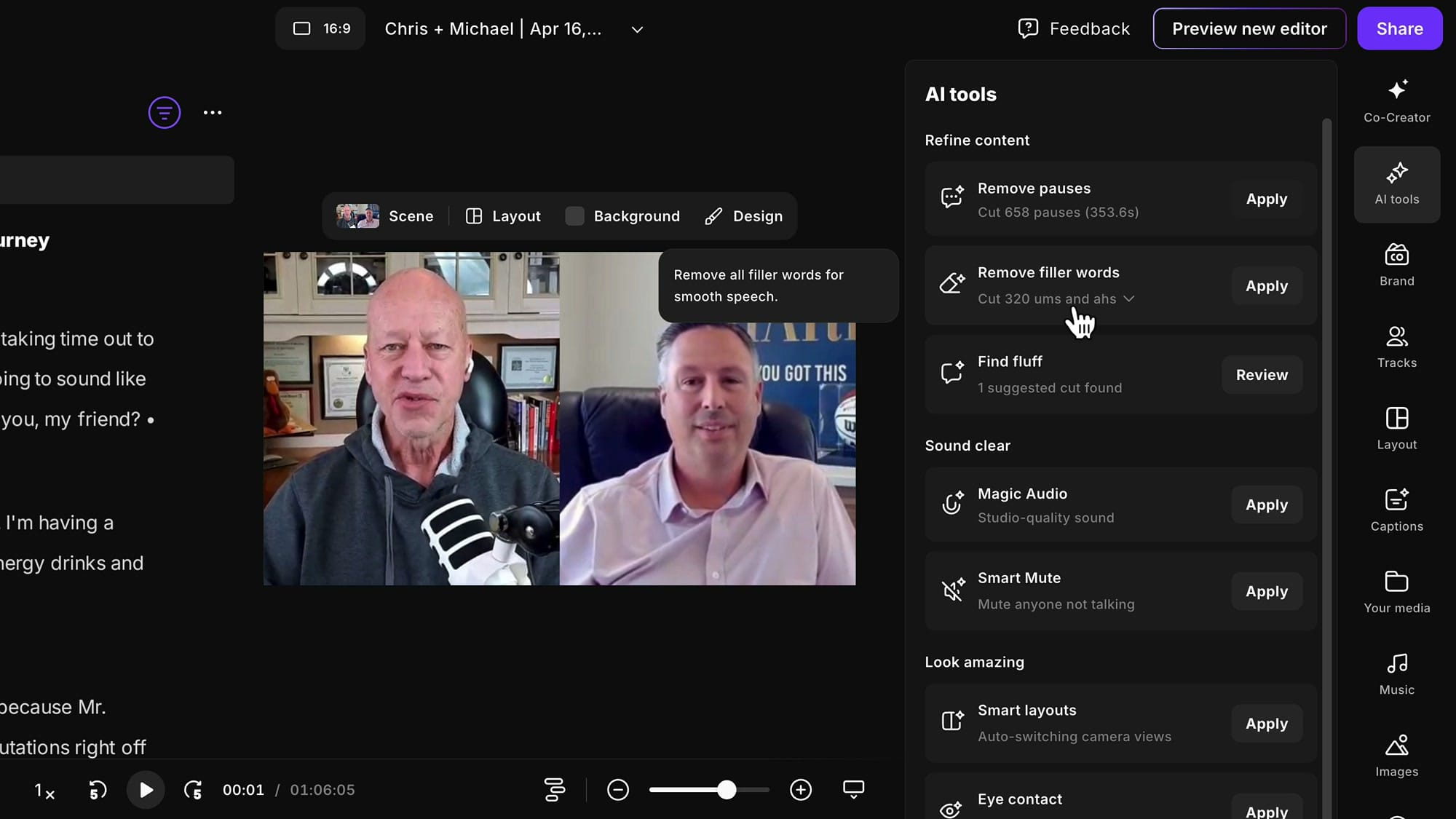
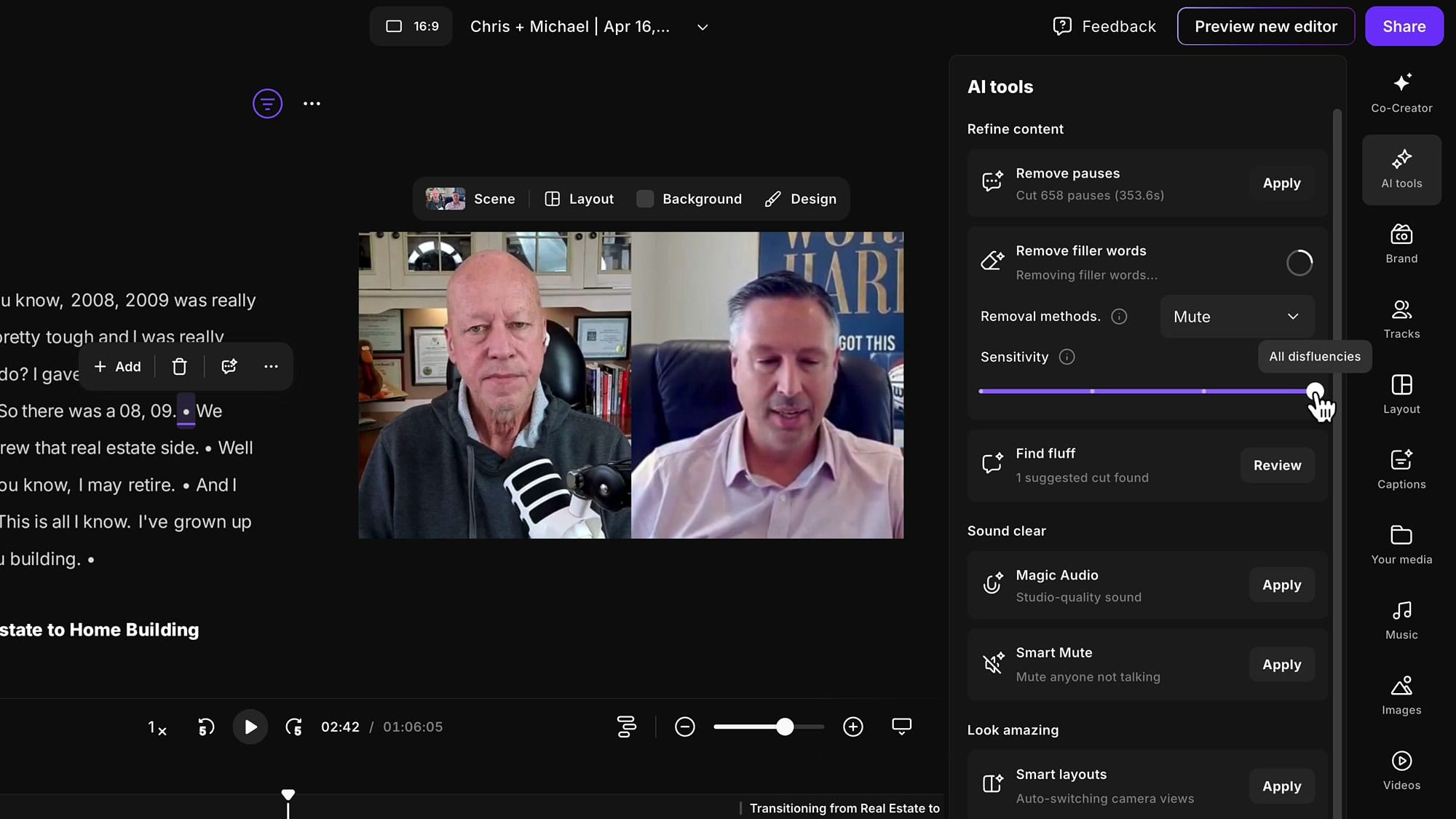
Open your edit and go to the AI Tools panel on the right. Under Refine content, you will see Remove filler words with a count of detected ums and uhs — in this example, 320 of them. Clicking Apply runs a smart, balanced removal: some words are cut, others are muted.
Choose Your Removal Method
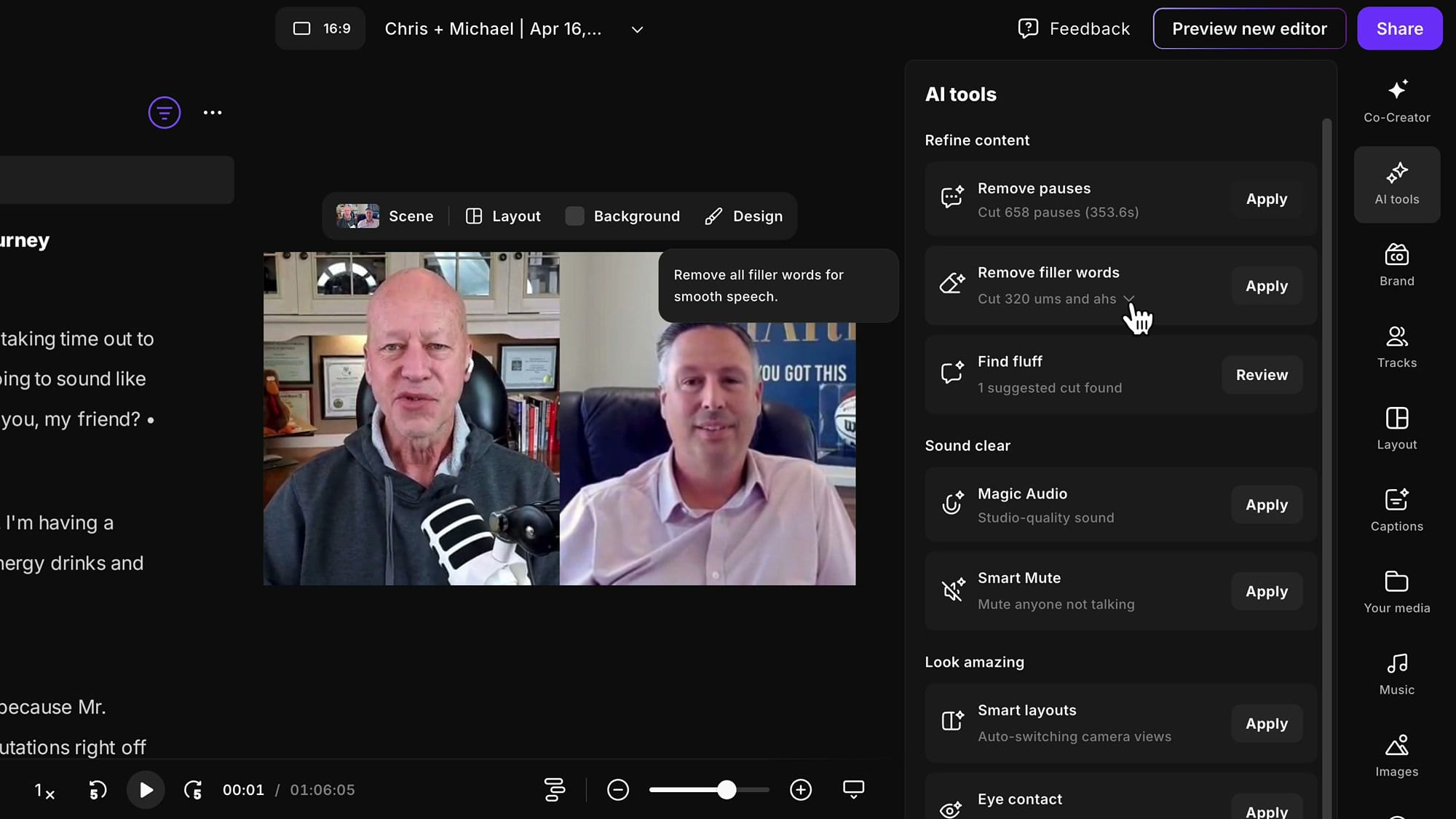
Before clicking Apply, open the dropdown arrow next to Remove filler words to see the three removal options:
- Smart — a balanced mix of cuts and mutes to preserve natural flow. Probably the safest default.
- Cut — removes filler words from the timeline entirely, including the video. Faster-paced results, but can introduce jumpy cuts if the speaker moves during the filler word.
- Mute — silences the audio but leaves the video unchanged. The speaker looks like they briefly close their mouth, but nobody really notices.
For long-form podcast episodes, I usually prefer Mute. Jumpy cuts are more noticeable than a fraction of a second of silence, and the video stays intact. For short-form social media clips where pacing matters more, Cut can be fine.
Adjust the Sensitivity
Below the removal method, there is a Sensitivity slider. Move it all the way to the right — labeled "All disfluencies" — to get the most aggressive removal. The further left you slide, the more it focuses on longer, obvious filler words and leaves short ones alone.
What You See After Applying
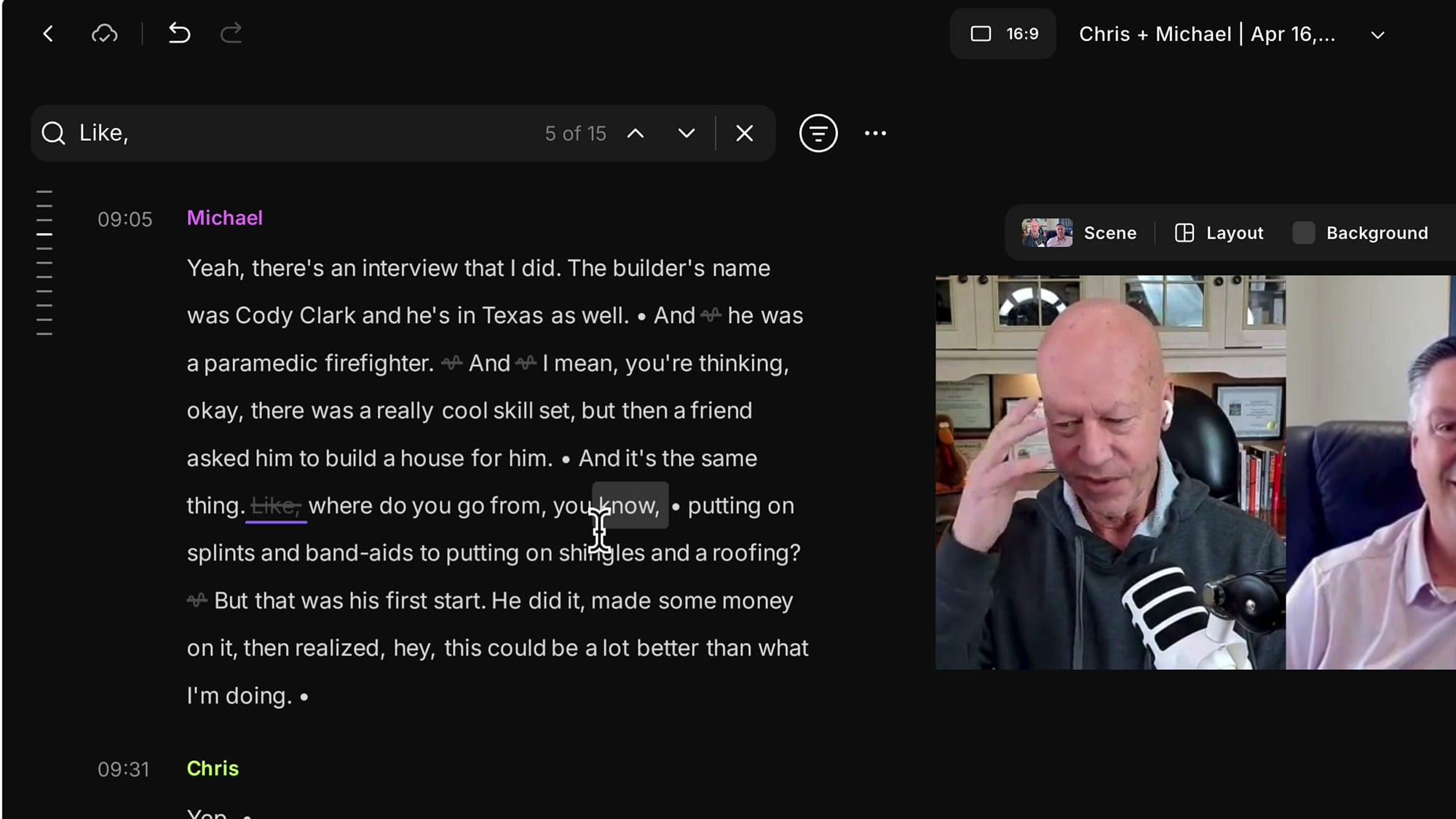
Once you click Apply, filler words in the transcript appear grayed out. If you muted them, they stay visible in the transcript but do not play audibly. If you cut them, they disappear unless you turn on Show deleted parts — then they come back crossed out to indicate they are removed from playback.
Remove Words Riverside Does Not Detect
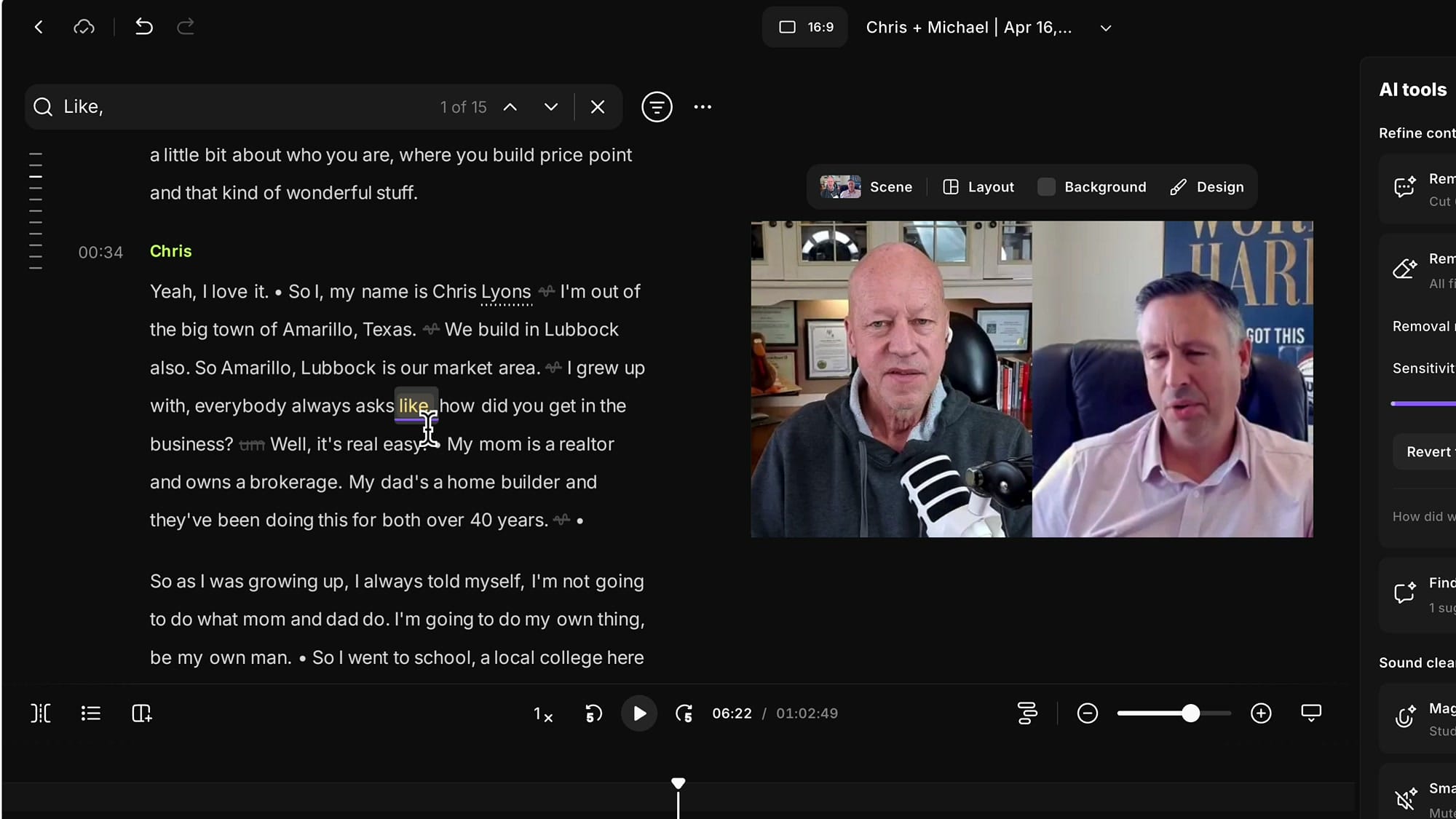
Right now, Riverside's AI focuses primarily on ums and uhs. If your speaker says "like", "so", or repeats words often, those will not be caught automatically. To remove them manually, use the search feature.
Press Cmd+F (Mac) or Ctrl+F (Windows) to open the search bar at the top. Type the filler word — for example, "like," with a comma, since transcripts often put a comma after filler words. Use the up and down arrows to navigate between matches.
Mute or Delete Individual Words
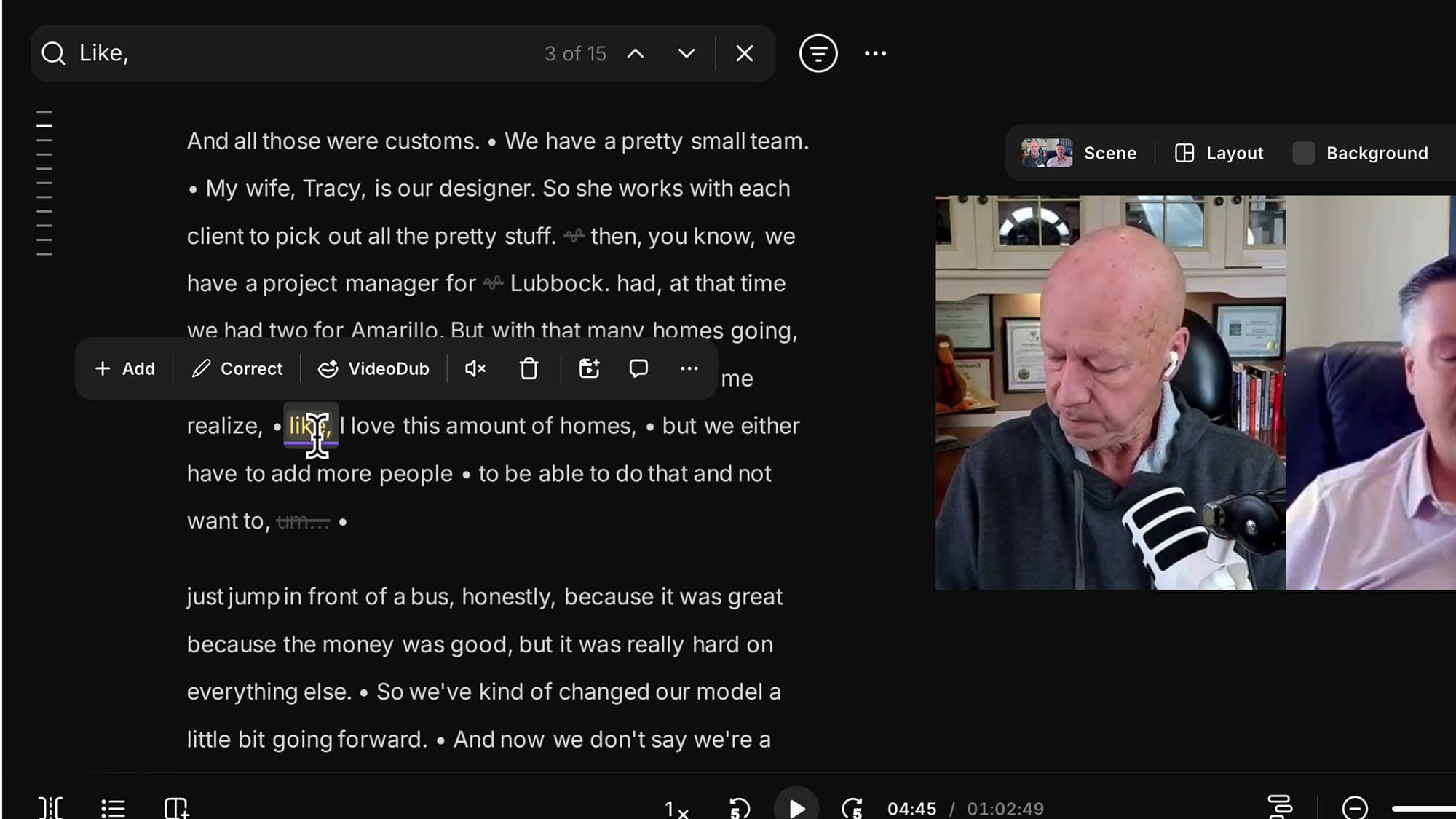
Click on a highlighted match to select it. An editing toolbar appears with options to Mute, Delete, Add, Correct, or VideoDub the word. Choose Delete to cut it out, or Mute to silence it.
With Show deleted parts on, deleted words stay visible but crossed out. Use the down arrow in the search bar to jump to the next match and repeat the process.
Restore Anything the AI Cut by Mistake
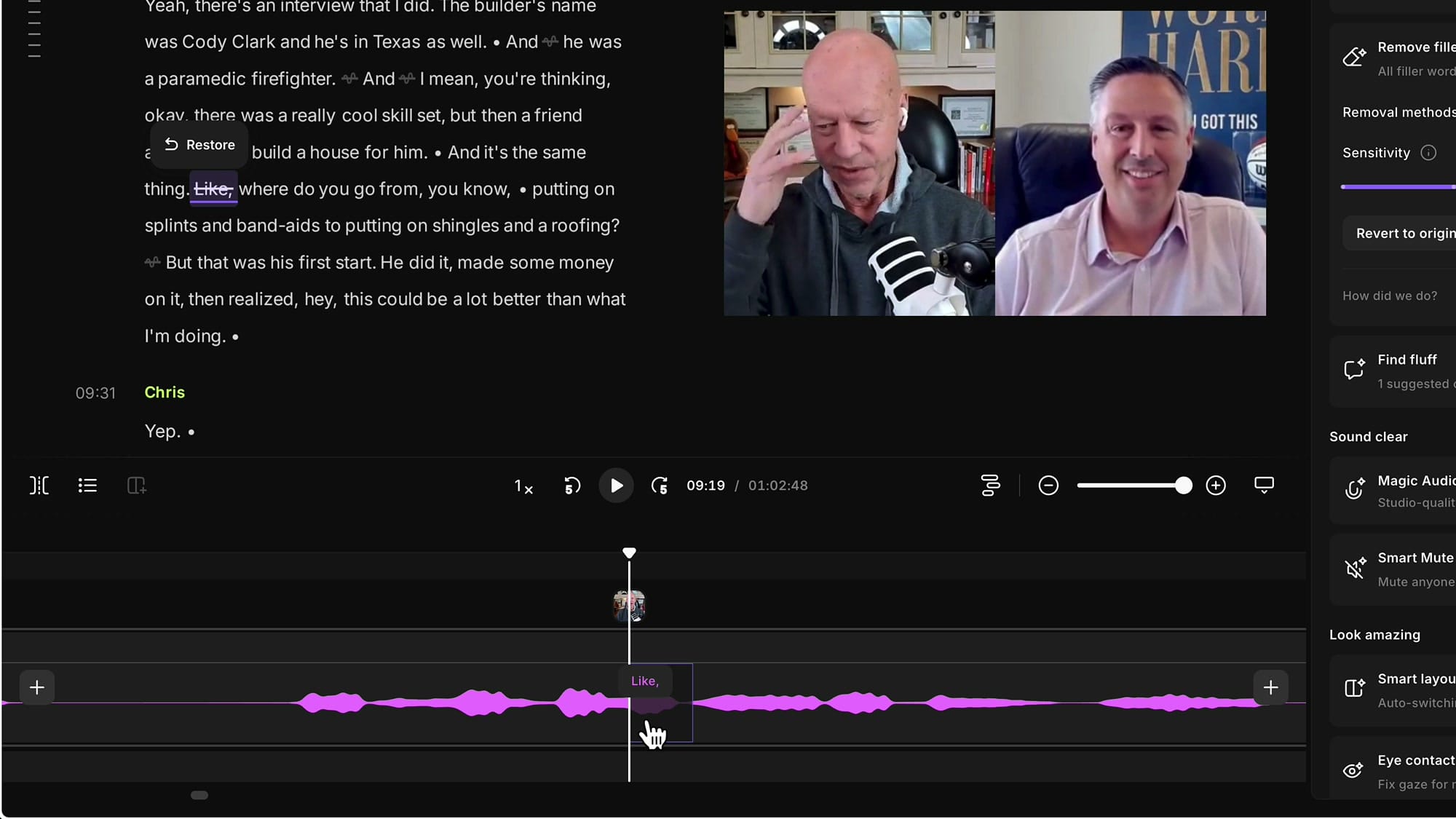
The AI sometimes cuts words in the wrong place due to alignment issues, or occasionally misfires on a non-filler word. To restore, click on the crossed-out word in the transcript and choose Restore, or press R on the keyboard.
You can do the same thing on the timeline: zoom in with Cmd/Ctrl + mouse wheel, click on the removed portion, and press R. The waveform shows exactly what was cut, making it easier to target the right spot.
Recommended Workflow
- Do bulk removals first. Apply the AI filler word removal at the beginning, before you have watched the episode. Same for bulk pause removal and any other AI cleanup.
- Then watch through and check each section. Restore anything that got cut incorrectly.
- Finish with manual search-and-replace for any filler words Riverside does not detect automatically (like, so, repeated words).
Related Riverside Guides
 Cristi Cotovan
 Cristi Cotovan
 Cristi Cotovan
 Cristi Cotovan
 Cristi Cotovan
If you're eager to learn more about Riverside and wish to have a one-on-one Riverside coaching session, feel free to book a call with me. I'm here to help you with any questions you have and to guide you through the best workflows, tips, workarounds, or just answer any questions you may have!
Once Riverside expands the list of automatically detected filler words, this workflow will get even faster. For now, combining AI bulk removal with search-based manual cleanup gets you to a clean recording with minimal effort.