How to Create a New Riverside Edit from an Existing One (Without Starting Over)
Don't start from scratch. Pull any segment of a finished Riverside edit into its own standalone edit — keeping every cleanup, scene, and camera change you've already done.

You've finished editing a long-form podcast or video in Riverside. You removed filler words, shortened the gaps, set up your scenes and camera changes, and the whole thing is exactly how you want it. Now you realise you also need a shorter, standalone clip from that same episode — maybe a longer topic segment, a vertical cut for Reels, or a highlight you can share on its own.
The instinct is to start a brand-new edit from the recordings. Don't. You'd throw away every cleanup, every scene, every camera change you just spent hours dialling in. Riverside lets you extract any portion of an existing edit into its own separate edit — with all that work already applied.
Use the Edits tab, not the Recordings
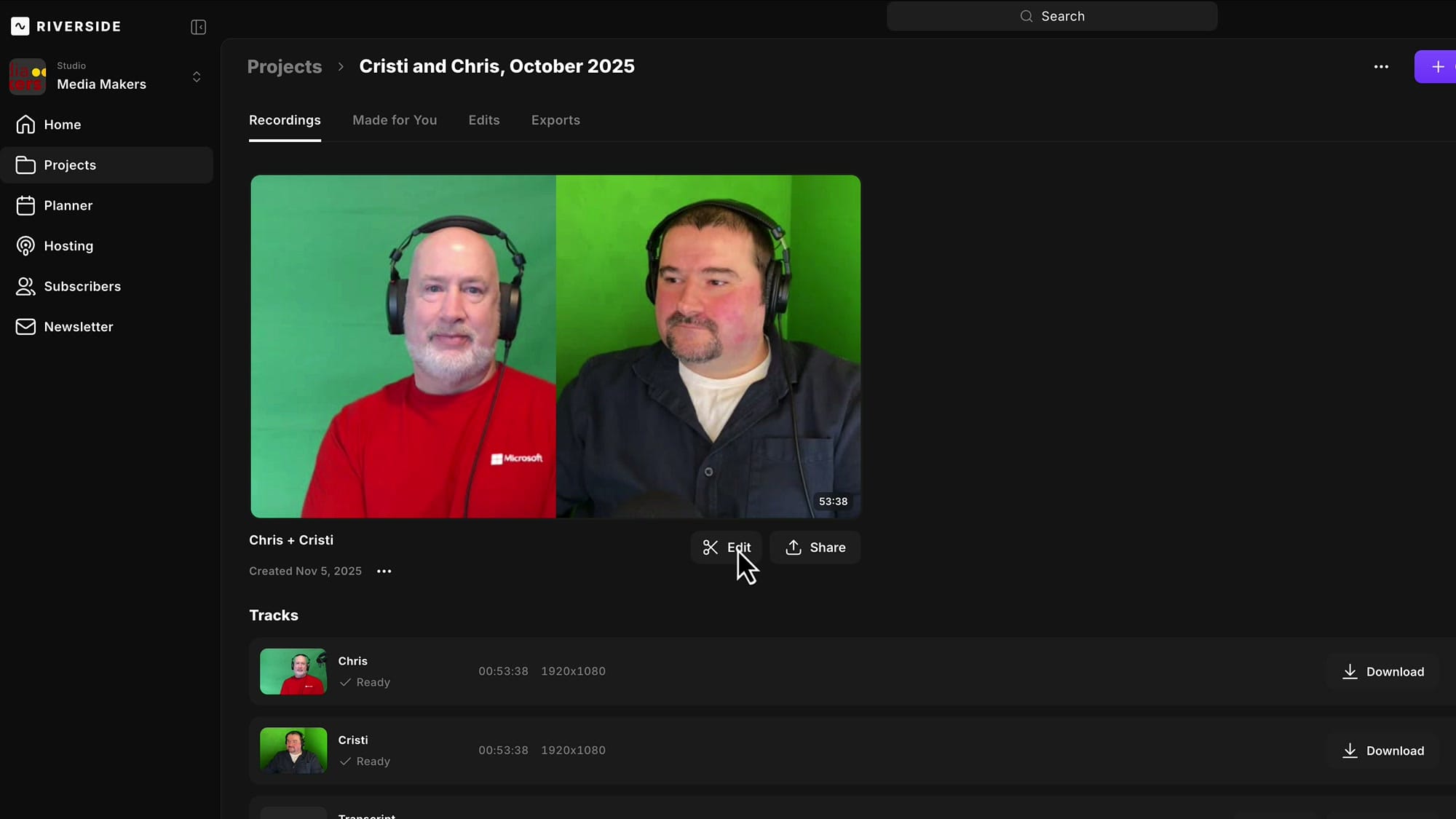
When you go into your Riverside project, the default view is the Recordings tab. If you click Edit on a recording from there, Riverside starts a fresh edit from scratch — none of your previous work comes with it.
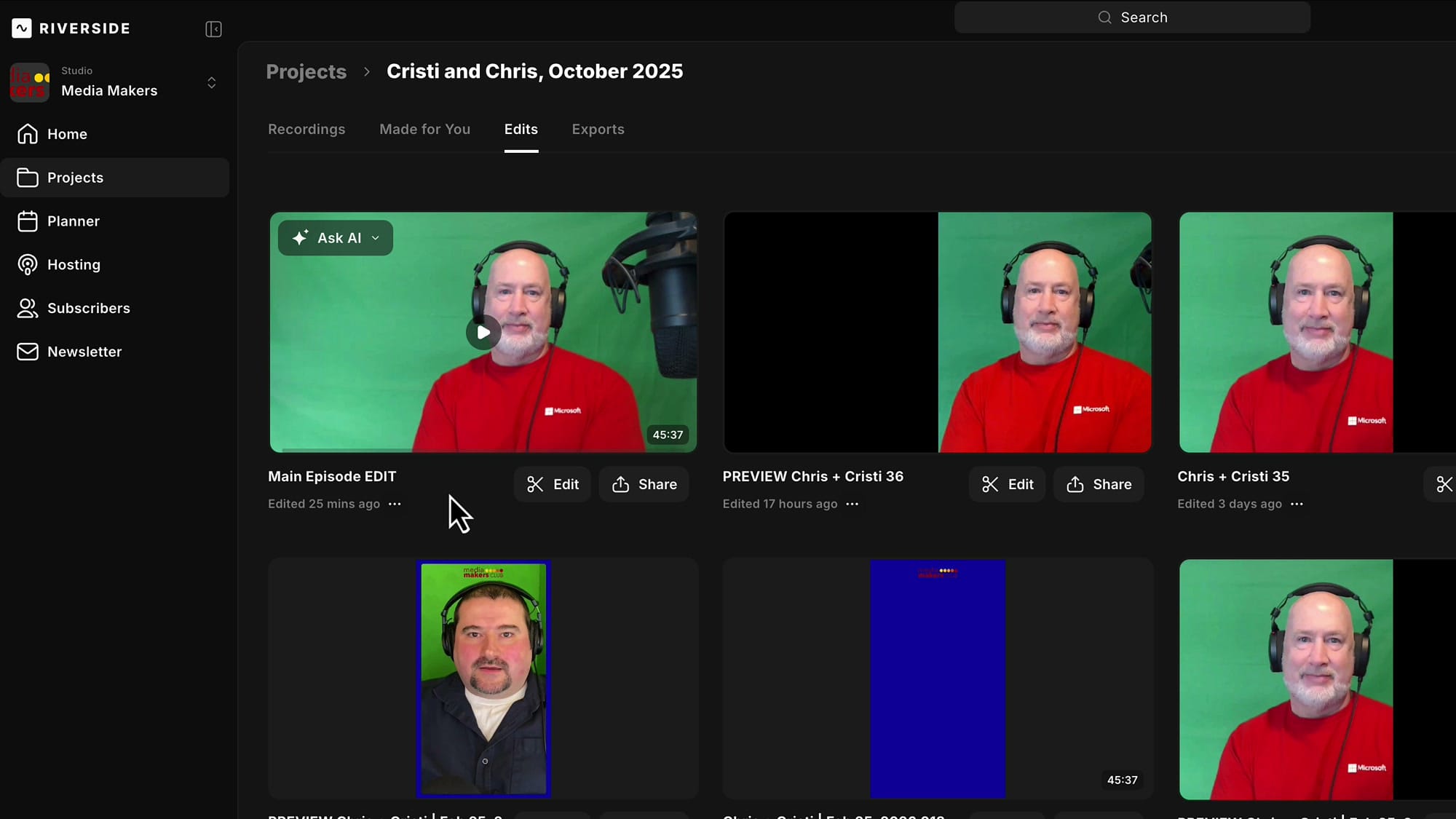
Instead, switch to the Edits tab at the top. This shows every edit you've ever done in the project. Find your finished long-form edit (the one with all the cleanup, the filler-word removal, the gap shortening, and your scene work) and click into it.
If you've already exported this edit, that's fine — exporting doesn't lock anything. You can keep extracting new edits from it as many times as you need.
Select the segment in the editor
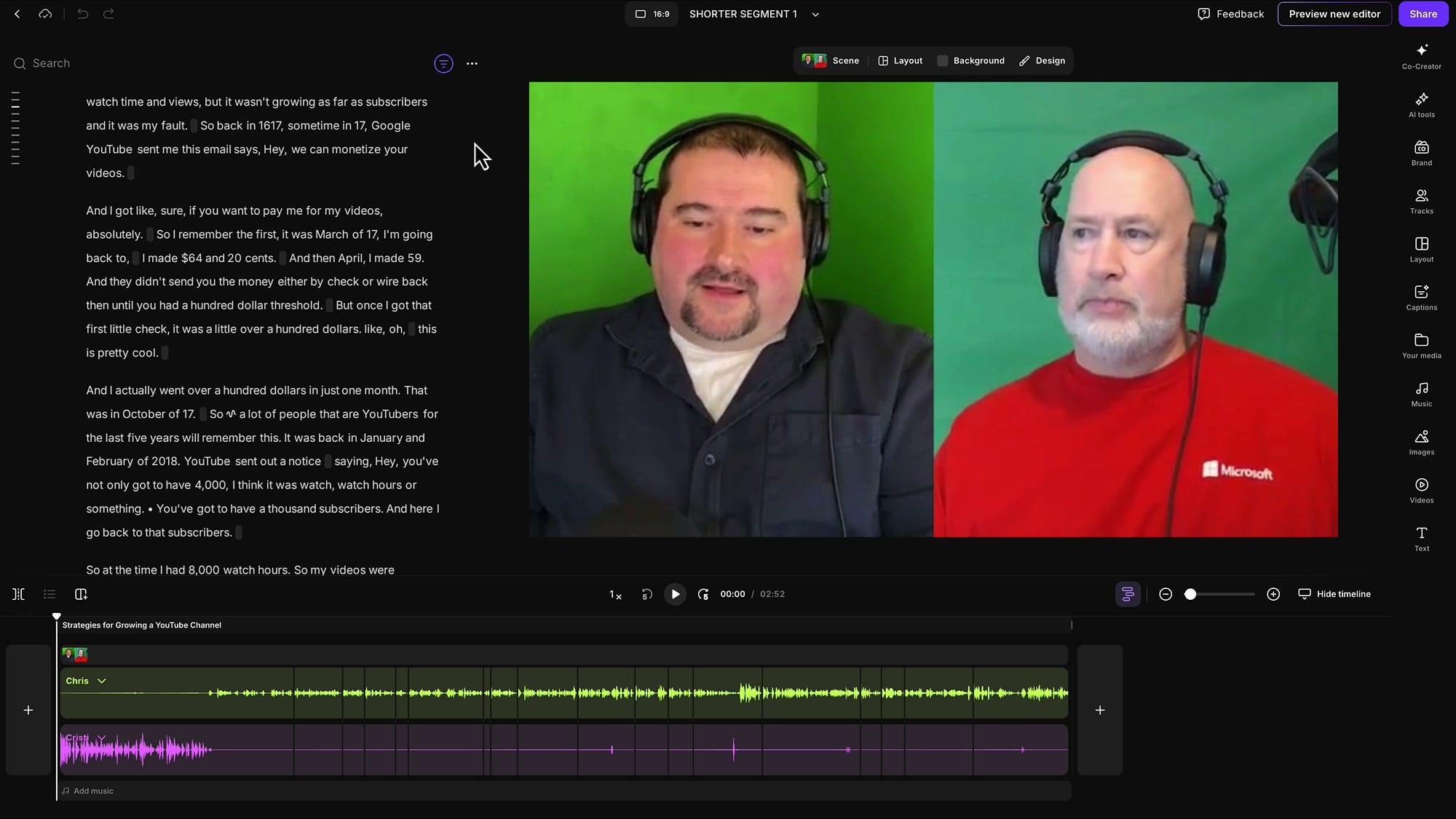
The fastest way to define your new segment is the transcript. Scroll down to where you want to start, click at the beginning of that line, and drag your selection down through the text. As you reach the bottom of the visible area, the transcript will start scrolling on its own — you can let it run, watch where you're going, and stop when you've reached the end of the segment you want to pull out.
If your edit has chapters, use them as anchors — selecting from the start of one chapter to the start of the next is a clean way to grab a topic segment.
Create a new edit from your selection
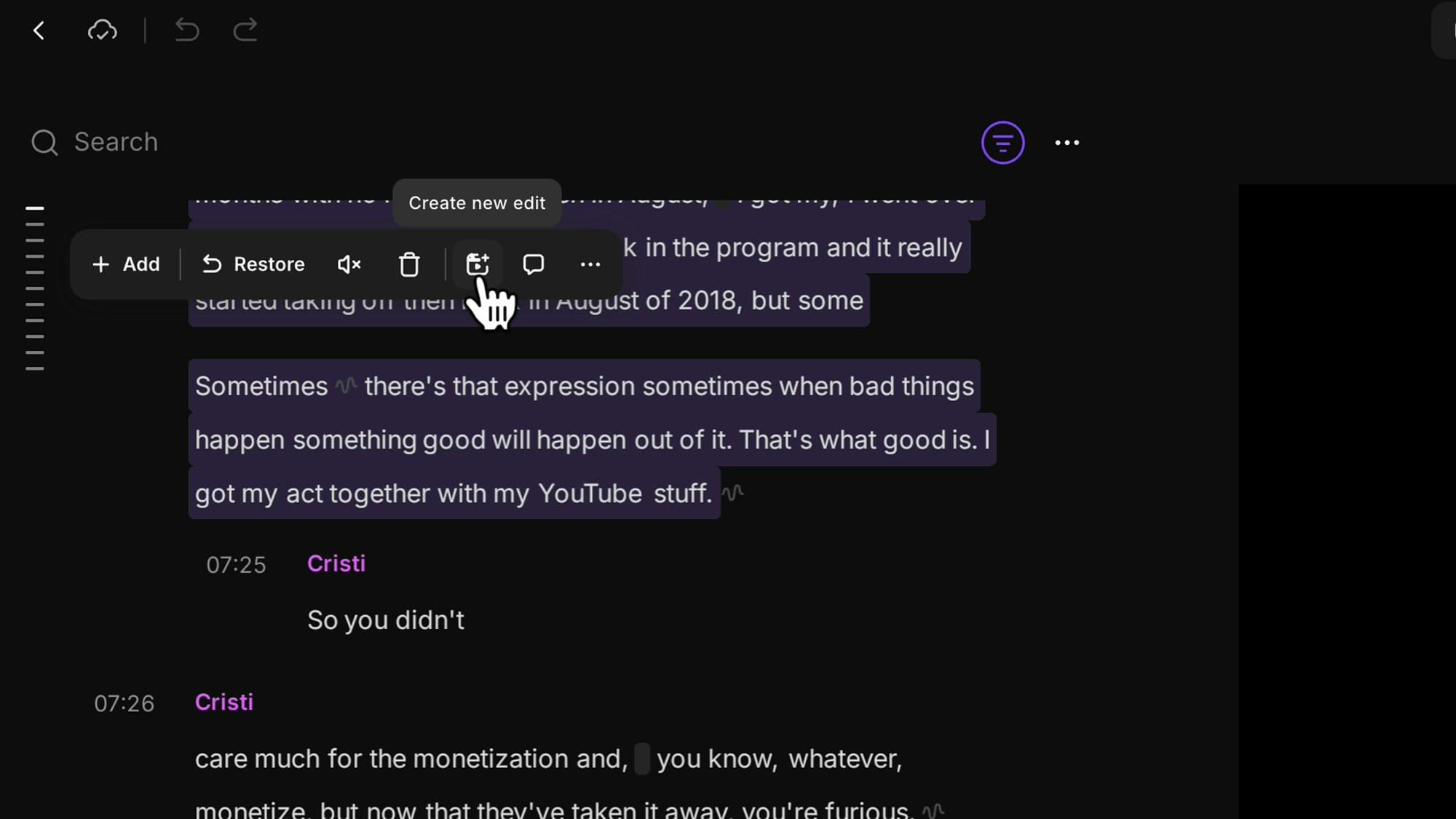
As soon as you've made the selection, a small floating toolbar appears with a few action icons. The one you want is Create new edit.
Click it, and Riverside opens a drawer at the top of the screen showing all the edits in the project. You'll see your original edit there, highlighted in purple (because you're still inside it), and your newly created edit sitting right next to it.
Rename the new edit immediately
Here's the problem. The new edit is created with the exact same name as the one you extracted from. So if your original was "Main Episode EDIT," the new one is also "Main Episode EDIT." The only thing distinguishing them at a glance is the duration shown on the thumbnail.
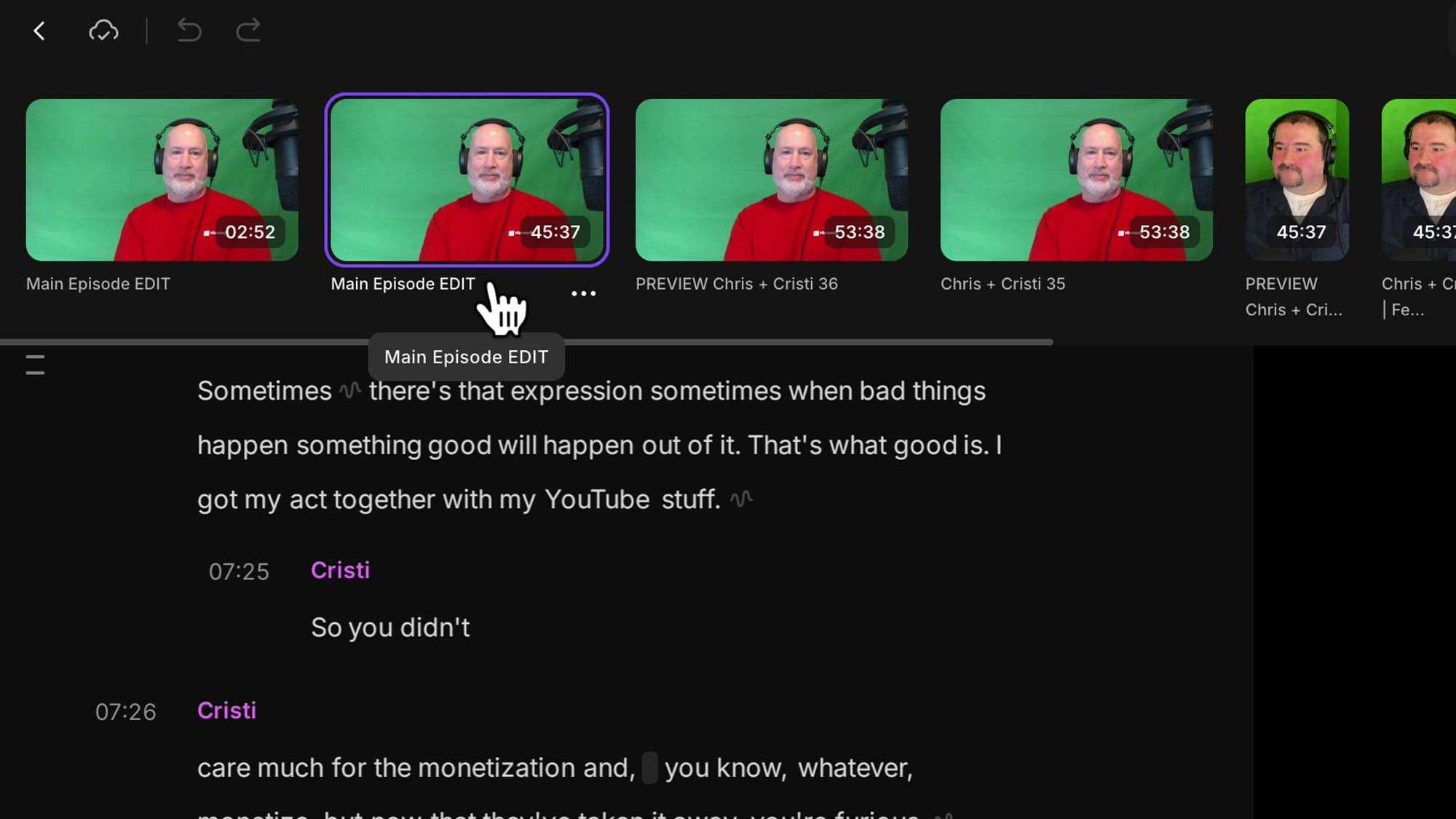
Rename it right away — before you do anything else, before you click around, before you forget which one is which. Hover over the new edit in the drawer, click the three-dots menu, and choose Rename. Give it a name that tells you what it is — something like "Shorter Segment 1" or the actual topic of the clip.
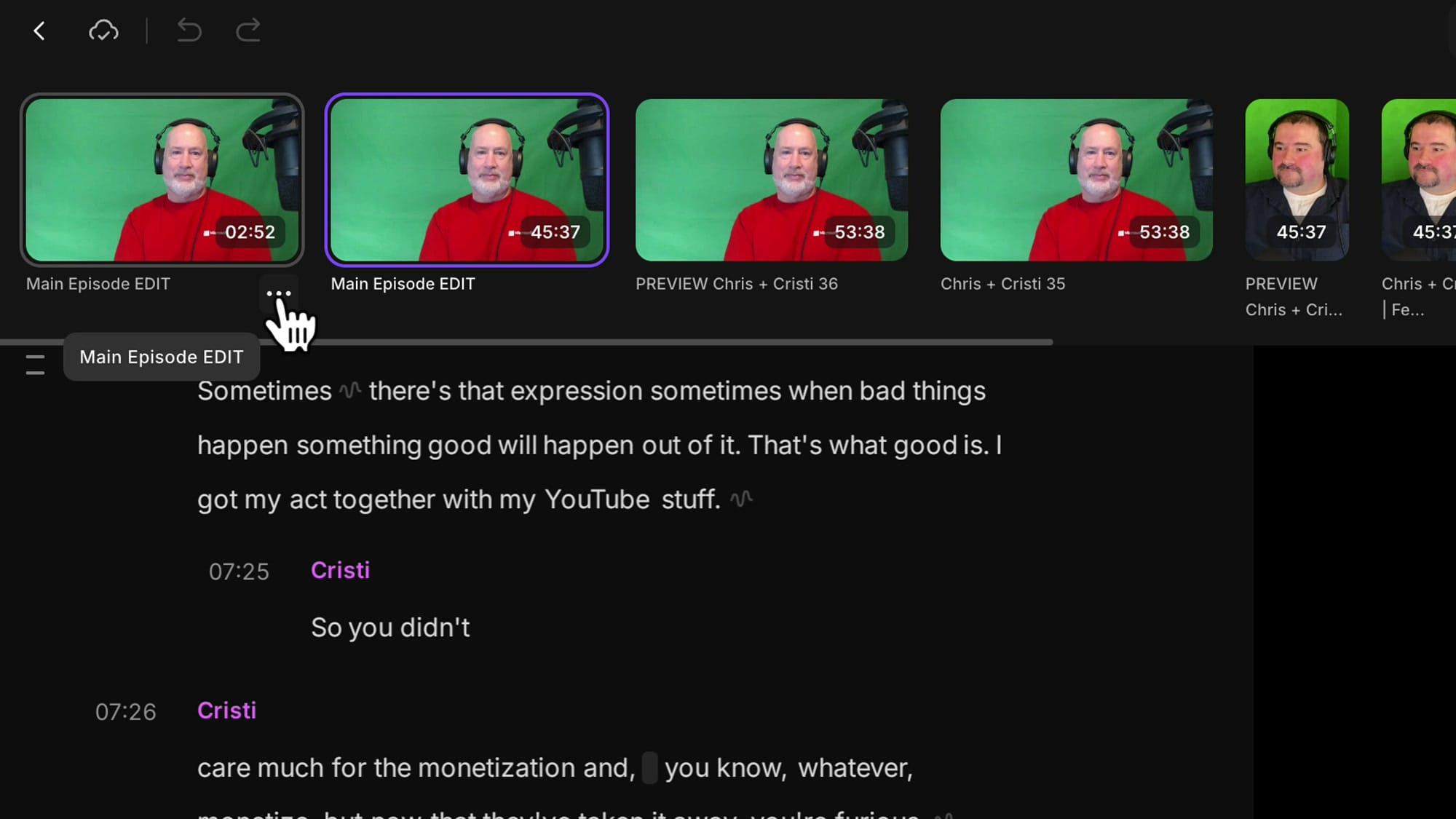
If the drawer ever disappears (you click somewhere outside it), it's not gone — there's a small arrow next to the edit name at the top of the screen that opens it back up. From the same top bar you can also rename the edit you're currently inside.
Switch between edits in the project
The drawer is also how you jump between edits in the same project. Click any edit in the drawer and Riverside switches to it. The new editor that's coming to Riverside makes navigating between edits in a project significantly faster, but the current one already does the job.
Understand and hide the crossed-out text
When you open your new edit, you might see something unexpected: a wall of crossed-out text with only your selected portion looking active. That's not a bug.
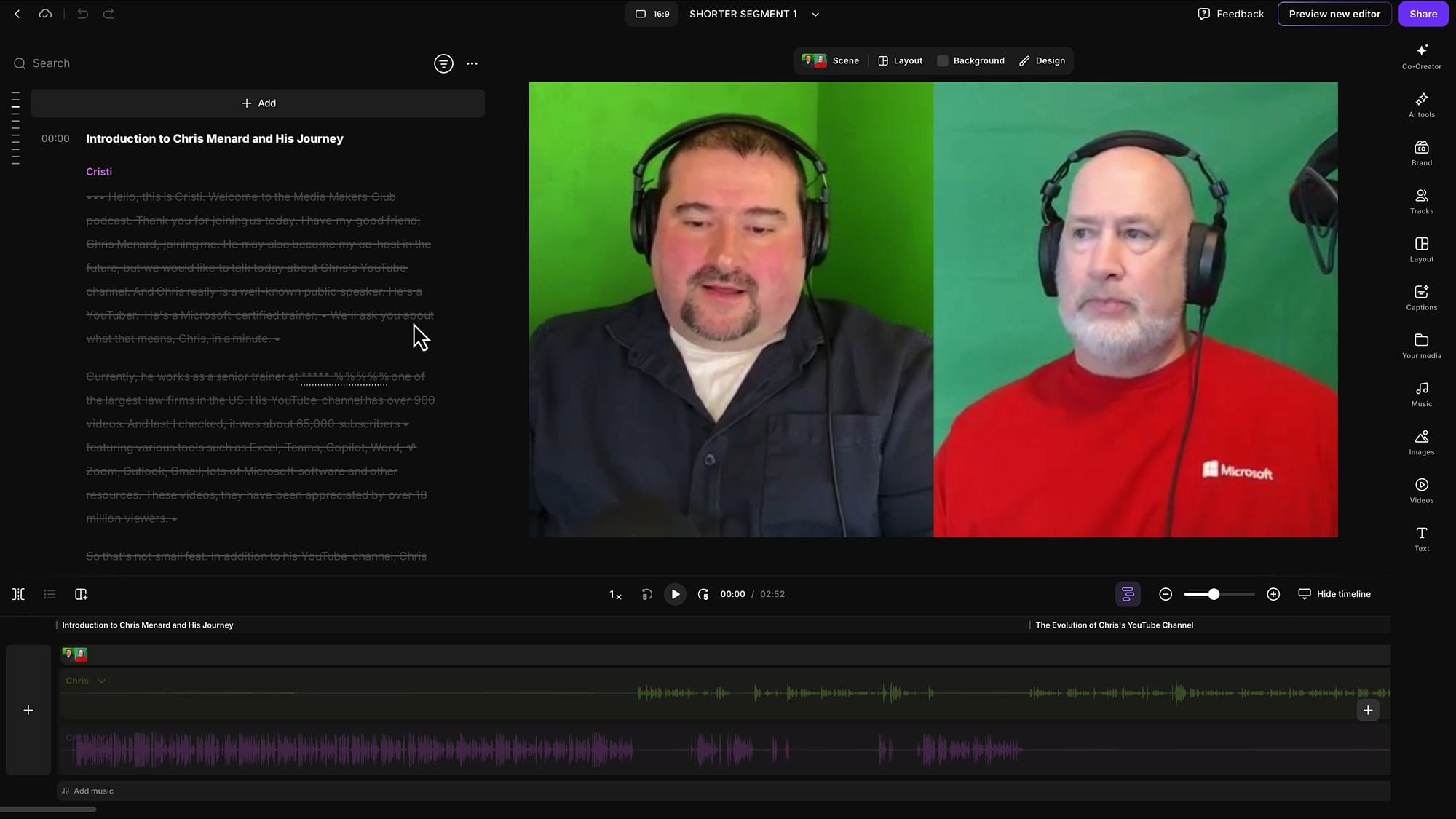
What Riverside actually did was duplicate the entire original edit, then mark everything outside your selection as deleted. Your segment is the only part that plays — but the rest is still technically there, which means you can restore any of it later if you change your mind ("Actually, I want that other 30 seconds back too"). It's a useful safety net.
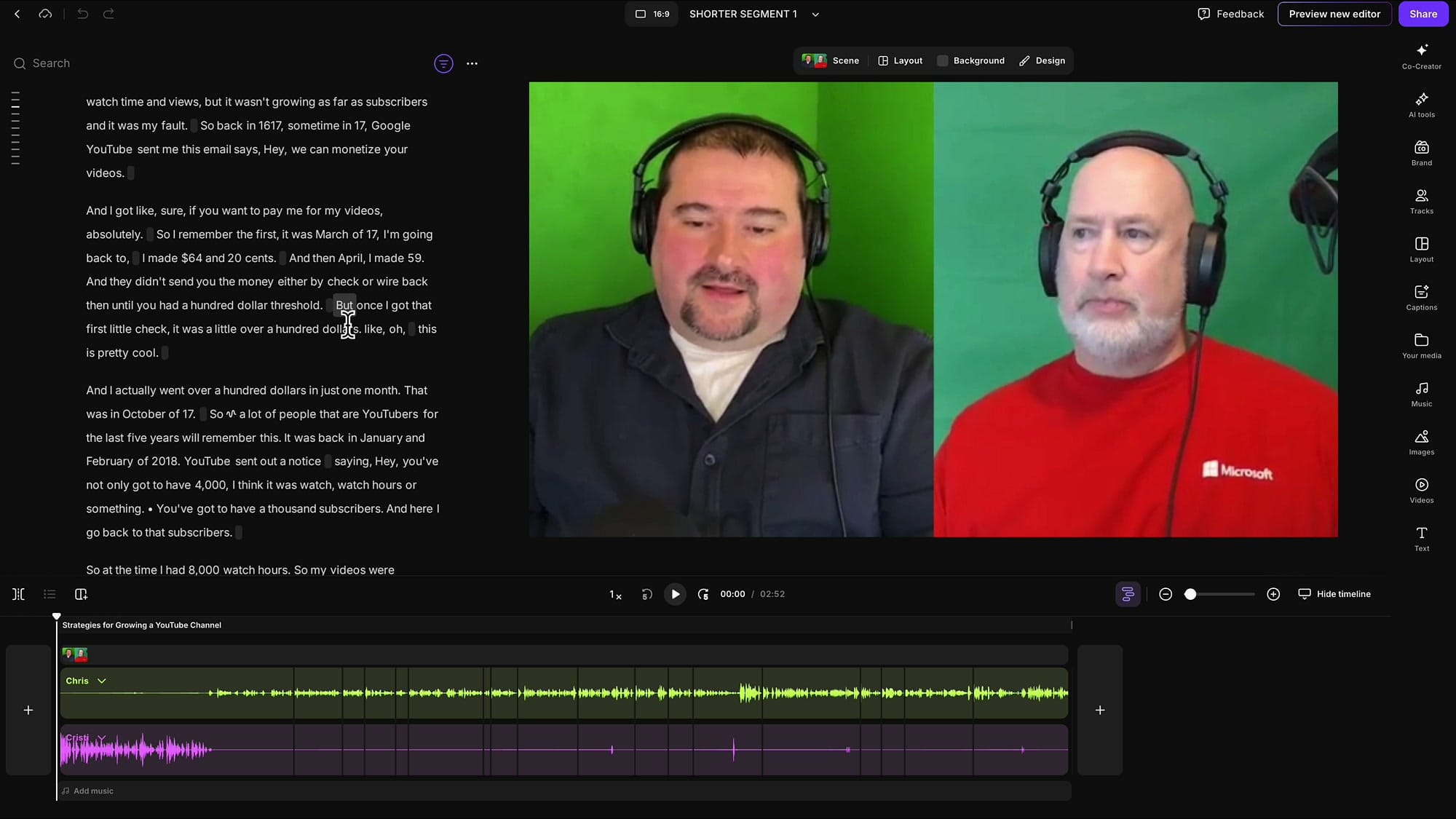
If the crossed-out text bothers you visually, you can hide it. At the top of the transcript there's a small round filter button — click it and toggle Show Deleted Parts off. Everything except your active segment disappears from view.
Export and adjust the format
From here, your extracted edit behaves like any other Riverside edit. You can export it, share it, and adjust the orientation. If you're pulling out a clip for vertical platforms, click the format selector at the top and pick 9:16 for Reels, TikTok, or Shorts — or 1:1 for LinkedIn and X. For the same kind of reframing tricks once you're in vertical, the crop, reposition, and reframe controls are where you'll spend your time.
The edit-once workflow
This is the workflow that saves the most time over a year of producing content: edit once, extract many times. Build the long-form version first. Do all the heavy lifting there — the cleaning, the corrections, the cuts, the scene work, the captions presets, the branding. Then, when you need a shorter cut, a topic segment, a vertical clip, or a highlight reel, extract it from the finished edit instead of repeating any of that work on the recording.
And whatever you extract — rename it. Always. A folder full of edits called "Main Episode EDIT" is a nightmare to navigate three weeks from now.
If you also want to spin up several edits from the same recording rather than from a finished edit, that's a related but different workflow — covered in how to create multiple edits and exports from one recording in Riverside.
Related guides
 Cristi Cotovan
 Cristi Cotovan
 Cristi Cotovan
If you're eager to learn more about Riverside and wish to have a one-on-one Riverside coaching session, feel free to book a call with me. I'm here to help you with any questions you have and to guide you through the best workflows, tips, workarounds, or just answer any questions you may have!