Riverside Studios vs Projects: How to Organize Your Account the Right Way

A common mistake I see in Riverside is creating a new studio for every episode. It seems like a reasonable way to stay organized — but it causes real problems down the line. Riverside has a better structure built specifically for this: studios for shows, projects for episodes.
Here is exactly how to organize your account the right way and why it matters.
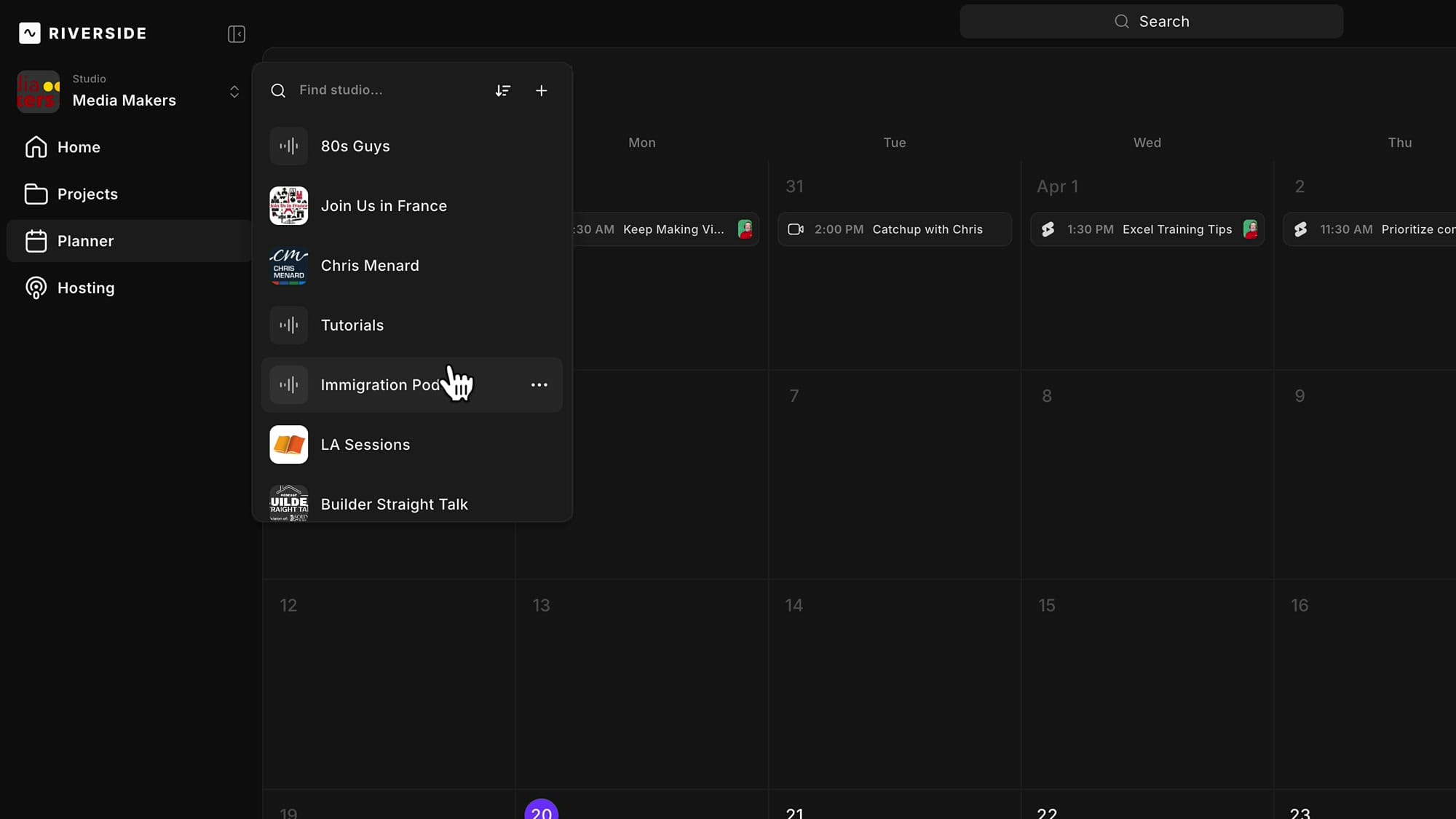
Studios Are for Shows, Not Episodes
A studio is the top-level container in your Riverside account. Older Pro plans let you create multiple studios; newer Pro plans have a single studio, with multiple studios reserved for Enterprise tier.
If your plan allows multiple studios, use them for different shows or podcasts — not for different episodes of the same show.
Projects Are Where Episodes Live
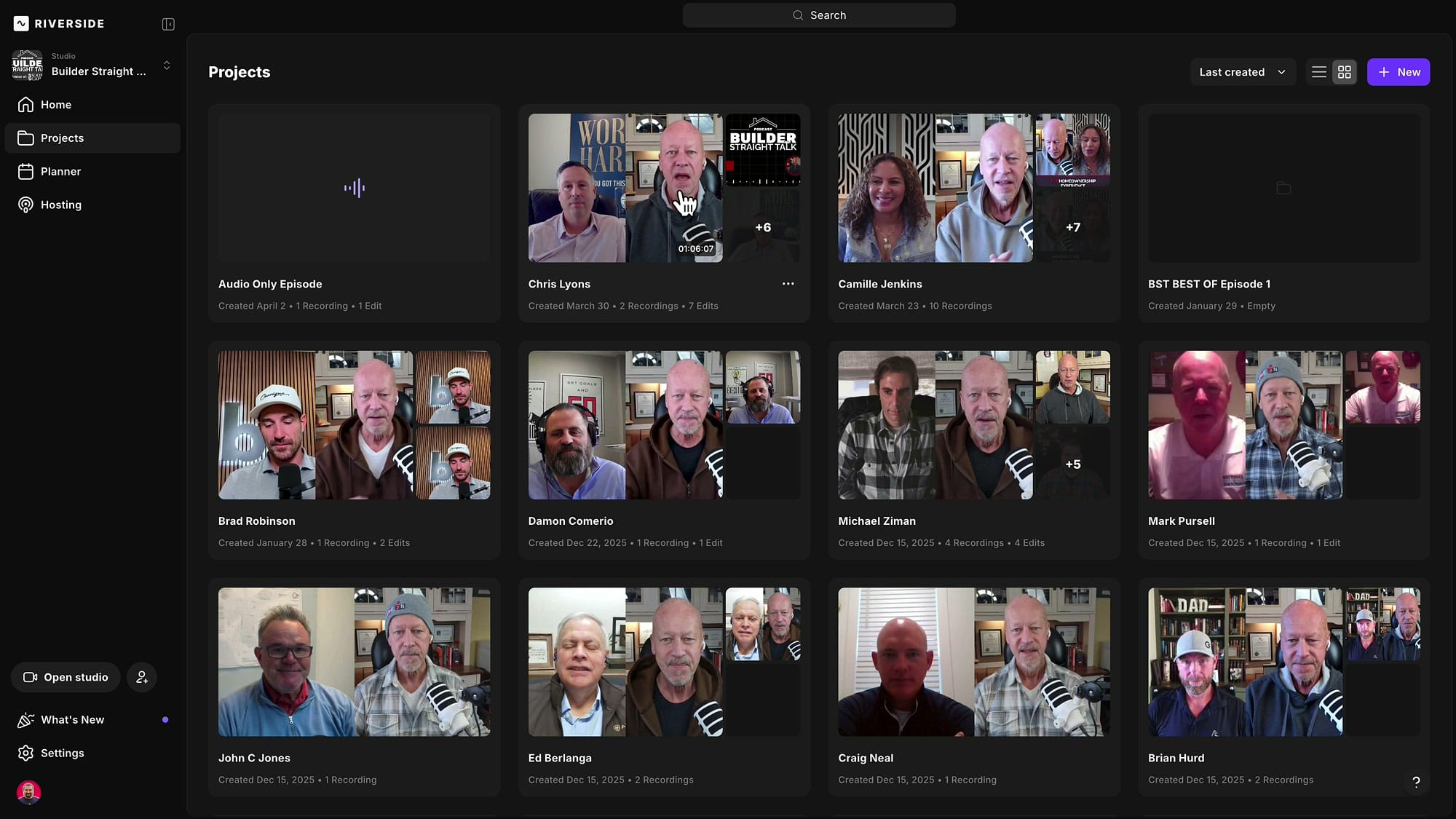
Inside each studio, you use Projects to organize individual episodes. Think of projects like folders — each one holds a single episode and all its associated content: raw recordings, transcripts, edits, Made For You clips, Magic Segments, exports, and any other assets tied to that recording.
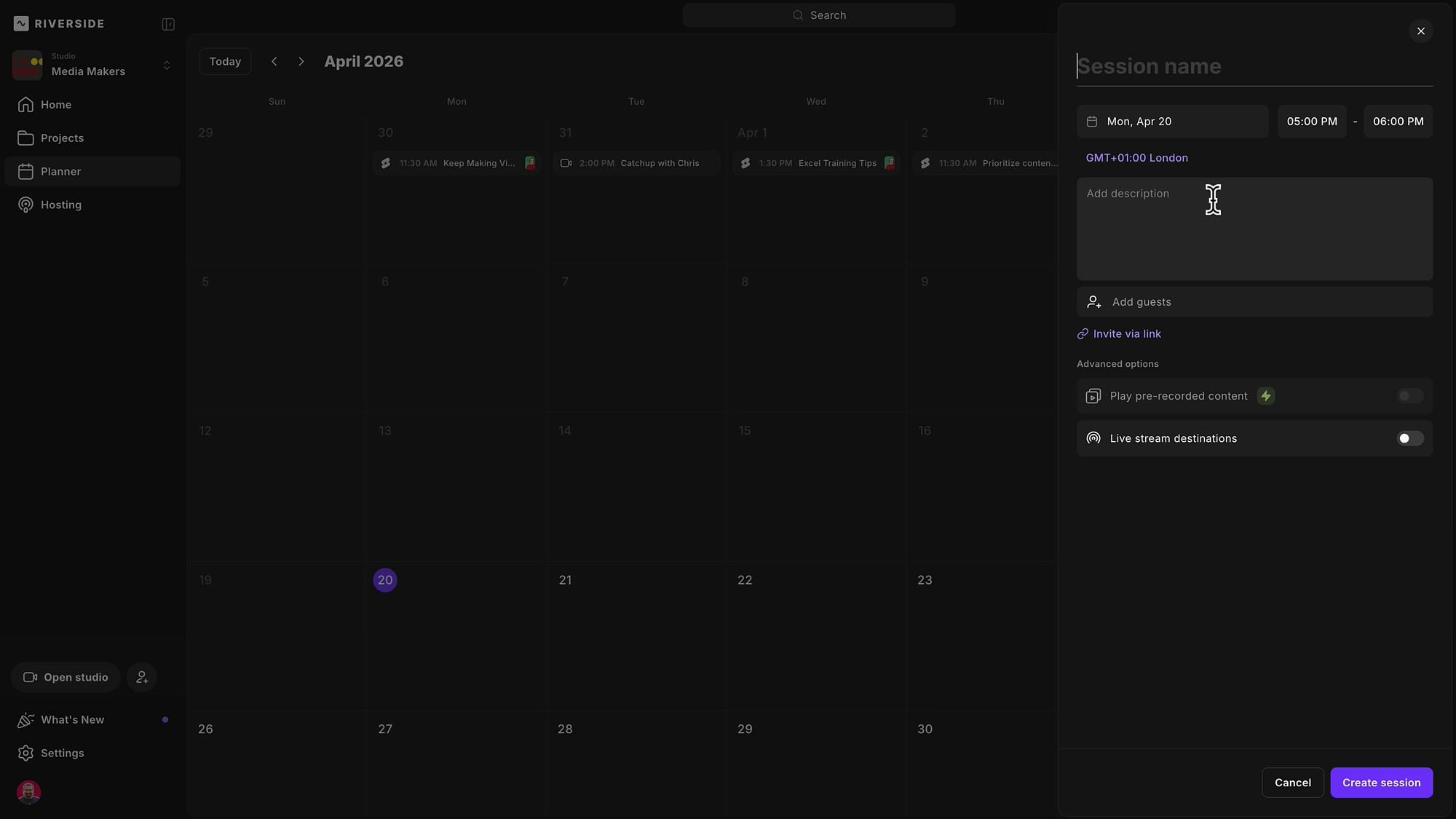
Projects auto-create when you schedule and record a session via the Planner. Go to Planner, pick a date, click to schedule a session, name it, and invite your guest. When you record, Riverside creates a project with that name automatically.
Why This Matters: Benefits of One Studio Per Show
1. Brand Settings Are Per-Studio
Your logo, color palette, text styles, caption styles, intro, and outro are all stored at the studio level. If you create a new studio for every episode, you lose all these brand assets and have to reconfigure them every time. One studio means every episode inherits the same brand automatically.
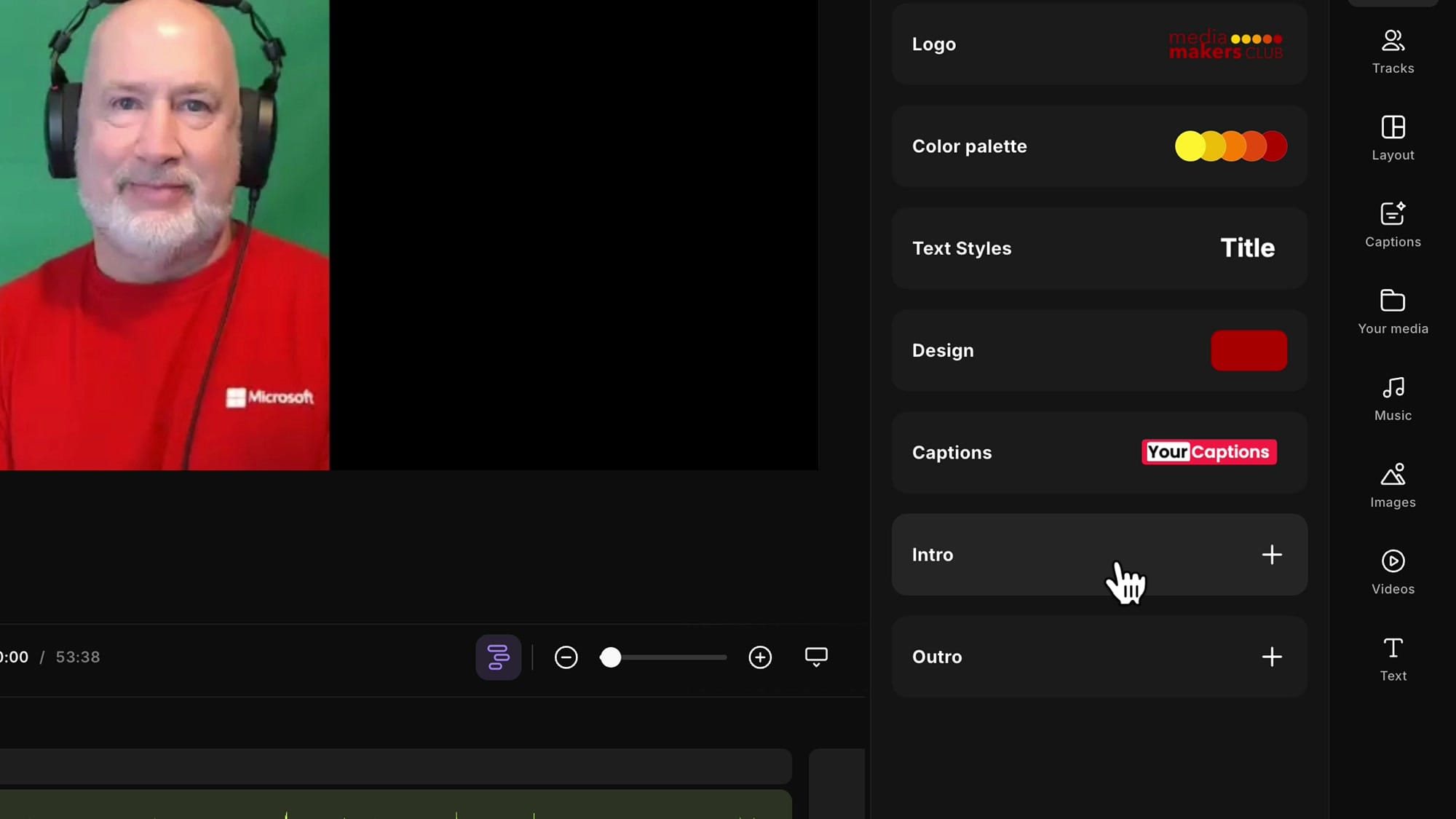
2. Studio Settings Stay Consistent
Recording resolution, audio quality, noise reduction, guest-join preferences, live stream destinations — all these live in your Studio Settings. A new studio means configuring everything from scratch and almost certainly forgetting something.
3. Podcast Hosting Is Tied to the Studio
If you host your podcast on Riverside, the hosting configuration — show artwork, distribution platforms (Apple Podcasts, Spotify, YouTube), website — is all attached to one studio. Each episode goes into that hosting setup.
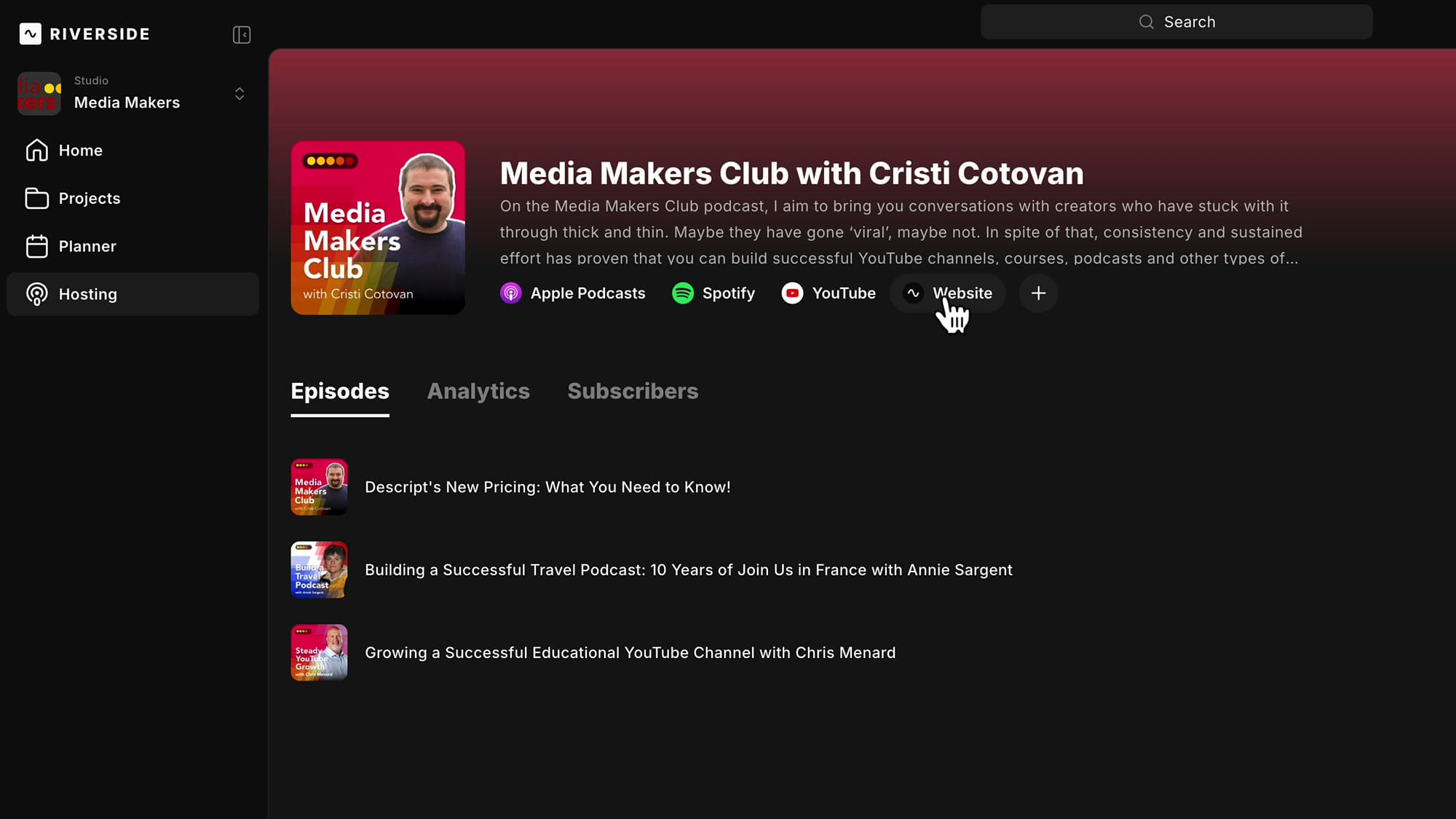
4. The Studio Record Link Stays the Same
This one catches a lot of people. When you send a guest a link to record with you, it is the studio link — the same for every project in that studio. Put that link in Calendly, in your email signature, in your newsletter, in any automation. If you create a new studio for every episode, that link changes every time, and your automations break.
Finding Episodes in a Large Studio
Some people worry that keeping everything in one studio makes episodes hard to find. Not true. Projects act as folders — sort by date created, date viewed, or alphabetically, switch between grid and list views, and dig in.
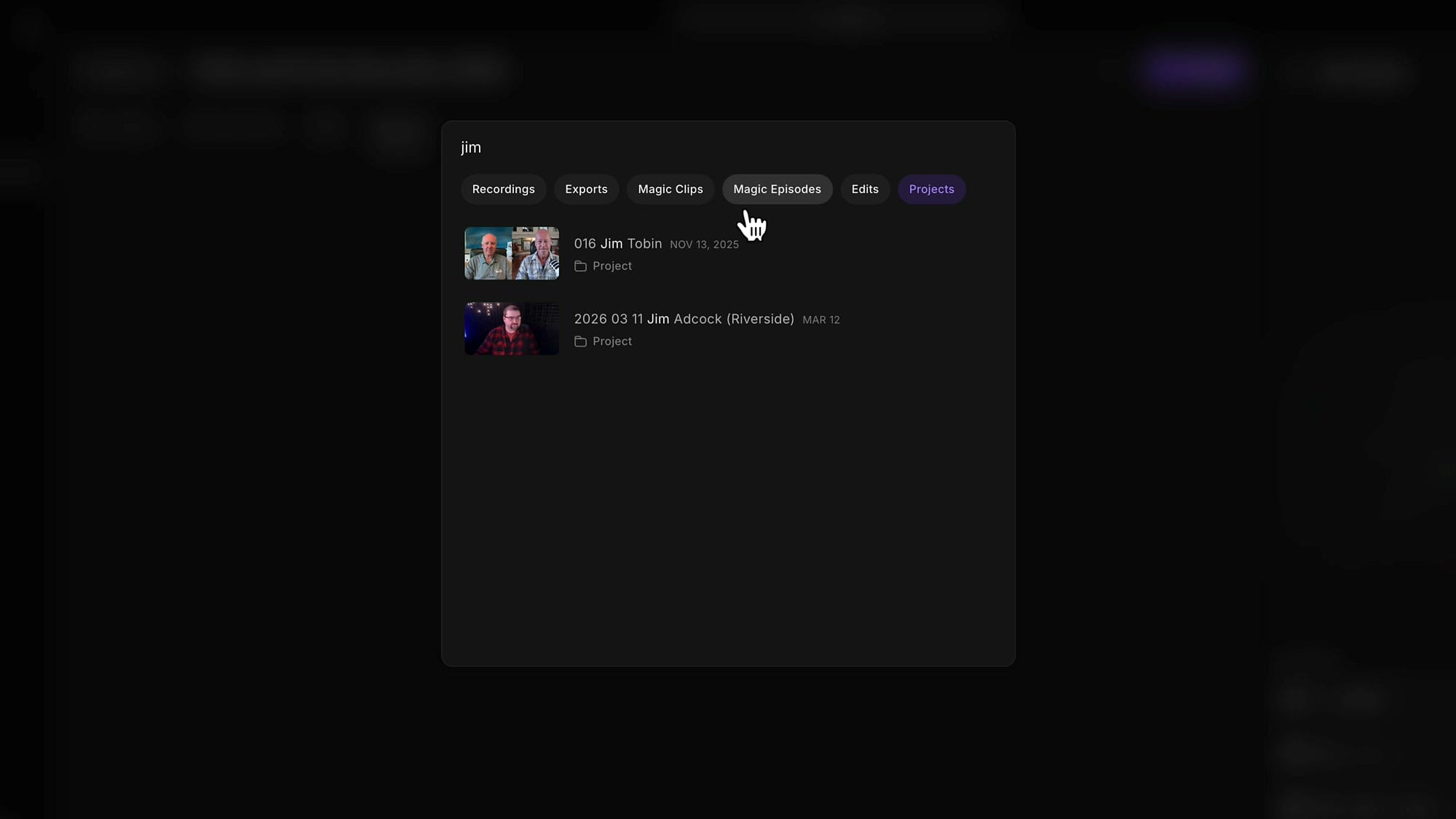
Even better, the search bar at the top of Riverside searches across everything: projects, recordings, magic clips, edits, exports. Type a guest name and you get every episode with that guest. Type a keyword from the transcript and you can find specific moments across all your recordings.
Starting a New Project Without the Planner
When Riverside updated the Planner, the old behavior where scheduling created an empty project disappeared. Now a project only gets created once you actually record. If you want to set up a project manually — maybe to prepare for a recording without scheduling — go to Projects in the sidebar and click New. Name it, and you can immediately record into that project.
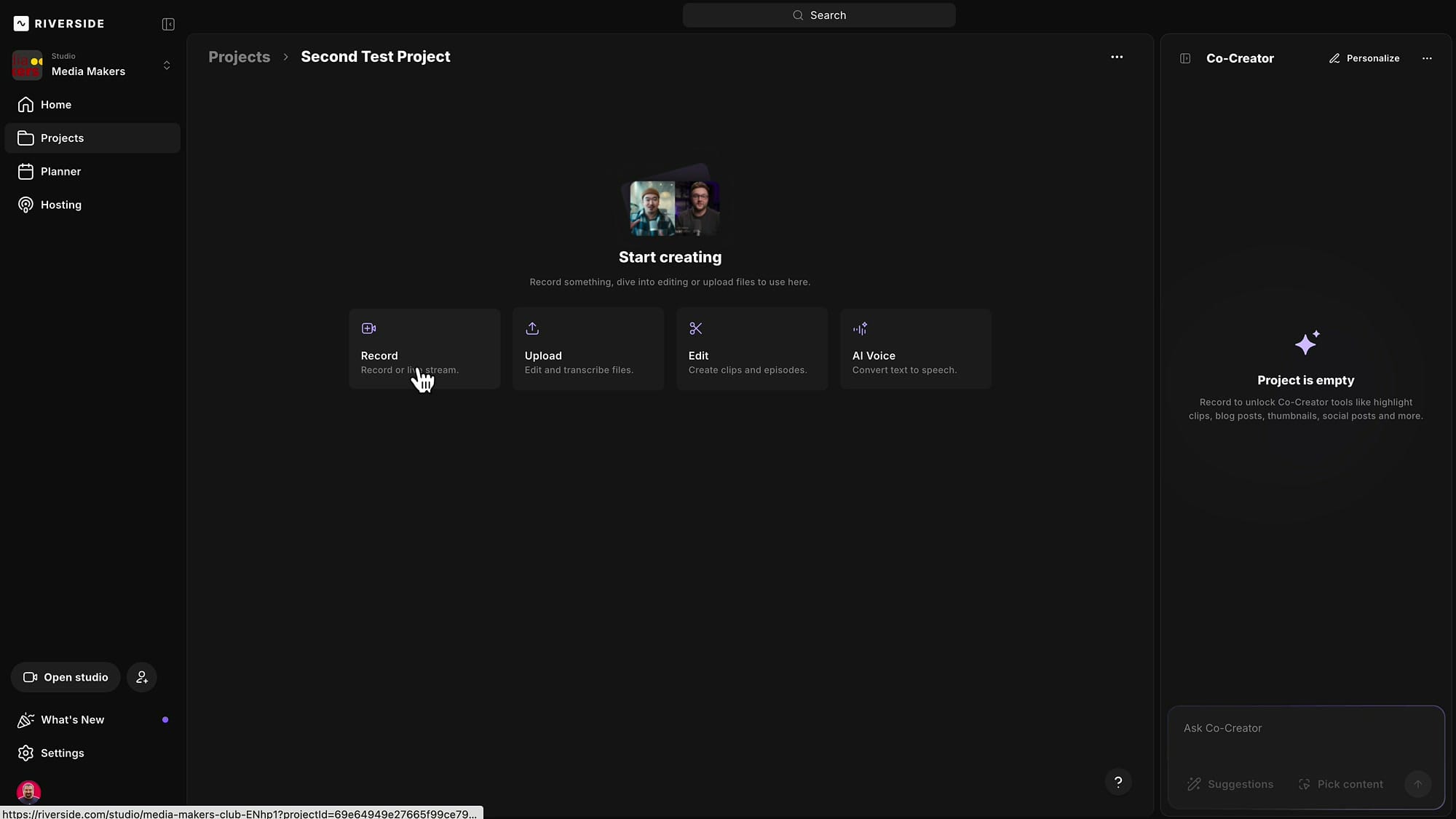
For recordings scheduled through the Planner, empty projects no longer clutter your workspace until you actually hit record. Scheduled sessions live in the Planner view, and the project only gets created when the recording happens.
The Rule of Thumb
- One studio per show — podcast, live stream series, video series. Contains brand, hosting, settings, and the single recording link.
- One project per episode — contains raw recordings, edits, clips, exports, and everything generated for that specific episode.
- The Planner — schedule future recordings. Projects auto-create when recording starts.
- Search — find anything across the studio by name, guest, or keyword.
Related Riverside Guides
 Cristi Cotovan
 Cristi Cotovan
 Cristi Cotovan
 Cristi Cotovan
 Cristi Cotovan
If you're eager to learn more about Riverside and wish to have a one-on-one Riverside coaching session, feel free to book a call with me. I'm here to help you with any questions you have and to guide you through the best workflows, tips, workarounds, or just answer any questions you may have!
This structure also prepares you for the new Riverside editor, where all project assets stay inside the project for faster access. Stick to one studio per show and organize episodes with projects — your automations, brand kit, and hosting setup will thank you.