How to Change Your Riverside Studio Invitation Link

Yes, you can finally change your Riverside Studio invitation link — the link you send to guests and producers so they can join you and record. For a long time this was fixed at whatever slug Riverside generated when the Studio was created. After a lot of requests, Riverside added the ability to edit it, so you can now give each Studio a personalized, branded URL.
That matters more than it sounds. If you renamed a Studio months ago, or you spun one up quickly for a one-off session, the URL you're handing to guests probably has nothing to do with your show. Here's exactly how to change it, and — just as important — what to check before you hit Save so you don't lock anyone out of a session you've already booked.
Switch to the right Studio first
The Studio link is a per-Studio setting, not an account-wide one. If you have more than one Studio in your account, you have to be inside the Studio you want to change before you go anywhere near Settings — otherwise you'll happily edit the URL of the wrong show.
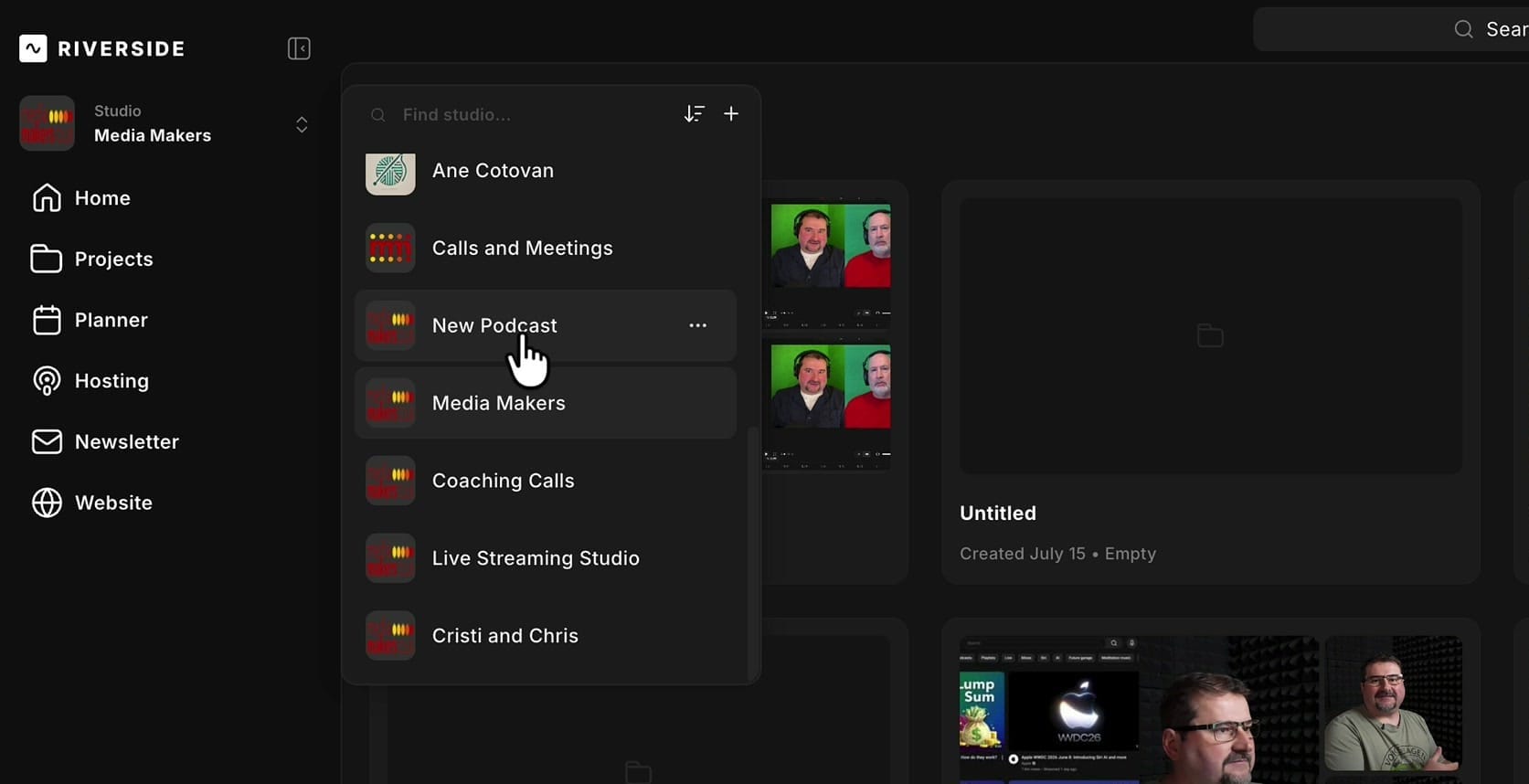
Use the Studio switcher at the top of the left sidebar. Click it and you'll see every Studio in your account listed out. I keep separate ones for coaching calls, live streaming, and individual podcasts, so I pick the one I actually want — in this case a test Studio called New Podcast.
Open Studio settings
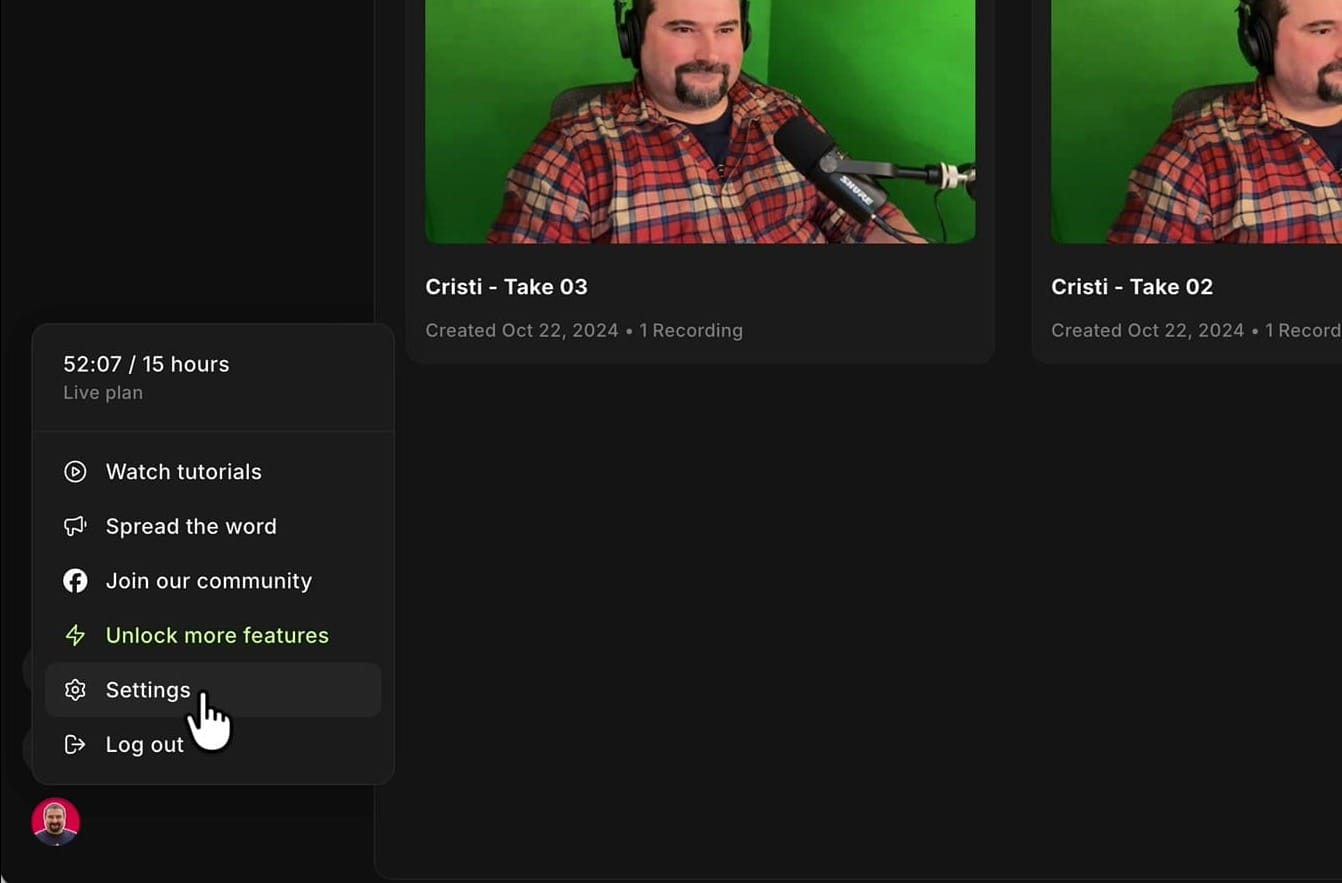
Once you're in the right Studio, go to the bottom left corner and click your avatar. In that menu you'll find Settings.
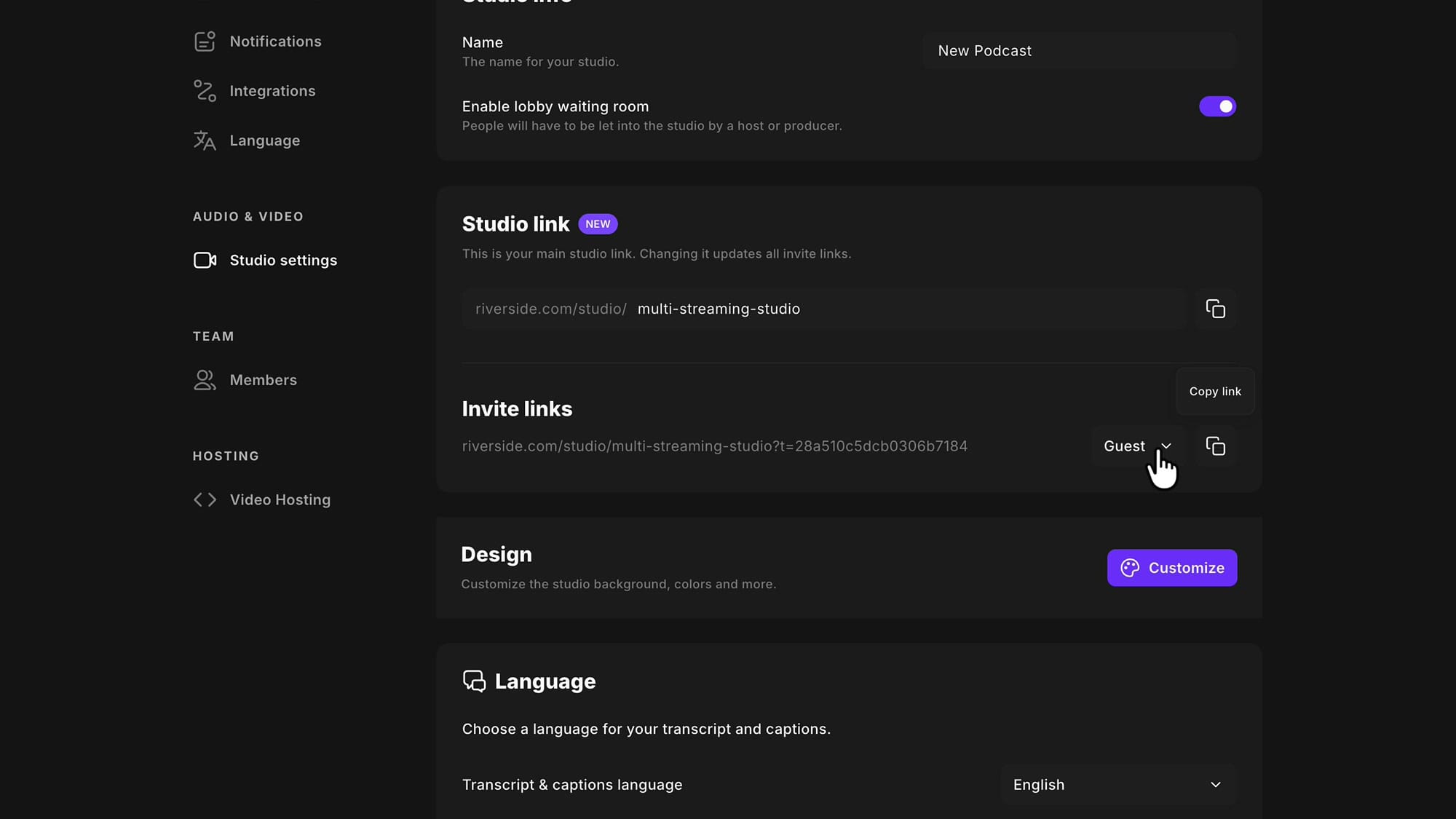
Inside Settings, open Studio settings under Audio & Video. That page is where all the per-Studio options live, and it's worth a browse on its own — I've walked through every setting on this page and what I recommend in a separate guide. The section you want here is Studio link, marked with a NEW badge.
If you’re eager to learn more about Riverside and wish to have a one-on-one Riverside coaching session, feel free to book a call with me.
I’m here to help you with any questions you have and to guide you through the best workflows, tips, workarounds, or just answer any questions you may have!
Guest, producer, and audience links are not the same
Just below the Studio link you'll see Invite links, with a role dropdown next to it. This is the part people miss. The link you copy depends on which role you pick, and each one behaves differently: a Guest joins for a recorded session, a Producer helps run the session and manage settings without being recorded, and an Audience member watches live and chats if you're running a webinar. See here for the invite roles explained.
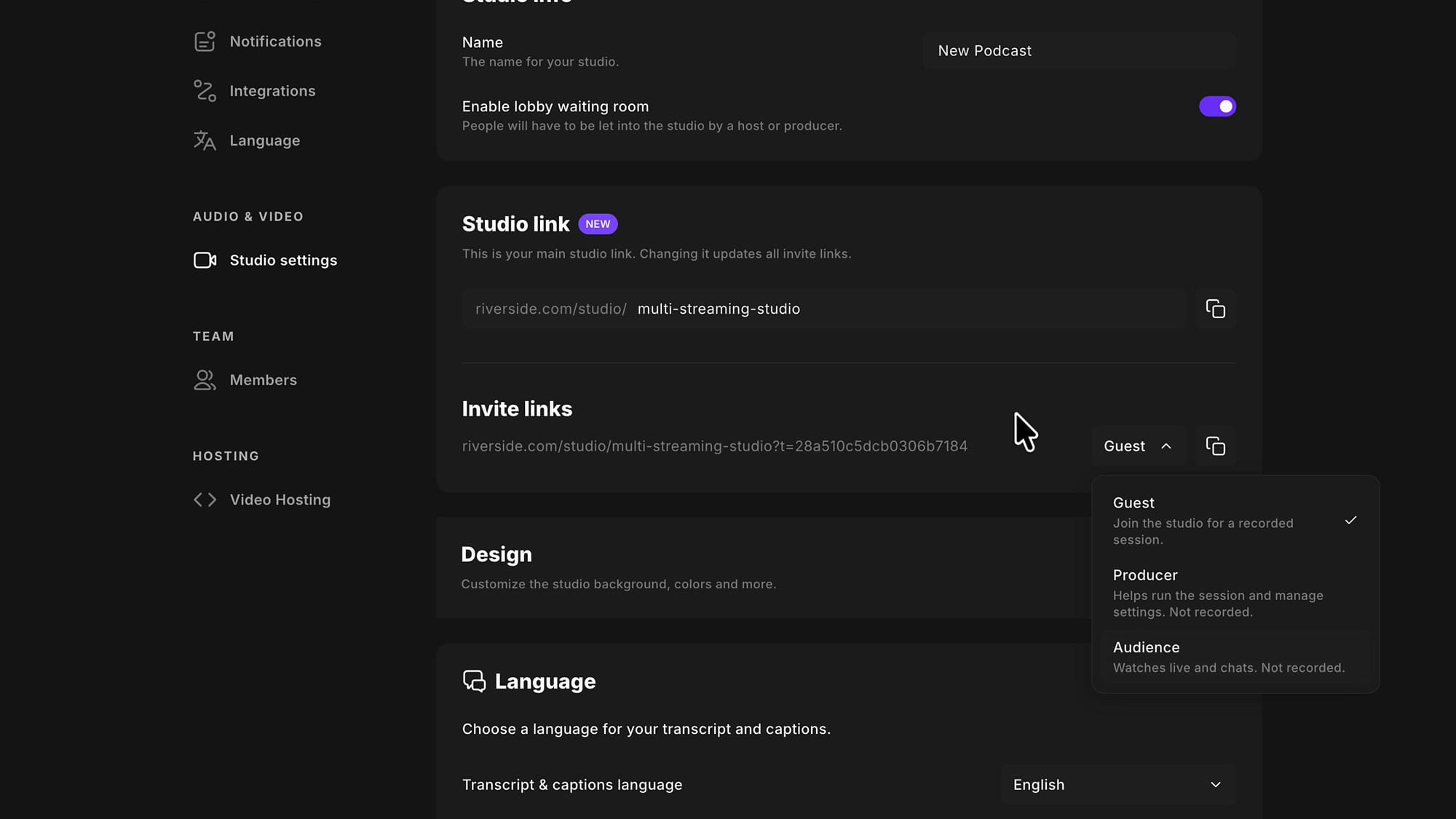
So copy the Guest link for the people you're interviewing, and the Producer link for whoever is running the board. If you want the full breakdown of what each role can and can't do, I've covered how to pick the right invite role every time. And if you just need the fastest path to getting someone into a session, see how to quickly invite guests to record.
Set a unique Studio URL
Click into the Studio link field and type the slug you want after riverside.com/studio/. I changed mine to cristi-new-podcast.
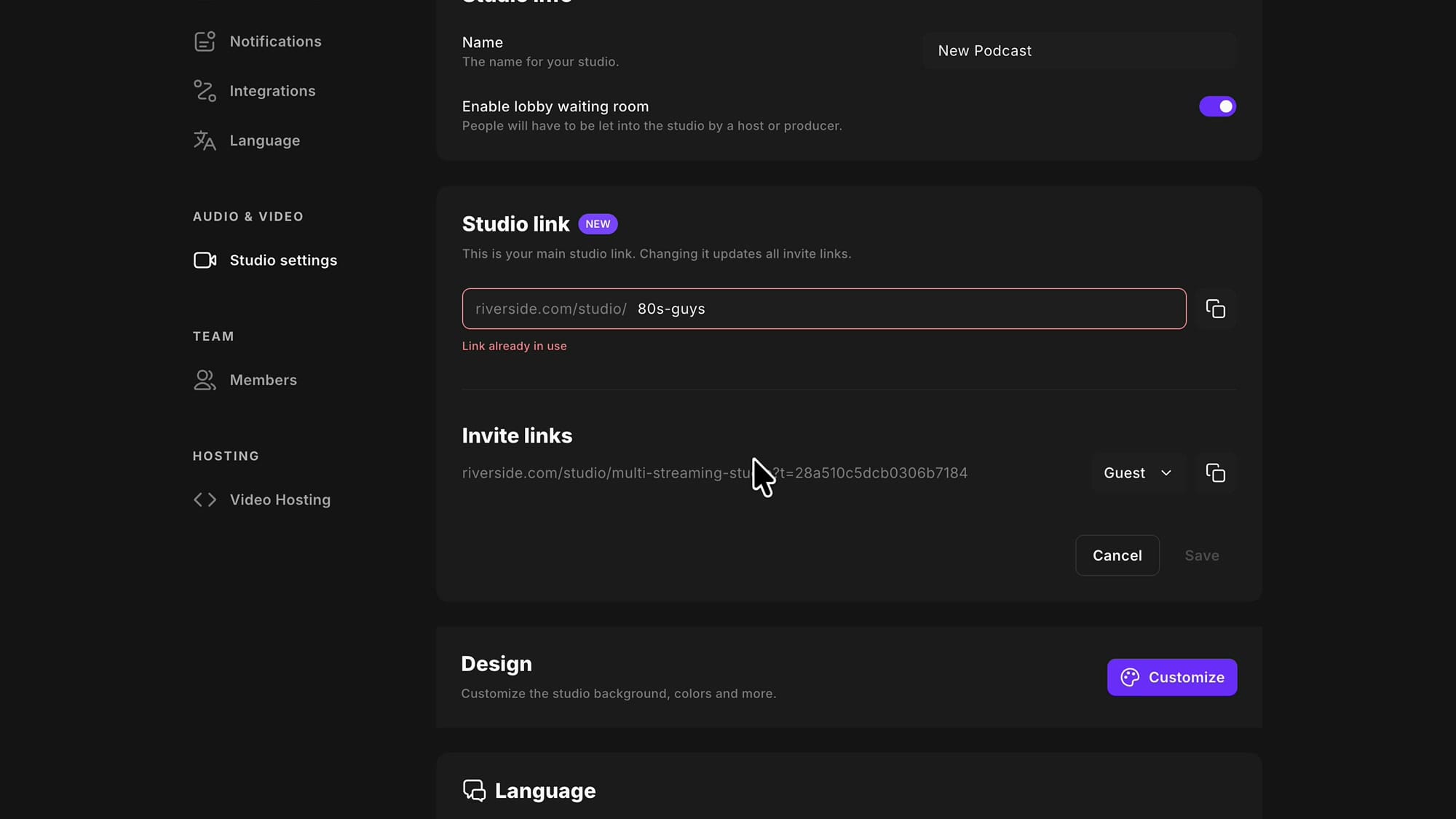
Riverside checks the slug as you type, and it has to be unique. My reading is that it's unique across the entire Riverside platform, not just your account — so if someone else already claimed the name you want, you can't have it. To test that, I tried 80s-guys, which is the slug on another Studio of mine, and it rejected it straight away with Link already in use.
Keep the slug short and readable, and lean toward something that matches the branding your guests already associate with your show. This is a link real people will look at in an email or a calendar invite.
You can only change it once per week
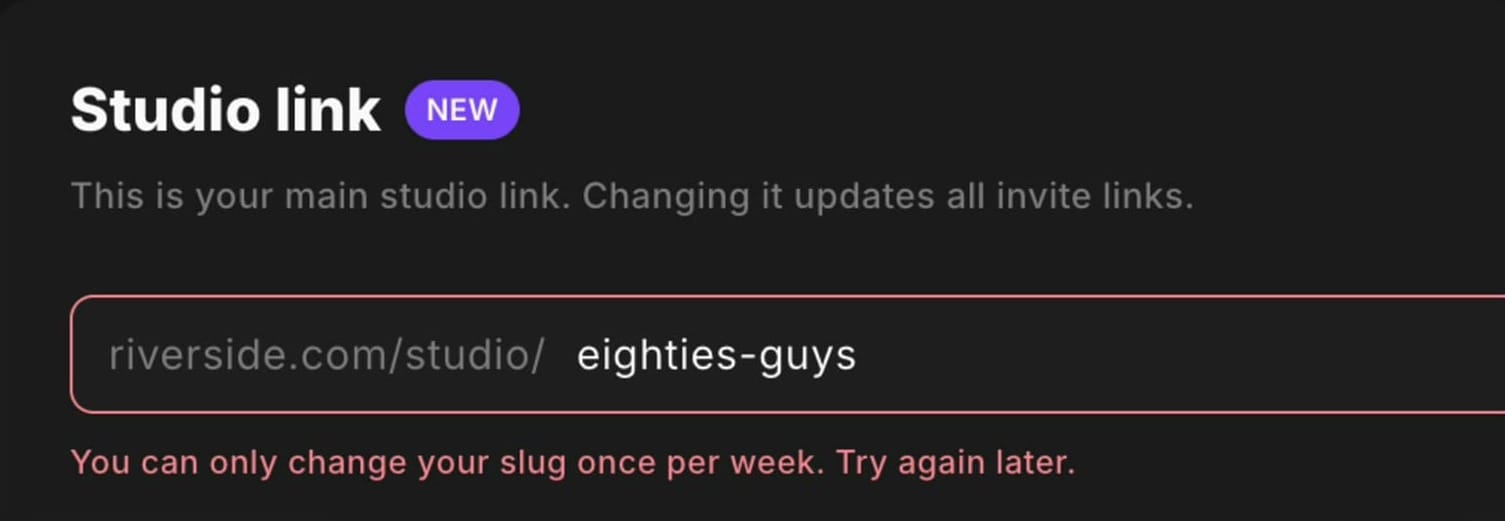
This is the constraint to plan around: Riverside only lets you change the Studio slug once per week. If you've already changed it recently and try again, you'll get You can only change your slug once per week. Try again later.
So treat this as a one-shot decision. Sit with the name for a minute, check the spelling and the hyphens, and only then save.
Save and verify the new link
When the field is valid, the Save button lights up. Click it and the change applies immediately. The thing to check right afterwards is the Invite links line underneath — it should now show your new slug with the invite token appended, which confirms Riverside really did propagate the change to every role's link.
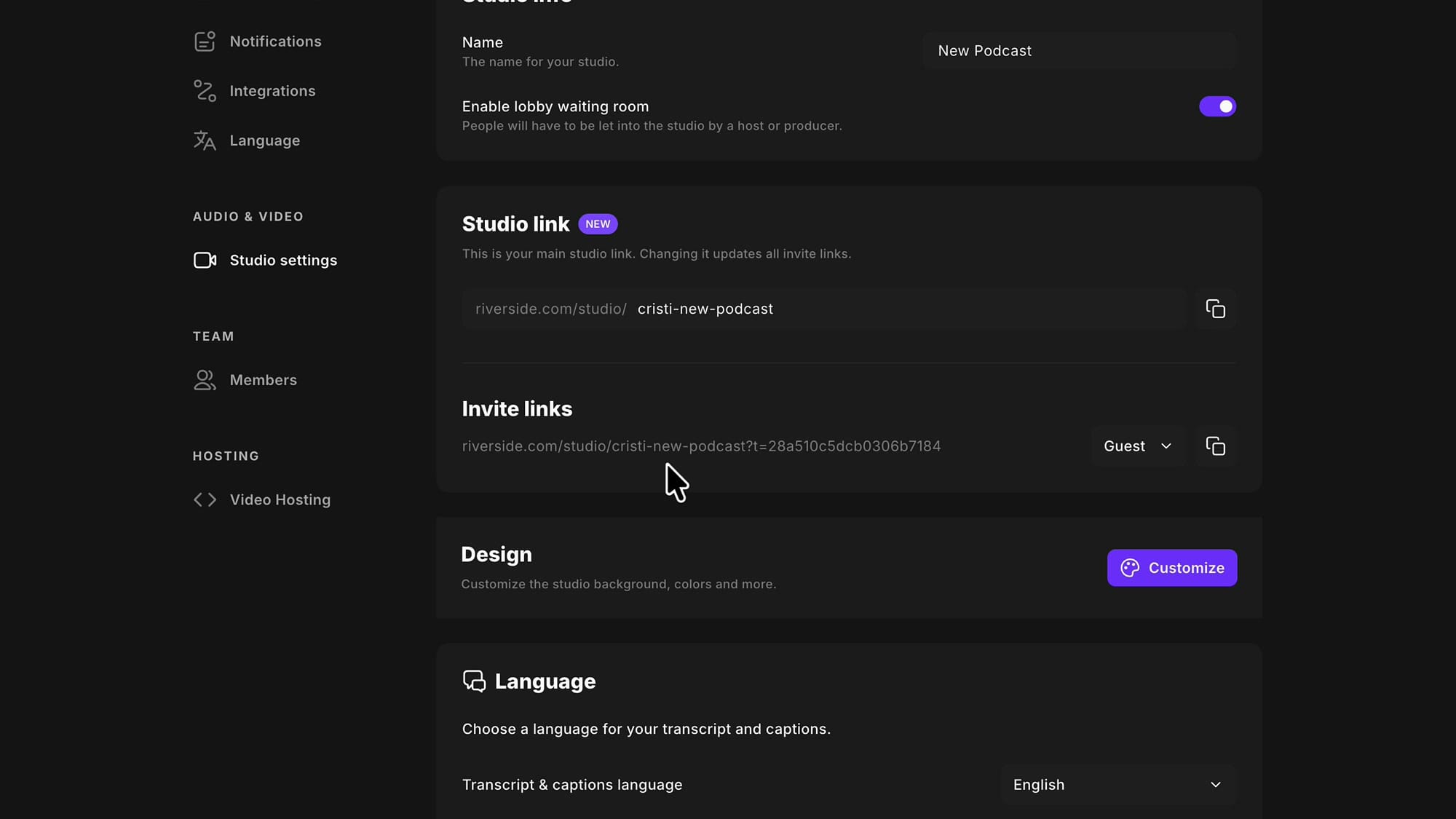
From that moment on, that's your invitation link. Copy it from here whenever you need to bring someone into the Studio.
Don't break sessions you've already booked
Here's the part I'd underline. Changing the slug breaks the old link. If you've already emailed the old URL to a guest for a session next Tuesday, that link will not work anymore and they will not be able to join.
My recommendation: only change the slug when you have nothing on the calendar. If you have recordings already scheduled — and especially if you've booked several sessions in advance — wait until the diary is clear, then change it. If you can't wait, change it and immediately re-send the new link to everyone who has the old one.
Update Calendly and any other integrations
The same problem applies anywhere you've saved the link outside Riverside. I use Calendly, and Calendly lets you attach a custom location link so that anyone who books a call with me gets the Studio URL in their confirmation. That works beautifully — until you change the slug and Calendly keeps handing out a dead link.
So before you save, make a quick list of everywhere the old URL lives: your booking pages, email templates, guest onboarding docs, automations, Zapier or Make scenarios, pinned Slack messages. Then go update every one of them right after you change it. Nothing in Riverside will do this for you.
The Studio name and the Studio URL are separate
One last thing: at the top of the same Settings page is Studio info with a Name field. That name is just the label you see in the Riverside interface, and it is completely independent of the URL. I renamed the Studio to "Cristi's New Podcast" while the slug stayed cristi-new-podcast.
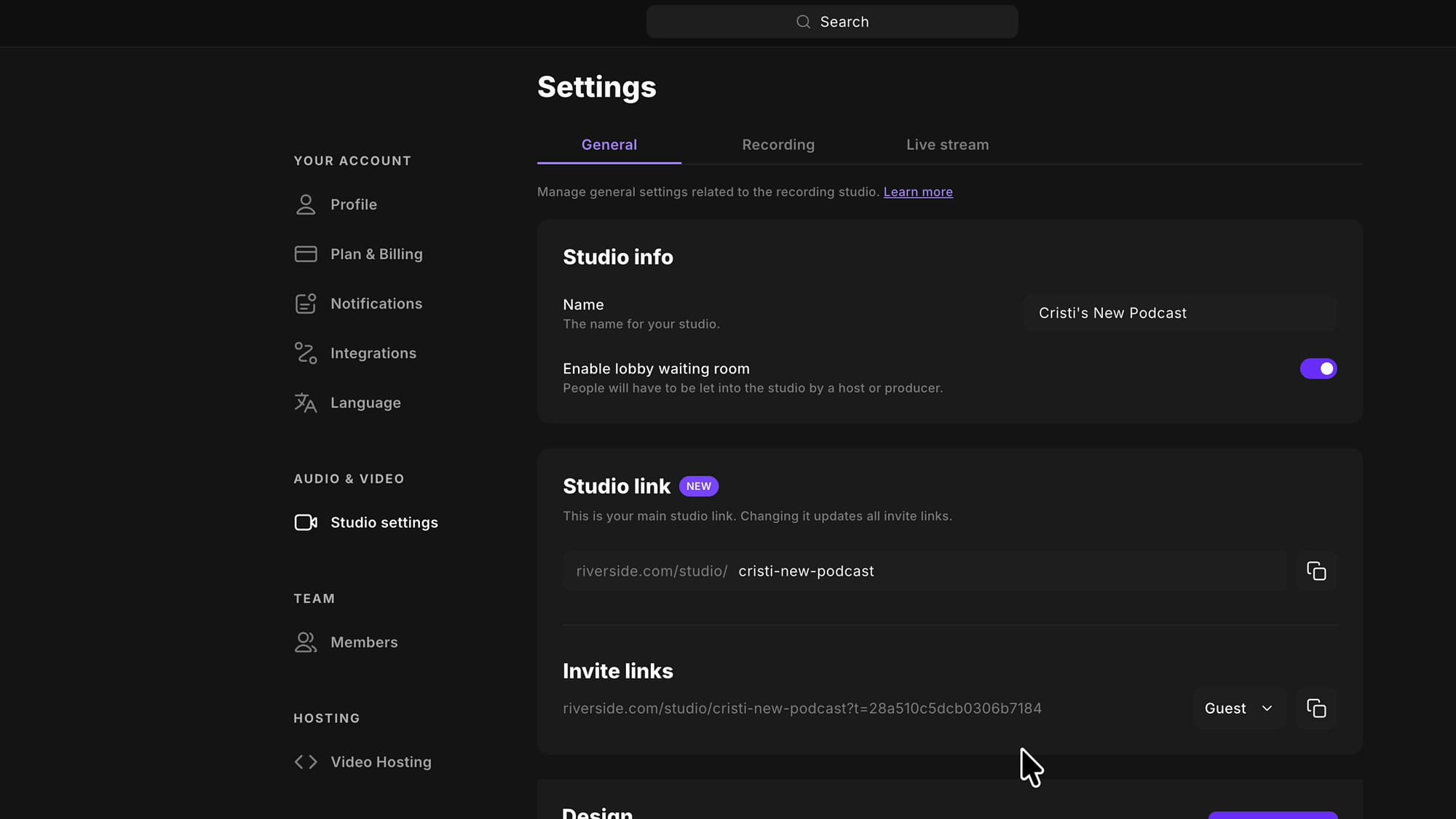
That means you can freely rename a Studio, use spaces and apostrophes, and change it as often as you want. The uniqueness requirement and the once-per-week limit apply only to the URL.
Worth doing
It's a small quality-of-life improvement, but a welcome one. I create Studios for all sorts of purposes and then decide later what they're actually for, so being able to bring the invitation link in line with the show name is genuinely useful. Just pick your slug deliberately, change it when your calendar is empty, and go update Calendly and anything else holding the old URL.
If you're setting up your recording workflow from scratch, you can try Riverside here.
Related guides
 Cristi Cotovan
 Cristi Cotovan
 Cristi Cotovan
 Cristi Cotovan
 Cristi Cotovan
If you're eager to learn more about Riverside and wish to have a one-on-one Riverside coaching session, feel free to book a call with me. I'm here to help you with any questions you have and to guide you through the best workflows, tips, workarounds, or just answer any questions you may have!