How to Export SRT Subtitles from Descript for Toggleable Captions

If you burn captions directly into your video in Descript, they become permanent — viewers can't turn them off. That's fine for social media clips, but for longer content hosted on Vimeo, Wistia, or YouTube, you typically want toggleable captions that viewers can enable or disable.
The solution is to export your captions as a separate SRT or VTT file and upload it alongside your video to the hosting platform.
How to Export Subtitles from Descript
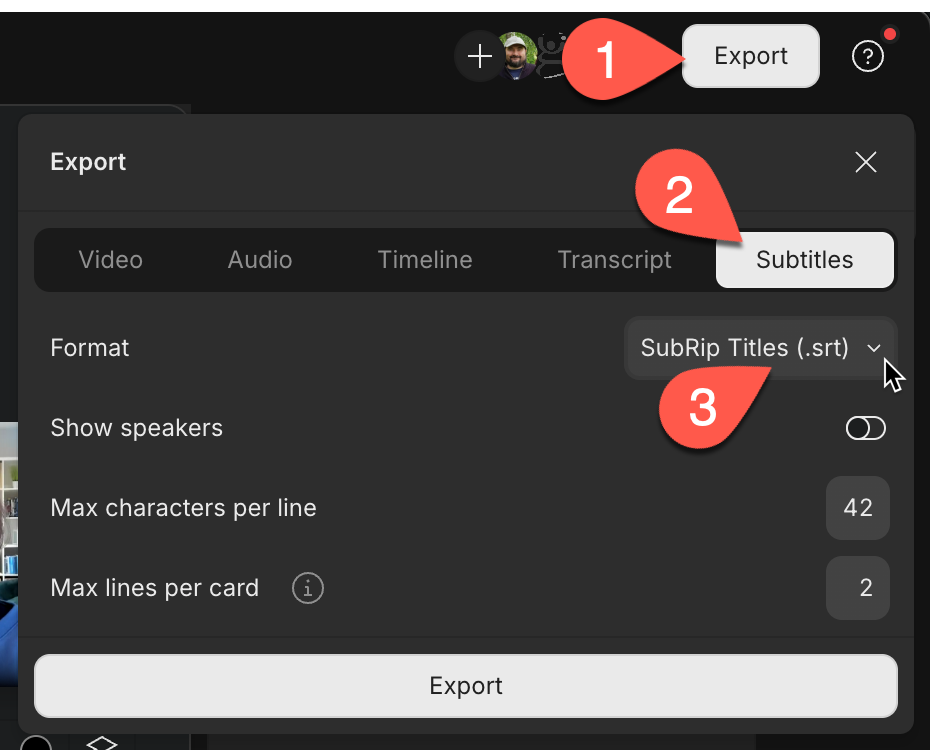
- Click Export in the top-right corner of Descript
- Select the Subtitles tab
- Choose your format — SubRip Titles (.srt) or WebVTT (.vtt)
- Click Export
SRT vs VTT — Which Format?
Both are standard subtitle formats supported by virtually all video platforms:
- SRT (SubRip Titles) — the most widely supported format. Works on YouTube, Vimeo, and most video players.
- VTT (WebVTT) — a newer format with slightly more styling options. Also widely supported.
When in doubt, go with SRT — it's the safest bet for compatibility.
Key Points
- There's no way to toggle captions on/off inside Descript. You either burn them in (permanent) or export them separately.
- Both SRT and VTT are "soft captions" — they're separate files the platform overlays on the video.
- Your hosting platform must support subtitle uploads for this to work. YouTube, Vimeo, and Wistia all do.
- Export the video without burned-in captions, then upload the subtitle file separately to your host.
Related articles
Should You Burn Captions in Descript for YouTube, or Upload Them Separately?
When editing in Descript, you have the option to burn captions directly onto your video. But should you use that feature for YouTube uploads? The short answer: usually, no. While you can burn in captions in Descript, uploading them separately to YouTube gives you and your viewers far more flexibility.
 Cristi Cotovan
Descript Exports a Second Set of Subtitles with My Video
When you export a video from Descript, it will export the video but secretly add ‘soft subtitles’ to that video in the metadata as a subtitle track. There’s no way to disable this in Descript, but you can remove them.
 Cristi Cotovan