Spotify episodes audio-only when hosting podcast with Riverside?
I host my show on Riverside and recently ran into an issue: even when I publish a video episode from Riverside, Spotify displays it as audio-only.

If you want to add video to Spotify podcast episodes while Riverside and Spotify work out their integration, there's a simple manual workaround I use that takes a minute per episode.
Confirm your episode landed on Spotify
First, make sure your Riverside-hosted episode has been delivered to Spotify via your RSS feed or hosting setup. Log in to Spotify for Creators and find the episode in your episode list.
If the episode plays as audio only or show the label "Audio" in the list, you’ll need to add the video manually.
Export the video from Riverside
In Riverside, export the edited episode as a video file (MP4 or MOV). Use Riverside’s export tool, download the resulting file to your computer, and keep it handy.
This is the exact file you will upload to Spotify for the episode so listeners can watch the video instead of only hearing audio.
Quick checklist for the video file:
- Format: MP4 or MOV
- Resolution: match your usual upload size (1080p preferred for sharp playback)
- Filename: include episode number and title to avoid confusion
If you’re eager to learn more about Riverside and wish to have a one-on-one Riverside coaching session, feel free to book a call with me.
I’m here to help you with any questions you have and to guide you through the best workflows, tips, workarounds, or just answer any questions you may have!
Open the episode menu in Spotify for Creators
In Spotify for Creators, go to your podcast’s episode list. Hover over the episode you want to upgrade and click the three-dot menu. One of the options is Upload video — this is the manual path to add video to Spotify podcast episodes when your host isn't pushing video directly.
Upload the video file
Click Upload video. On the upload screen you can either select the MP4/MOV file or drag and drop it into the area.
I drag the Riverside-exported file in and let Spotify process the upload. Spotify will accept common video files and show an upload progress indicator.
Notes while uploading:
- You can replace the file if you picked the wrong one before finalizing.
- Spotify may take a while to process large files
Add a widescreen thumbnail
Spotify supports two thumbnail formats: the square cover used across platforms and a widescreen thumbnail used for video episode.
On the same upload screen you’ll see an option to upload a widescreen thumbnail. Replace the automatic image if you want a custom visual that appears before the video plays.
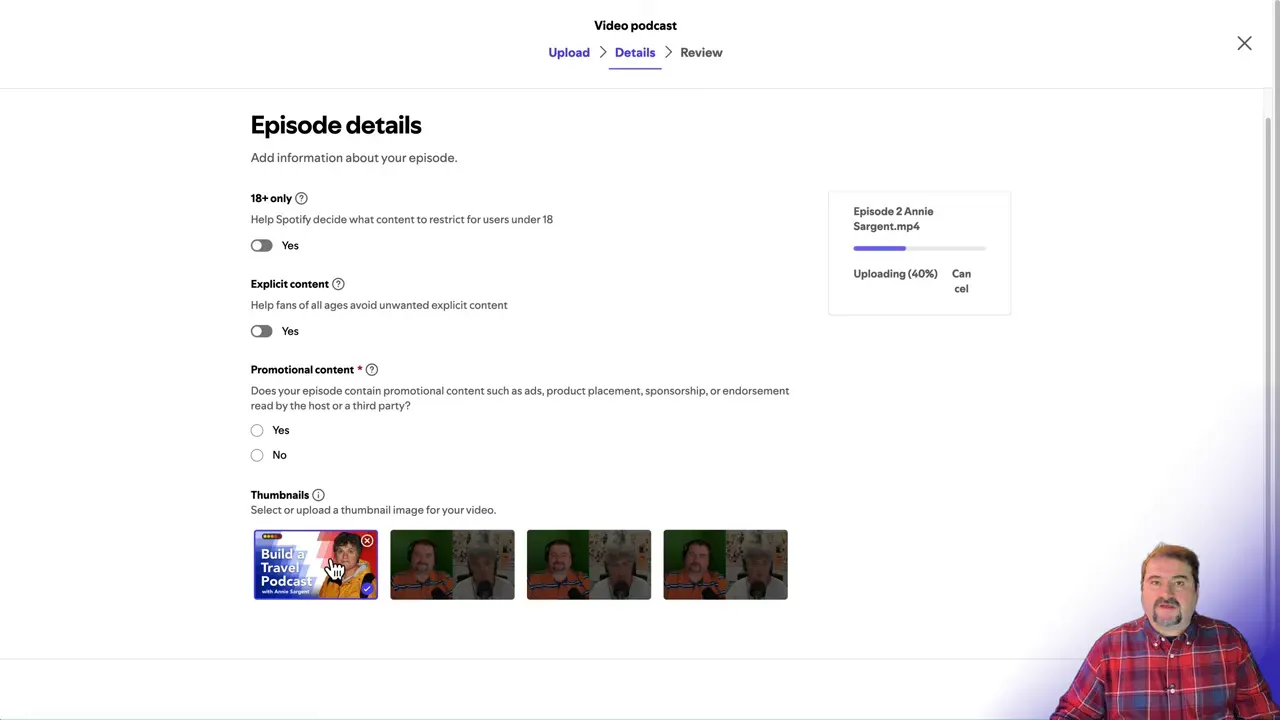
Tips for thumbnails:
- Use a 16:9 image for widescreen displays.
- Keep text large and legible - Spotify may show the thumbnail at small sizes.
- Match the thumbnail style to your show branding for consistency across platforms.
Finalize and let Spotify process
After uploading the file and thumbnail, confirm whether you have any promotional content and click Next. Spotify will queue the file for processing. Once processing finishes, Spotify swaps the audio-only episode with the uploaded video on platforms that support video playback.
Processing times vary by file size and Spotify’s backend load. I usually check back in 10–30 minutes for shorter episodes and up to a few hours for longer, high-resolution videos.
Verify playback and maintain the episode
After processing, play the episode in Spotify to confirm the video appears and the thumbnail displays properly. From the episode menu you can also download the video you uploaded later if needed — Spotify keeps that file available on the episode management page.
If something looks off, replace the video or the thumbnail and re-submit. Small fixes (wrong image, wrong file) are straightforward from the same episode menu.
Why this is necessary
Riverside can record and edit video, and many hosts can publish to platforms like YouTube automatically. At the time I tested this process, the Riverside-to-Spotify path didn’t support sending the video file via the API. I'm sure Riverside are working with Spotify to rectify this.
That means episodes delivered from Riverside arrive as audio-only on Spotify unless you manually attach the video file. Uploading the video yourself lets you maintain a consistent video presence on Spotify without changing your Riverside workflow.
 Cristi Cotovan
What to expect going forward
I expect Riverside and Spotify will eventually coordinate a direct video delivery option, but until that happens the steps above let you add video to Spotify podcast episodes reliably. The manual upload preserves your video content on Spotify and ensures viewers who prefer watching can do so.