
All Descript Tools Walkthrough with Examples: A Complete Guide

Descript packs a lot of tools into one editor — and if you're not sure what each one does, you might be missing features that could save you hours. In this walkthrough, I'll show you every major tool in Descript with real examples, so you can understand how they all work together.
The Underlord Panel (Now, AI Tools)
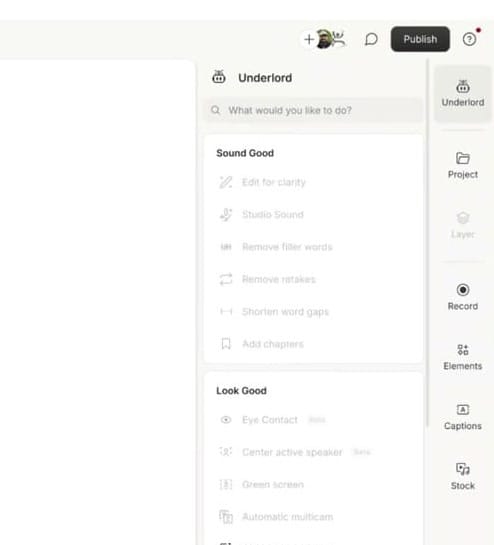
Underlord is Descript's AI-powered command center (Now renamed to "AI Tools". When you open a new project, you'll see it in the right sidebar, organized into three sections:
- Sound Good — Edit for clarity, Studio Sound, remove filler words, remove retakes, shorten word gaps, and add chapters
- Look Good — Eye Contact correction, center active speaker, green screen removal, automatic multicam, and AI image generation
- Repurpose — Create clips, highlights, and find key moments automatically
Descript aims for Underlord to be your AI assistant that handles the tedious parts of editing — the stuff that used to take hours can now happen in a few clicks.
Elements Panel: Shapes, Text, and Dynamic Elements
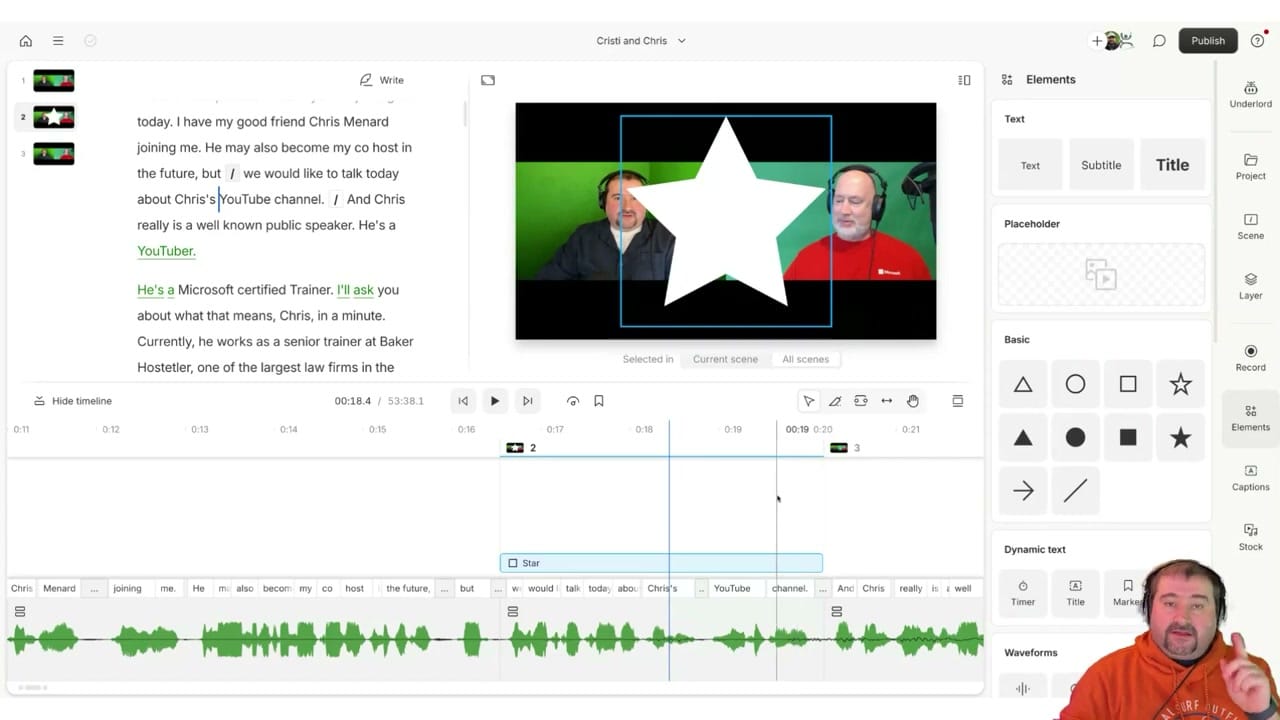
The Elements panel is where you add visual elements to your video. You'll find:
- Text elements — Text, Subtitle, and Title presets for adding on-screen text
- Placeholder — Templates for scene layouts
- Basic shapes — Triangles, circles, squares, stars, arrows, lines, and more
- Dynamic text — Timer, Title, and Marker elements that update automatically
- Waveforms — Audio visualizers you can add to your video
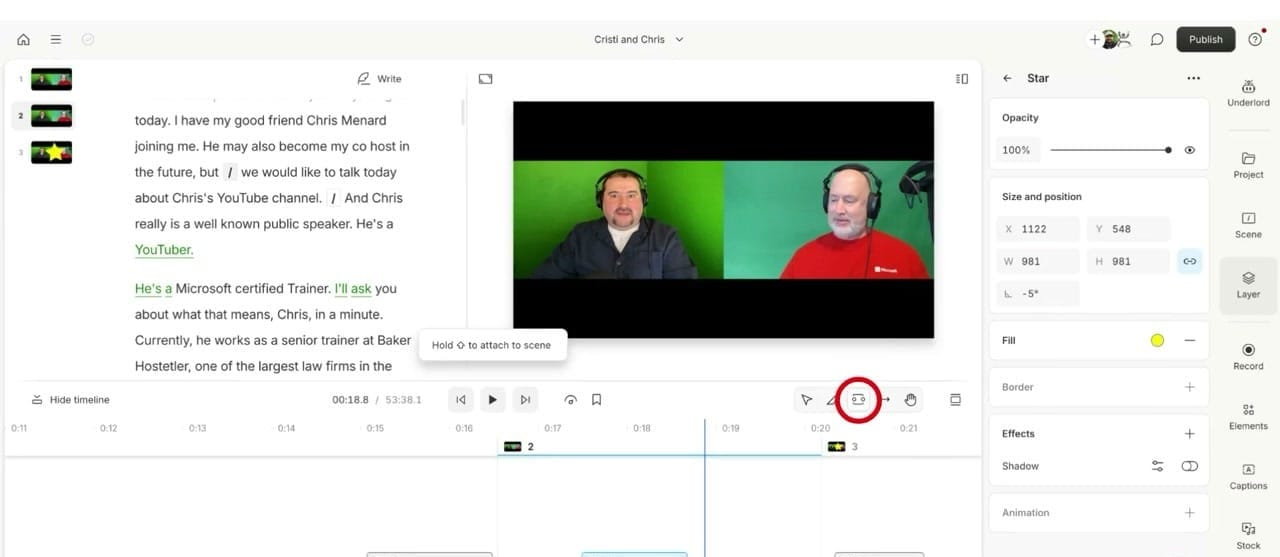
Each element can be placed on the timeline and customized with the Layer properties panel. You can set the fill color, border, shadow, and even add animations — all without leaving Descript.
Layer Properties — Position, Effects, and Animation
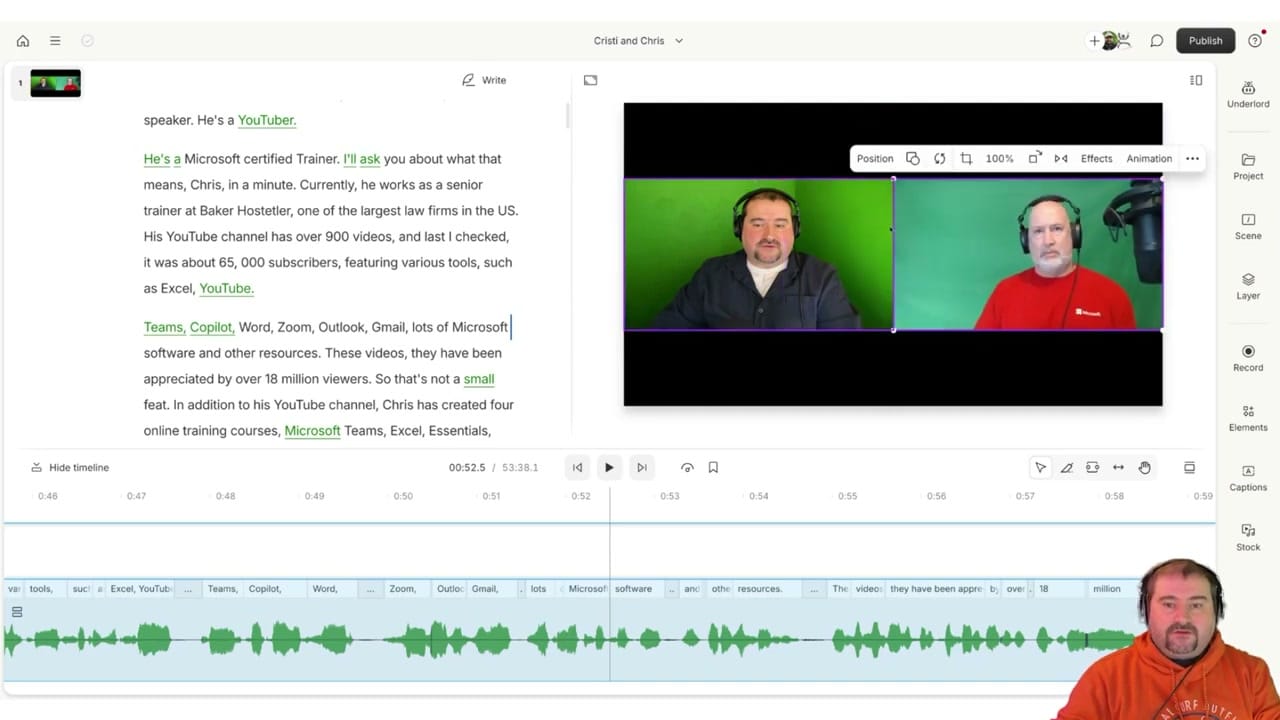
When you select any element on the canvas, the Layer panel appears with detailed controls:
- Position toolbar — The floating bar above your canvas lets you adjust position (0px offset), opacity (100%), and access Effects and Animation settings
- Size and position — Precise X/Y coordinates and width/height with aspect ratio lock
- Fill and Border — Change colors, add borders to any element
- Effects and Shadow — Add visual effects and drop shadows
- Animation — Add entrance and exit animations to any layer
You can also scope elements to appear in just the selected scene, the current scene, or all scenes — which is powerful for things like lower thirds or persistent logos.
Do you need help or wish to learn Descript the right way? Join me on a one-on-one Descript coaching session. Book a call with me.
I’m here to help you with any questions you have and to guide you through the best workflows, tips, workarounds, or just answer any questions you may have!
Properties Panel: Audio Controls and Effects
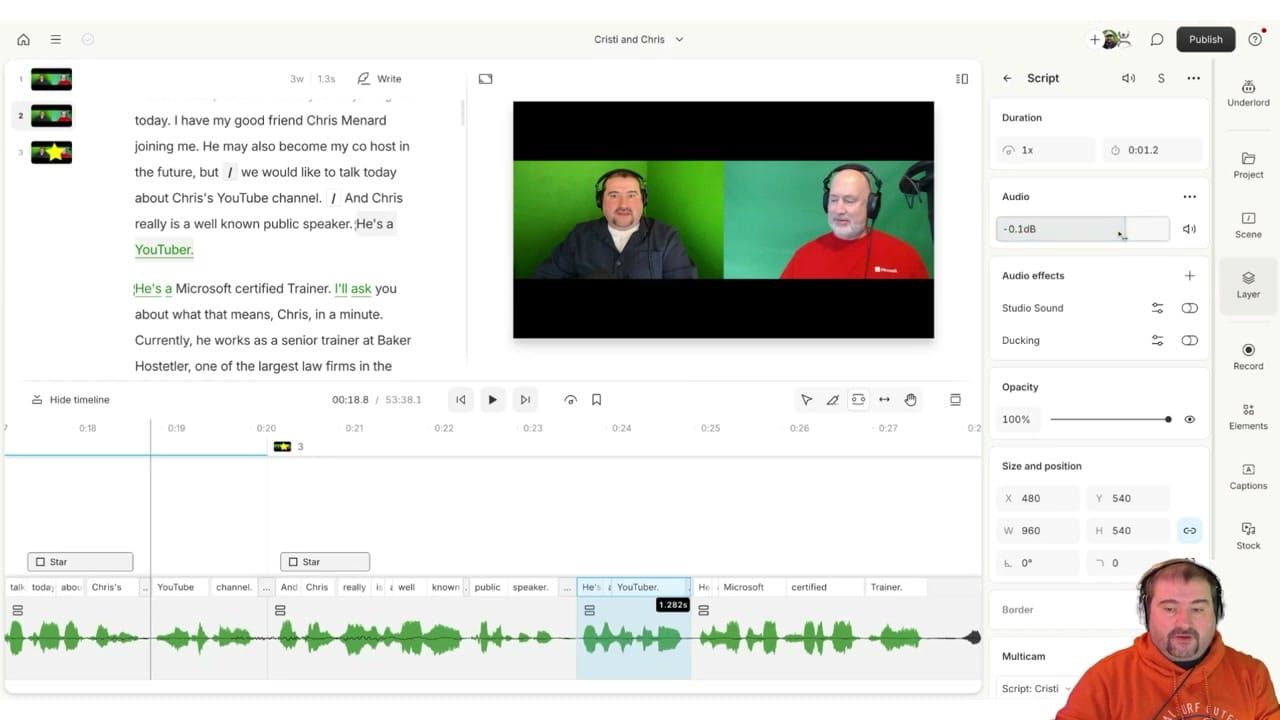
The Layer (now renamed to Properties) panel is where Descript shows its power as a text-based editor. But it also gives you granular audio controls:
- Duration and Speed — Adjust playback speed for any clip
- Audio level — Set dB levels per clip (e.g., -7.0dB for a background track, +0.0dB for dialogue)
- Audio effects — Apply Studio Sound for AI noise reduction and Ducking to automatically lower music when someone speaks
- Multicam controls — When working with multiple speakers, you get separate tracks for each person with their own audio settings
The combination of text-based editing with per-clip audio control means you can fine-tune your podcast or video without switching to a separate audio editor.
Stock Library: Photos, Videos, Music and Sound Effects
Descript includes a built-in stock library with royalty-free audio you can drop right into your timeline:
- Music — Browse instrumental tracks by mood and genre, with preview and duration info
- Sound effects — Cinematic whooshes, impacts, transitions, and more
- Visual stock — The Visuals tab gives you access to stock footage and images
Adding stock audio is as simple as dragging it onto your timeline. And combined with the Ducking effect, it automatically lowers when dialogue plays.
Multicam Editing
If you're recording with multiple cameras or multiple speakers (like a podcast with separate feeds), Descript's multicam editor lets you manage each source on its own track. You can:
- See each speaker's audio waveform separately
- Adjust individual audio levels per speaker
- Cut and rearrange clips on a per-track basis
- Add B-roll or additional media on new tracks
The multicam timeline view is especially useful for podcast editors who need to switch between speaker views and manage separate audio feeds.
Watch the Full Walkthrough
This article covers the highlights, but the full video goes deeper into each tool with live examples. Watch it here:
Do you need help or wish to learn Descript the right way? Join me on a one-on-one Descript coaching session. Book a call with me.
I’m here to help you with any questions you have and to guide you through the best workflows, tips, workarounds, or just answer any questions you may have!



