
Basics of Animation in Camtasia: A Beginner's Guide to Keyframes and Motion

Animation brings static elements to life — and Camtasia makes it surprisingly accessible even for beginners. In this comprehensive tutorial, I cover everything from basic preset animations to custom keyframe-based motion, showing you how to precisely move objects across the canvas.
Watch the full tutorial:
Understanding the Animations Panel
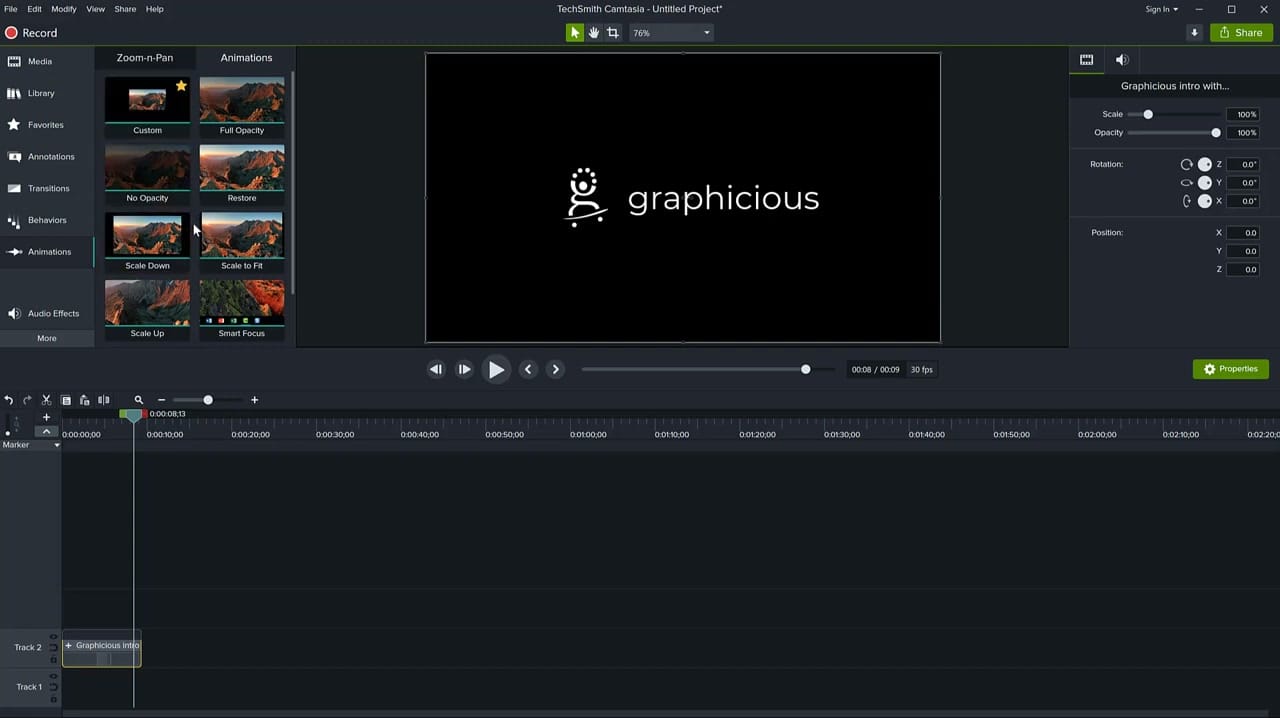
Camtasia's animation system lives under the Animations tab in the left-hand panel. You'll find two categories:
- Zoom-n-Pan — Zoom into or pan across your canvas (great for screen recordings)
- Animations — Move, scale, rotate, and fade objects
The preset animations include:
- Custom — Build your own animation from scratch (most flexible)
- Full Opacity / No Opacity — Fade in or fade out
- Restore — Return an object to its original state
- Scale Down / Scale Up / Scale to Fit — Size changes
- Smart Focus — Automatically focuses on the active area of a screen recording
Applying Your First Animation
To animate an object:
- Place an image, text, or shape on the canvas
- Drag a Custom animation from the panel onto the clip on the timeline
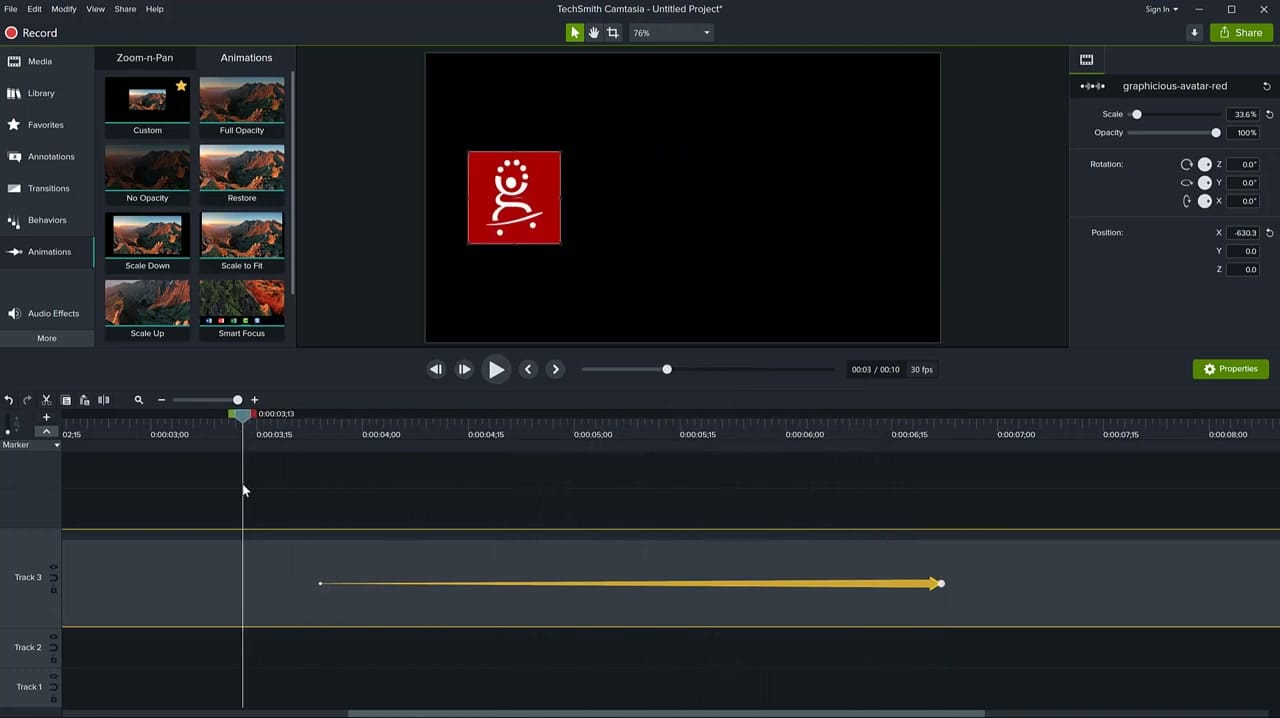
- A yellow arrow appears on the timeline — this is your animation
- Move the playhead to the arrow's start point and position the object where you want the animation to begin
- Move the playhead to the arrow's end point and position the object where you want it to end up
Camtasia interpolates the movement between these two positions. The object will smoothly travel from start to end during the animation's duration.
Controlling Animation Timing
The yellow arrow on the timeline controls everything about your animation's timing:
- Drag the edges to make the animation faster (shorter) or slower (longer)
- Drag the whole arrow to change when the animation starts
- Hover over the arrow to see the exact Start Time and Duration
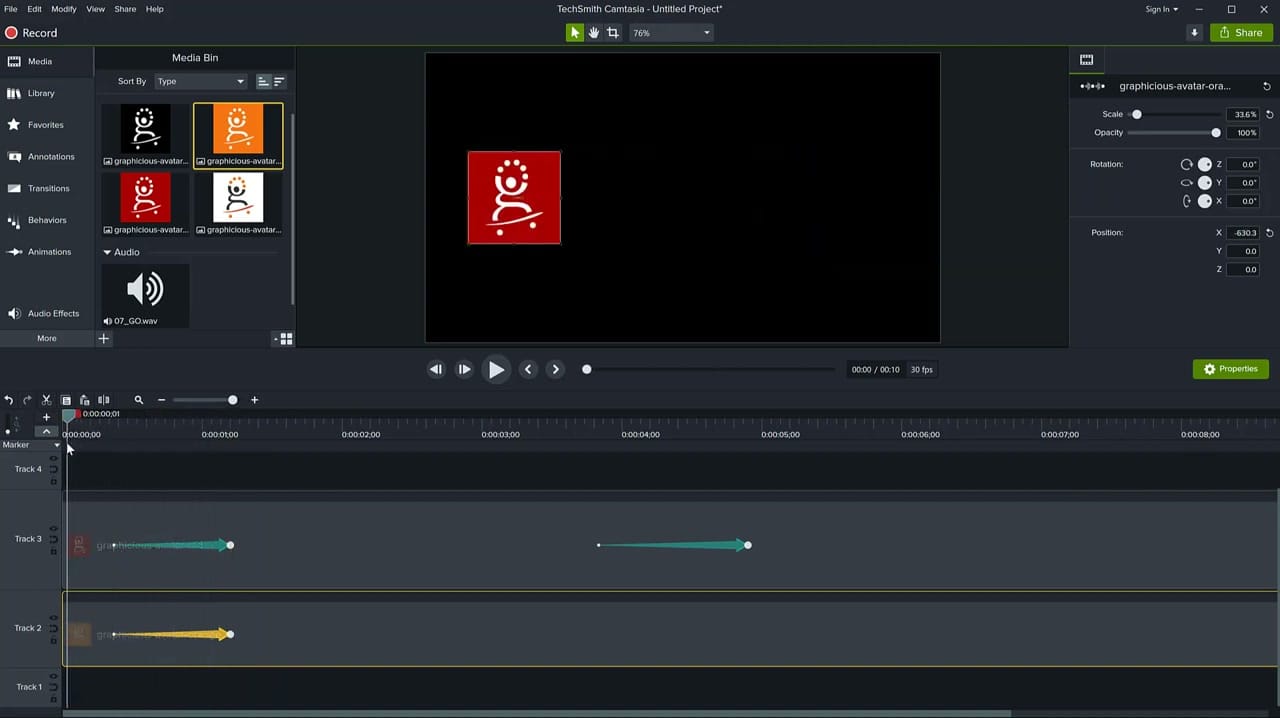
You can also adjust animation properties in the Properties panel on the right — Scale, Opacity, Rotation, and Position (X, Y, Z) are all animatable.
Working with Multiple Animations
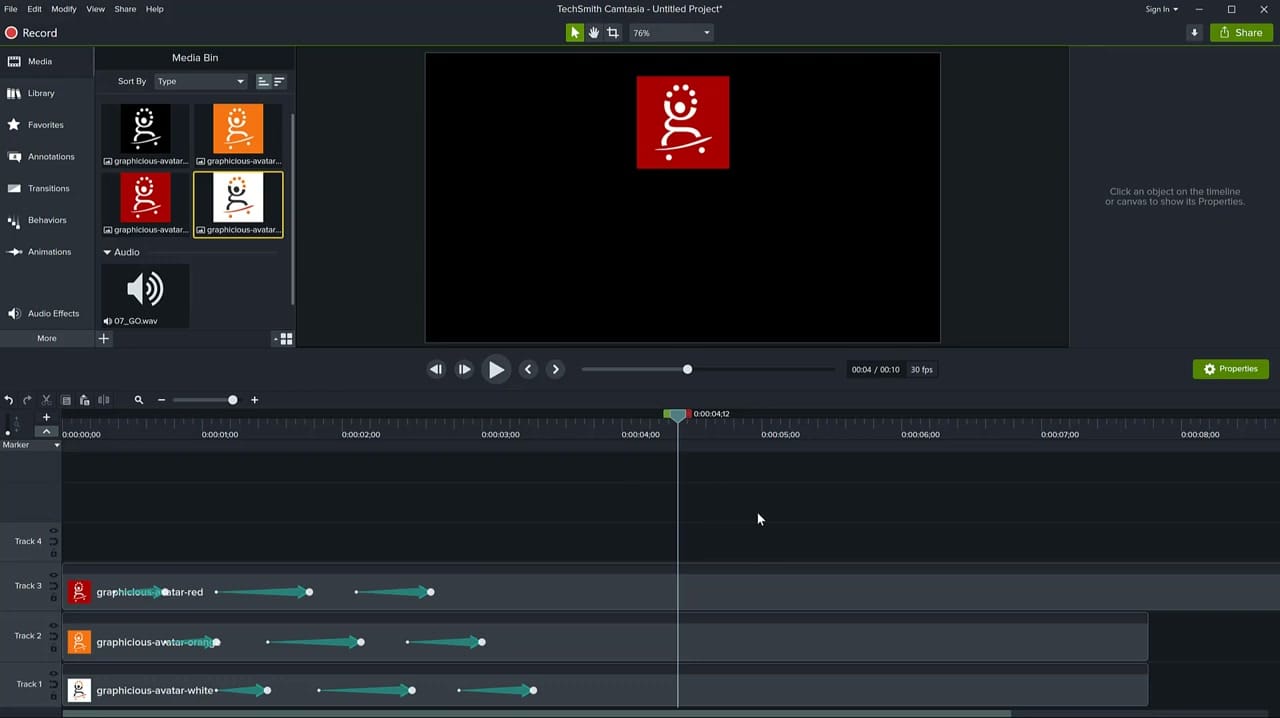
Things get interesting when you combine multiple animated objects. Each object lives on its own track, and each can have independent animation timing. This lets you create sequences like:
- A logo that slides in from the left while text fades in from below
- Multiple elements that animate in sequence with staggered timing
- Objects that move, scale, and rotate simultaneously
Copying and Reusing Animations
Once you've set up an animation you like, you can copy it to other clips:
- Right-click the animation arrow and copy it
- Paste it onto another clip on the timeline
- Adjust the end position as needed — the timing and easing carry over
This is a huge time saver when animating similar elements, like a series of bullet points or a grid of images.
Tips for Better Animations
- Keep it subtle — Smooth, short animations (0.5-1.5 seconds) look more professional than dramatic ones
- Use the Ease In/Ease Out properties to make motion feel natural
- Plan your layout before animating — know where objects start and end
- Check out my flowchart animation tutorial and cinematic text effect tutorial for more advanced techniques
 Cristi Cotovan
 Cristi Cotovan
 Cristi Cotovan
If you’re wish to learn more about Camtasia and wish to have a one-on-one Camtasia coaching session, feel free to book a call with me.
I’m here to help you with any questions you have and to guide you through the best workflows, tips, workarounds, or just answer any questions you may have!



