Blue Background Appears in Camera on Mac? Here's the Fix


If you're using Riverside on a Mac (or any other recording app) and a blue background suddenly appears behind you in the camera preview, it's not a Riverside bug — it's a macOS feature that's been turned on without you realising.
What's Happening
macOS includes system-level camera effects that apply to every app using your webcam — Riverside, Zoom, Google Meet, FaceTime, browser-based video tools, all of them. One of these effects is Background, which replaces your real background with a solid colour (often blue) or a blurred version.
Because these effects are applied at the OS level before the video feed reaches Riverside, it looks like Riverside is causing it — but it's actually macOS.
How to Fix It
- Make sure your camera is active (open Riverside or any video app)
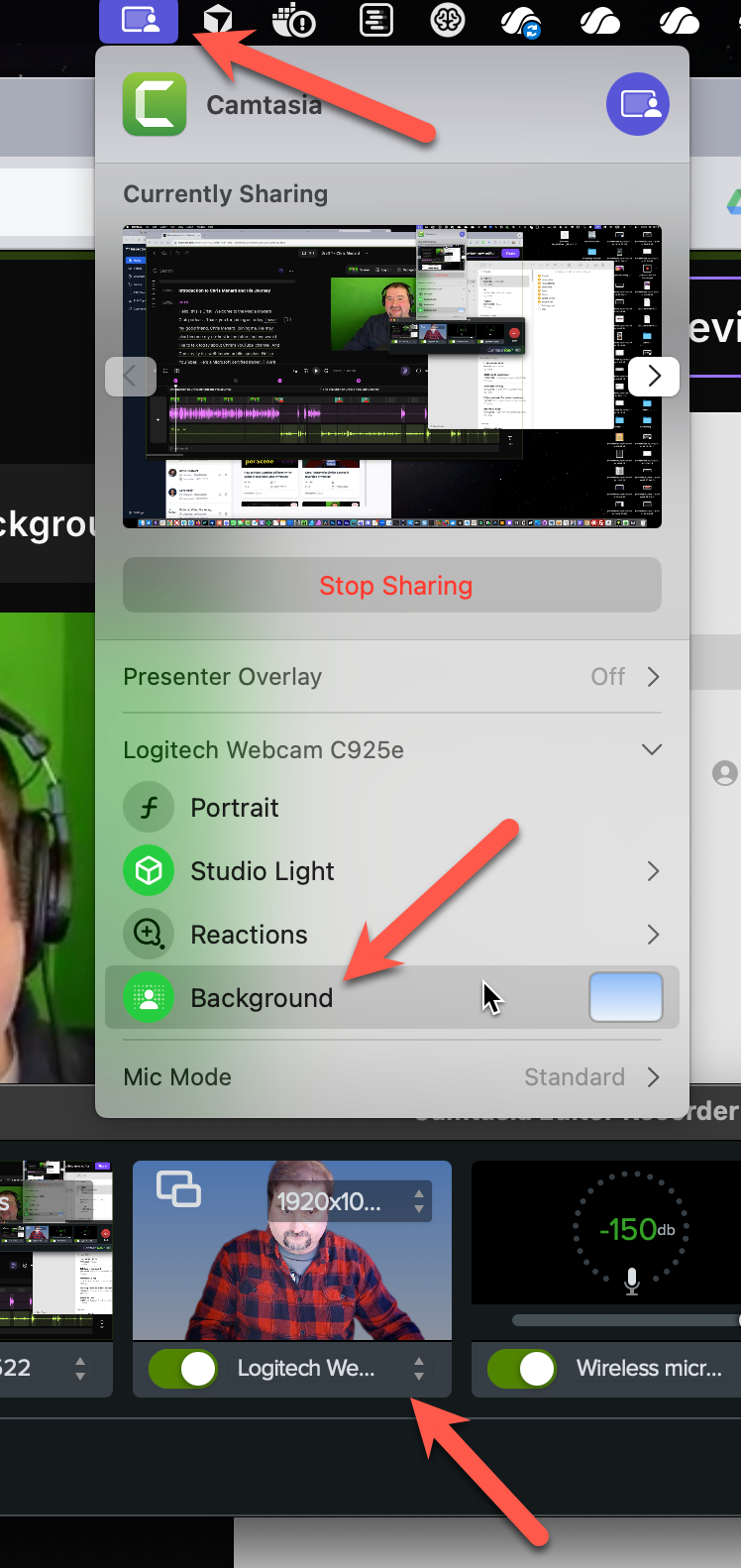
- Look at the menu bar at the top of your screen (system tray)
- Click the camera icon (near the green dot indicator)
- Find Background and turn it off
Other Camera Effects to Check
While you're in those settings, it's worth checking these too — they can all cause unexpected changes to your video:
- Portrait — adds background blur (similar to smartphone portrait mode)
- Studio Light — brightens your face and dims the background
- Reactions — triggers emoji animations on hand gestures (balloons, confetti, etc.)
These features were introduced in macOS Sonoma and can be toggled per-app, which makes it easy to accidentally enable one and forget about it.
Still Not Working?
If disabling Background doesn't fix it:
- Try a different browser — some browsers handle macOS camera effects differently
- Quit and reopen the browser after changing the setting
- Check if your webcam software (e.g., Logitech Tune) has its own virtual background feature enabled
 Cristi Cotovan
Record in up to 4K with local recording that doesn't depend on your internet connection — try Riverside.
If you’re eager to learn more about Riverside and wish to have a one-on-one Riverside coaching session, feel free to book a call with me.
I’m here to help you with any questions you have and to guide you through the best workflows, tips, workarounds, or just answer any questions you may have!