
Audio Ducking in Camtasia with the Audio Emphasize Effect

When you add background music to a Camtasia project, you often need the music to get quieter when someone is speaking and come back up during pauses. This is called audio ducking, and Camtasia makes it easy with the Audio Emphasize effect.
What Is Audio Ducking?
Audio ducking automatically lowers the volume of one audio track (like background music) when another track (like your voice) is playing. Instead of manually adjusting volume keyframes throughout your timeline, the Emphasize effect handles it automatically.
Finding the Audio Emphasize Effect
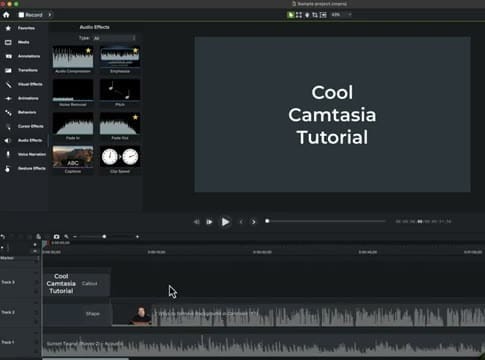
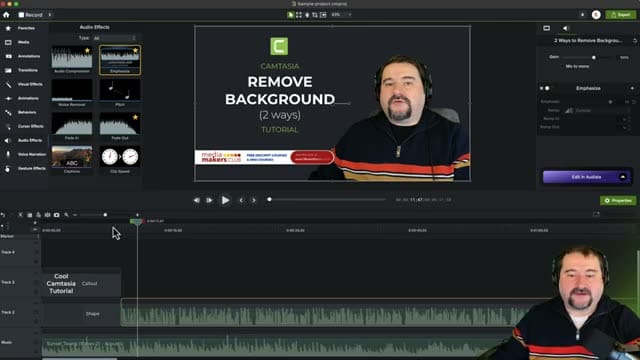
Open the Audio Effects panel in the left sidebar. You'll see all available audio effects: Audio Compressor, Emphasize, Noise Removal, Pitch, Fade In, Fade Out, Captions, and Clip Speed. Drag the Emphasize effect onto the audio track you want to prioritize — typically your voice narration track.
Setting Up Your Timeline
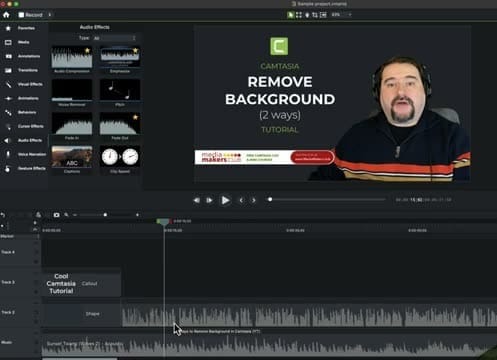
For audio ducking to work, you need at least two audio tracks — one with your narration or primary audio, and another with background music. In this example, the timeline has multiple tracks: a callout track, a shape track, the main video with voice, and a separate music track at the bottom.
Emphasize Properties
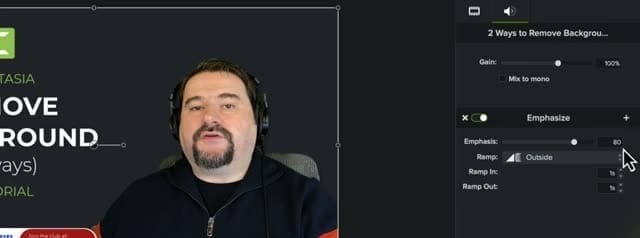
After applying the Emphasize effect, select the clip to see its properties on the right side. The key settings are:
- Emphasis — Controls how much the other tracks are reduced (0-100). Higher values mean more ducking. The default of 80 works well for most cases.
- Ramp — Choose between Outside mode (ducks audio outside the selected clip) or toggle for different behavior.
- Ramp In — How quickly the ducking fades in (in seconds). A value of 1s gives a smooth transition.
- Ramp Out — How quickly the ducking releases after the voice stops.
Applying the Effect
Drag the Emphasize effect from the Audio Effects panel onto the track you want to emphasize — your narration track. Camtasia automatically detects when audio is present on that track and ducks all other audio tracks accordingly.
Fine-Tuning the Settings
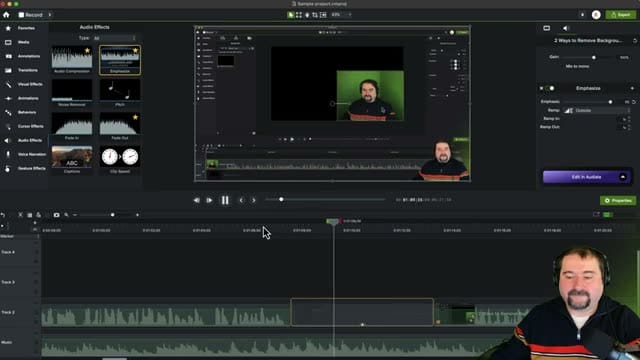
With the effect applied, you can adjust the properties to get the right balance. If the music is still too loud during narration, increase the Emphasis value. If the transitions feel abrupt, increase the Ramp In and Ramp Out times for smoother fades.
The Result
Once applied, the music plays at full volume during pauses and automatically ducks when speaking resumes.
Quick Reference
- Effect location: Audio Effects panel → Emphasize
- Apply to: The track you want to keep loud (narration)
- Emphasis slider: 80 is a good default (higher = more ducking)
- Ramp mode: Outside — ducks audio on other tracks
- Ramp In/Out: 1 second for smooth transitions
The Audio Emphasize effect in Camtasia saves you from manually keyframing volume changes. Apply it once, adjust the settings, and your background music automatically ducks whenever you're speaking.
If you’re wish to learn more about Camtasia and wish to have a one-on-one Camtasia coaching session, feel free to book a call with me.
I’m here to help you with any questions you have and to guide you through the best workflows, tips, workarounds, or just answer any questions you may have!



