How to Adjust Scene Break Location in Riverside

When Riverside automatically creates scenes from your recording, the scene breaks don't always land exactly where you want them. Maybe the break comes a second too early or cuts into a speaker's sentence. The good news: you can manually adjust scene break locations directly in the Riverside timeline.
Here's how to reposition scene breaks for cleaner edits.
Finding Scene Breaks in the Timeline
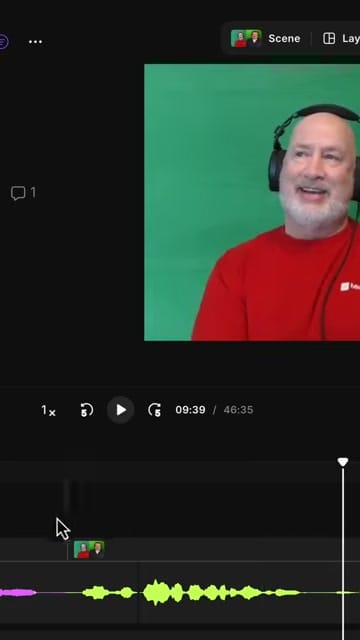
In the Riverside editor, scene breaks appear as small markers on the timeline between audio waveforms. They separate your recording into distinct scenes — typically aligned with speaker changes or pauses. The transcript panel on the left shows the corresponding text, while the video preview displays the current scene's layout.
You'll notice the scene break sits by the small thumbnail, on top of the waveforms.
Dragging the Scene Break
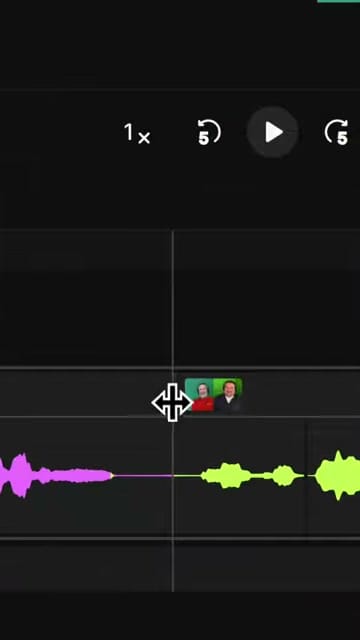
To move a scene break, hover over it on the timeline until you see the move cursor. Then click and drag the scene break left or right to reposition it. The break snaps to a new location as you drag.
This is useful when:
- The automatic scene break cuts into a speaker's sentence
- You want the scene to start slightly earlier or later
- The break landed in the middle of a pause rather than at the natural transition point
Repositioning to the Right Spot
As you drag, the playhead follows so you can see exactly where the new scene will start. Release the mouse button when the break is at the right position.
You can use the playback controls to scrub through the audio and find the exact transition point before moving the break.
Verifying the Result
After repositioning, play through the transition to confirm it sounds natural. The "This scene" and "Similar scenes" tabs above the timeline let you review the current scene or find other scenes with the same layout.
Quick Tips
- Zoom in on the timeline for more precise placement — use the zoom slider or Cmd + Scroll / Ctrl + Scroll
- Listen before and after the break to make sure the transition sounds natural
- Scene breaks affect layouts — each scene can have its own layout (side-by-side, speaker focus, etc.), so the break position determines when the layout switches
- Undo with Cmd+Z / Ctrl+Z if the new position doesn't work
If you’re eager to learn more about Riverside and wish to have a one-on-one Riverside coaching session, feel free to book a call with me.
I’m here to help you with any questions you have and to guide you through the best workflows, tips, workarounds, or just answer any questions you may have!