
How to Blur License Plates in Adobe Premiere Pro Using Tracking Masks

Adobe Premiere Pro has a built-in masking and tracking engine that makes blurring moving objects straightforward. Whether you need to hide license plates, faces, or any sensitive information in your footage, you can draw a mask, apply a blur effect, and track it across the clip — all without leaving Premiere.
Adding the Gaussian Blur Effect
Start by selecting the video clip on your timeline. Go to the Effects panel and search for Gaussian Blur (under Video Effects → Blur & Sharpen). Drag it onto your clip. In the Effect Controls panel, you'll see the Gaussian Blur effect appear with a Blurriness slider — leave it at 0 for now while you set up the mask.
Drawing the Mask
Under the Gaussian Blur effect in Effect Controls, you'll see mask shape icons. Click the pen tool (free-draw Bezier) to draw a custom mask shape. In the Program Monitor, click around the license plate to create a mask outline. You don't need to be pixel-perfect — you'll feather the edges later.
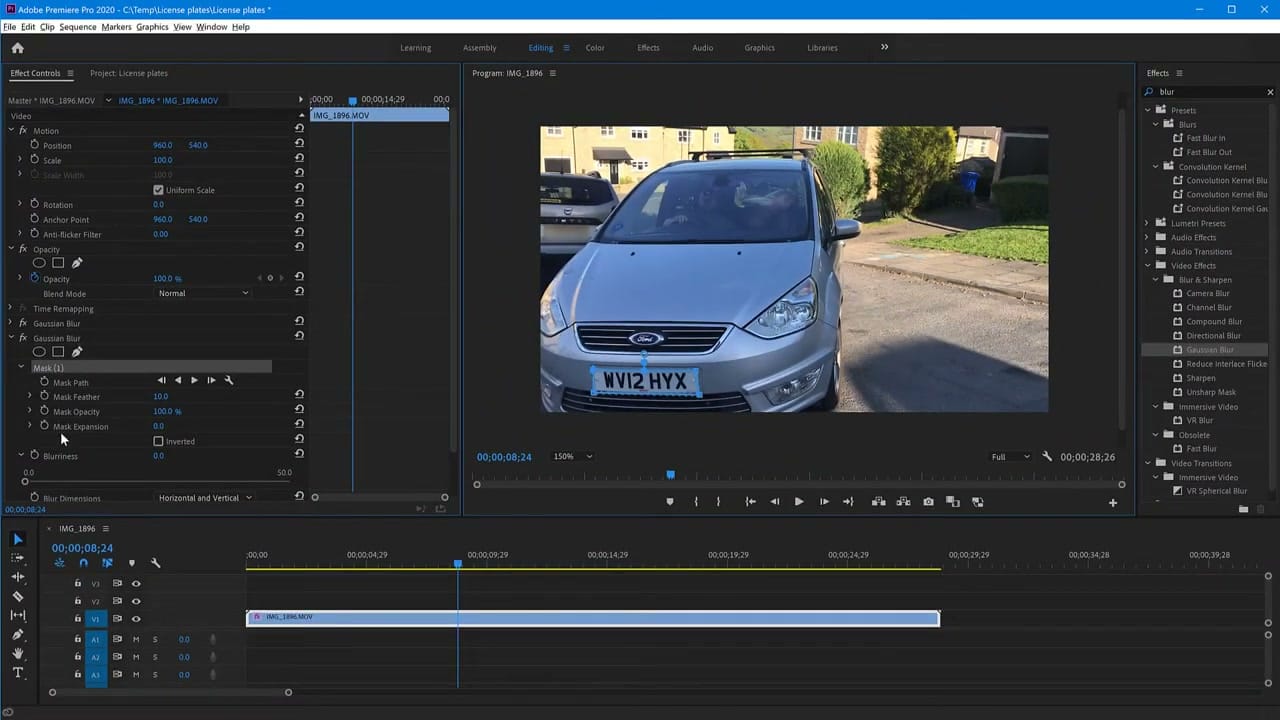
Once the mask is drawn, increase the Blurriness value (50 or higher works well) and adjust Mask Feather to soften the edges so the blur blends naturally with the surrounding footage.
Tracking the Mask
Since the car is moving, the mask needs to follow the license plate throughout the clip. In the Effect Controls panel under Mask (1), you'll find tracking controls — a set of transport buttons. Click Track Selected Mask Forward to have Premiere automatically follow the object frame by frame.
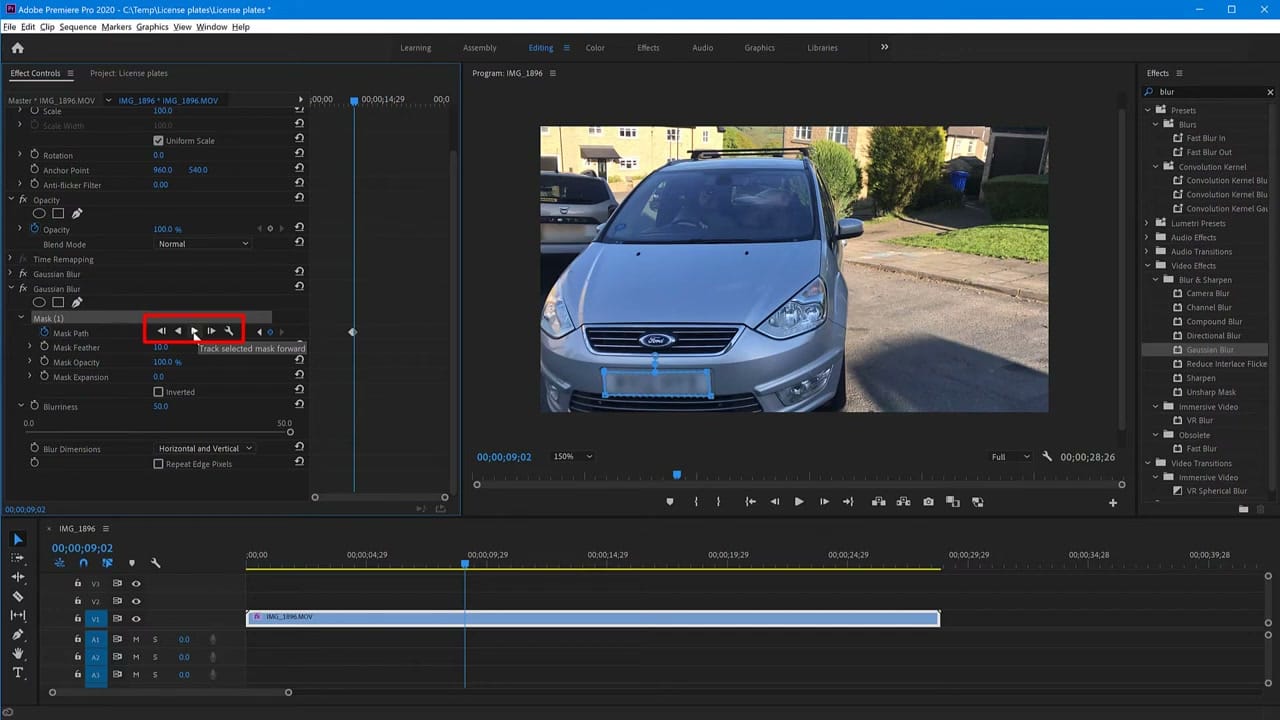
Premiere analyses each frame and adjusts the mask position to follow the license plate. For most footage, the default tracking works well. If the mask drifts on a specific frame, you can pause tracking, manually adjust the mask at that point, and resume.
Fine-Tuning and Tips
After tracking completes, scrub through the timeline to check the result. Pay attention to moments where the object moves quickly or partially leaves the frame — these are where tracking might lose accuracy.
You can also track backwards if you started in the middle of a clip. And if you need to blur multiple objects, add another Gaussian Blur effect with a separate mask — each mask tracks independently.
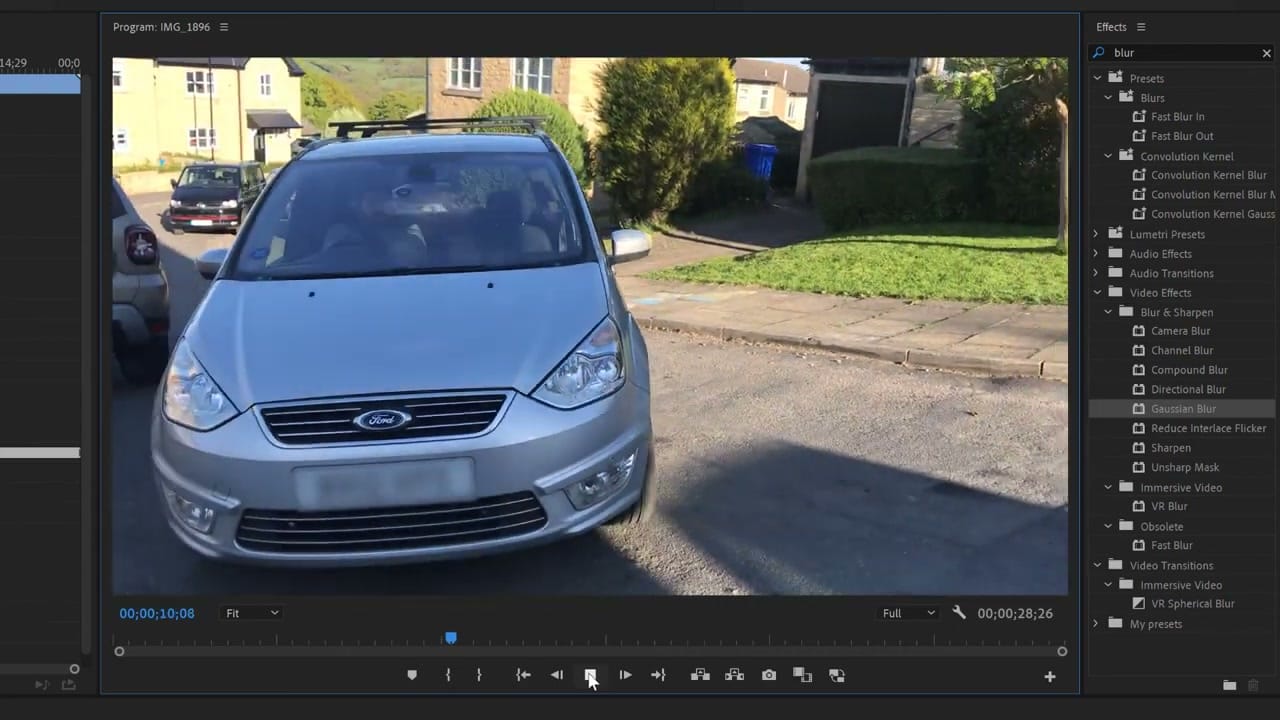
This technique works for any moving object: faces in crowd footage, brand logos you don't have permission to show, or personal information visible on screen.



