How to Create AI Thumbnails in Riverside with Co-Creator


Creating thumbnails used to mean opening a separate design tool, finding the right frame, and manually composing text and images. Riverside now handles it directly inside the editor through Co-Creator — the same AI assistant that generates titles, descriptions, and show notes, and works with you inside the editor.
In this tutorial, I walk through the full thumbnail workflow: picking a style, customizing the title, requesting edits through the chat, and applying brand kit colors for a consistent look across episodes.
Finding the Thumbnail Tool
Open any recording in the Riverside editor and click Co-Creator in the right-hand sidebar. If you don't see a thumbnail option right away, check the Suggestions section — Co-Creator offers context-aware suggestions based on your recording, and thumbnail generation is one of them.
Once selected, Co-Creator automatically extracts faces from the video and asks which participants to feature. This saves you from manually scrubbing through footage looking for a usable frame.
Choosing a Style and Title
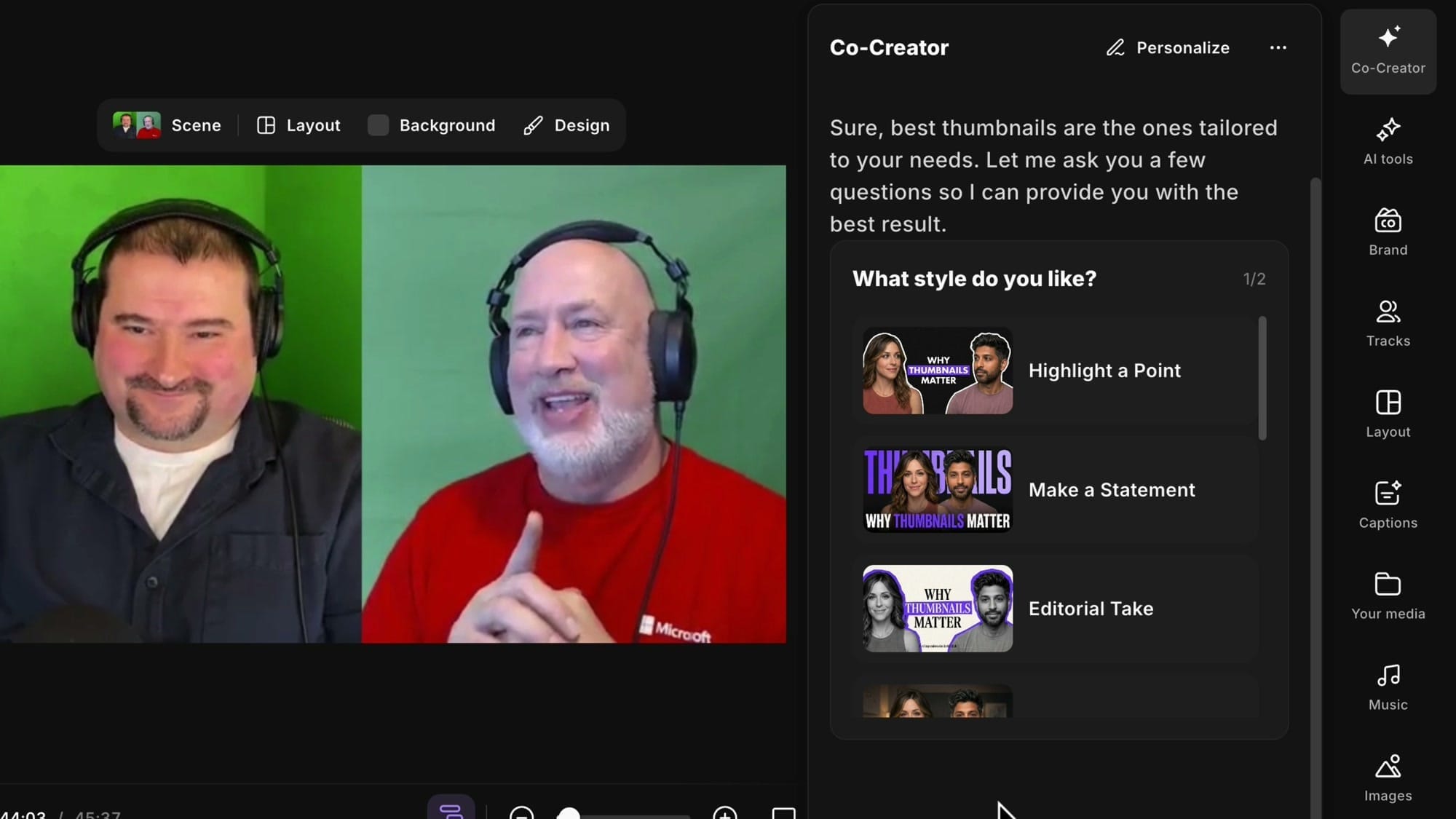
Co-Creator presents several thumbnail styles to choose from - Highlight a Point, Make a Statement, Editorial Take, and others - each with a different layout and text treatment. You can scroll through two pages of options.
Next, it asks for a title. Co-Creator suggests titles pulled from the video content (it already knows what the episode is about), but you can also type your own. This is where you dial in the exact text that appears on the thumbnail.
Reviewing and Editing Generated Thumbnails
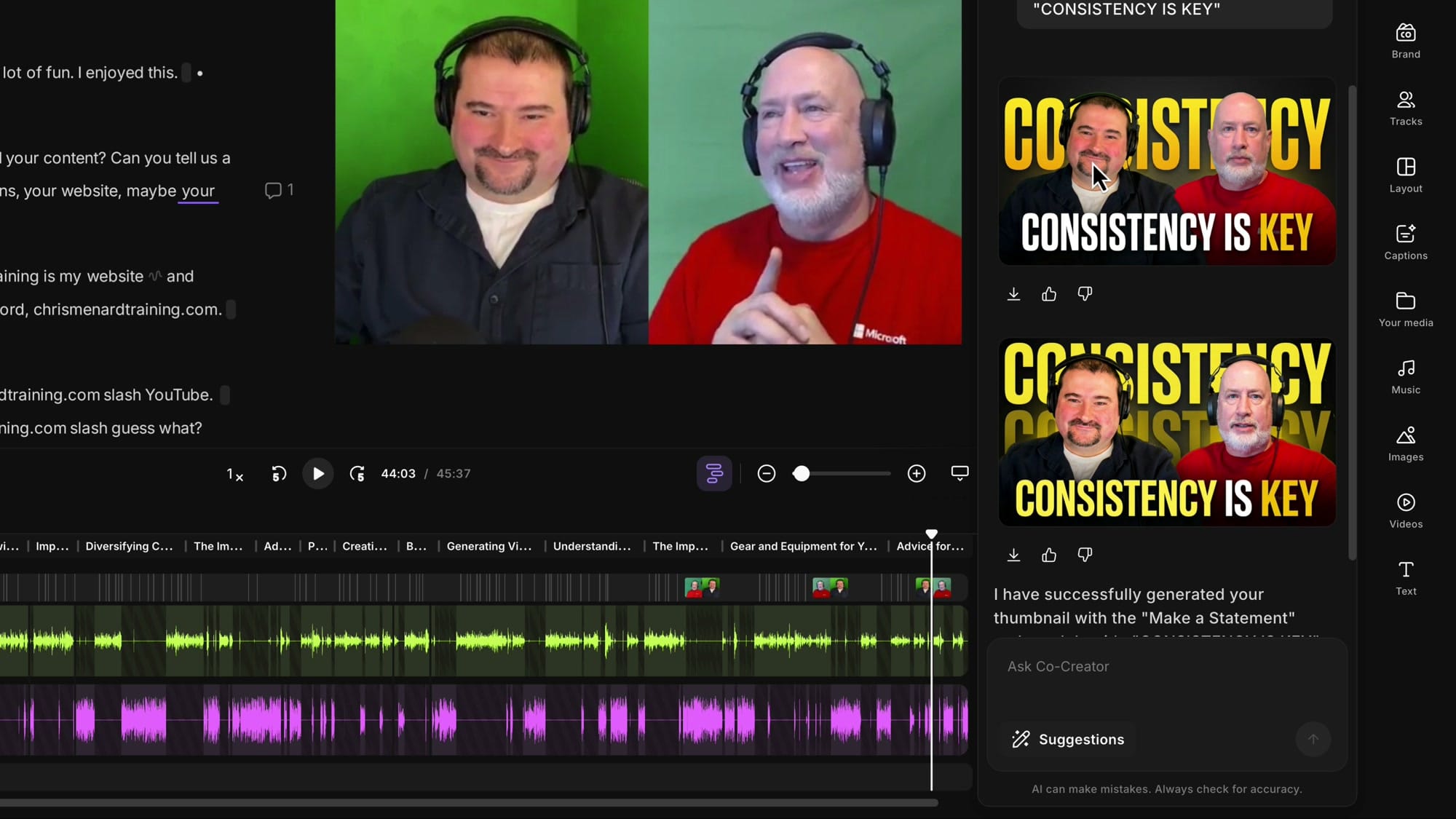
After choosing a style and title, Co-Creator generates two thumbnail variants. Each uses the extracted face photos and your title text, arranged according to the selected style. You can download either variant immediately, or refine it further.
The editing works through the chat interface — just type what you want changed. I ask for a color change ("make the text red") and Co-Creator regenerates the variant with that adjustment.
This iterative approach means you don't need any design skills — just describe what you want.
Brand Kit Colors and Consistency
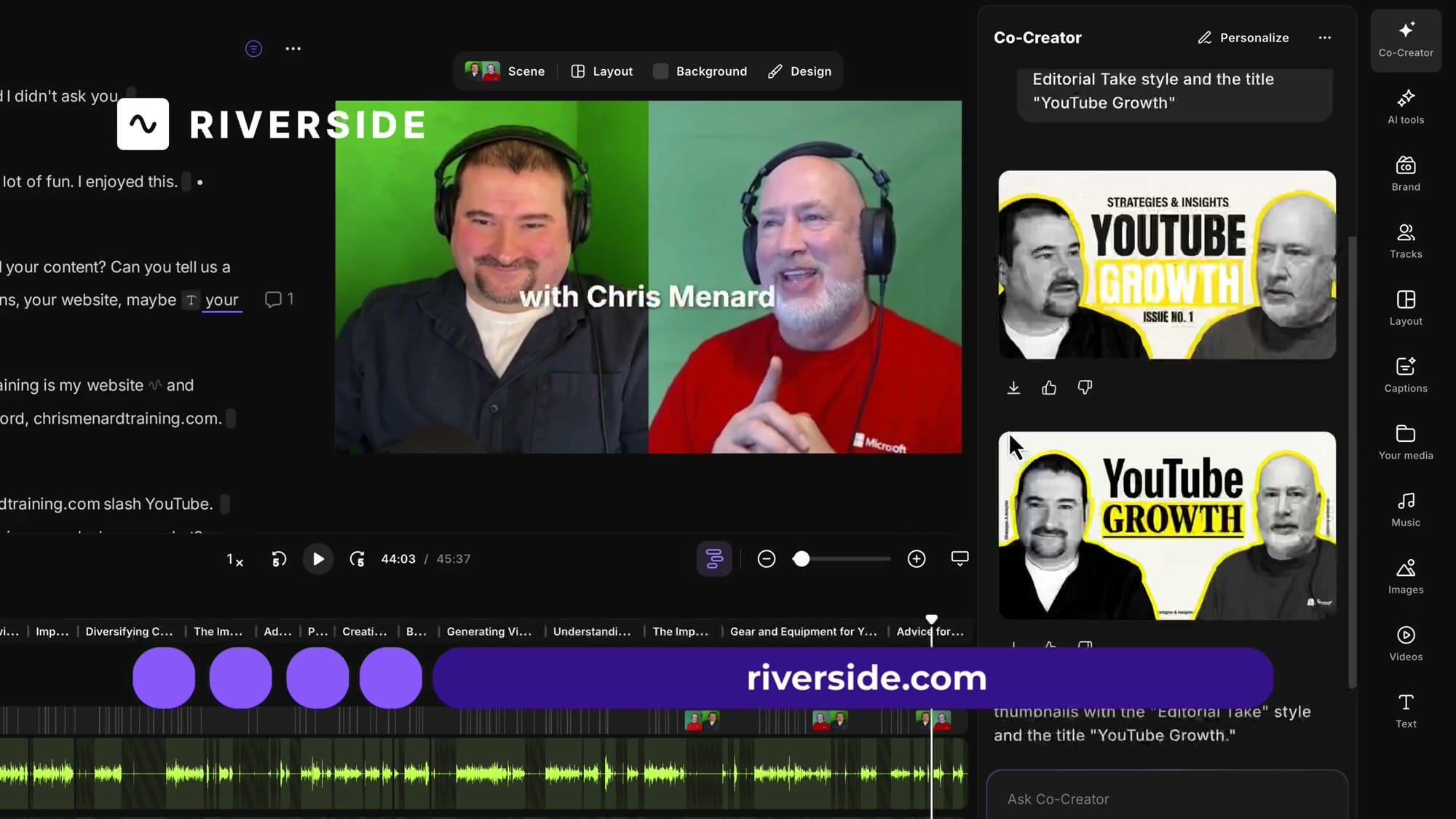
Co-Creator pulls colors from your brand kit automatically. The generation progress shows steps like "Applying template style," "Matching colors," "Composing portrait and text," and "Creating variations" — brand matching happens as part of the pipeline, not as an afterthought.
This means every thumbnail you create inherits your brand's visual identity without manual adjustments. If you produce content regularly, this consistency adds up fast.
Related guides
 Cristi Cotovan
 Cristi Cotovan
 Cristi Cotovan
 Cristi Cotovan
If you're eager to learn more about Riverside and wish to have a one-on-one Riverside coaching session, feel free to book a call with me. I'm here to help you with any questions you have and to guide you through the best workflows, tips, workarounds, or just answer any questions you may have!
Try Riverside to create polished thumbnails directly from your recordings, without leaving the editor.