
How to Create Custom Zoom Virtual Backgrounds with Your Logo in Xara

Instead of using generic virtual backgrounds in Zoom, you can create your own branded background with your logo and website address. This tutorial shows you how to design a professional-looking static virtual background in Xara Designer Pro and apply it in Zoom.
Why Create a Custom Background?
A branded virtual background adds a professional touch to your video calls. Whether you’re in client meetings, webinars, or team calls, displaying your logo and website subtly reinforces your brand. It’s much better than the default scenery photos that everyone else uses.
Setting Up the Canvas
Zoom virtual backgrounds work best at 1920×1080 pixels (Full HD). In Xara, create a new custom-sized document at these dimensions. Choose a dark, solid colour or subtle gradient as your base — dark backgrounds tend to work best with virtual background technology since they create good contrast with the person in the foreground.
Adding Your Logo and Text
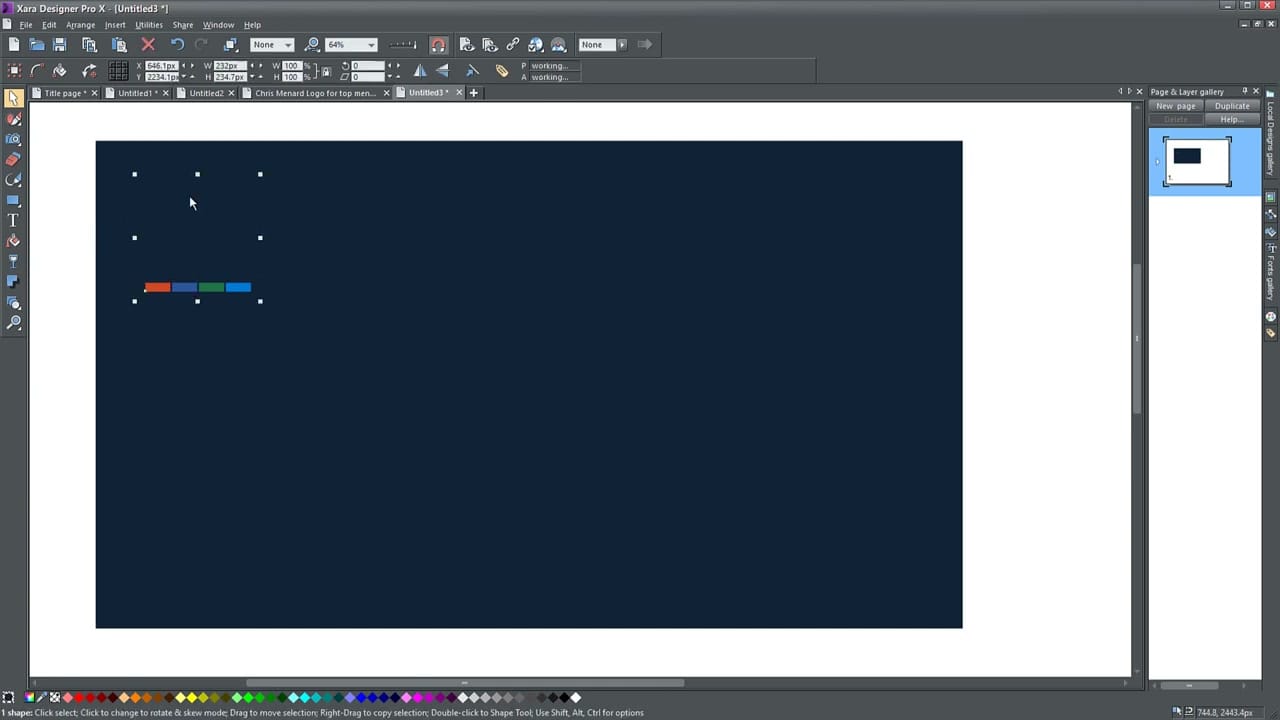
Import your logo and place it in a corner — typically the top-left or top-right. Keep it small enough to be visible but not distracting. Add your website URL in a clean, readable font. The key is subtlety: you want people to notice your branding without it overwhelming the conversation.
Design Considerations
- Keep the centre clear — that’s where you appear on camera, so avoid placing elements there.
- Use dark, solid colours — complex patterns or bright colours can cause flickering with virtual background technology.
- Export as JPEG — Zoom supports both JPEG and PNG for static backgrounds.
- Resolution matters — use 1920×1080 for crisp, professional results.
Exporting and Applying in Zoom
Export your design as a high-quality JPEG from Xara. Then open Zoom, go to Settings → Virtual Background, and click the “+” button to add your custom image.
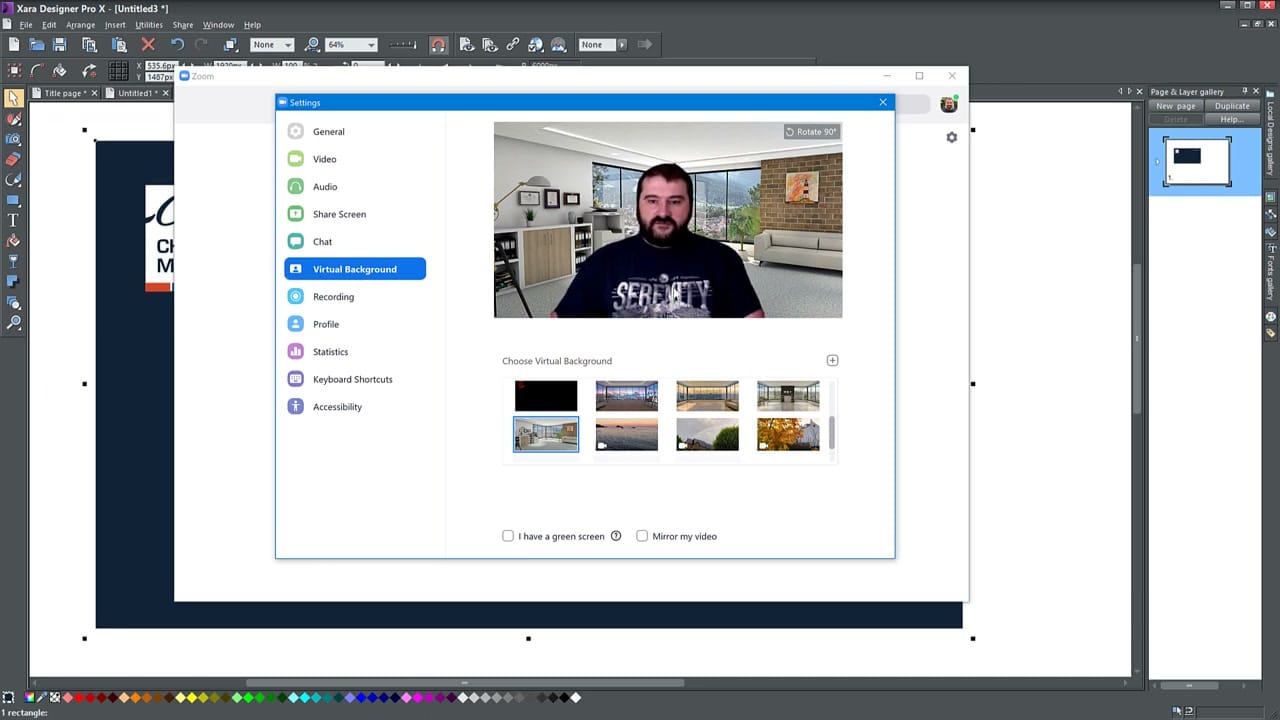
Your new branded background will appear alongside the default options. You can create multiple versions — a dark one, a light one, one with your website, one without — and switch between them depending on the meeting context.



