
How to Create Multi-Cam Videos from a Single Zoom Recording in Descript

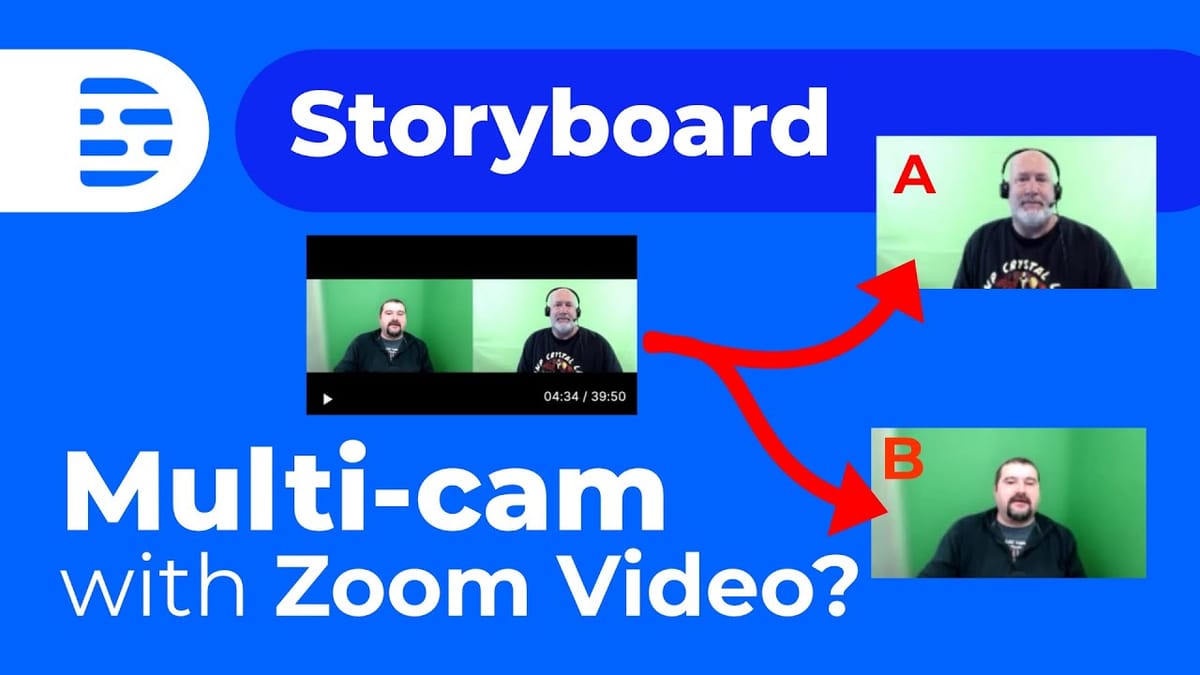
When you record a Zoom meeting, you get a single video file with all participants visible in a grid. But what if you want to create a professional multi-camera look — cutting between full-screen shots of each speaker? Descript makes this surprisingly easy using sequences, scenes, and its transcript-based editing.
Importing the Zoom Recording
Start by importing your Zoom recording into Descript. The file will typically be a single MP4 with all participants shown in a gallery or side-by-side layout. Descript will transcribe the audio and identify the speakers automatically.
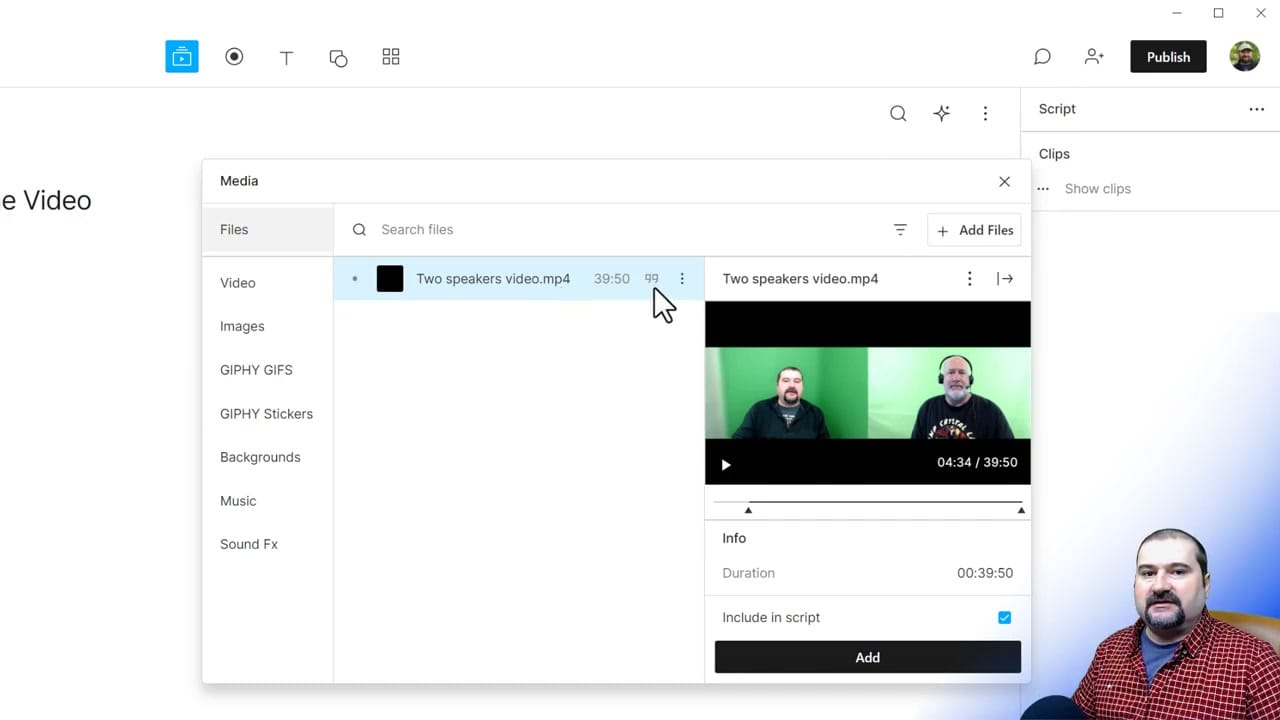
Setting Up the Multi-Track Sequence
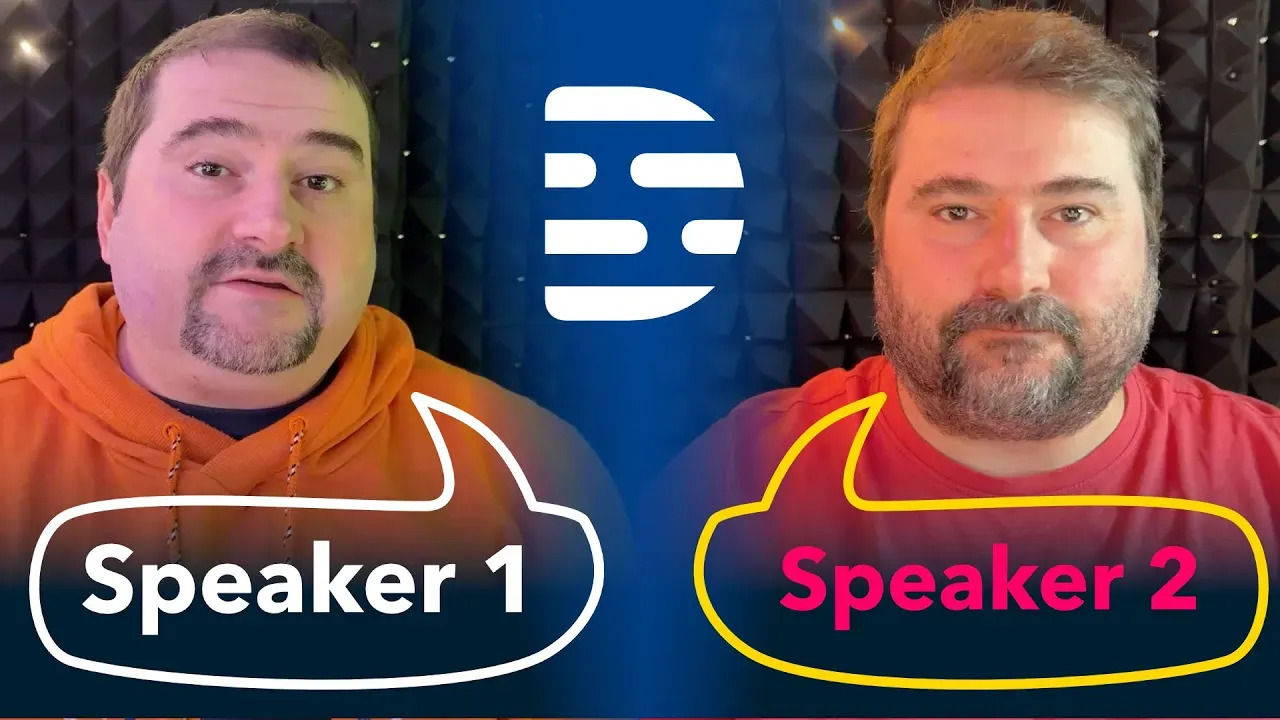
The trick is to create a sequence and add the same video file to two separate tracks. Each track represents one "camera angle." Name each track after the speaker it will feature — for example, "Chris" and "Cristi."
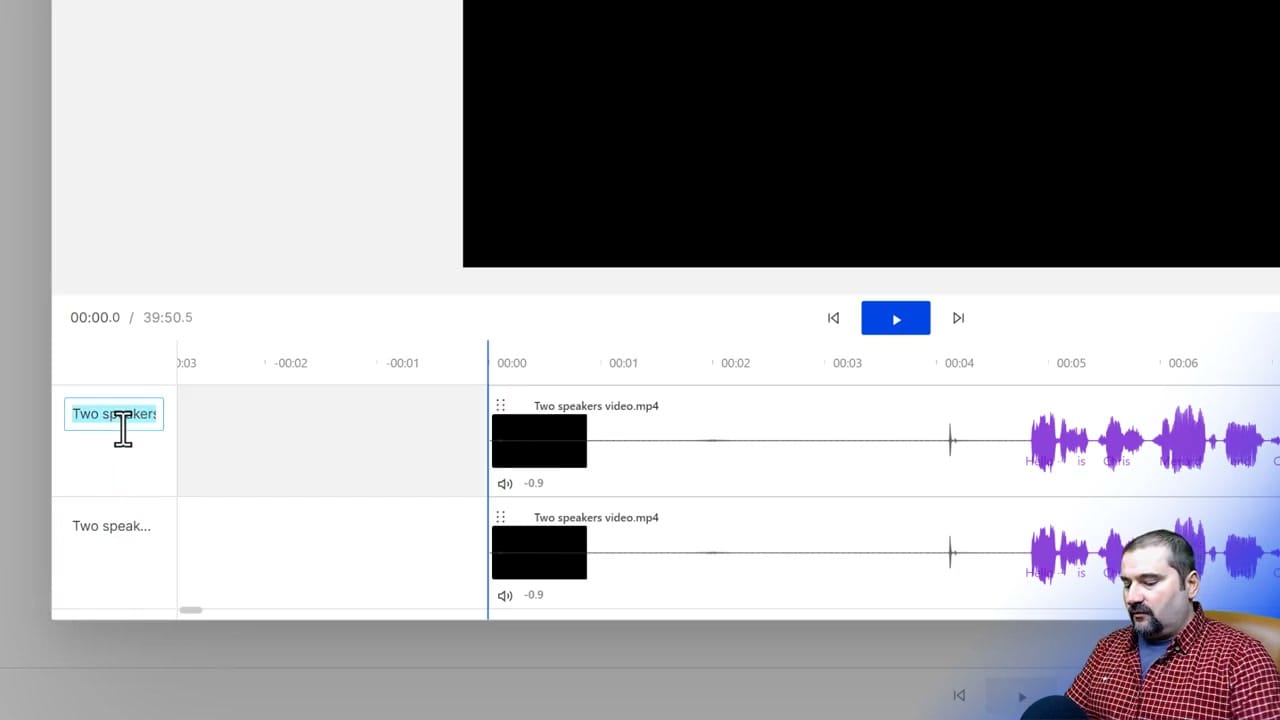
Mute the audio on the duplicate track so you don't get doubled audio. Only one track should have active audio.
Now, exit the sequence editor and crop or reposition each track's video to show only one speaker. For the first track, zoom into Speaker A's portion of the Zoom grid. For the second track, zoom into Speaker B.
Switching Between Speakers with Scenes
This is where Descript's scene-based editing shines. Use scenes to switch between which track is visible at any point. When Speaker A is talking, show their full-screen track. When Speaker B responds, switch to their track. You can also create side-by-side scenes where both speakers are visible.
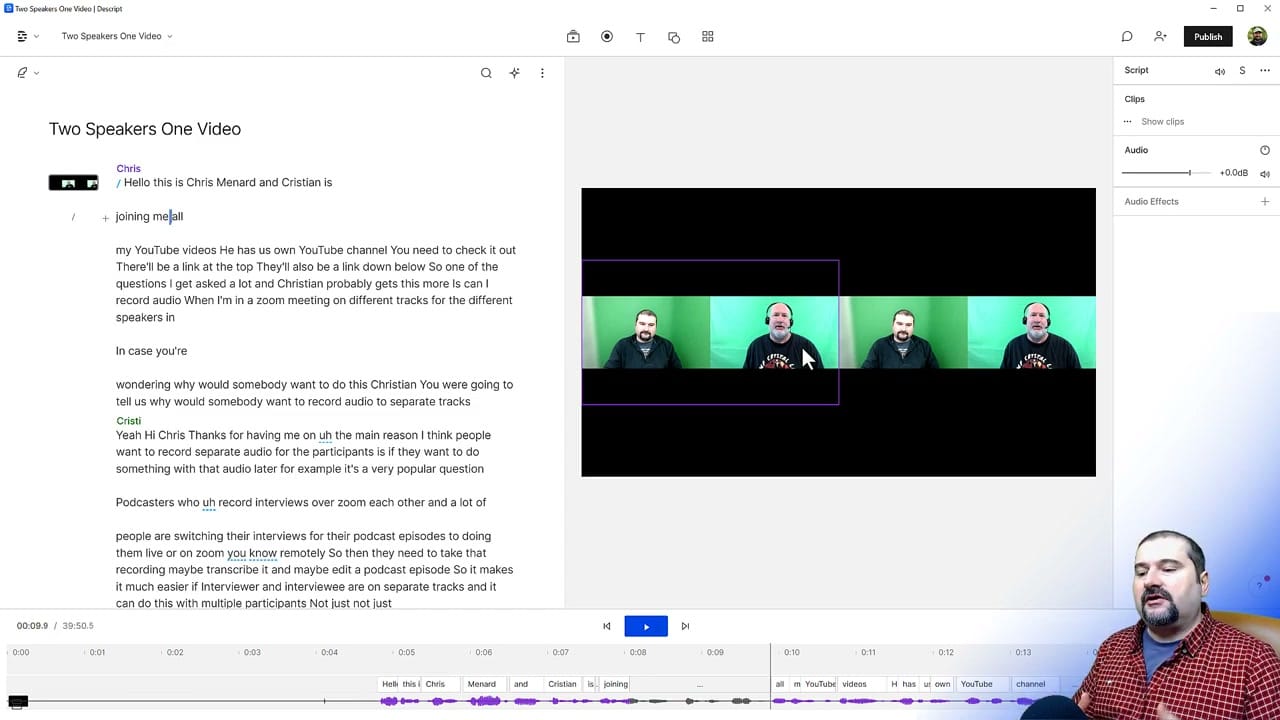
The transcript makes this process intuitive — you can see exactly when each speaker starts talking and place your scene cuts accordingly. Use the arrow keys to nudge scene boundaries for precise timing. You can also display speaker names as lower thirds to help viewers identify who's talking.
Scene Layout Options
For each scene, you can choose different layouts:
- Full screen: Show only the active speaker, filling the entire frame.
- Side by side: Show both speakers at once for conversational moments.
- Picture-in-picture: Main speaker large with the other in a small corner window.
This flexibility lets you create dynamic, engaging videos from a single static Zoom recording. The quality won't be great though, specially if you're bringing in a Zoom file - the resolution of these files is usually quite low, and considering you're only zooming in in half a screen or even less, if you have more than one speaker, it will make for a pretty pixelated video.
My recommendation is to record in Riverside which gives you high resolution raw files of each participant.
Check the Descript timeline guide for more details on working with tracks and layers.
Tips for Better Results
- Ask Zoom participants to use gallery view during recording so everyone is evenly sized.
- Record at the highest resolution possible — you'll be cropping into portions of the frame, so you need the extra pixels.
- Cut to the listener's reaction occasionally, not just the speaker — this creates a more natural viewing experience.
- Use Descript's filler word removal to clean up the transcript before exporting.
Related guides
 Cristi Cotovan
 Cristi Cotovan
 Cristi Cotovan
Do you need help or wish to learn Descript the right way? Join me on a one-on-one Descript coaching session. Book a call with me.
I'm here to help you with any questions you have and to guide you through the best workflows, tips, workarounds, or just answer any questions you may have!



