How to Create Repeating Patterns in Xara Designer Pro X


Xara Designer Pro X can create seamless repeating patterns by combining bitmap copies with the Fill Tool's repeating tile mode. Here's the workflow for turning any design element into a tiled pattern.
Step 1: Design the Pattern Base
Create the basic unit of your pattern. For a checkerboard, draw two small black squares positioned diagonally. Use Ctrl+Alt+D (smart duplication) to repeat the last move precisely.
Step 2: Create a Bitmap Copy
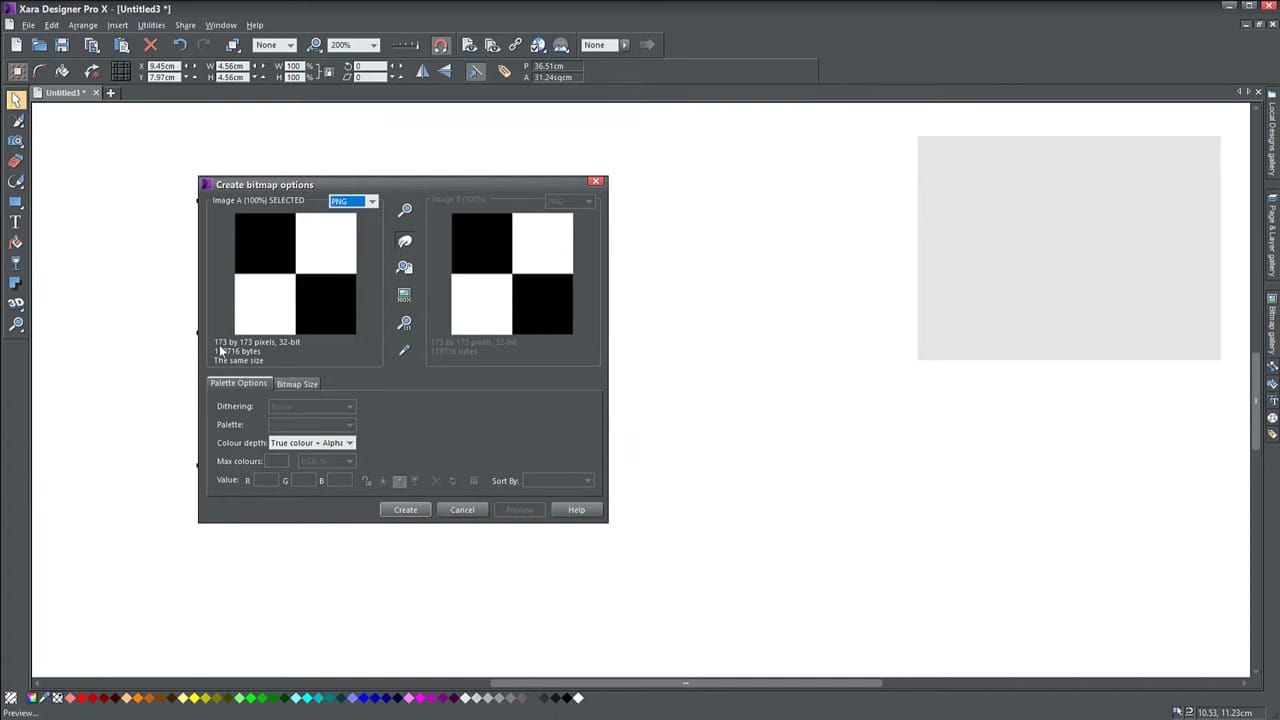
Select all pattern elements, right-click → Create Bitmap Copy. In the dialog, choose PNG format with True colour + Alpha — the alpha channel preserves transparent gaps between elements.
Step 3: Apply as Bitmap Fill
Draw a target shape (rectangle, circle, etc.). Select the Fill Tool (G), change the type to Bitmap, and choose your pattern from the bitmap selector.
Step 4: Enable Repeating Tile
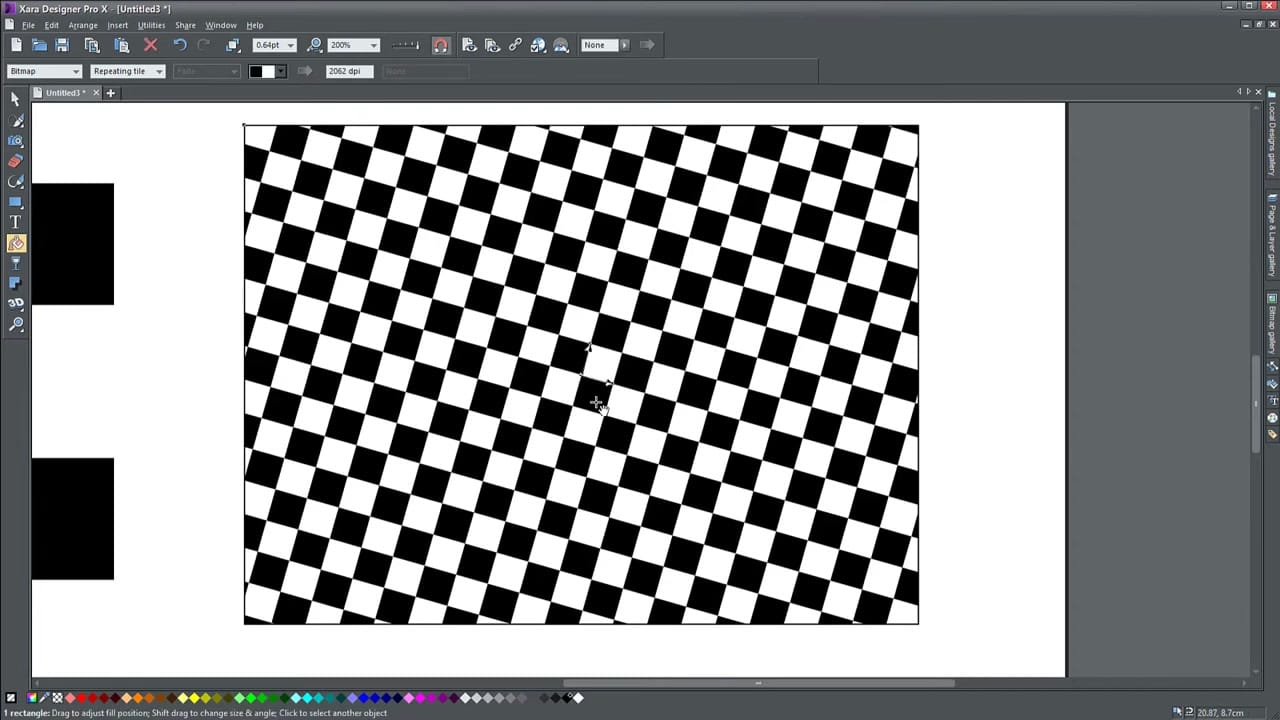
Switch from "Single tile" to Repeating tile in the toolbar. The pattern seamlessly tiles across the entire shape. Adjust the DPI or drag the fill control points to scale the pattern larger or smaller.