How to Select a File from Projects and Use as Podcast Episode in Riverside

If you've uploaded a video to Projects in Riverside and want to use it as a podcast episode in Hosting, here's how it actually works.
You Don't Move Files — You Select Them
Riverside doesn't have a "move to Hosting" feature. Instead, when you create a new episode in Hosting, you choose which file to use from your existing projects. Your files stay in Projects — Hosting simply references them.
How to Create an Episode from an Existing Project
- Go to Hosting in the Riverside sidebar
- Click New Episode
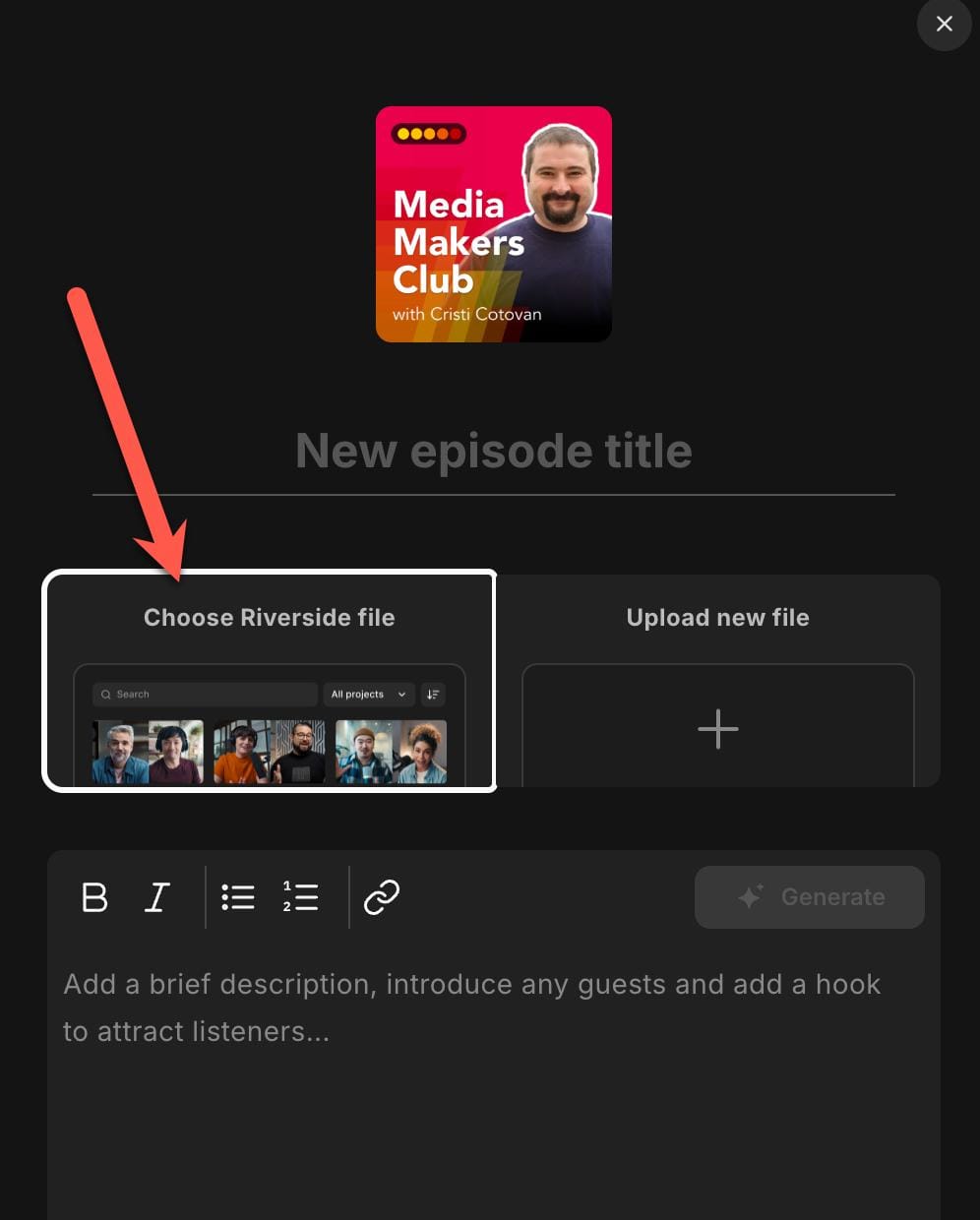
- In the new episode dialog, you'll see two options: Choose Riverside file and Upload new file
- Click Choose Riverside file
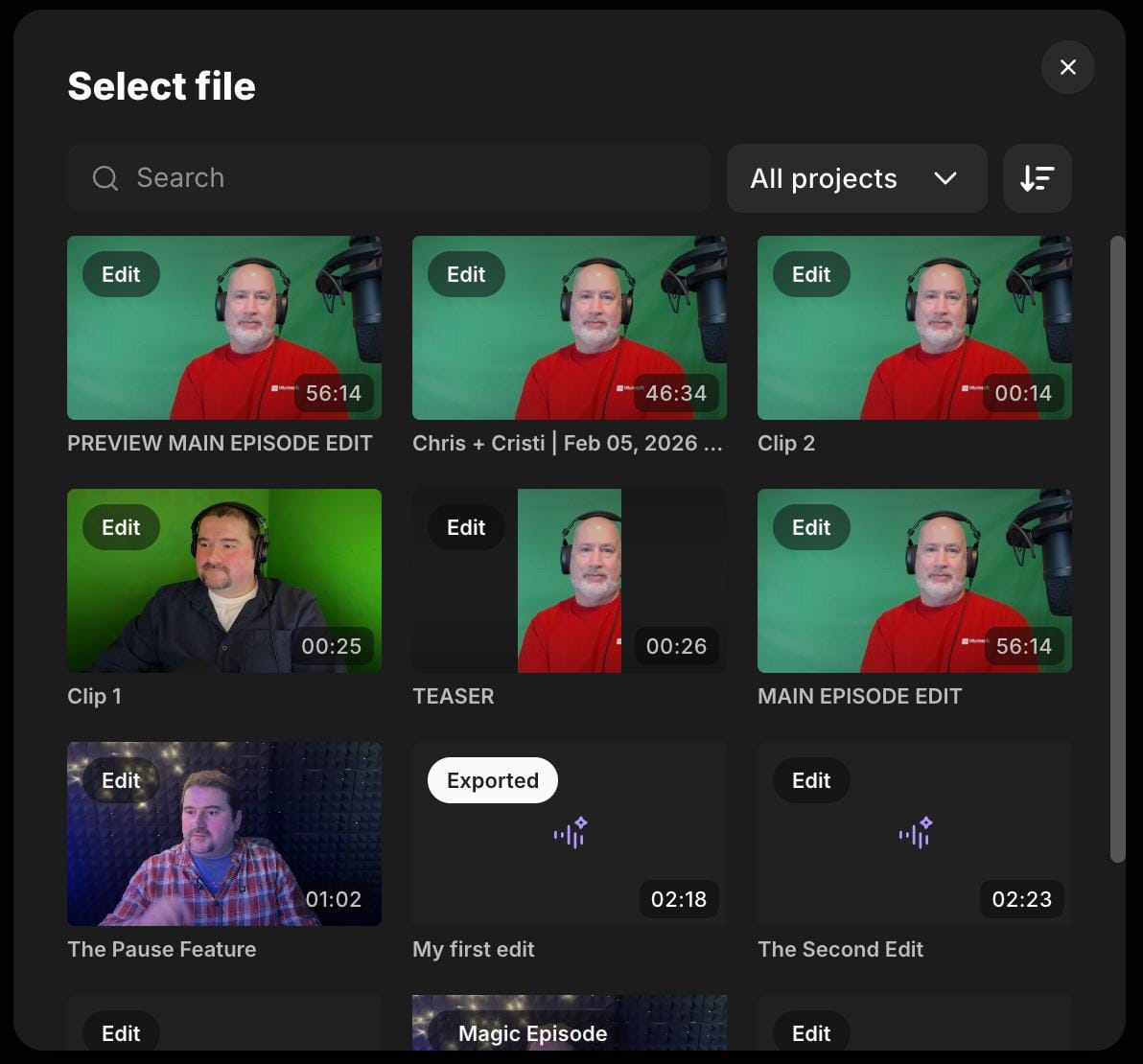
- A popup window appears where you can filter and browse your projects
- Select the edit or export you want to use as the episode media
- Fill in the episode title, description, and publish
Here's what the new episode dialog looks like — notice the "Choose Riverside file" option on the left:
After clicking "Choose Riverside file," a popup lets you search and filter through all your projects to find the right edit or export:
Important: You Need an Edit or Export First
There's one catch — you can't use raw recordings (whether recorded or uploaded into a project) directly as an episode. You must first create at least one edit from the recording, or upload a file right there and that will be used as the episode media file.
Once you have an edit, that edit can be selected as the episode media.
If you uploaded a video and haven't edited it yet:
- Open the project in Projects
- Click Edit to create a new edit (even if you don't change anything)
- Now go to Hosting → New Episode and the edit will appear in the file picker
Quick Summary
- There's no "move" option from Projects to Hosting — that's by design
- You select existing edits/exports when creating a new episode
- Raw recordings need at least one edit before they can be used
- The project picker has filters to help you find the right file
New to Riverside's hosting feature? Check out my complete guide:
 Cristi Cotovan
If you’re eager to learn more about Riverside and wish to have a one-on-one Riverside coaching session, feel free to book a call with me.
I’m here to help you with any questions you have and to guide you through the best workflows, tips, workarounds, or just answer any questions you may have!