How to Zoom and Pan the Riverside Timeline with Your Mouse


Navigating the Riverside timeline with a mouse is faster than you'd think — if you know two shortcuts.
Zoom In and Out
Hold Cmd (Mac) or Ctrl (Windows) and scroll your mouse wheel to zoom in and out on the timeline. This lets you quickly jump between a high-level overview and frame-level precision without touching any buttons.
Pan Sideways
Hold Shift and scroll your mouse wheel to move left and right through your edit. No more dragging the scrollbar or clicking tiny arrows — just smooth, fluid horizontal navigation.
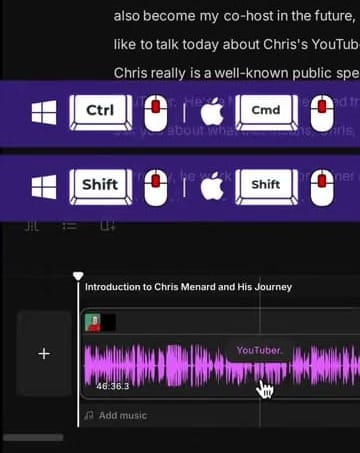
These two shortcuts make browsing and jumping around your edit significantly faster — especially on longer recordings where the timeline stretches out.
Related Riverside Guides
 Cristi Cotovan
 Cristi Cotovan
If you’re eager to learn more about Riverside and wish to have a one-on-one Riverside coaching session, feel free to book a call with me.
I’m here to help you with any questions you have and to guide you through the best workflows, tips, workarounds, or just answer any questions you may have!