Riverside Content Planner: Schedule Social Media Posts Inside Riverside

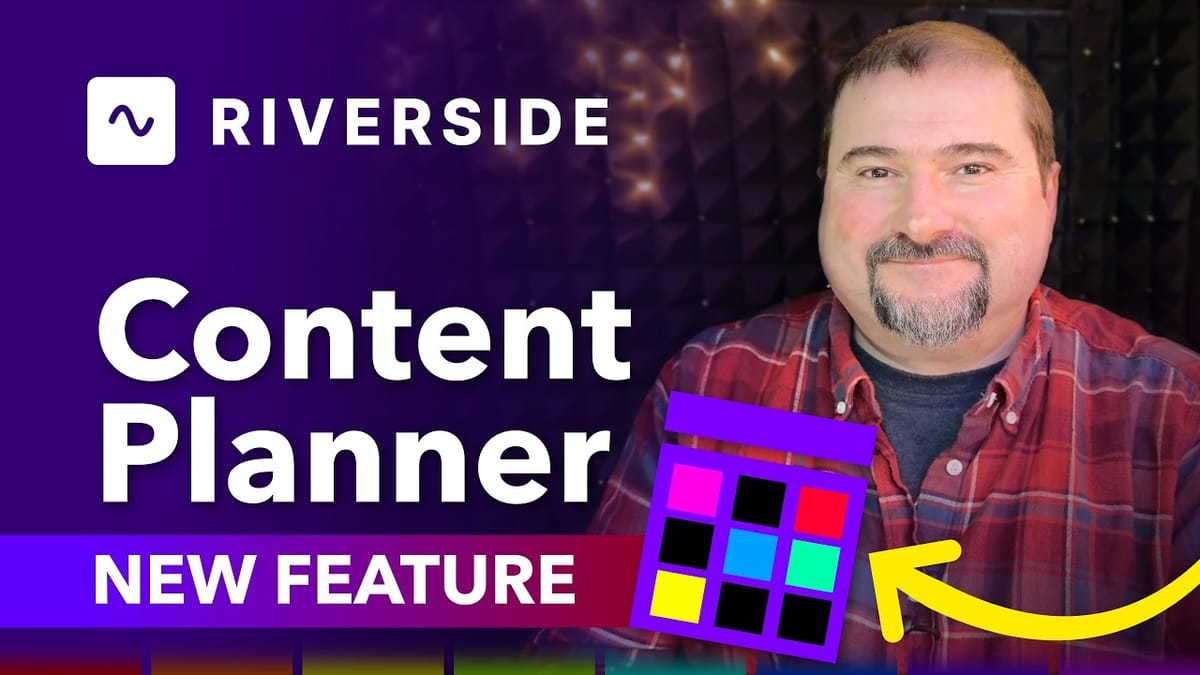
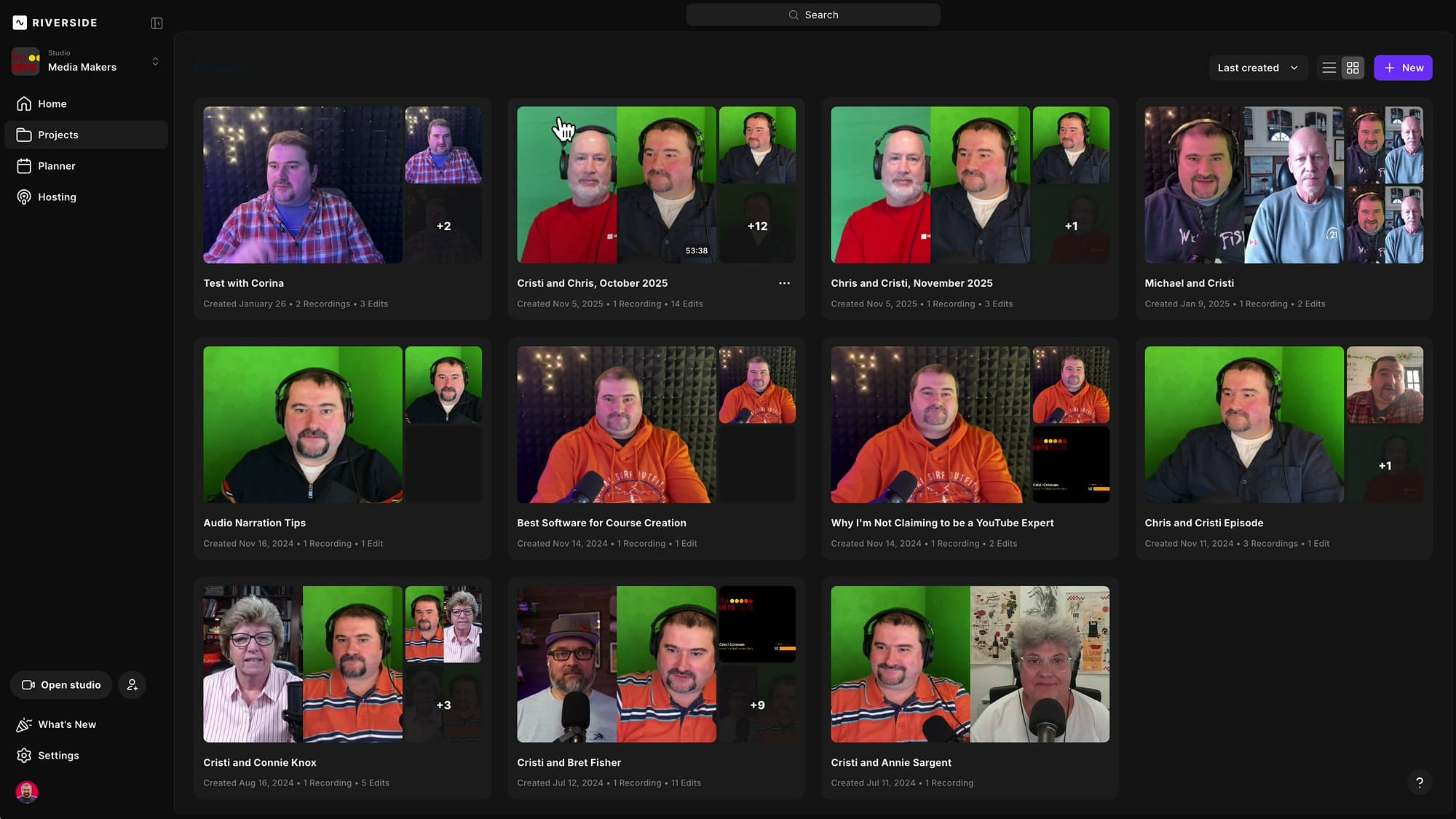
Riverside just rolled out a feature I've been wanting for a long time: the Content Planner. This new tool replaces the old Scheduler and brings everything related to planning, recording, and publishing into a single unified calendar view. The standout addition? You can now schedule social media posts directly from Riverside — no need to jump to a separate scheduling platform.
Where to Find the Content Planner
The Content Planner lives inside each studio. If you have multiple studios, each one gets its own planner — it's studio-specific. Head into your studio, and you'll see Planner in the left-hand sidebar navigation. Click it and you land on a full month calendar view.
This calendar shows all your scheduled activities at a glance — recording sessions, webinars, podcast episodes, and now social media posts. Everything lives in one place.
Scheduling a Recording Session
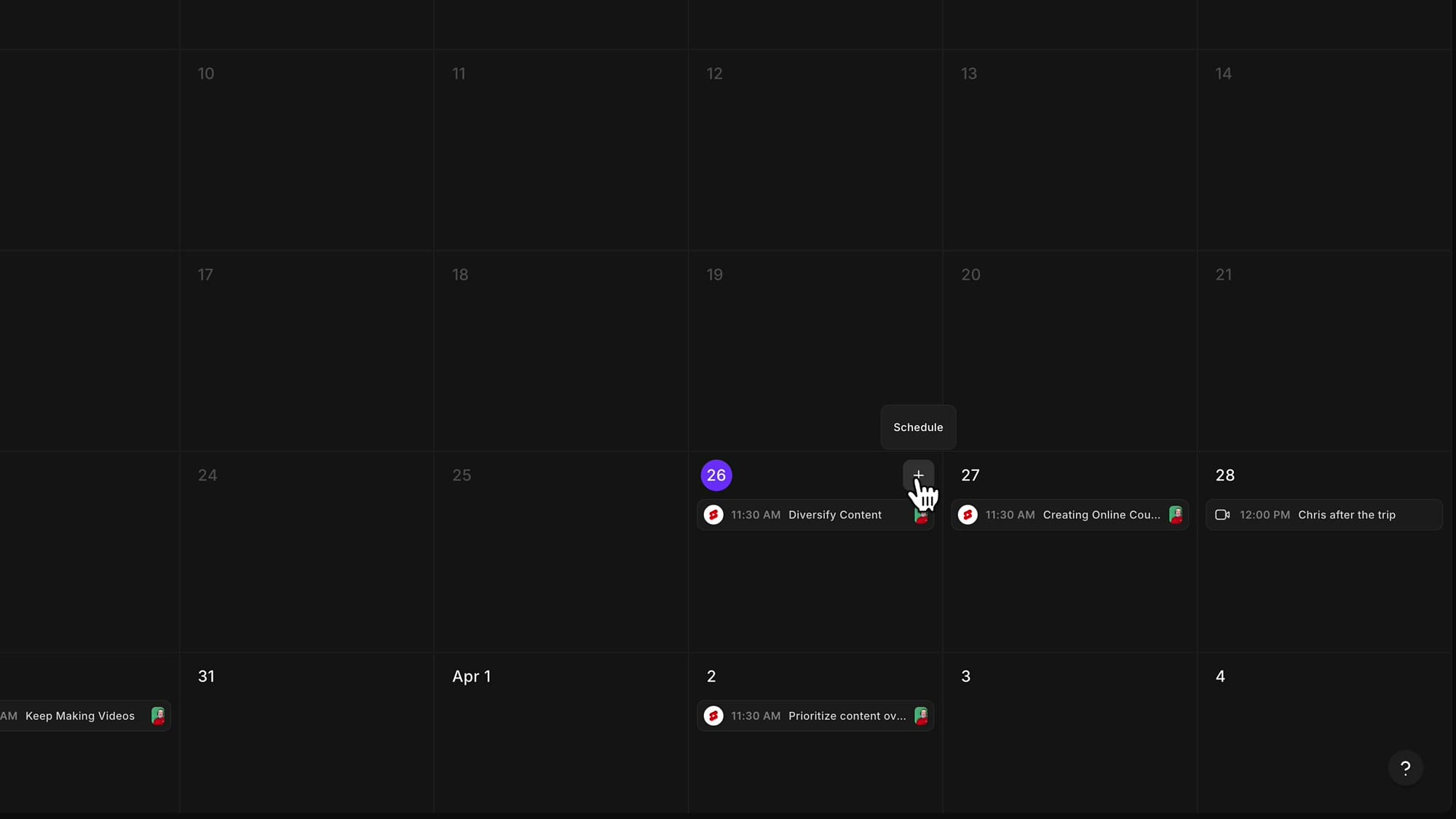
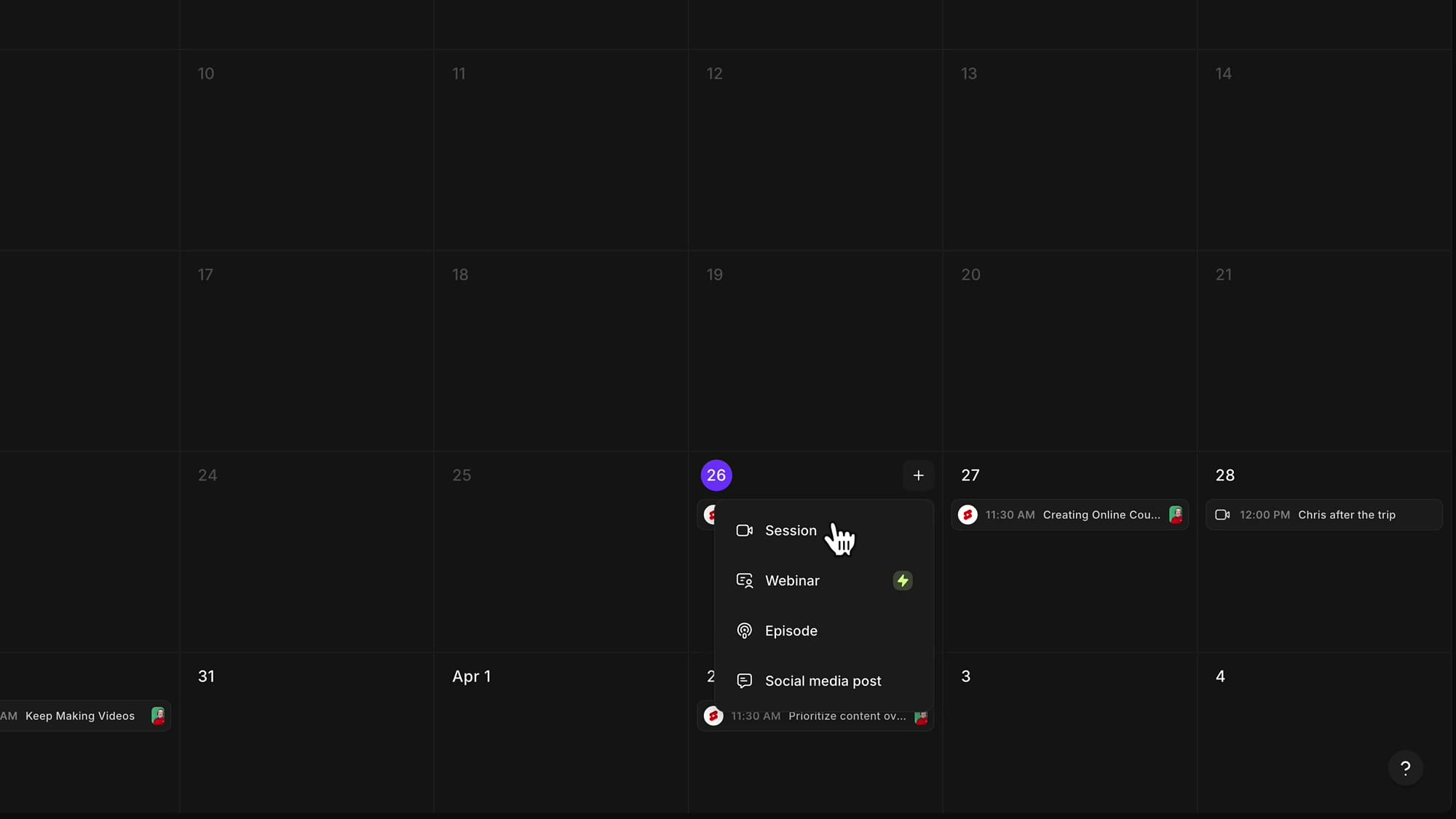
Click the + button at the top of any day and you get four options: Session, Webinar, Episode, or Social media post.
Scheduling a recording session works exactly the way it did before. Pick a date, give it a name (something like "Catch Up with Chris"), set the time, add a description, and invite your guest by email.
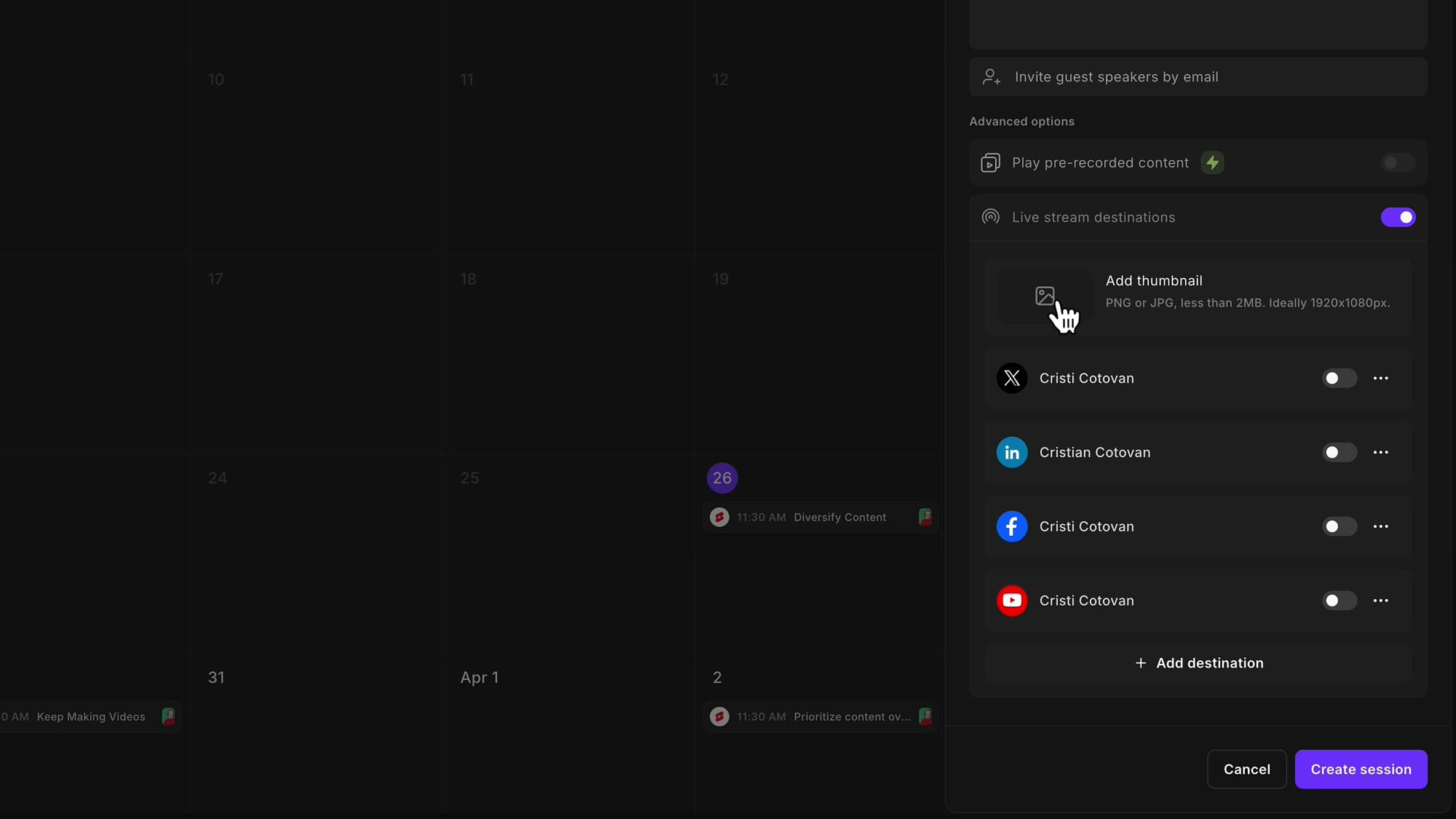
If you want to go live while recording, toggle the Live stream option — you can connect destinations like X (Twitter), LinkedIn, Facebook, and YouTube right from within the session setup.
Once you create the session, it appears on the calendar. You can also add it to your Google Calendar if you want a reminder there too.
Scheduling Social Media Posts
This is the feature that really excites me. Social media scheduling might even help you replace some of the standalone scheduling platforms you're currently paying for.
Click the + button on a day and choose Social media post. You'll see a panel open on the right side of the screen where you choose your platform. At the moment, YouTube and YouTube Shorts are the supported platforms, with more on the way.
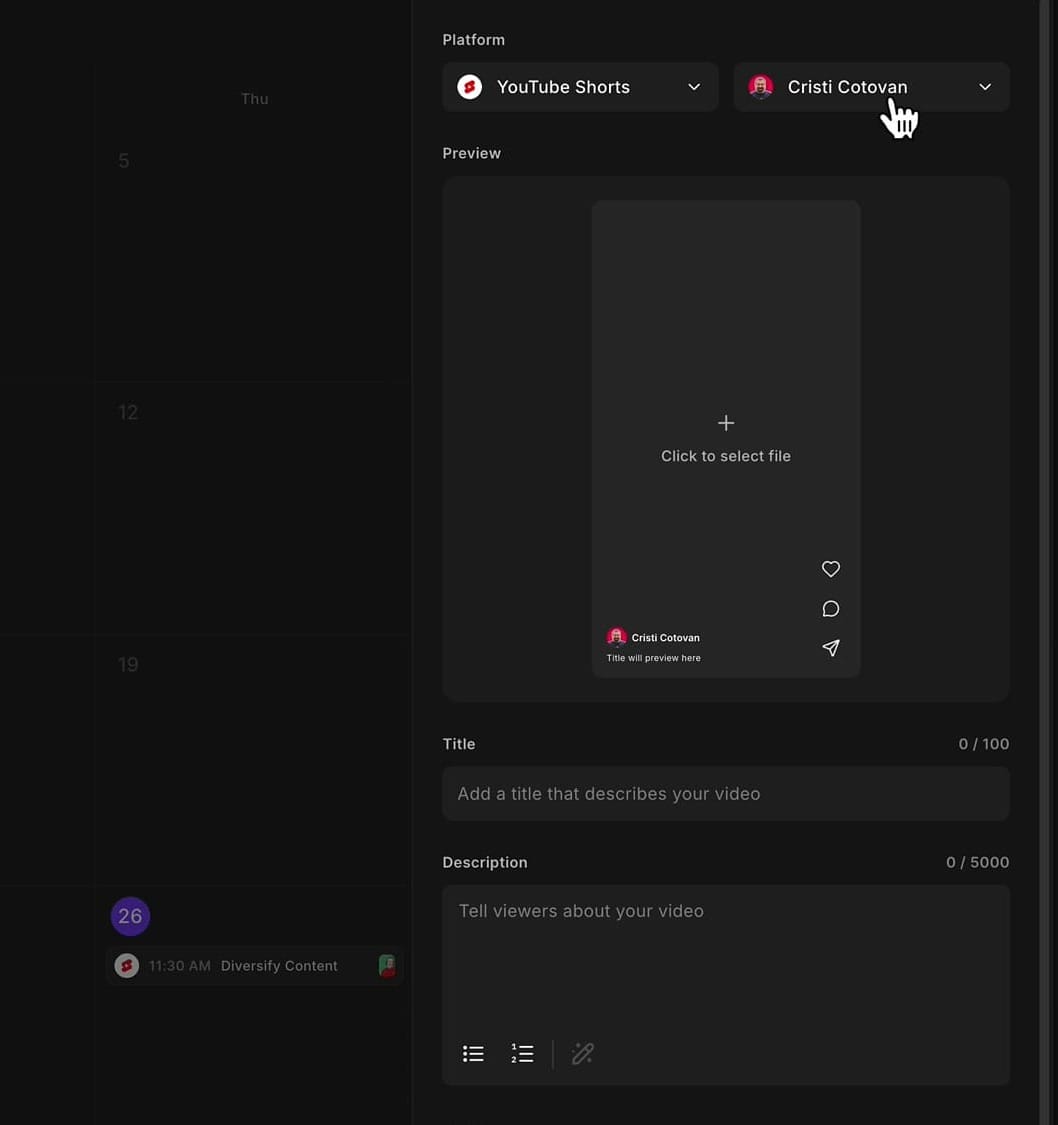
Selecting Your File
Here's a key detail: you're not uploading a file from your computer. When you click "Click to select file", Riverside pulls from your exported edits inside the platform. So if you've already recorded, edited, and exported a clip in Riverside, it's right there waiting to be scheduled. No downloading and re-uploading needed.
AI-Generated Descriptions
Writing descriptions for social media takes time — especially if you're scheduling multiple clips. Riverside has an answer for that. Click the Generate Description button (the little pen/AI icon), and Riverside's AI will analyze your clip and draft a description for you.
It generates a summary, key takeaways, and even chapters for longer videos.
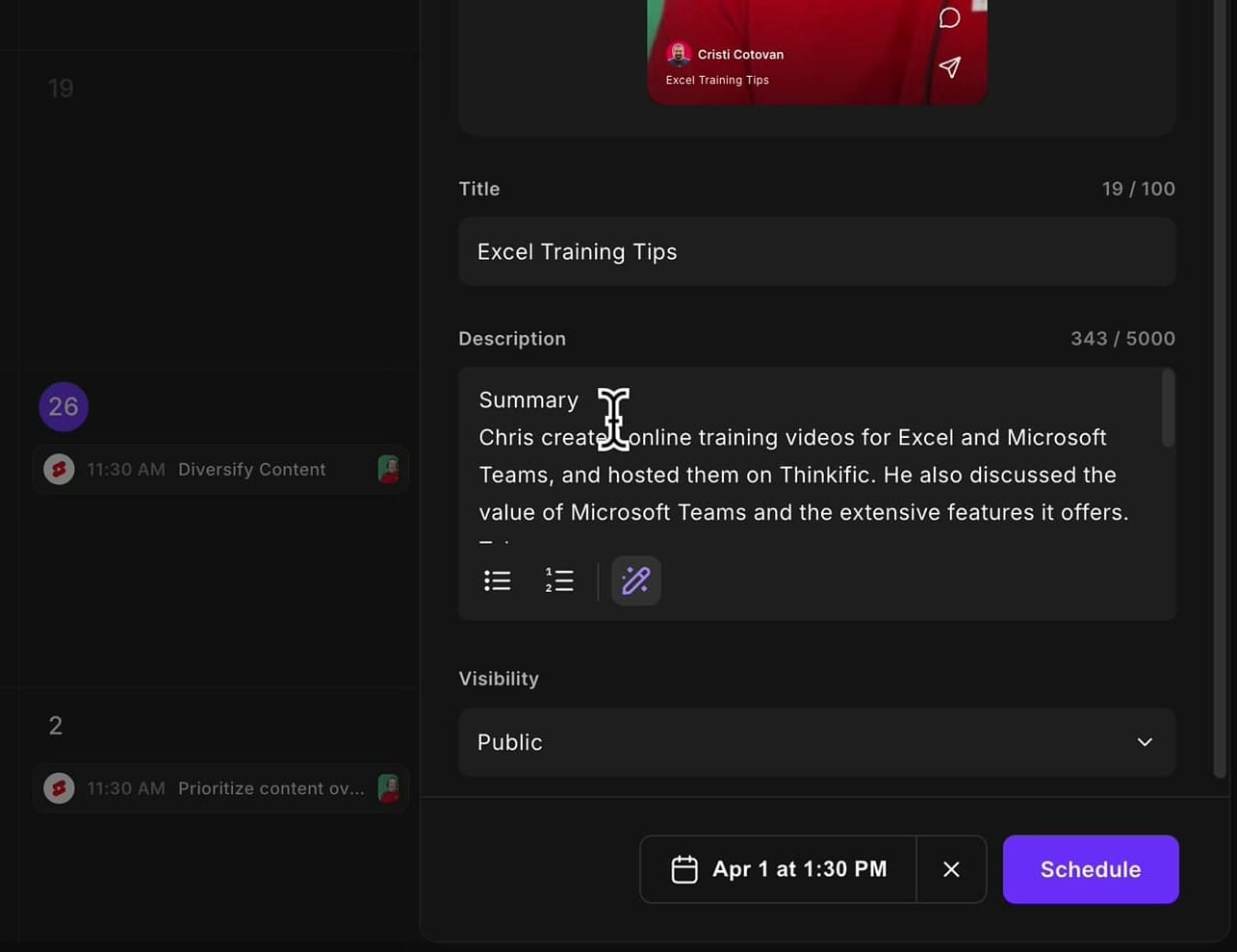
You don't have to keep everything it generates. Delete whatever doesn't fit, polish the language, and you're good to go. It's a starting point that saves you from staring at a blank description field.
Visibility and Scheduling
Just like publishing directly on YouTube, you can choose the visibility for your scheduled post: Public, Unlisted, or Private.
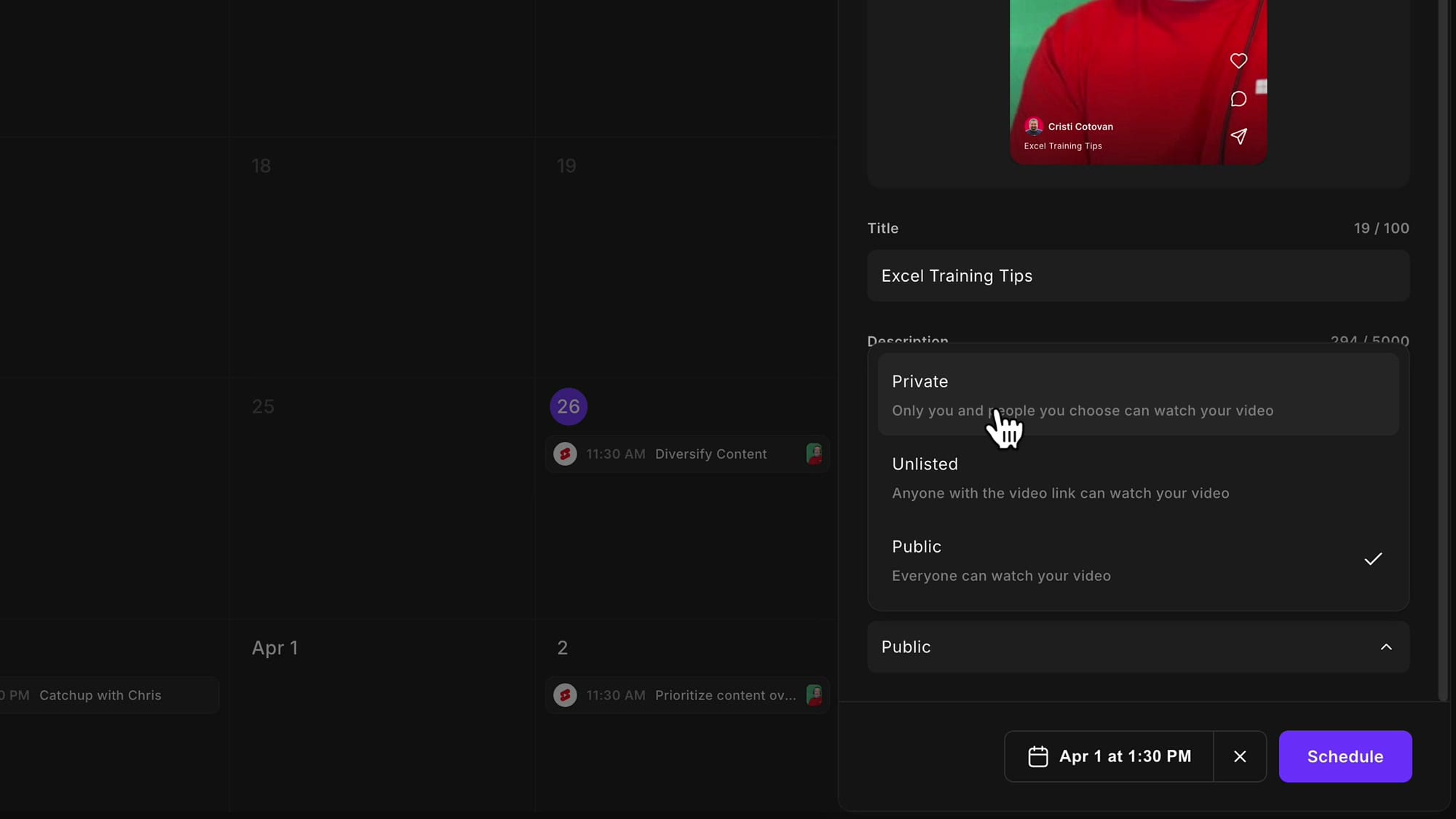
I personally use Private or Unlisted for my YouTube Shorts because I like to link them to the original long-form video before making them public. Since the Riverside integration doesn't offer that linking option yet, I schedule as private, then finalize things in YouTube Studio.
But if you don't need that extra step, scheduling as Public means it goes live automatically at the chosen date and time.
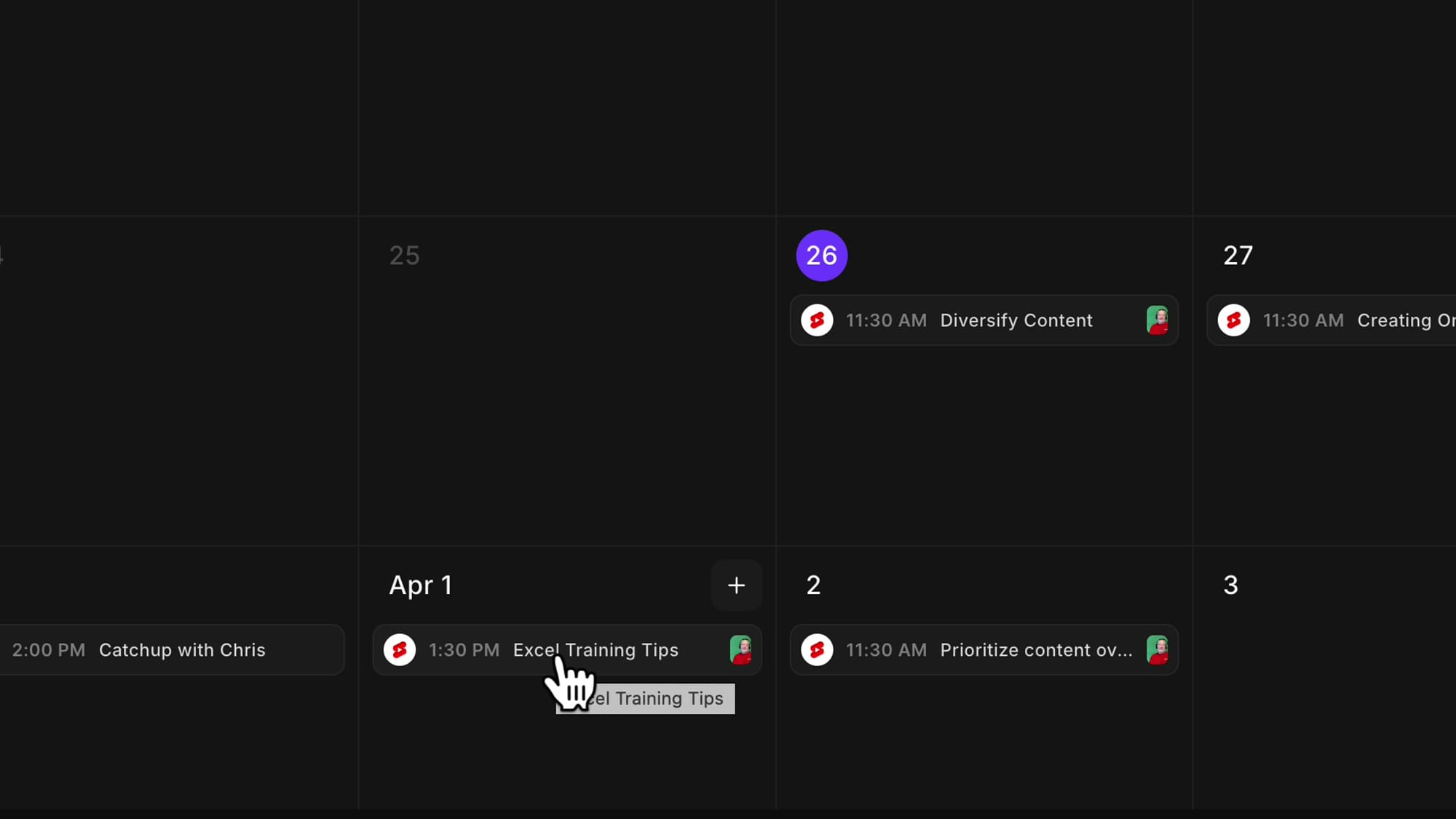
Pick your date and time, hit Schedule, and the post appears on your planner calendar.
Why This Matters: Riverside as a One-Stop Shop
Riverside has been steadily building out its platform to cover the entire content creation workflow. With the Content Planner, you now have planning, recording, editing, live streaming, webinars, podcasting, podcast hosting, podcast website, and social media scheduling — all in one place.
While YouTube is the only social media platform available for scheduling right now, you can already see placeholders for additional platforms coming soon. I expect more integrations to be added in the near future.
I love it when tools keep adding features that keep your workflow centralized. It saves time, reduces context-switching, and makes your content production more efficient.
Want to Learn More?
If you'd like to learn Riverside with me one-on-one, I offer coaching sessions where we can cover the best workflows, tips, and workarounds for your specific needs. And if you want to stay updated on all things Riverside, subscribe to my Riverside newsletter to get notified when new tutorials go live.
If you're eager to learn more about Riverside and wish to have a one-on-one Riverside coaching session, feel free to book a call with me. I'm here to help you with any questions you have and to guide you through the best workflows, tips, workarounds, or just answer any questions you may have!