How to Send Review Links to Clients in Riverside

If you edit videos or podcasts for clients, you know the feedback loop: export the file, upload it to a review platform, wait for comments, download the notes, go back to your editor, make changes, and repeat.
Tools like Frame.io and TechSmith Review exist specifically for this — but they're separate subscriptions on top of your editing tools.
Riverside now has this built in. The new Share for Review feature lets you send a review link directly from your editor. Your client watches the video, leaves timestamped comments, and you see them right inside your edit — no exports, no downloads, no extra tools.
How to Generate a Review Link
Open your edit in Riverside and click the Share button in the top-right corner. You'll see a new option: Share for Review.
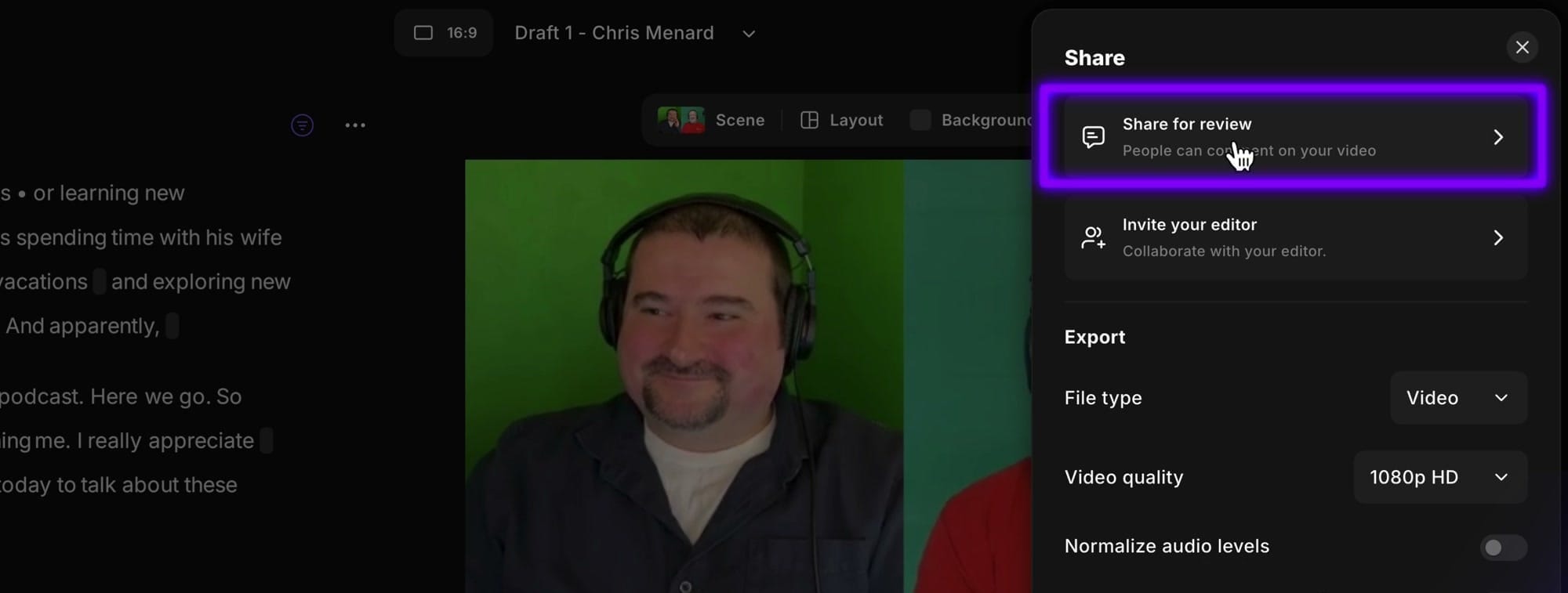
Click it, and Riverside generates a unique link automatically. This link:
- Doesn't require your client to log in
- Doesn't require any downloads
- Updates in real time as you make changes to your edit
- Is secret, nobody can guess it
Copy the link and send it to your client via email, Slack, or however you communicate.
What Your Client Sees
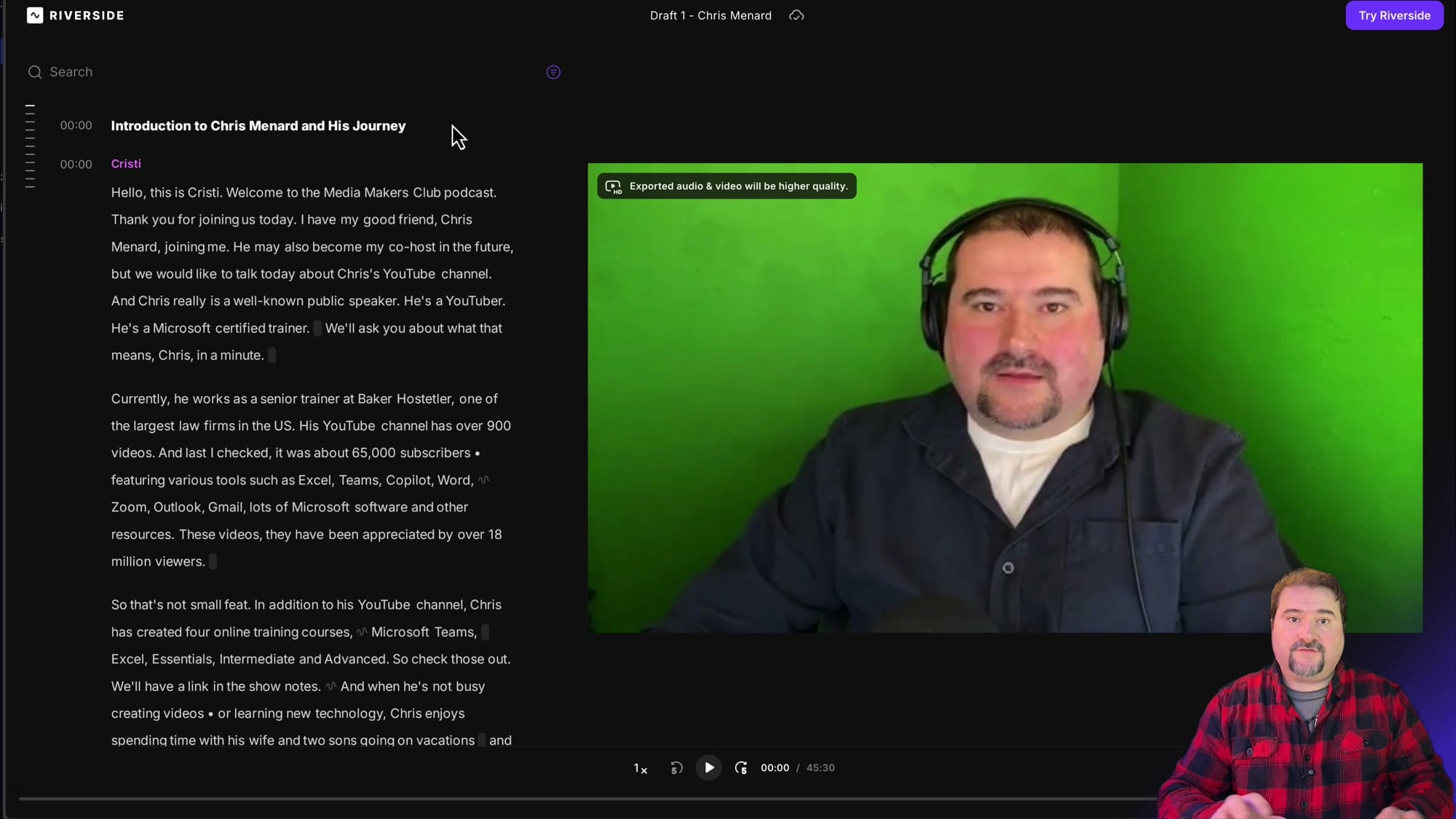
When your client opens the link, they get a clean, simplified version of the Riverside editor. They can see the transcript and the video preview, but without the editing tools, timeline, or sidebar — they can't accidentally change anything.
How Clients Leave Feedback
To leave a comment, your client simply selects a portion of the transcript text and clicks the Comment button (or presses Option + C / Alt + C). The first time they comment, they'll be asked for a name and email — just so you know who's leaving feedback.
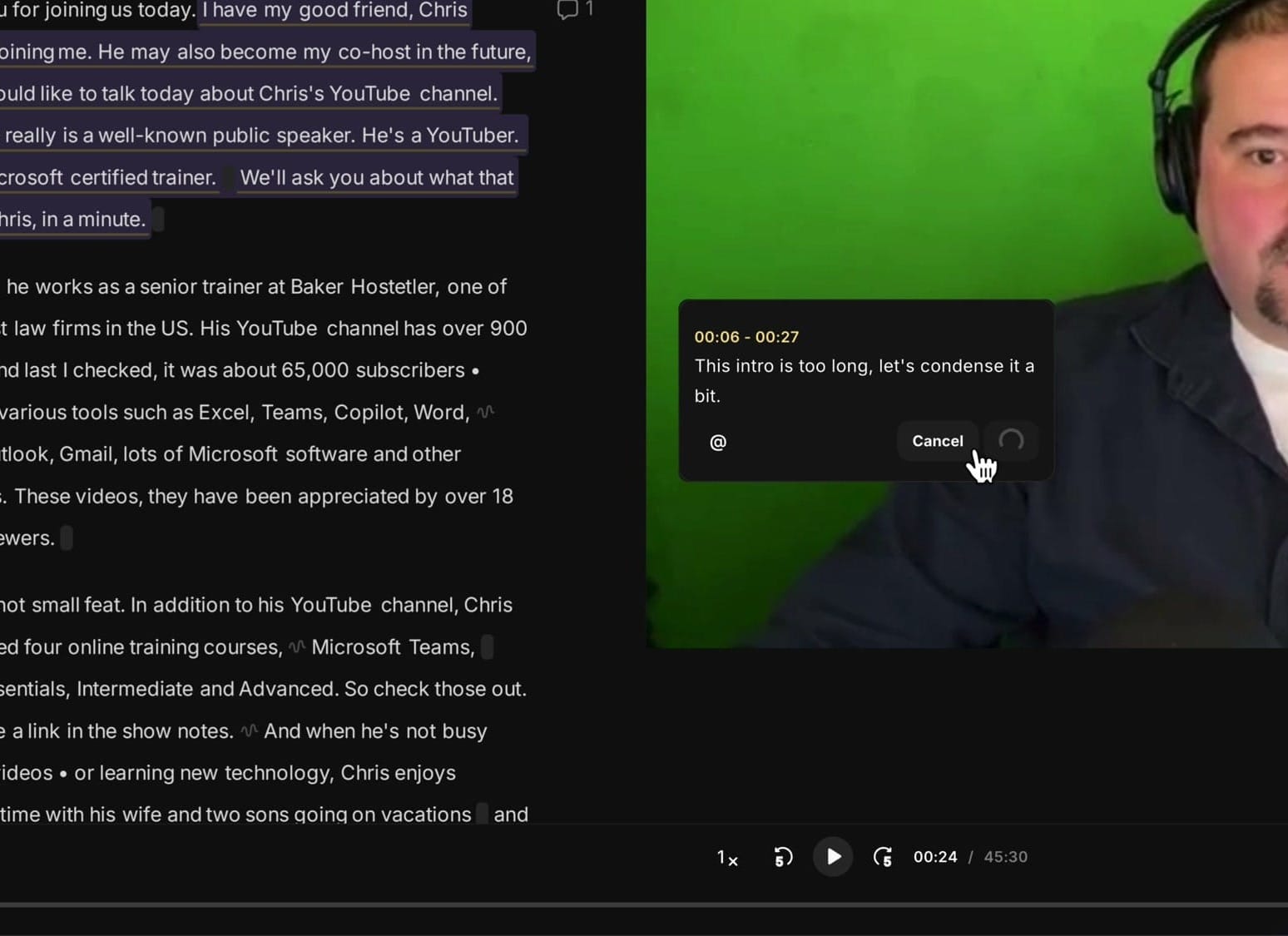
Each comment is anchored to a specific time range in the transcript, so there's no ambiguity about which section the feedback refers to.
Reviewing Feedback in Your Editor
Back in your editor, reload the page and the comments appear directly in your workspace. Each one shows:
- The exact text selection highlighted in yellow
- The timestamp range the comment refers to
- Comment markers on the timeline at the precise moment
- A reply field so you can discuss feedback with your client (use @ to mention them)
- A Mark as resolved button to track what you've addressed
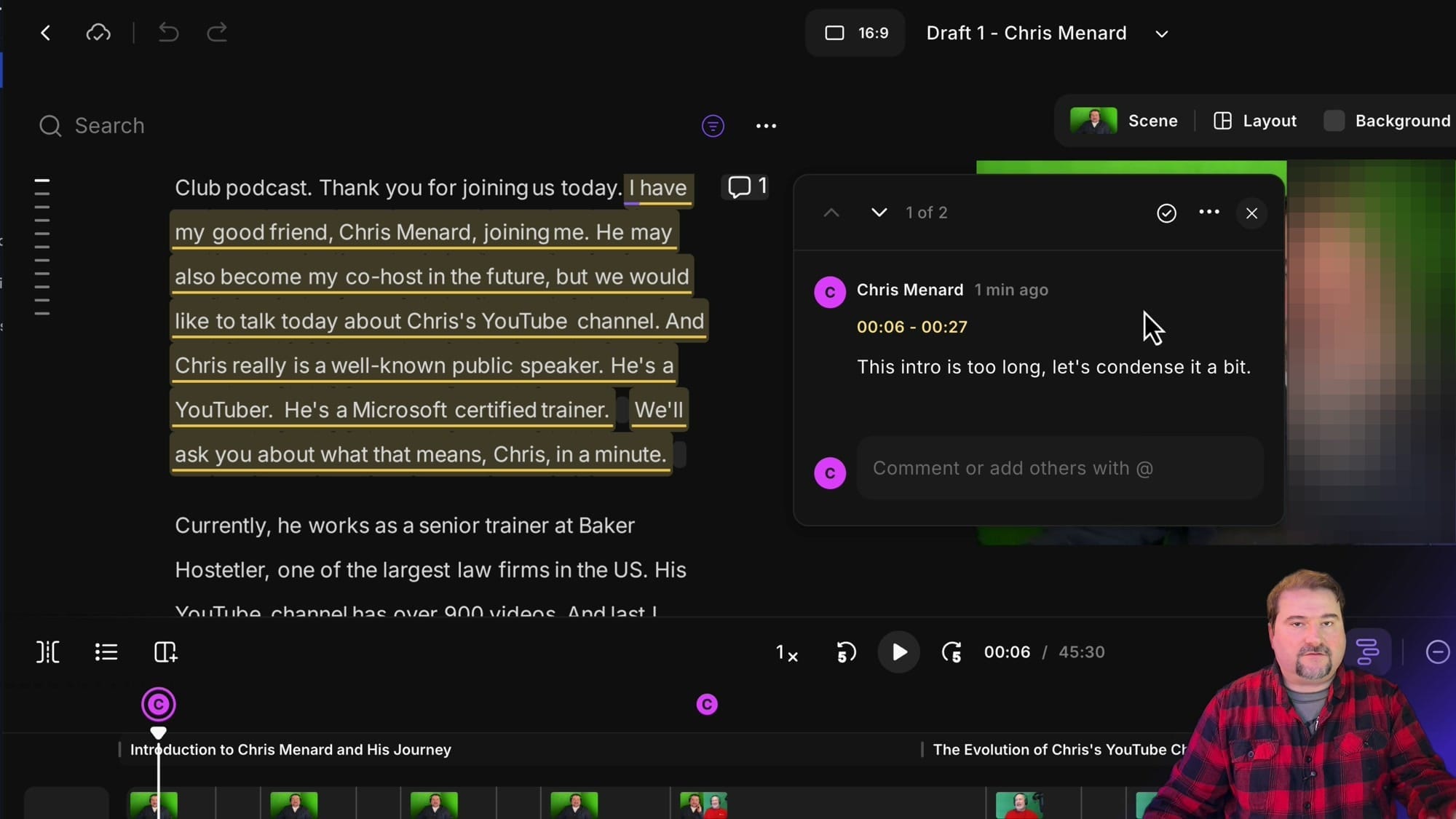
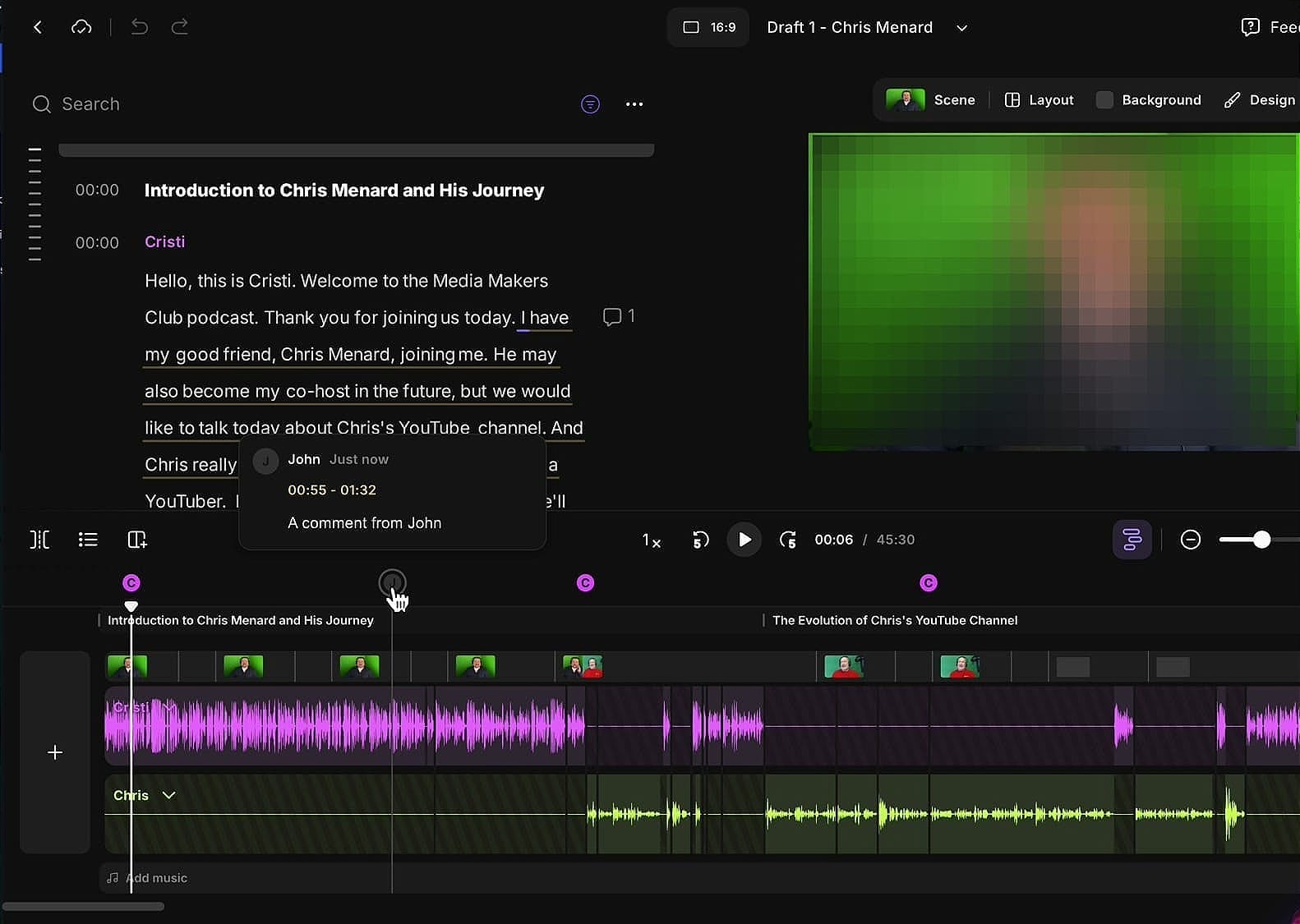
Click any comment marker on the timeline and it jumps to that exact spot in your edit. No hunting through email threads or separate documents.
Multiple Reviewers
You can send the same link to multiple people. Each reviewer gets their own session — they provide their name when commenting, and each person's comments appear with a distinct color and label on the timeline. Reviewers can also see each other's comments, which helps avoid duplicate feedback.
Why This Matters
The key advantage is that everything stays inside Riverside. You don't export a file, upload it somewhere else, collect feedback in yet another tool, and then come back to your editor to make changes. The review happens on the same edit you're working in, and changes sync in real time.
If you've been paying for separate review platforms like Frame.io or TechSmith Review specifically for client feedback on video and podcast edits, this feature could replace them entirely.
If you’re eager to learn more about Riverside and wish to have a one-on-one Riverside coaching session, feel free to book a call with me. I’m here to help you with any questions you have and to guide you through the best workflows, tips, workarounds, or just answer any questions you may have!
For more on Riverside's commenting system (including internal team comments while editing), see:
Full overview of what the Riverside editor can do:
 Cristi Cotovan
Editing multiple speakers in the same project:
 Cristi Cotovan
Bring external files into Riverside for editing:
 Cristi Cotovan