Xara Designer Pro X Interface and Tools Overview: Beginner Course Episode 01

This is a comprehensive introduction to the entire Xara interface. Xara Designer Pro X is a powerful, affordable all-in-one design tool that combines the capabilities of a vector editor, page layout application, photo editor, and web design tool in a single package.
Watch the full tutorial:
What Is Xara Designer Pro X?
Xara Designer Pro X has been around since the early 1990s (originally as Corel Xara). It combines the functionality of several Adobe applications into one affordable package: vector illustration (like Illustrator), page layout (like InDesign), web design (like the discontinued Fireworks), and photo editing with a full layer system (like Photoshop). It is known for being one of the fastest vector rendering engines available.
The Main Toolbar
The left sidebar contains all the main tools, including:
- Selector Tool — select, move, resize, rotate objects
- Mask/Photo/Eraser tools — for photo editing and selections
- Freehand and Pen tools — for drawing vector paths
- Rectangle, Ellipse, QuickShape tools — for creating shapes
- Text Tool — for all typography work
- Fill and Transparency tools — gradients, patterns, transparency effects
- Shadow, Bevel, Blend, Contour, Mould, 3D Extrude — advanced effects
- Zoom and Push tools — navigation
The Info Bar
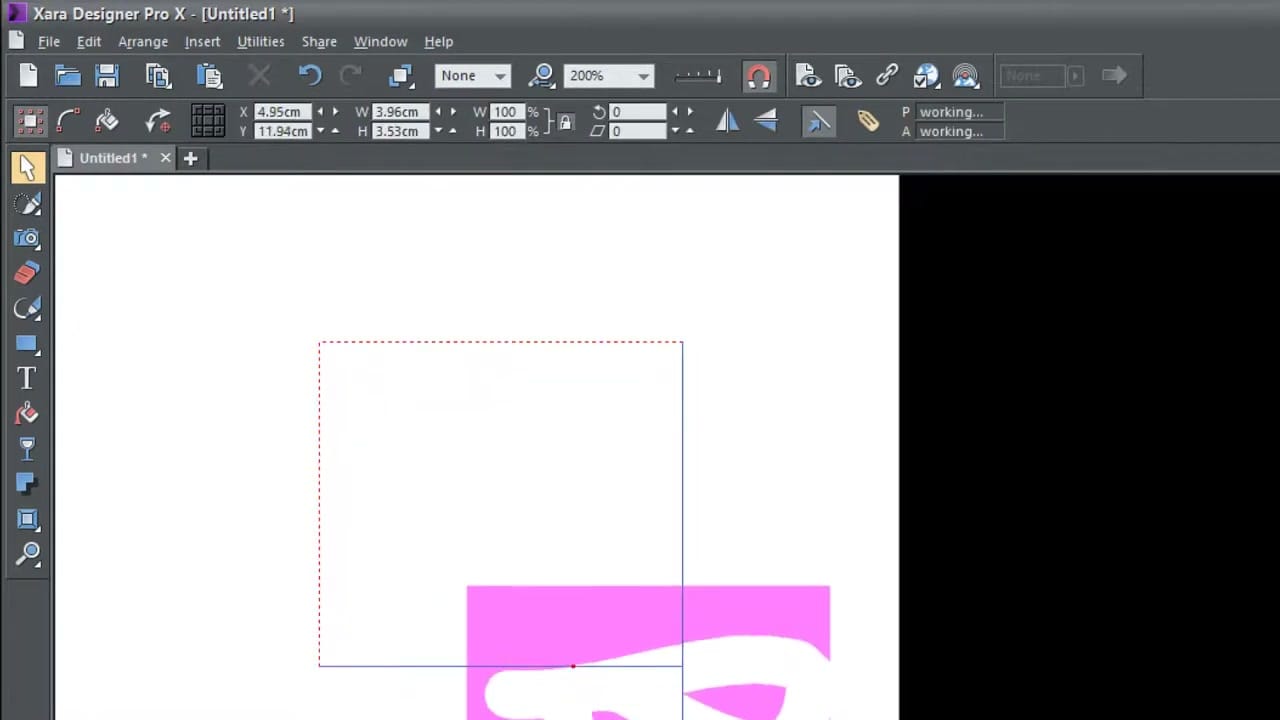
The Info Bar at the top of the screen is context-sensitive — it changes based on which tool is currently selected. When you select the Selector tool, it shows position and size. When you select the Text tool, it shows font options. This means you always have the relevant options visible without needing to open separate dialogs.
Navigation
Zooming uses Ctrl + mouse wheel. Panning uses the middle mouse button (press and drag). The zoom percentage is shown in the top toolbar and can be typed in directly for precise zoom levels.
The Colour Line
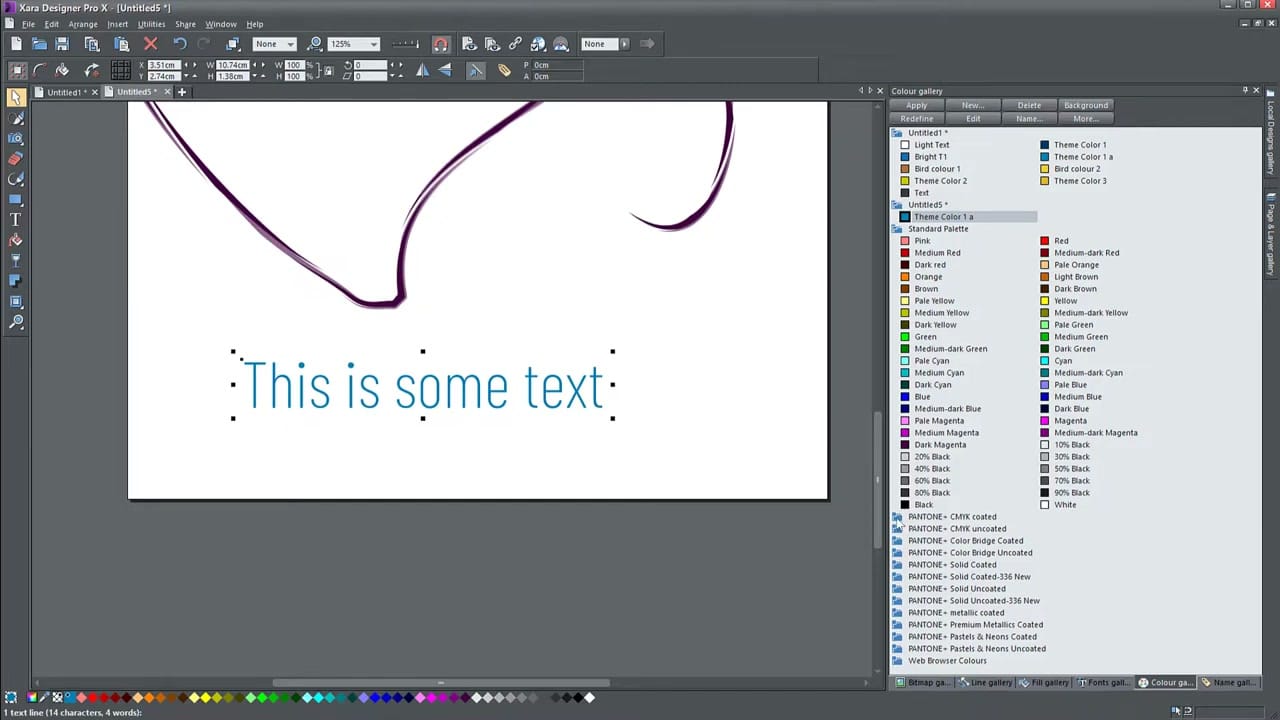
The colour bar at the bottom of the screen provides quick colour access: left-click a colour to set the fill, right-click to set the outline/stroke colour. The Colour Editor (accessible via the colour line) lets you create custom colours with HSV, RGB, or CMYK models.
Right-Side Panel Galleries
Xara's panel galleries on the right side provide access to different asset types:
Design Gallery
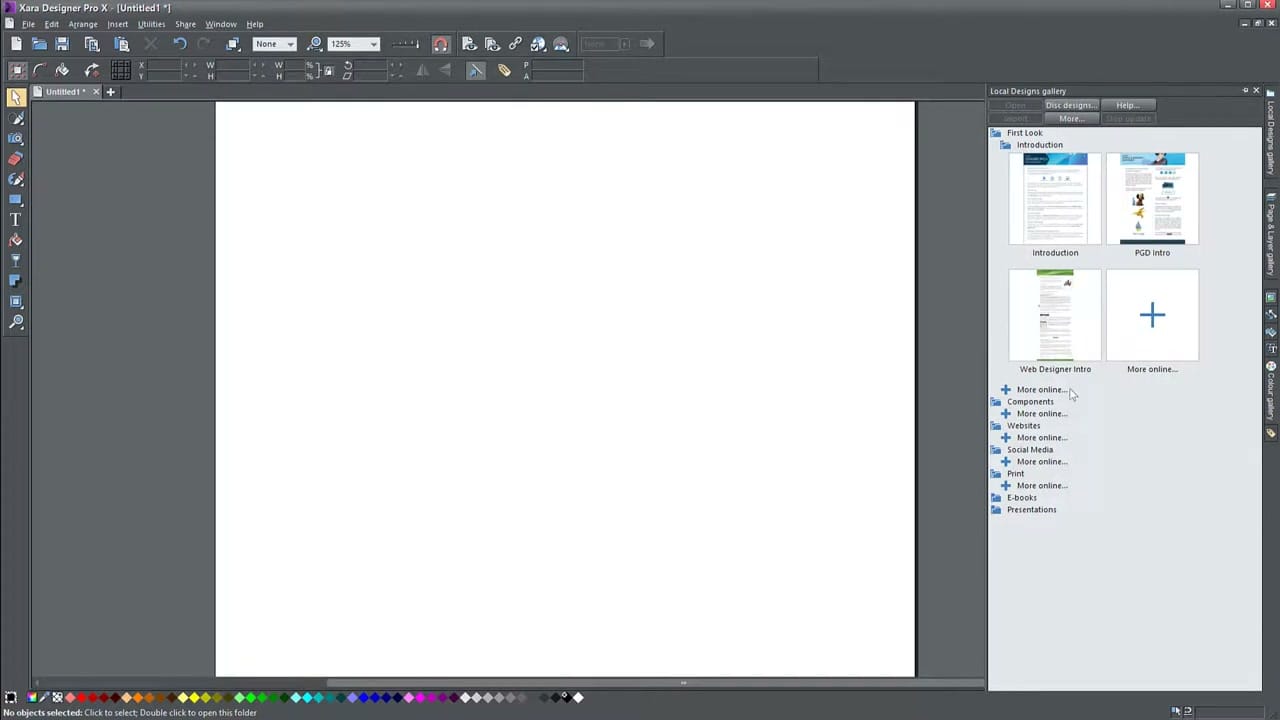
Pre-made templates for introductions, web designs, social media graphics, print layouts, e-books, and presentations. Drag any template directly onto your canvas.
Page and Layer Gallery
Manages pages (for multi-page documents) and layers within each page. Works similarly to Photoshop's layer panel — you can reorder, hide, lock, and name layers.
Line Gallery
Contains stroke styles beyond simple lines: ink brushes, watercolour effects, fur textures, and other artistic line styles.
Font and Colour Galleries
The Font Gallery previews all installed fonts with sample text. The Colour Gallery includes the standard palette plus full Pantone colour libraries (CMYK coated, uncoated, Color Bridge, and metallic).