
Animated Halloween-Themed Title in Camtasia
In this Camtasia tutorial, you'll learn how to create an animated Halloween-themed title sequence from scratch.

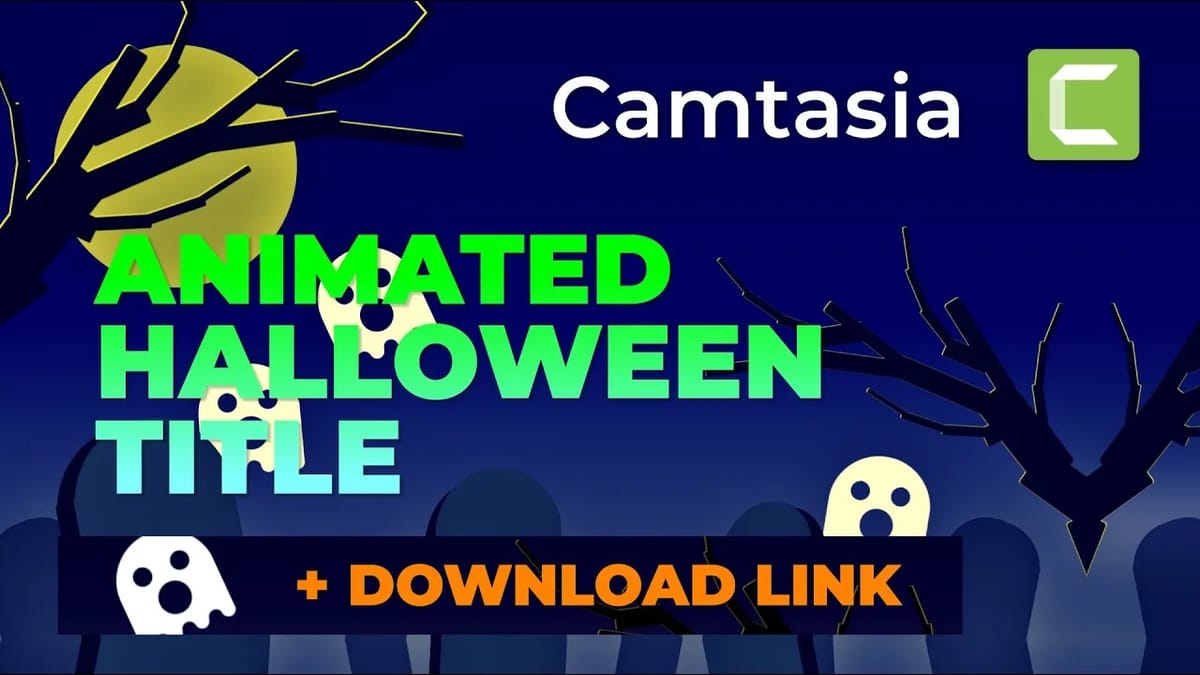
We'll build spooky graphics using Camtasia's built-in shape tools, layer a night scene together, and bring everything to life with animations. No external assets needed — everything is created right inside Camtasia.
Watch the full tutorial
Building the Ghost Shape
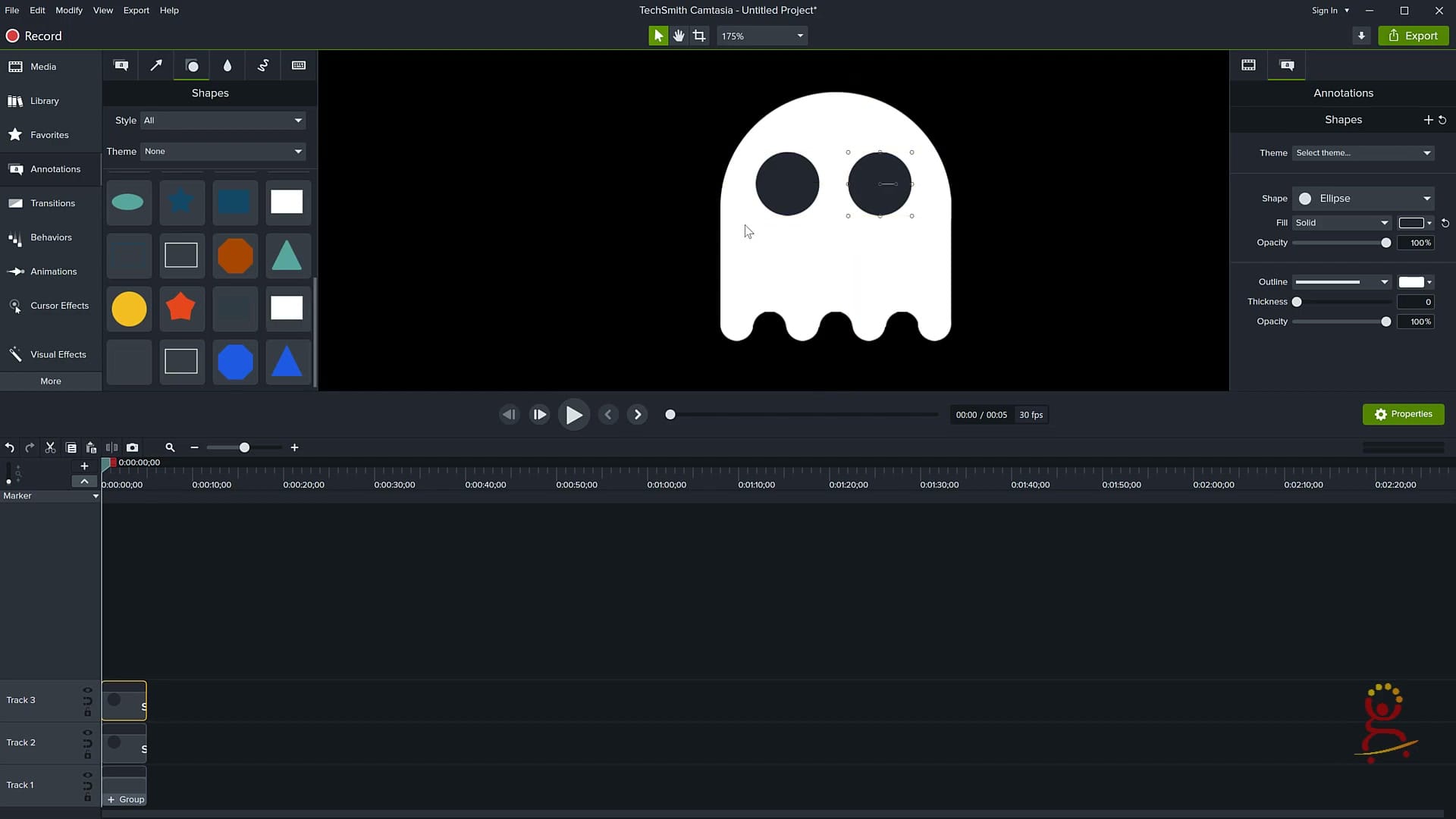
The first step is creating a ghost character using Camtasia's annotation tools. By combining multiple ellipse shapes and adjusting their size, position, and color, you can form a recognizable ghost silhouette. Start with a large white ellipse for the body, then add smaller ellipses for the eyes and mouth. The key is layering shapes on top of each other and grouping them so they move as one unit. Once the ghost shape is assembled, you can duplicate it and resize copies to populate your scene.
Creating the Night Scene
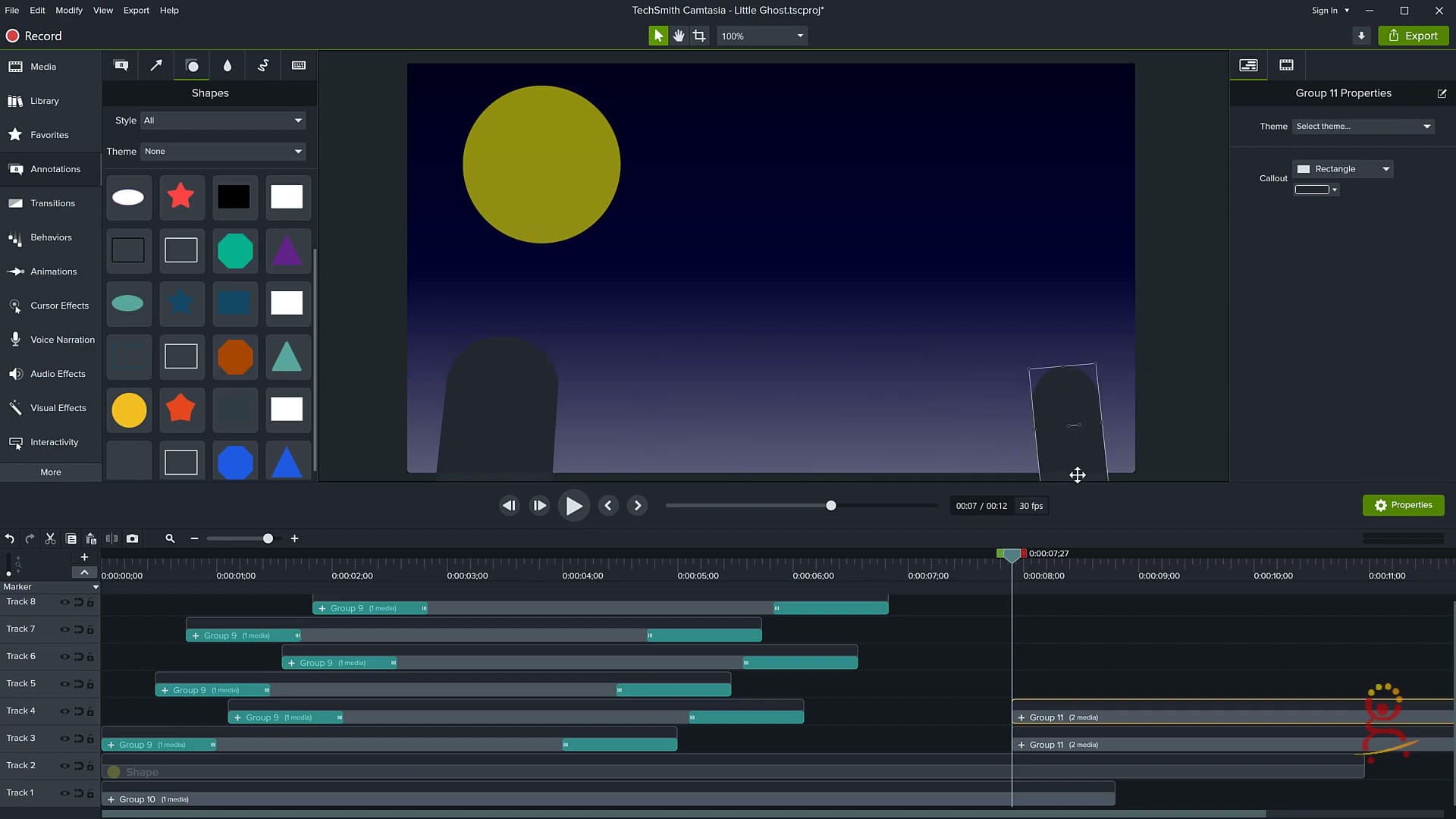
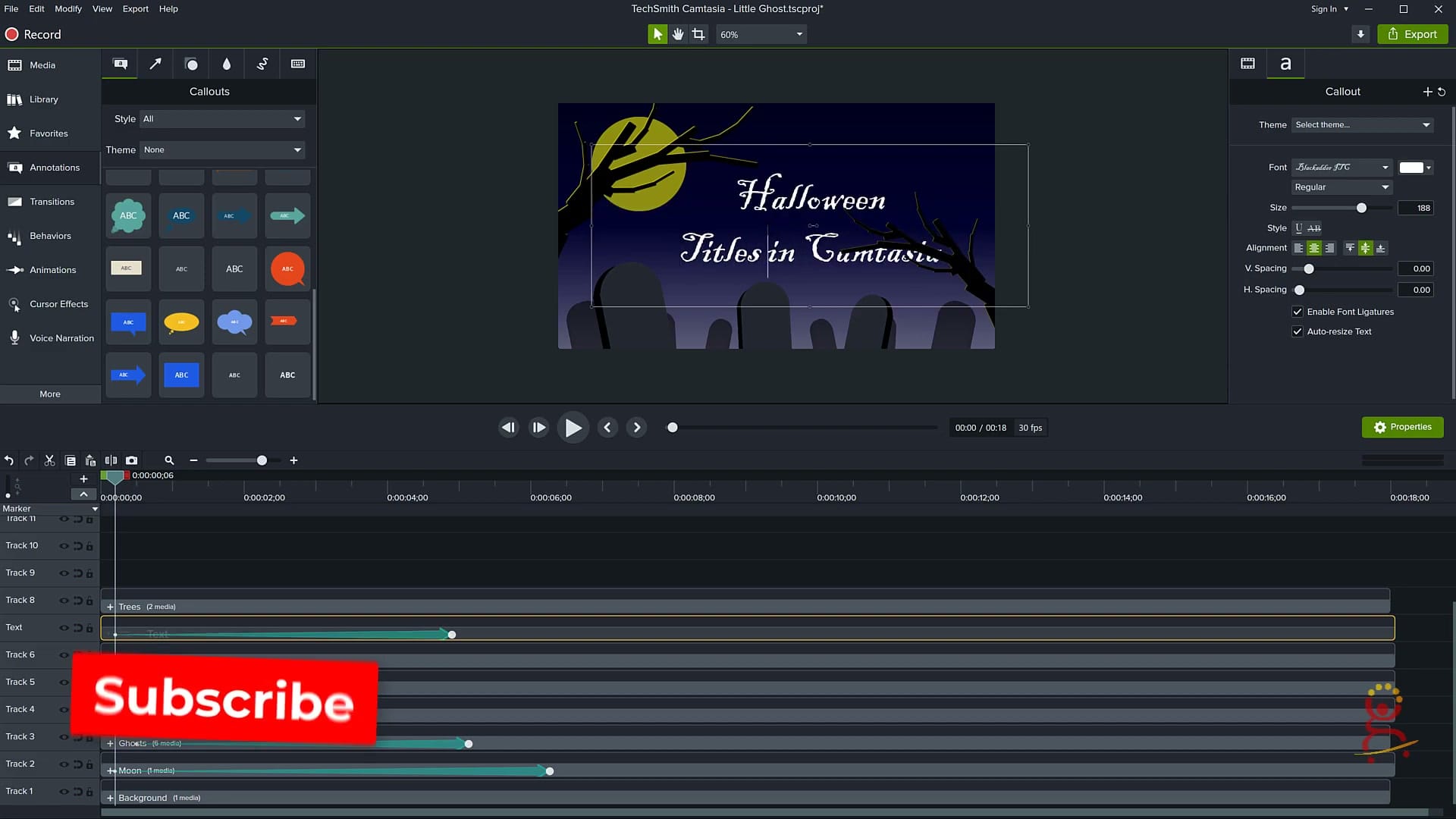
Next, build the background for your Halloween title. Use a dark rectangle to cover the entire canvas as the night sky. Add a large yellow or pale circle for the moon, positioning it in the upper portion of the frame.
For the ground, create a dark green or black rectangle along the bottom edge. Tombstone shapes are made by combining rectangles with rounded tops — use Camtasia's callout shapes and adjust the colors to dark gray. Scatter several tombstones across the ground at different sizes to create depth. This layered approach gives you a complete spooky landscape without importing any images.
Adding Bats and Animations
With the static scene in place, it's time to add motion. Create simple bat shapes using small triangles or V-shaped annotations. Place them near the moon for a classic Halloween look.
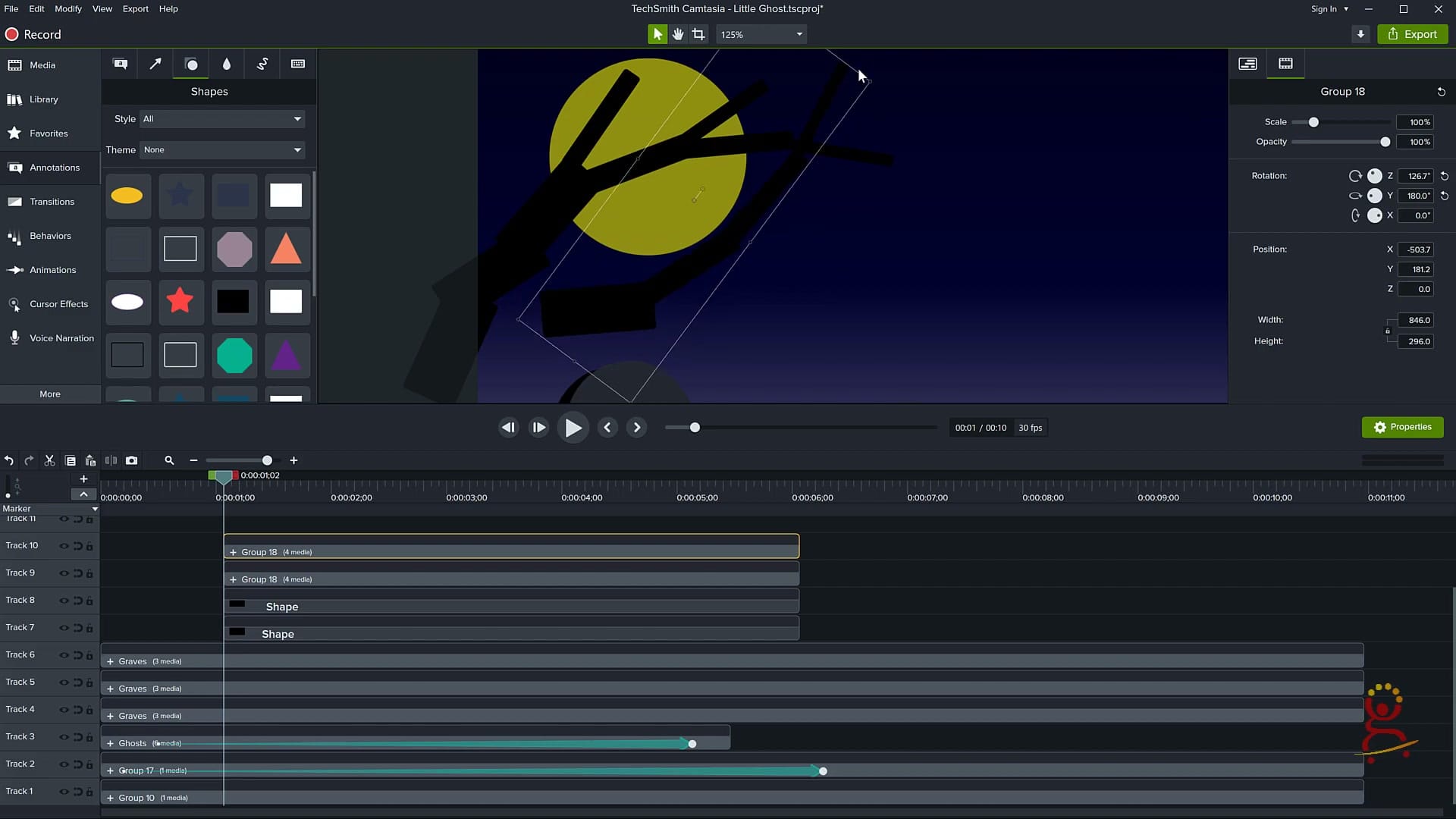
Now apply Camtasia's animation behaviors: use Custom Animation to move the ghost shapes across the screen with a gentle floating motion. For the bats, animate them flying across the frame from one side to the other. Add a title text annotation with your Halloween message — try a spooky font style and use a fade-in animation to reveal it dramatically. Stagger the timing of each element's animation so they appear one after another, building suspense.
The Final Result
When all the elements come together, you get a fully animated Halloween title sequence created entirely within Camtasia. The ghosts float gently across the scene, bats fly past the moon, tombstones frame the bottom of the screen, and your title text fades in with style.
This technique demonstrates how powerful Camtasia's shape and animation tools can be — you don't need After Effects or dedicated motion graphics software to create eye-catching title animations for your videos.
Take Your Camtasia Skills Further
- Book a 1-on-1 coaching session — get personalized help with your Camtasia projects
- Join the Media Makers Club — a community for video creators leveling up their craft
- Get Camtasia — the best screen recording and video editing software for tutorials
If you’re wish to learn more about Camtasia and wish to have a one-on-one Camtasia coaching session, feel free to book a call with me.
I’m here to help you with any questions you have and to guide you through the best workflows, tips, workarounds, or just answer any questions you may have!



