
Change Orientation, Resolution and Aspect Ratio of Your Project in Camtasia

Need to switch your Camtasia project from landscape to portrait — or vice versa? This quick tip shows you how to change the canvas orientation, resolution, and aspect ratio in just a few clicks using Project Settings.
The Default: Horizontal (16:9)
When you create a new project in Camtasia, it defaults to a standard horizontal 16:9 layout — typically FHD (1920×1080). This is the standard for YouTube videos and most screen recordings.
Open Project Settings
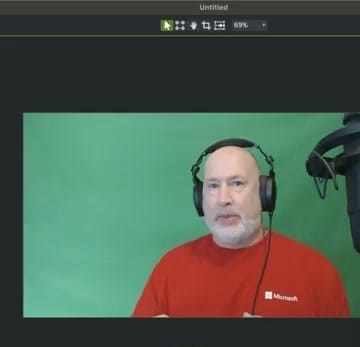
To change orientation, go to Edit → Project Settings (or click the Project Settings button from the Zoom level dropdown above the canvas).
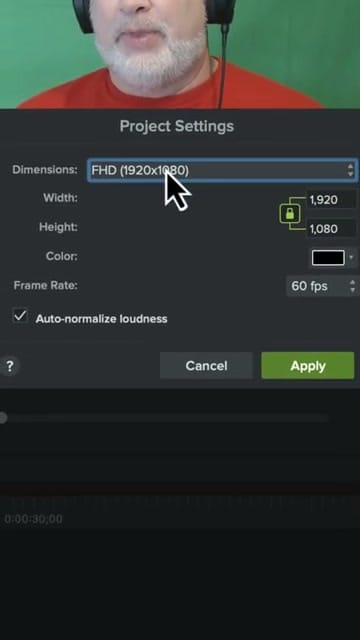
You'll see the current dimensions — by default, FHD at 1920×1080.
Choose Your Orientation
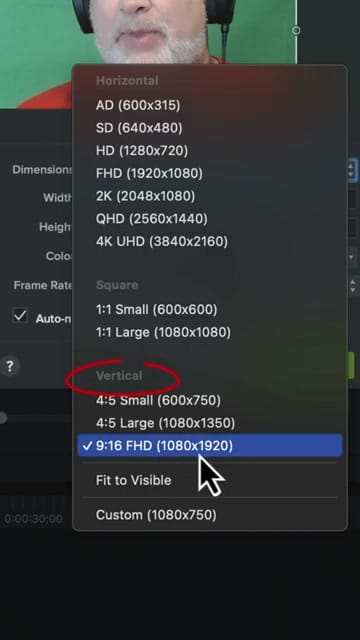
Click the Dimensions dropdown to see all available presets. Camtasia groups them into three categories:
- Horizontal — AD, SD, HD, FHD, 2K, QHD, 4K UHD
- Square — 1:1 Small (600×600) and 1:1 Large (1080×1080)
- Vertical — 4:5 Small, 4:5 Large, 9:16 FHD (1080×1920)
For social media clips like Instagram Reels, TikTok, or YouTube Shorts, pick 9:16 FHD (1080×1920) from the Vertical section.
Reposition Your Video
After changing orientation, your video won't automatically fill the new canvas. You'll see black bars where the footage doesn't cover the frame.
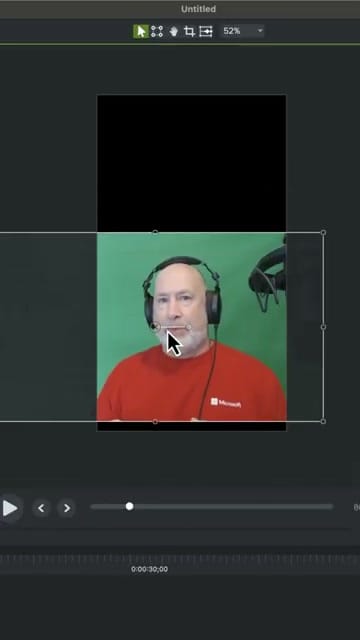
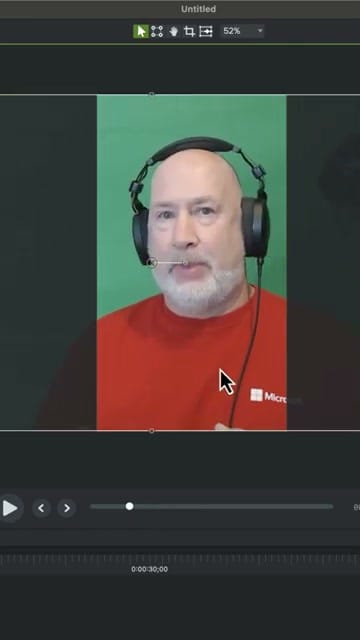
Click on the video in the canvas, then drag and resize it to fill the vertical frame. You may need to scale it up and crop the sides to eliminate the black areas.
Custom Dimensions
If none of the presets match your needs, you can also choose Custom at the bottom of the dropdown and enter any width and height manually. There's also a Fit to Visible option that adjusts the canvas to match whatever is currently visible on screen.
Changing orientation is something you'll use often when repurposing horizontal recordings into vertical social media clips. It only takes a few seconds in Camtasia's Project Settings.
If you’re wish to learn more about Camtasia and wish to have a one-on-one Camtasia coaching session, feel free to book a call with me.
I’m here to help you with any questions you have and to guide you through the best workflows, tips, workarounds, or just answer any questions you may have!



