
Create Social Media Clips in Camtasia

Want to turn your horizontal Camtasia recordings into vertical clips for TikTok, Instagram Reels, or YouTube Shorts? This quick tip walks you through the entire process in under a minute.
Step 1: Import Your Video
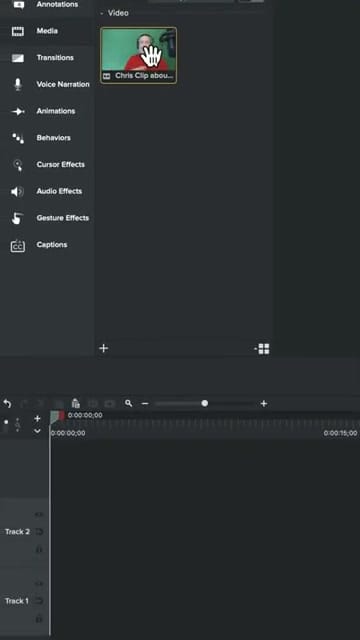
Start by importing your video clip into the Media Bin. Drag it onto the timeline to begin editing.
Step 2: Switch to Vertical Orientation
Open Project Settings and change the canvas dimensions to a vertical format. Select 9:16 FHD (1080×1920) from the Vertical section of the dropdown — this is the standard size for social media short-form content.
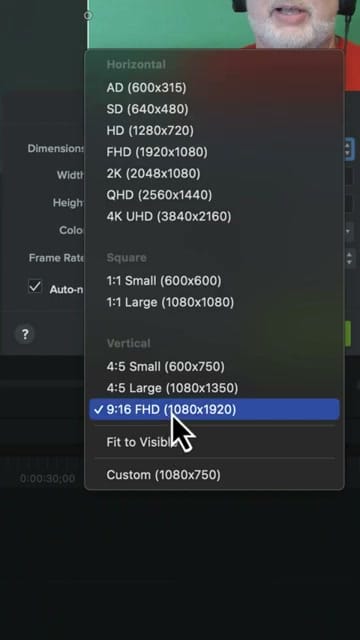
If you want to change to more exotic dimensions, you can choose custom and specify the exact resolution you want. Camtasia allows that too.
Step 3: Scale and Reposition
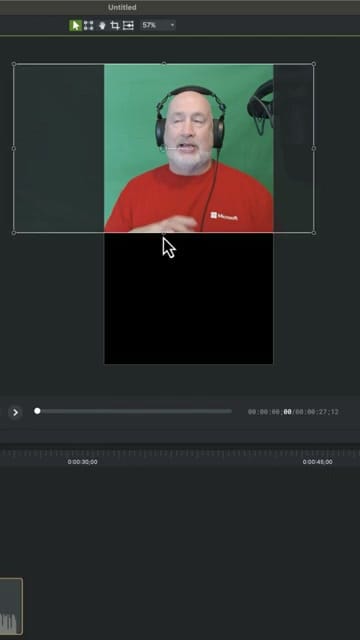
Your horizontal video won't fill the vertical canvas automatically. Click on the video, then scale it up and reposition it so that the important part of the frame fills the vertical space. You'll be cropping the sides, so make sure the subject stays centered.
Step 4: Add Dynamic Captions
Social media clips perform much better with captions. Go to the Captions panel in the left sidebar and choose a Dynamic Caption Style. Drag your chosen style onto the timeline — Camtasia will automatically transcribe the audio and generate animated captions.
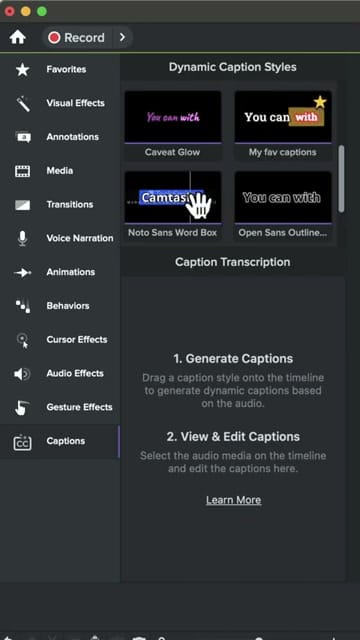
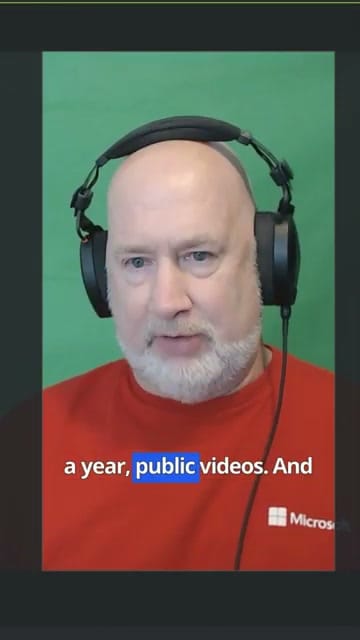
Camtasia transcribes the audio automatically and when it's finished, the captions appear on the video with word-by-word highlighting, making them easy to follow even with the sound off.
Step 5: Export
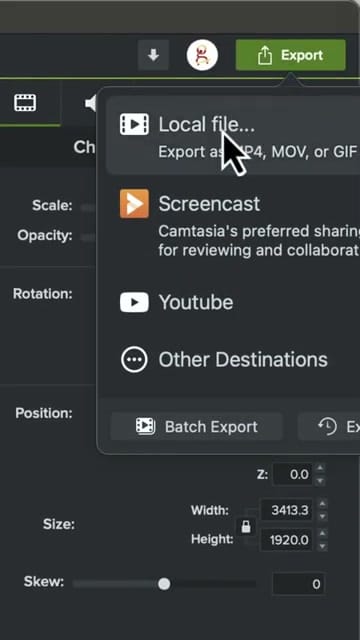
When you're happy with the clip, click Export and choose your destination. You can export as a local MP4 file, or upload directly to YouTube.
Quick Summary
- Import your video into the Media Bin
- Change Project Settings to 9:16 FHD (vertical)
- Scale and reposition the video on the canvas
- Add Dynamic Captions from the Captions panel
- Export as MP4 or upload directly
That's the complete workflow for creating social media clips in Camtasia. Five steps, under a minute to set up.
If you’re wish to learn more about Camtasia and wish to have a one-on-one Camtasia coaching session, feel free to book a call with me.
I’m here to help you with any questions you have and to guide you through the best workflows, tips, workarounds, or just answer any questions you may have!



