
Descript Changing Your Audio Levels? Here's How to Fix It

You import audio or video into Descript and suddenly the volume is different from what you recorded. Maybe it's louder, maybe quieter — but it's definitely not what you expected. This is Descript's automatic volume leveling at work, and it catches a lot of people off guard.
Here are three places where Descript controls your audio levels, and how to fix each one.
Step 1: Check Account-Wide Settings
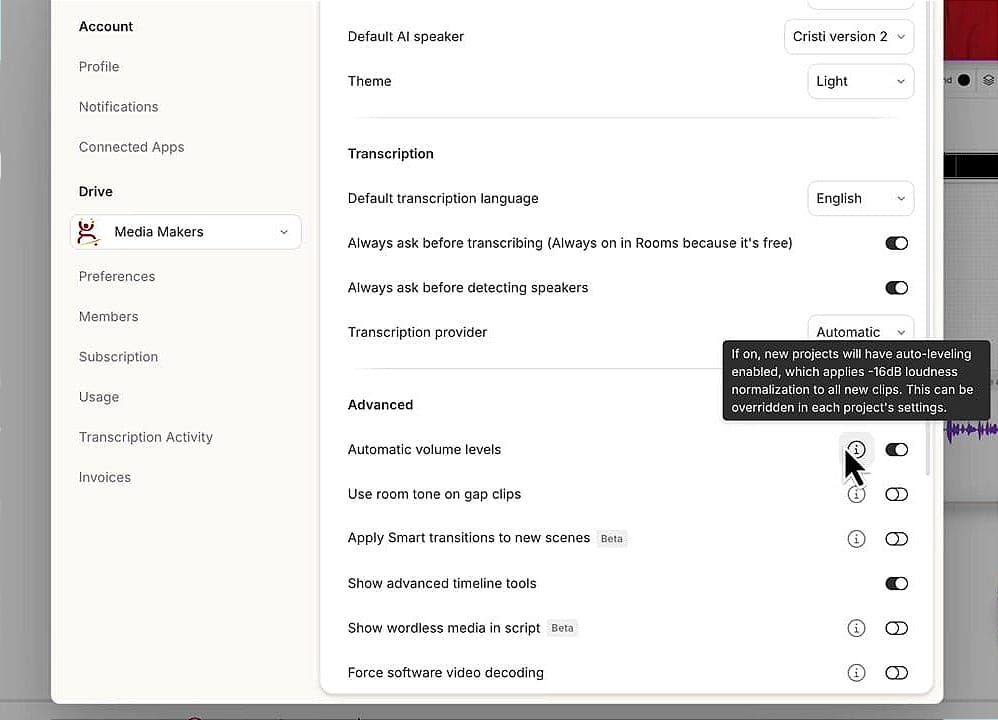
Descript has a global toggle called "Automatic volume levels" buried in your account settings. When this is enabled, every new project you create will automatically level all clips on import.
To find it:
- Click the hamburger menu (☰) in the top-left corner
- Go to Settings
- Scroll down to the Advanced section
- Look for "Automatic volume levels"
The tooltip confirms exactly what it does: "If on, new projects will have auto-leveling enabled, which applies -16dB loudness normalization to all new clips. This can be overridden in each project's settings."
If you don't want Descript touching your audio levels globally, toggle this off. This only affects new projects — existing ones keep their current setting.
Step 2: Check Project-Level Settings
Even if you turn off the global setting, individual projects can still have auto-leveling enabled. This is the per-project override.
To check, when you're inside a project:
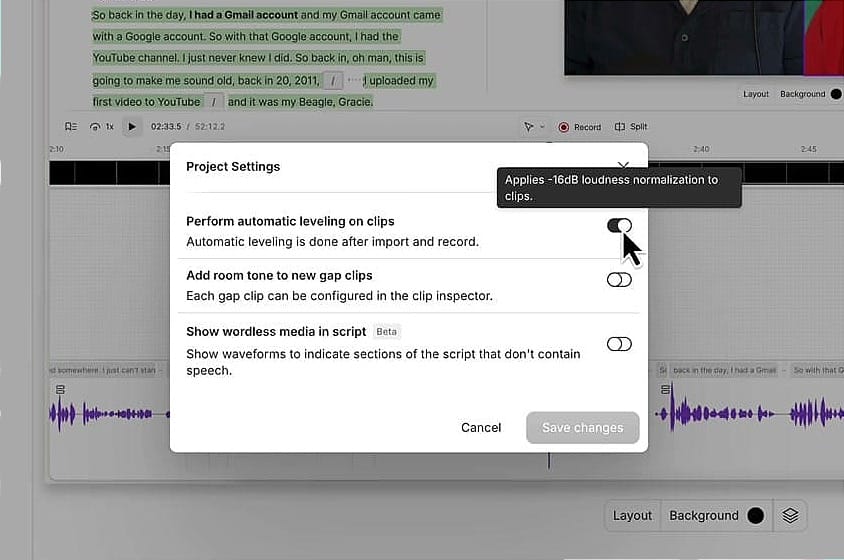
- Go to File → Project settings (or use the keyboard shortcut)
- Look for "Perform automatic leveling on clips"
- The description says: "Automatic leveling is done after import and record."
The tooltip here is even more specific: "Applies -16dB loudness normalization to clips."
If this toggle is on and you don't want it, switch it off and click Save changes. Note that this won't undo leveling already applied to existing clips in the project — it only affects new imports and recordings from this point forward.
Step 3: Check Export Normalization
There's one more place where Descript can change your audio levels: the export settings. Even if you've turned off auto-leveling everywhere else, the export panel has its own normalization setting.
When you export:
- Click Export
- Choose your destination (Local export, Descript web link, YouTube, etc.)
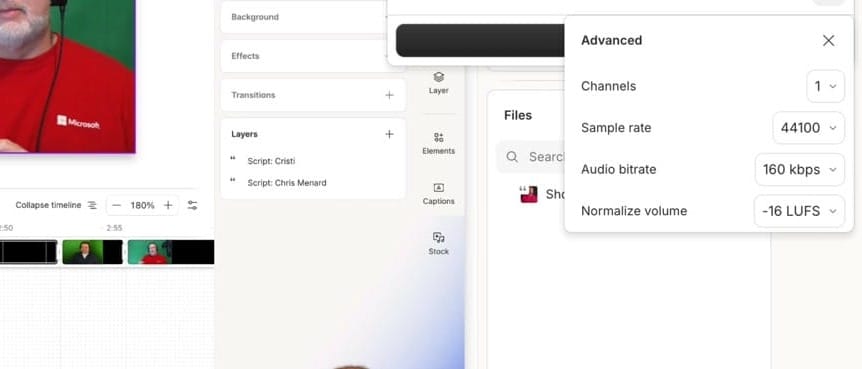
- Expand the Advanced section
- Look for "Normalize volume" — it defaults to -16 LUFS
This applies loudness normalization to your final export. If you want your export to match exactly what you hear in the editor (with no additional processing), you may want to adjust or disable this setting.
That said, -16 LUFS is a reasonable target for most content — it's the standard for platforms like YouTube and most podcast directories. Only change this if you have a specific reason to.
Which Setting Should You Use?
Here's a quick decision guide:
- You want consistent levels across all projects → Leave the account-wide setting ON. Descript normalizes everything to -16dB on import — no manual leveling needed.
- You want control per project → Turn OFF the account setting, then enable/disable leveling in each project's settings as needed.
- You handle audio leveling yourself (e.g., with Auphonic or another tool) → Turn OFF both the account and project settings, and review the export normalization setting.
- Your exported audio sounds different from the editor → Check the export "Normalize volume" setting — it may be applying additional normalization on top of what you've already done.
Watch the Full Tutorial
Descript Changing Your Audio Levels? Fix It in 3 Simple Steps — Full walkthrough on YouTube (5 min)
Do you need help or wish to learn Descript the right way? Join me on a one-on-one Descript coaching session. Book a call with me.
I’m here to help you with any questions you have and to guide you through the best workflows, tips, workarounds, or just answer any questions you may have!



