
Display Speaker Names as They Speak in Descript

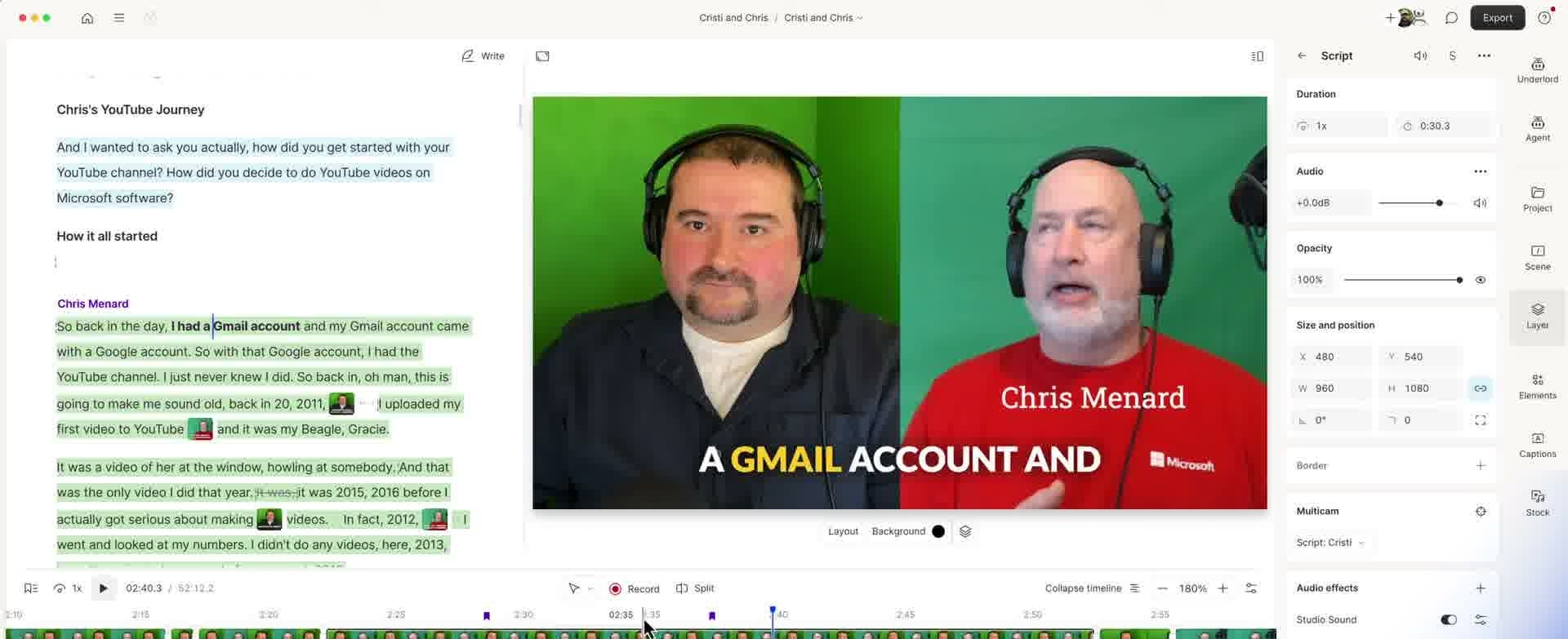
When editing a multi-speaker video in Descript, you may want to show each speaker's name on screen as they talk. Instead of manually placing text and timing it, Descript's Speaker text type automatically displays the correct name based on who is currently speaking in the transcript.
Setting Up a Multi-Speaker Project
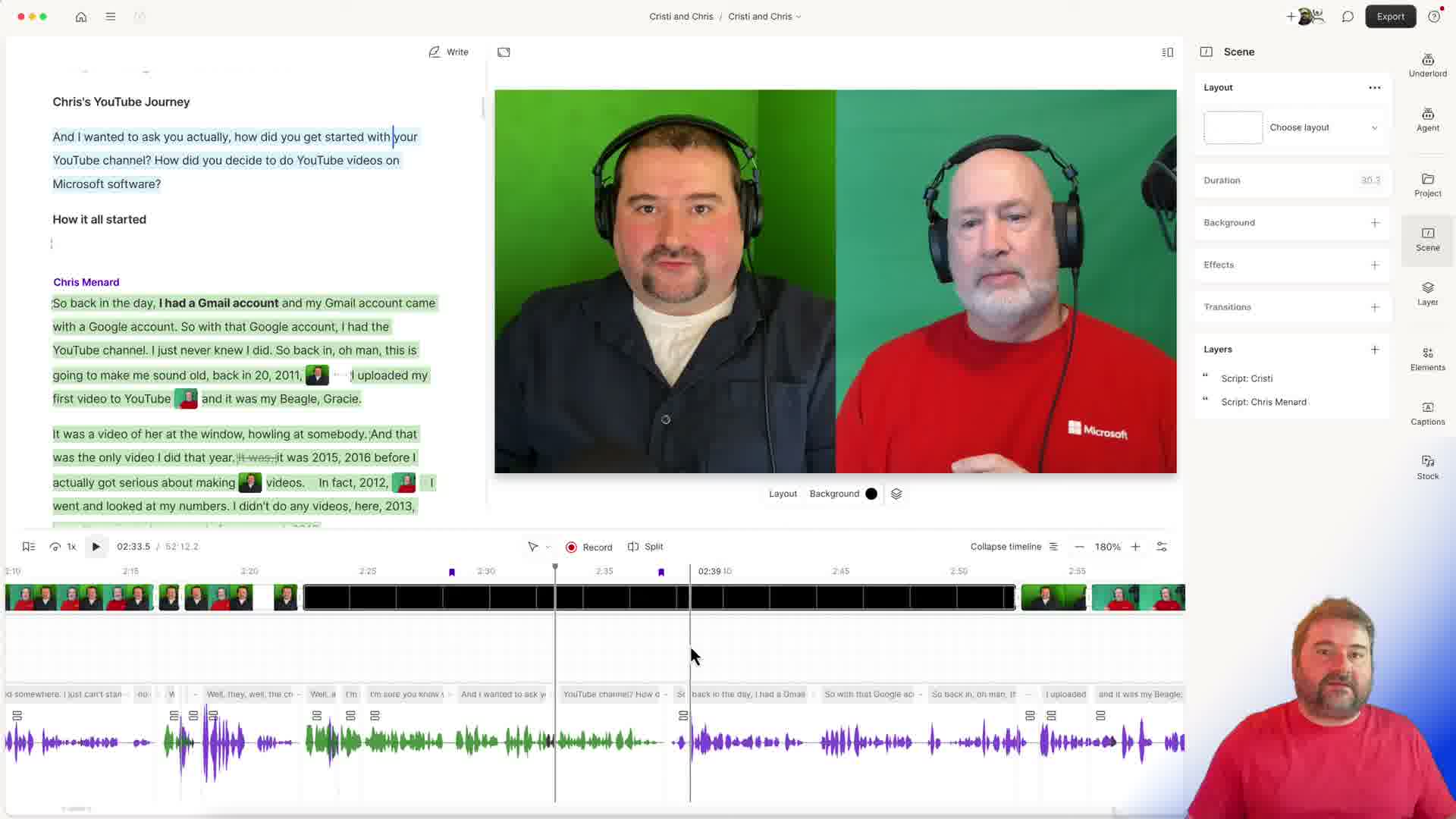
Start by importing your video files into Descript. When working with multiple speakers — like a podcast or interview — Descript automatically detects and labels each speaker in the transcript.
You'll see speaker names (like "Cristi" and "Chris Menard") in the left panel, with their dialogue color-coded in the transcript. The transcript shows separate Script tracks for each speaker.
Step 1: Add a Text Element
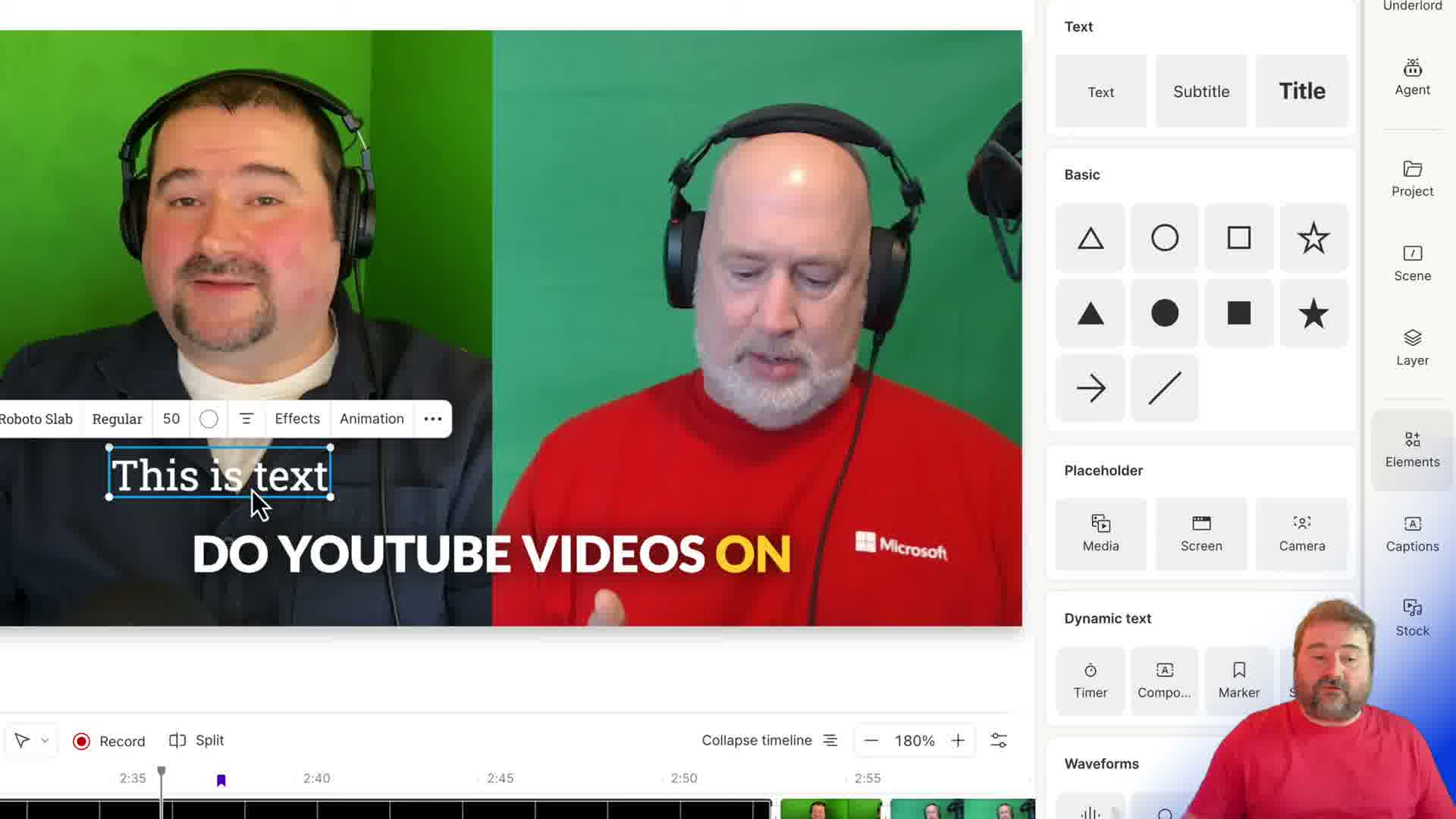
To display speaker names on screen, go to the Elements panel on the right side. You'll see options for Text, Subtitle, and Title under the Text section, plus shapes and dynamic text options like Timer, Composition, and Marker. Click Text to add a text element to the canvas. A text box appears on the video preview that you can position wherever you want the speaker name to appear.
Step 2: Change the Text Type to "Speaker"
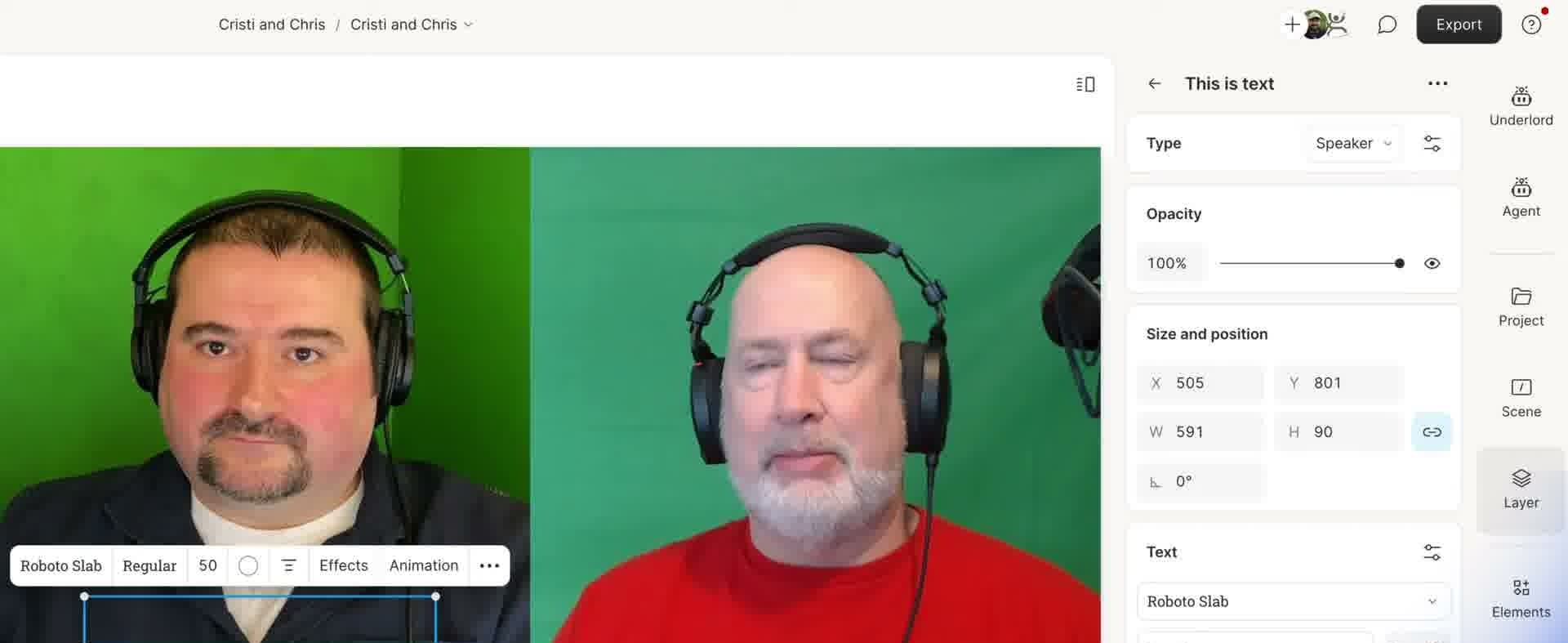
Here's the key step: select the text element you just added, and in the properties panel on the right, change the Type from regular text to Speaker. A dropdown appears where you can select which speaker this text element should follow — for example, "Chris Menard". Once set, the text automatically shows that speaker's name whenever they're talking, and hides when they're not.
Step 3: Add Names for All Speakers
Repeat the process for each speaker in your video. Add another text element, set its Type to Speaker, and assign it to the other speaker. Position each name where you want it on screen — typically in the lower third area near each speaker.
You can customize the font, size, color, and position independently for each speaker's name element. Both text elements will appear on the timeline for the entire duration (of the timeline or the scene, depending on how you added them), but the name will only appear on the screen in the relevant box when the person is actually talking.
Do you need help or wish to learn Descript the right way? Join me on a one-on-one Descript coaching session. Book a call with me.
I’m here to help you with any questions you have and to guide you through the best workflows, tips, workarounds, or just answer any questions you may have!



