
How to Add Gaps Between Overdub Sentences in Descript

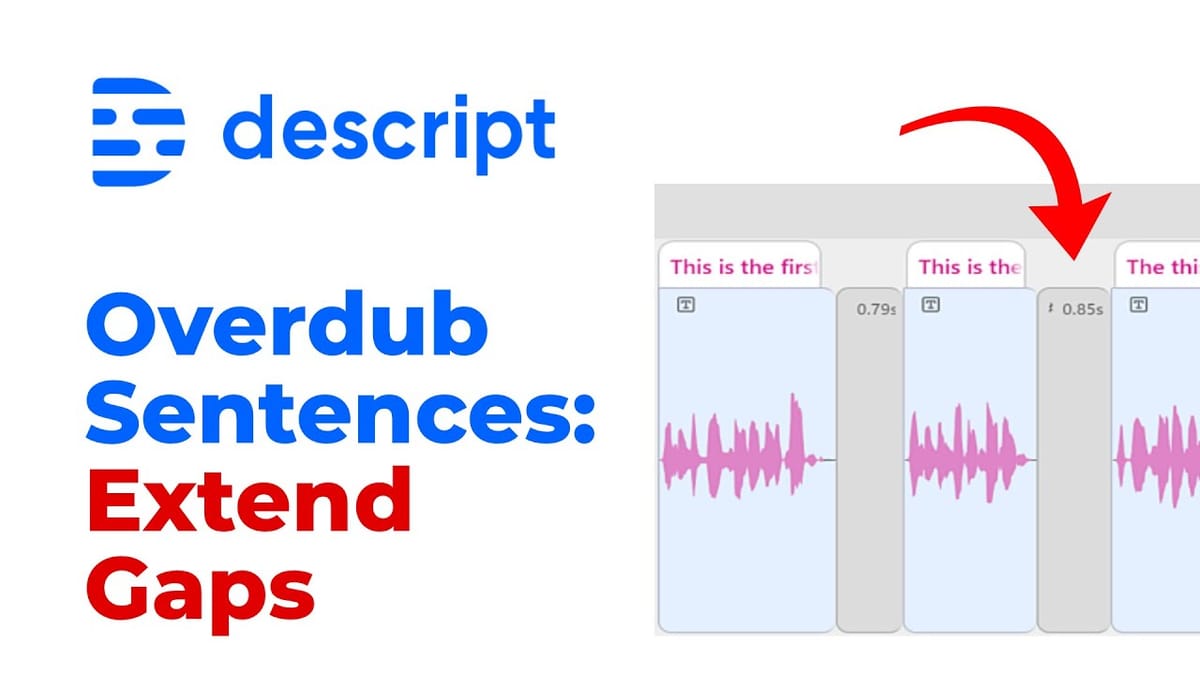
If you use Descript's Overdub (AI text-to-speech) feature to generate AI voiceovers, you've probably noticed that sentences run together with barely any pause between them. Descript doesn't provide a sentence-level spacing tool, so there's no obvious way to add breathing room between your generated lines. Here's a simple workaround that gives you uniform, professional-sounding gaps.
The Problem: Overdub Sentences Are Too Close Together
When you type out multiple sentences and generate them with Overdub, Descript renders each sentence as a separate audio clip on the timeline. The problem is that these clips sit right next to each other with little to no silence between them. The result sounds rushed and unnatural — like someone reading a script without pausing to breathe.
Descript only offers word-level tools for adjusting spacing. There's no "sentence gap" slider or paragraph-level timing control. If you try to use the word gap removal tool, it operates on the silence between individual words — not between whole sentences. So we need a different approach.
The Workaround: Drag and Shorten
The trick is a two-step process: first create oversized gaps, then standardize them all at once.
Step 1: Drag sentences apart on the timeline
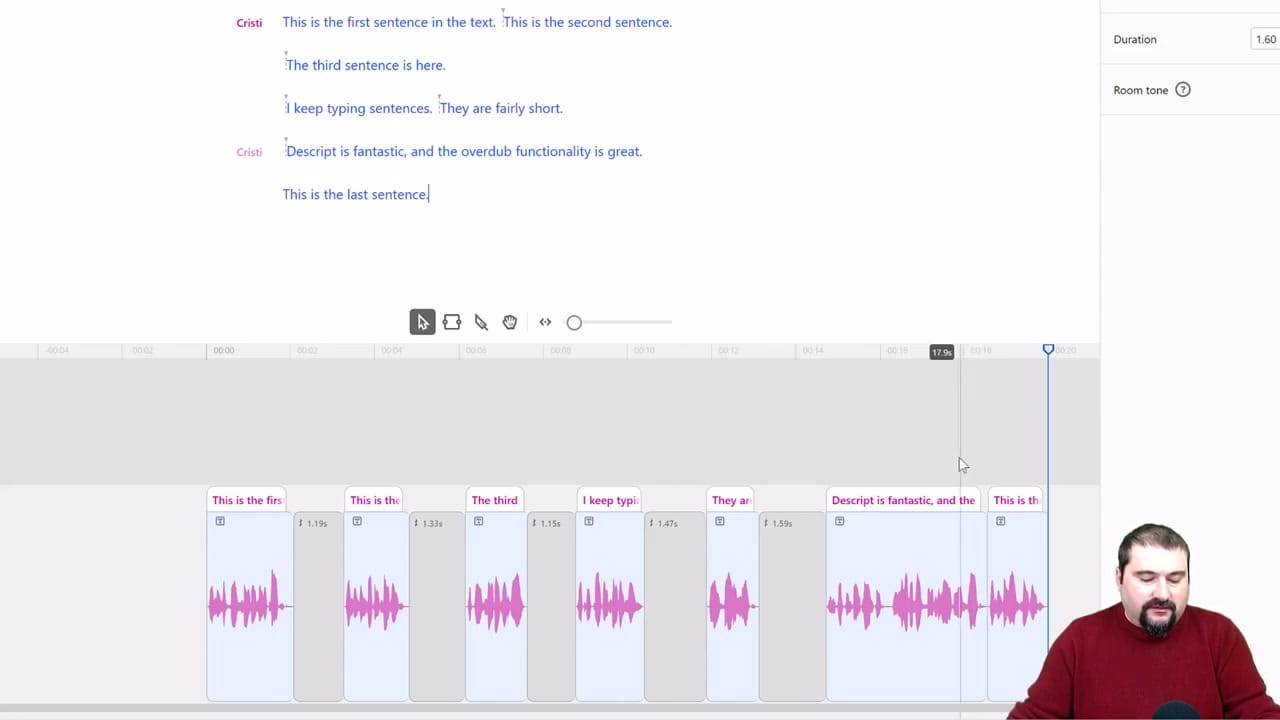
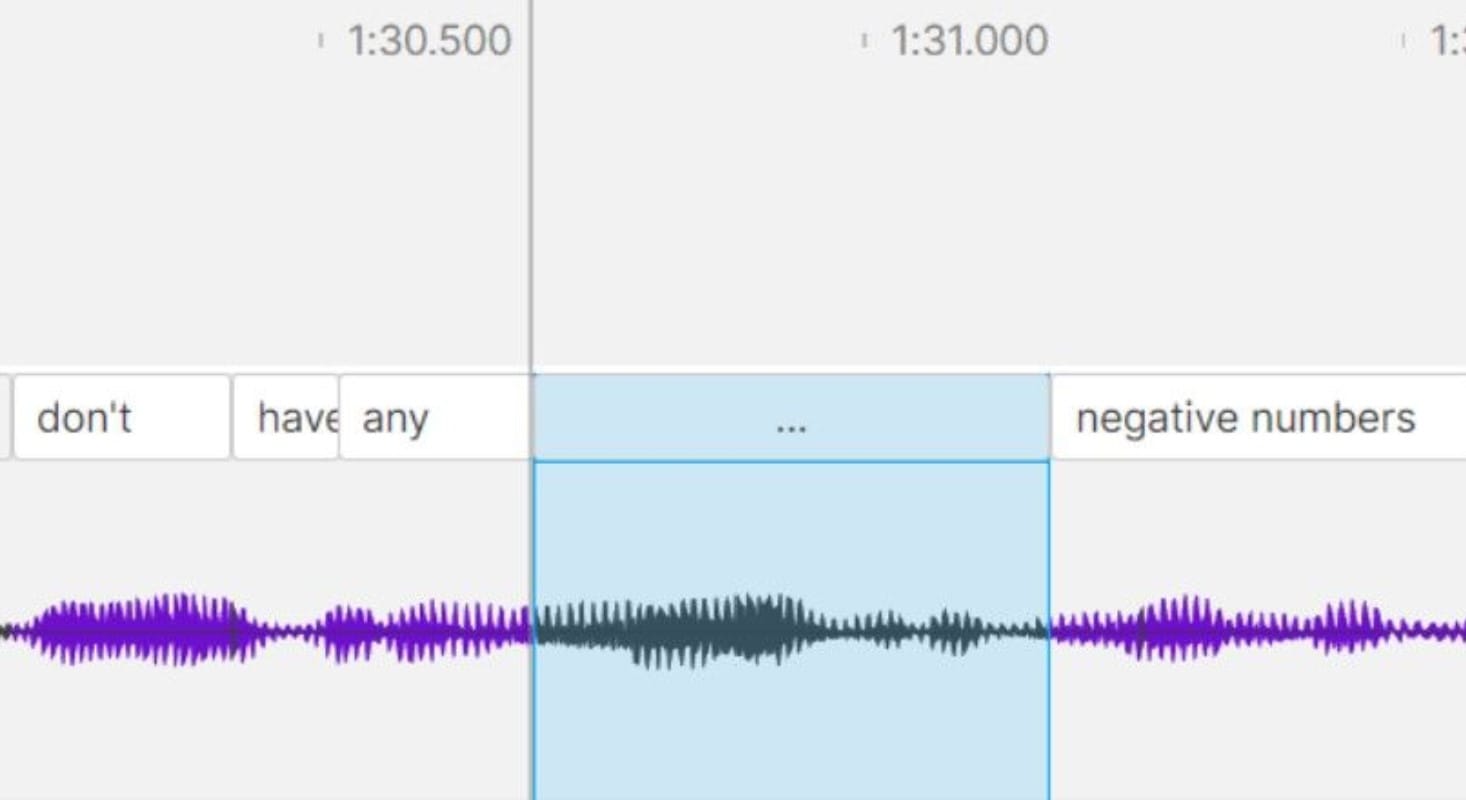
In the timeline view, grab each Overdub sentence clip and drag it to the right, creating a gap of more than one second between each pair of sentences. Don't worry about making them exactly equal — just make sure every gap is noticeably larger than your target pause length (for example, if you want 1-second pauses, drag them at least 1.2 seconds apart).
Step 2: Use "Shorten word gaps" to standardize
Now click the wrench icon in the toolbar to open the editing tools. Select Shorten word gaps. Set it to find gaps longer than 1 second and set the target length to your desired pause duration (1 second works well for most narration). Click Apply to all and Descript will trim every gap clip down to your specified length.
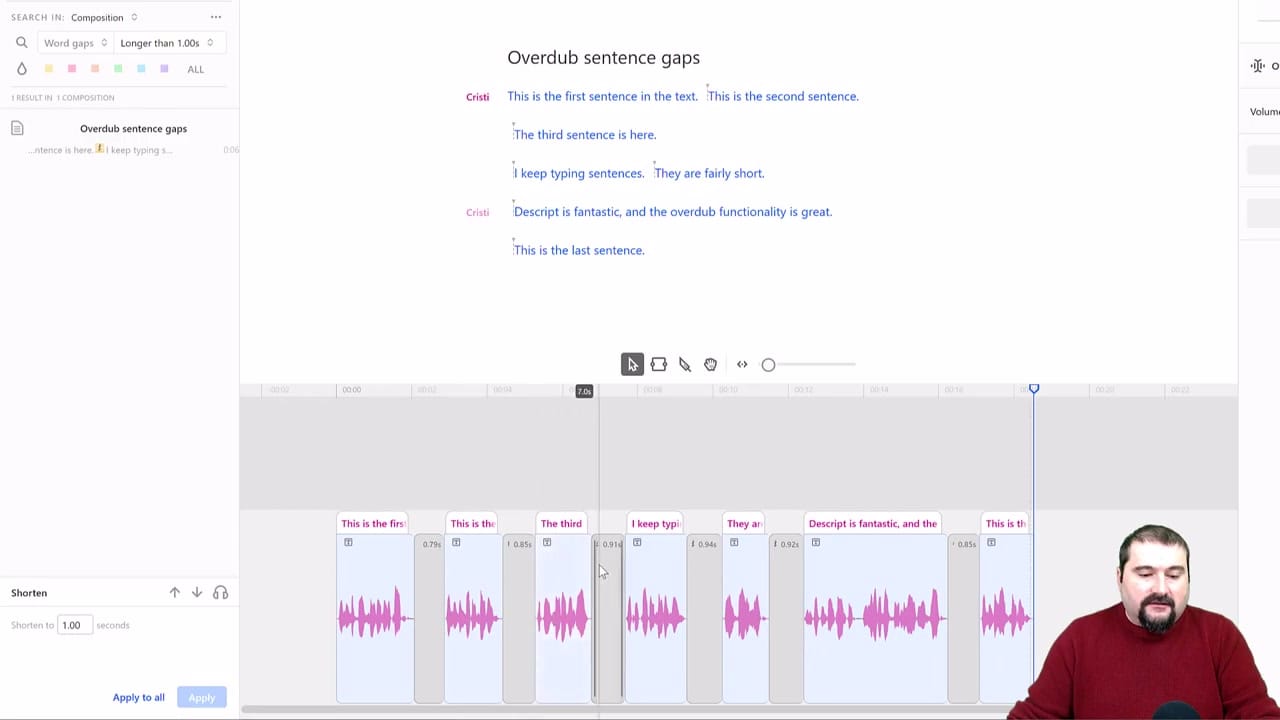
One thing to note: Descript calculates the total silence between words, including tiny bits of silence at the edges of clips. So even though you set a 1-second target, the visible gap clip might show approximately 0.85 seconds — the remaining silence is accounted for at the boundaries. The actual heard pause will still be about 1 second.
Bonus: Convert Overdub to Normal Audio
If you need even finer control — adjusting timing at the individual word level — there's another option. Select all your Overdub clips, then go to Overdub → Convert Overdub to normal audio. This converts each Overdub sentence into a standard audio file that you can edit word by word, trim, or rearrange just like any recorded audio.
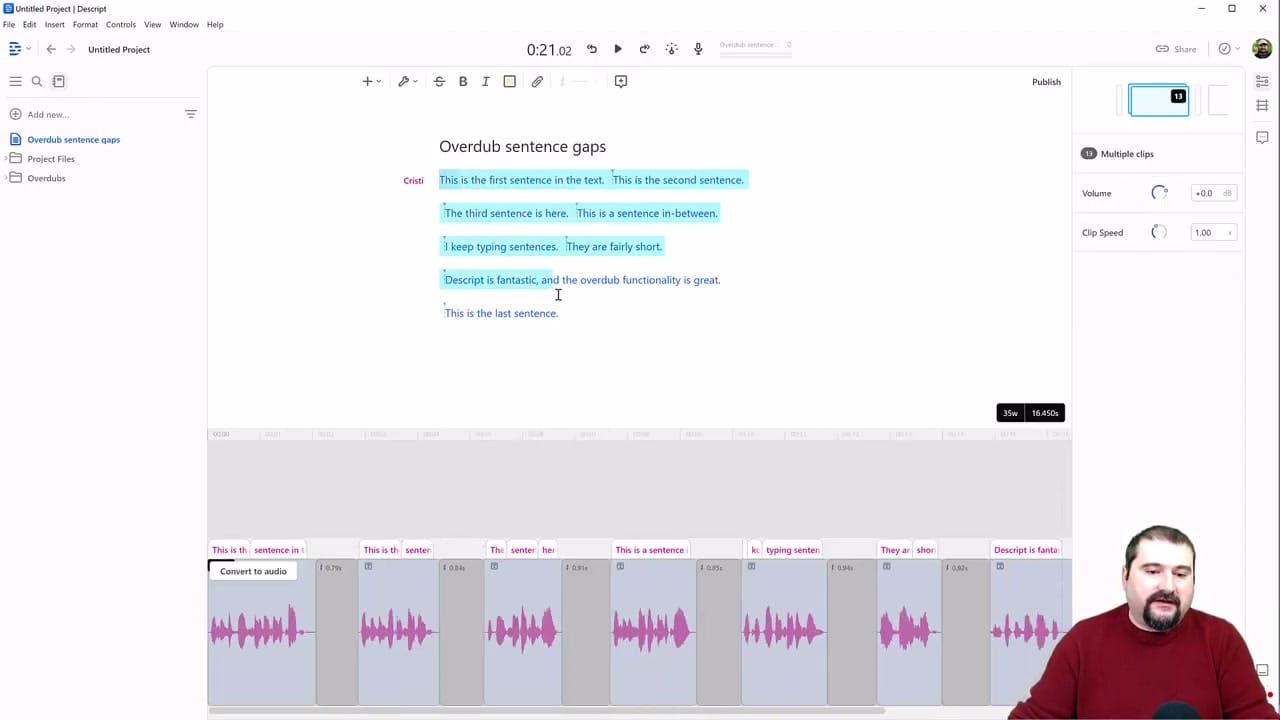
The trade-off is significant: once converted, you can no longer edit the text and regenerate the AI voice. The clips become fixed audio files. Use this option when you're happy with the overall script and just need to fine-tune the delivery.
Subscription Requirement
Keep in mind that Overdub with your own voice clone requires a Descript Pro subscription. The Creator tier only includes a limited set of 1,001 predefined stock words. If you're serious about using Overdub for narration, Pro is the way to go — it gives you unlimited Overdub with your custom voice.
 Cristi Cotovan
 Cristi Cotovan
 Cristi Cotovan
Do you need help or wish to learn Descript the right way? Join me on a one-on-one Descript coaching session. Book a call with me.
I'm here to help you with any questions you have and to guide you through the best workflows, tips, workarounds, or just answer any questions you may have!



