
How to Change Video Speed and Duration in Camtasia

Need to speed up or slow down a video clip in Camtasia? You can adjust clip speed using a multiplier or set an exact duration in minutes, seconds, and frames. Here are two methods.
Method 1: Use the Clip Speed Properties Panel
Right-click on a clip in the timeline and select Add Clip Speed. This adds a yellow speed bar beneath the clip and opens the Clip Speed panel on the right.
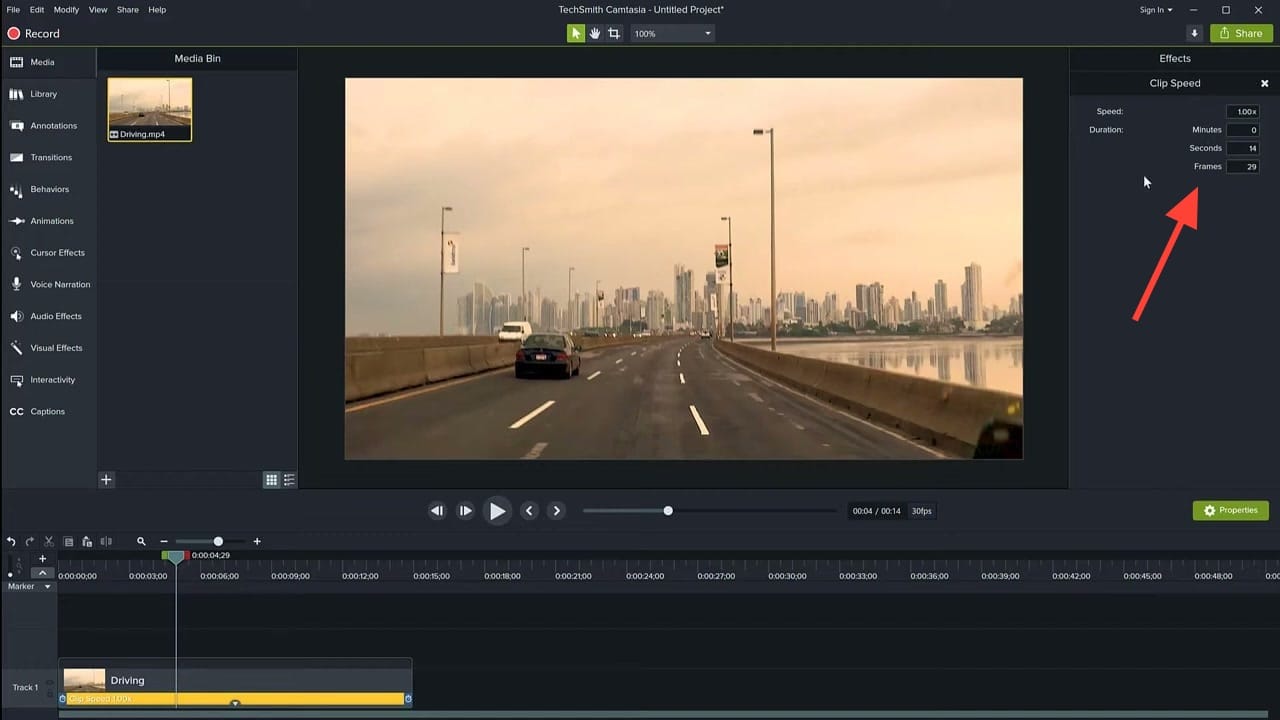
By default, the speed is 1.00x (normal). To slow the clip down, enter a value below 1 — for example, 0.50x plays at half speed. To speed it up, enter a value above 1. You can also type an exact duration: set the minutes, seconds, and frames fields to your desired length, and Camtasia calculates the speed multiplier automatically.
Method 2: Drag the Clip Speed Edge
For a more visual approach, hover your mouse over the edge of the yellow Clip Speed bar on the timeline. The cursor changes to a resize arrow — drag left to shorten (speed up) or right to extend (slow down) the clip.
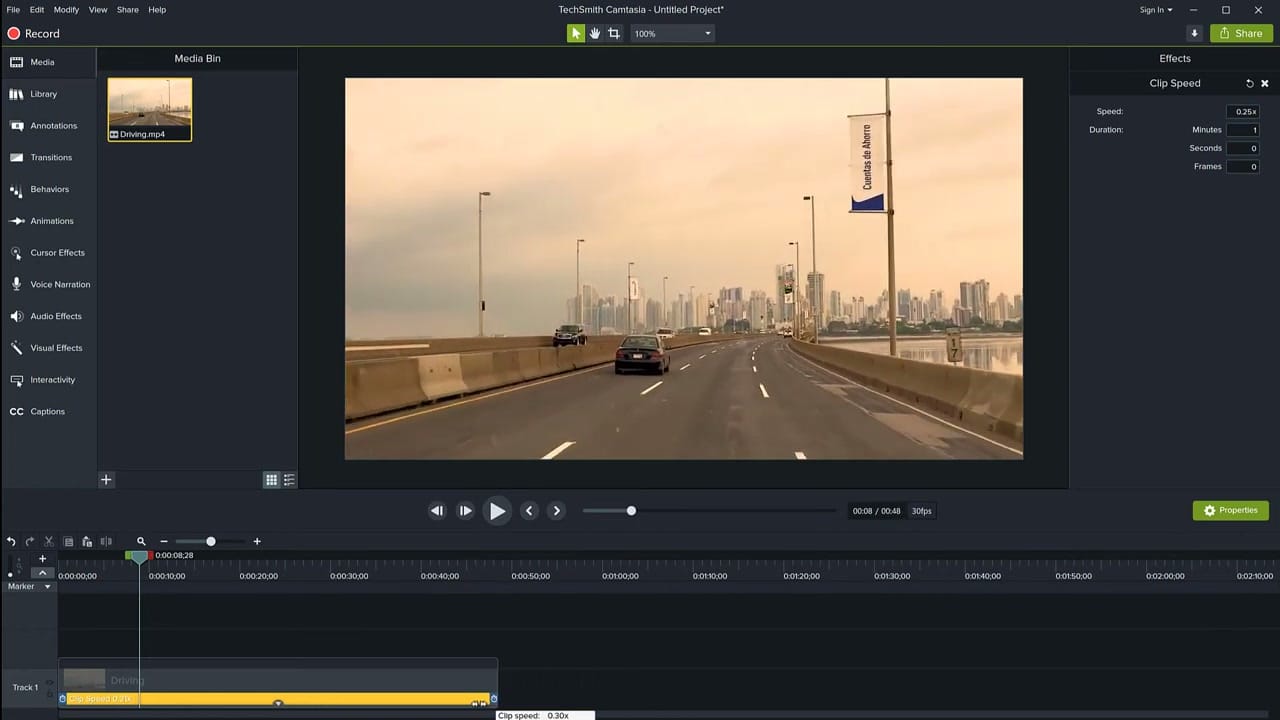
This method is useful when you want to match the clip length to a specific point on the timeline without calculating exact values.
Alternative: Apply from the Visual Effects Panel
You can also apply the Clip Speed effect by going to Visual Effects in the left panel and dragging Clip Speed onto your clip. This does the same thing as the right-click method — it adds the speed bar and opens the properties panel.
Related guides
 Cristi Cotovan
 Cristi Cotovan
 Cristi Cotovan
If you wish to learn more about Camtasia and wish to have a one-on-one Camtasia coaching session, feel free to book a call with me.
I'm here to help you with any questions you have and to guide you through the best workflows, tips, workarounds, or just answer any questions you may have!



