
How to Download Video from YouTube Directly in Descript

Update: Descript has now disabled this feature due to various YouTube problems, unreliability of connection, etc. Not to mention, it's technically against YouTube's terms of use.
Descript lets you import videos directly from YouTube without downloading them separately first. This is useful when you want to edit reaction videos, reference clips, or repurpose your own published content.
How to Import a YouTube Video
- Open your Descript project or create a new one
- Click the Import button or use the + Add media option
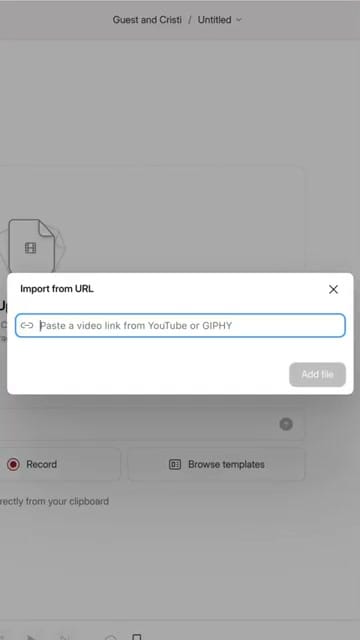
- Select Import from URL
- Paste the YouTube video link into the URL field
- Click Add file — Descript downloads and transcribes the video automatically
What Happens After Import
- Descript downloads the video and adds it to your project files
- The video is automatically transcribed — you can edit it like a text document
- You can use the imported video in any composition alongside your own recordings
- This also works with GIPHY links for importing animated GIFs
Tips
- Make sure you have the rights to use any YouTube video you import — respect copyright
- The video quality depends on what YouTube makes available
- This feature uses your transcription minutes, so keep that in mind if you're on a limited plan
Do you need help or wish to learn Descript the right way? Join me on a one-on-one Descript coaching session. Book a call with me.
I’m here to help you with any questions you have and to guide you through the best workflows, tips, workarounds, or just answer any questions you may have!



