
How to Export Separate Tracks from a Descript Composition


If you've recorded a multi-track conversation in Descript — say, a podcast with two speakers — you might need to export each speaker's audio separately. Maybe you want to do further mastering in Adobe Audition or Audacity, or perhaps one track needs extra processing and you want to keep the edits you made in Descript - filler words, gaps removed, volume keyframes and so on.
The problem? Descript doesn't have a built-in "export individual tracks" feature. When you go to Publish > Export, it exports the entire composition as one mixed file. But there's a simple workaround using the Solo track feature in the sequence editor.
Understanding the Setup
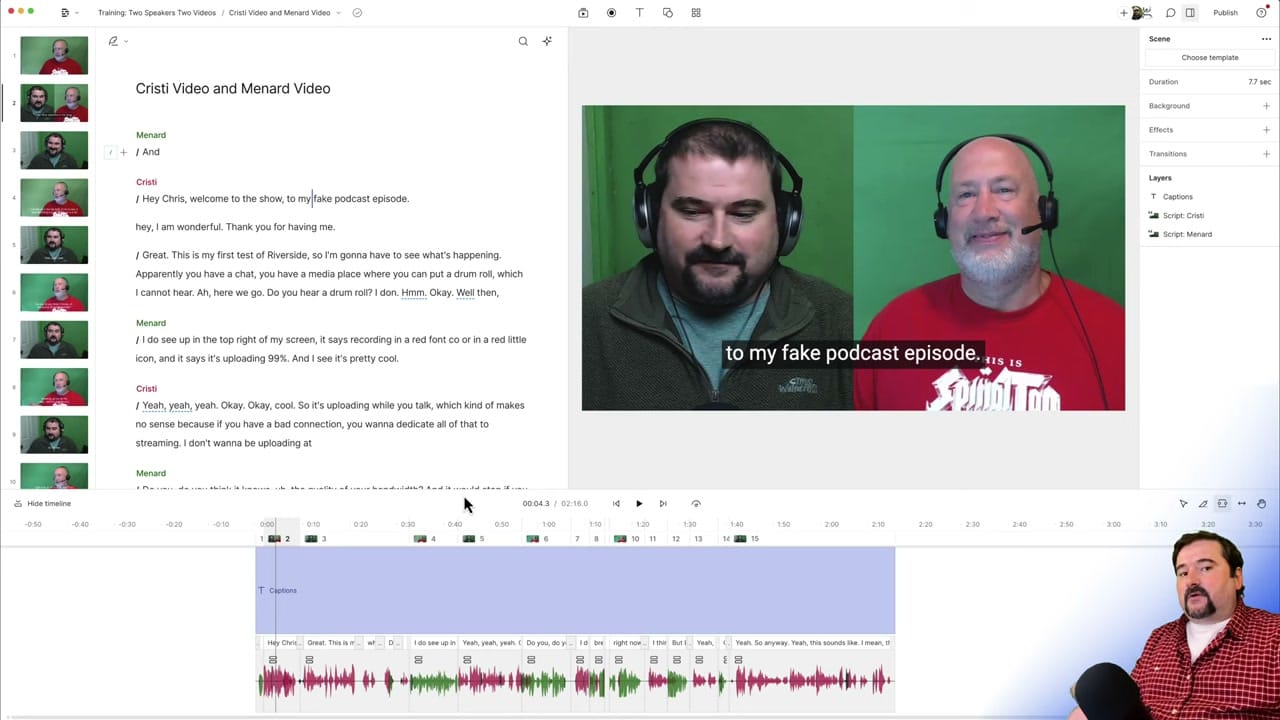
In this example, we have a Descript project with two speakers — Cristi and Chris Menard — each recorded on separate audio and video tracks. After making edits (cuts, audio effects like compressor and Studio Sound), the composition is ready. But we need each speaker's audio as a separate file.
Step 1: Open the Sequence Editor
To access individual tracks, you need to enter the sequence editor. There are three ways to get there:
- Double-click on a track in the timeline at the bottom of the composition
- Press Cmd+Shift+O (Mac) or Ctrl+Shift+O (Windows)
- Right-click on the timeline and select Edit Sequence
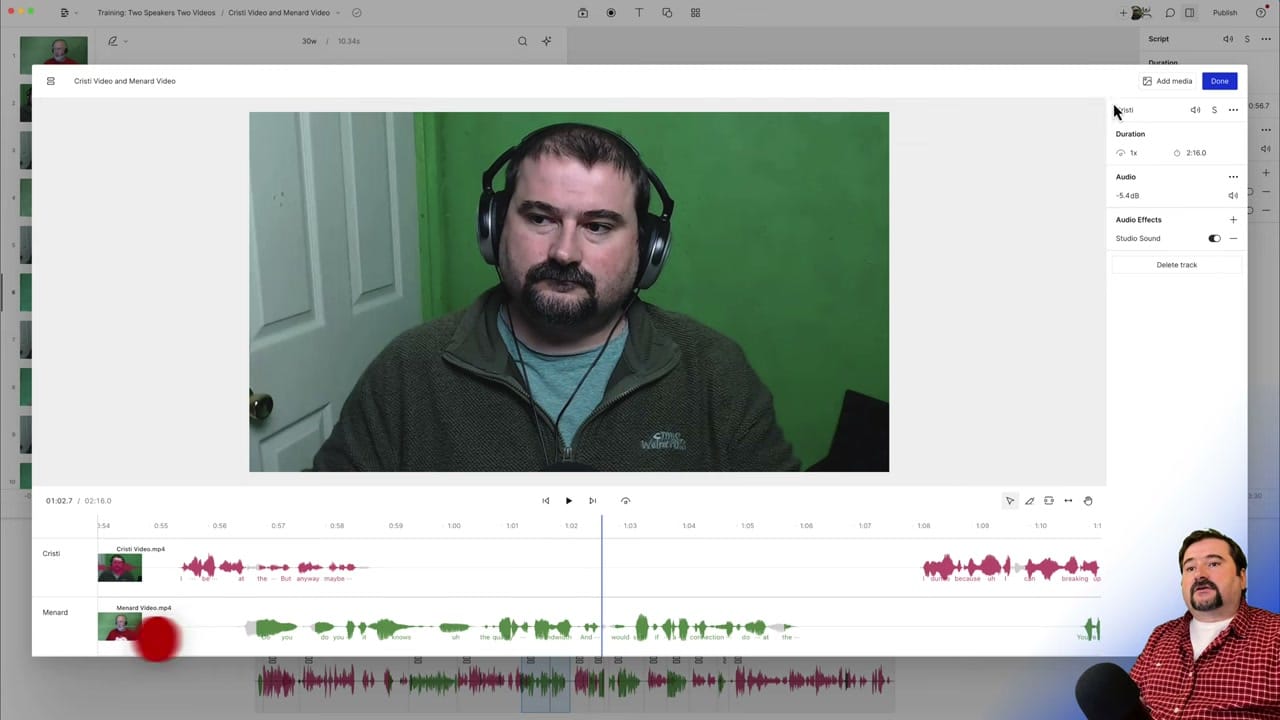
Inside the sequence editor, you'll see each speaker's track separately — with their own waveforms and labels.
Step 2: Solo the Track You Want to Export
Click on the track you want to export first. In the properties panel on the right, you'll see a Solo button (marked with an "S"). Click it.
This mutes all other tracks and plays only the selected one. If you have more than two tracks, soloing is much faster than manually muting each of the others.
Click Done to return to the composition view. You'll notice that only the soloed speaker's waveform appears in the timeline — the other speaker's portions are now silent.
Step 3: Export the Soloed Track
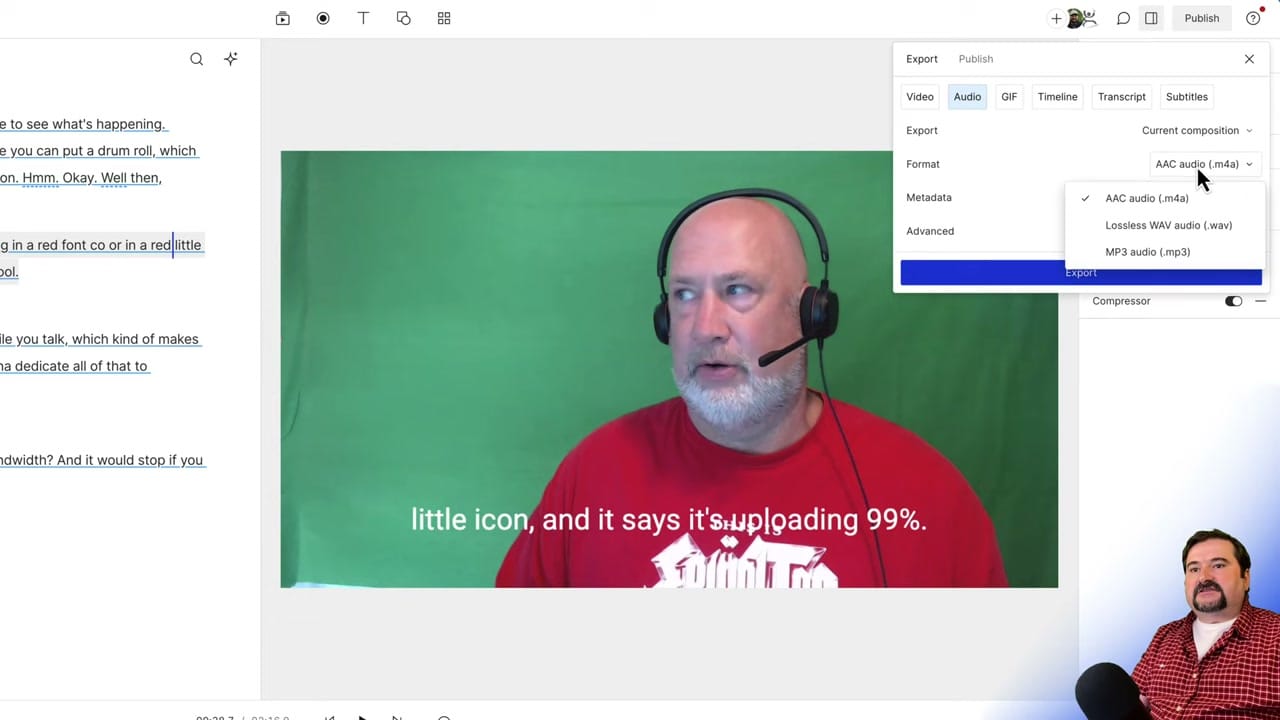
With the solo active, go to Publish > Export > Audio. In the export dialog:
- Change the dropdown from "Current selection" to Current composition
- Select Lossless WAV as the format
- Click Export
The key benefit: the exported file maintains the full timeline length. Where the other speaker was talking, there will be silence — this preserves perfect synchronization between tracks.
Step 4: Repeat for Each Track
Go back into the sequence editor (Cmd+Shift+O), remove the solo from the first track, then solo the next speaker's track. Export again with a different filename.
Repeat this process for every track in your project.
Verify in Another Program
Import both exported files into Adobe Audition, Audacity, or any DAW. Place them on separate tracks — they should line up perfectly because the silence gaps maintain synchronization. Each speaker's audio is on its own track, ready for independent mastering or processing.
Why Not Just Download From the Media Bin?
You can save original files from Descript's media bin, but those are the raw, unedited recordings. They won't include any cuts, audio effects (Studio Sound, compressor), or other edits you've made in the composition. The solo-and-export method preserves all your edits.
Related guides
 Cristi Cotovan
 Cristi Cotovan
 Cristi Cotovan
 Cristi Cotovan
Do you need help or wish to learn Descript the right way? Join me on a one-on-one Descript coaching session. Book a call with me.
I'm here to help you with any questions you have and to guide you through the best workflows, tips, workarounds, or just answer any questions you may have!



