
How to Highlight Two Areas of the Screen in Camtasia

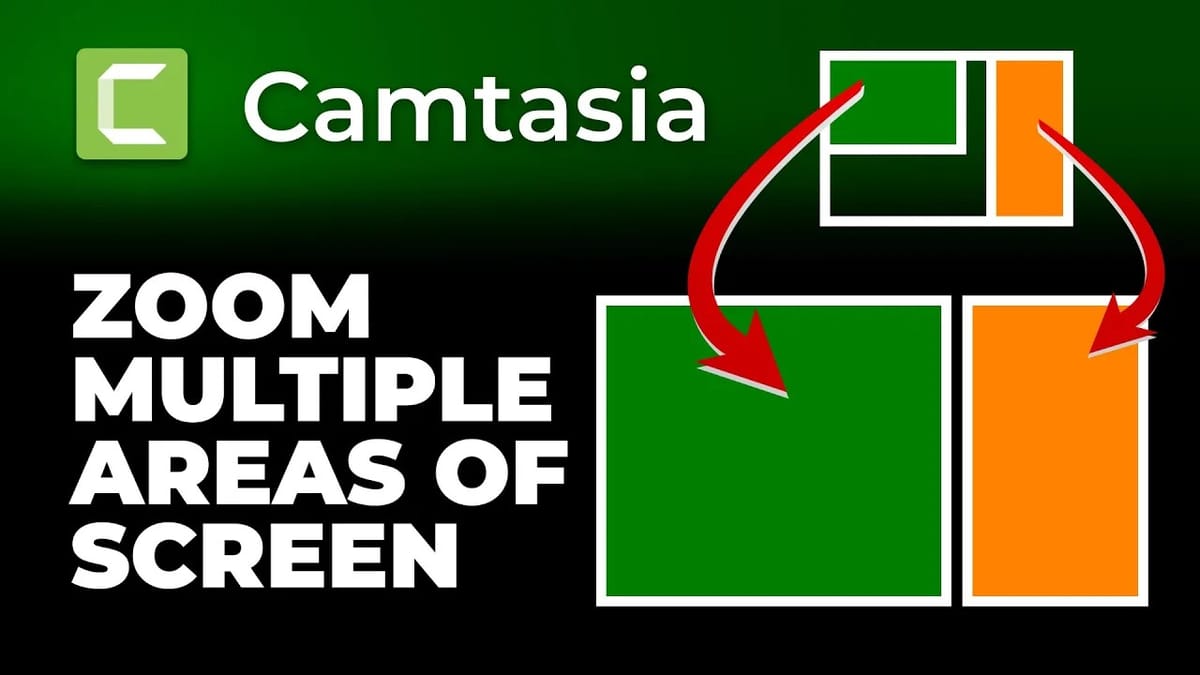
When creating on-screen tutorials in Camtasia, you often need to draw attention to two different parts of the screen at the same time. This technique uses spotlights and annotations to highlight multiple areas simultaneously.
How to Highlight Two Areas at Once
- Add your screen recording to the timeline
- Go to Annotations and add a Spotlight shape over the first area you want to highlight
- Add a second Spotlight annotation over the second area
- Adjust the size and position of each spotlight to frame the relevant content
- Use animations to control when each spotlight appears and transitions
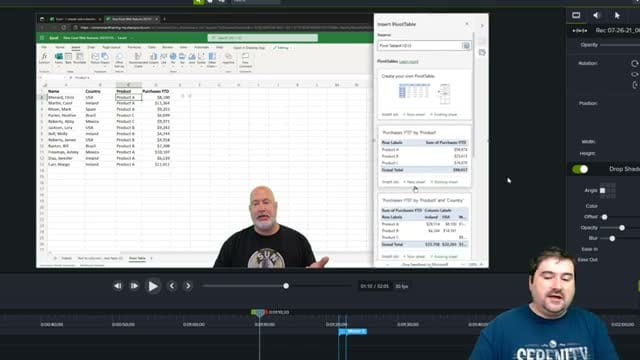
Tips for Multi-Area Highlights
- Use consistent styling — keep both spotlights the same shape and opacity for a professional look
- Add animations — use Zoom-n-Pan or Smart Focus to transition between highlighted areas
- Layer your annotations — place spotlights on separate tracks for independent timing control
- Consider arrows or lines — connect the two areas visually to show their relationship
This technique is especially useful for tutorials showing cause-and-effect relationships, like clicking a button and seeing a result in another part of the screen.
If you’re wish to learn more about Camtasia and wish to have a one-on-one Camtasia coaching session, feel free to book a call with me.
I’m here to help you with any questions you have and to guide you through the best workflows, tips, workarounds, or just answer any questions you may have!



