
How to Quickly Invite Guests to Record in Riverside

Getting guests into your Riverside recording studio is quick — you can share a link or send an email invite directly from the app. Here's how to do both.
Open the Invite Panel
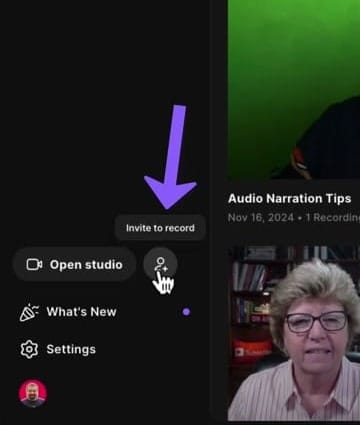
From your Riverside dashboard, look at the bottom of the left sidebar. Next to the Open studio button, you'll see a people icon. Click it to open the Invite to record panel.
Option 1: Share a Link
The fastest way to invite someone. In the Invite people panel:
- You'll see a studio link under Share a link
- Choose the role from the dropdown (Guest, Producer, etc.)
- Click Copy link and send it to your guest via any messaging app
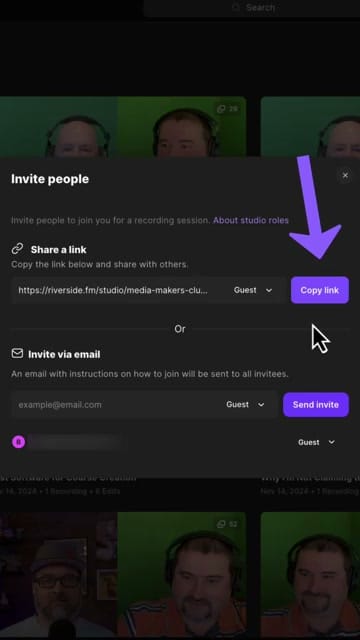
Anyone with the link can join your studio in their browser — no account or download required.
Option 2: Invite via Email
If you prefer, send an email invitation directly from Riverside:
- In the same Invite people panel, scroll to Invite via email
- Type your guest's email address
- Choose their role (Guest by default)
- Click Send invite
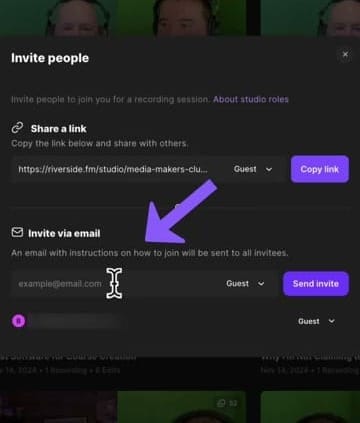
Riverside sends them an email with a direct link to your studio and instructions on how to join.
About Roles
When inviting, you can assign different roles:
- Guest — the default role, can speak and be recorded
- Producer — can manage the session but isn't recorded
- Audience — can watch but not participate
Choose the role from the dropdown next to the link or email field before sending the invite.
- No app needed — guests join directly in their browser
- Send early — give guests time to test their microphone and camera before the session
- Multiple guests — send the same link to multiple people, or use email invites for individual tracking
Ready to start recording with guests? Get started with Riverside.
If you’re eager to learn more about Riverside and wish to have a one-on-one Riverside coaching session, feel free to book a call with me.
I’m here to help you with any questions you have and to guide you through the best workflows, tips, workarounds, or just answer any questions you may have!



