
How to Remove Video Background in Descript: Chroma Key vs AI Green Screen


Descript offers two different ways to remove your video background — the traditional Chroma Key effect and a newer AI-powered Green Screen filter. Each has its strengths, and in this tutorial I compare both methods side by side.
Watch the full tutorial:
Method 1: Chroma Key
Chroma Key is the classic approach. It works by selecting a specific colour in your video (typically green) and making it transparent. To use it:
- Select your video clip on the canvas or timeline
- In the right-hand Properties panel, go to Visual Effects
- Click + and add Chroma Key
- Select the colour to remove (defaults to green but might need adjusting with the color picker)
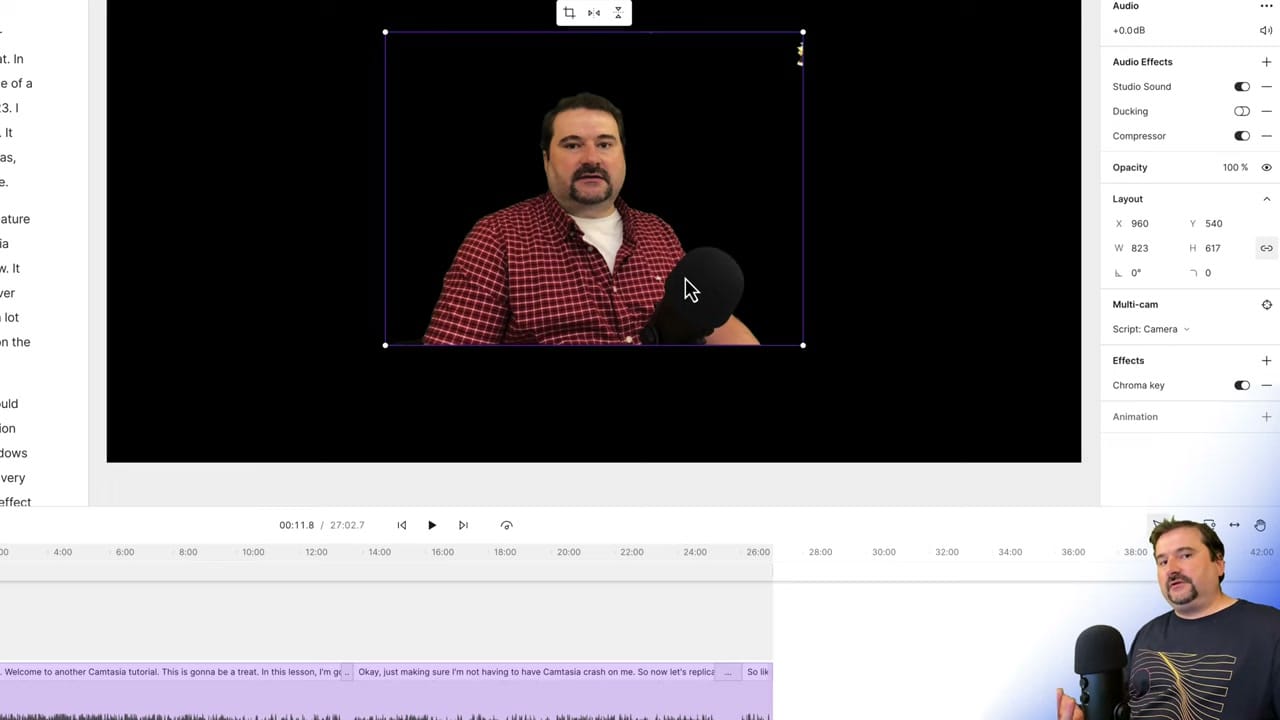
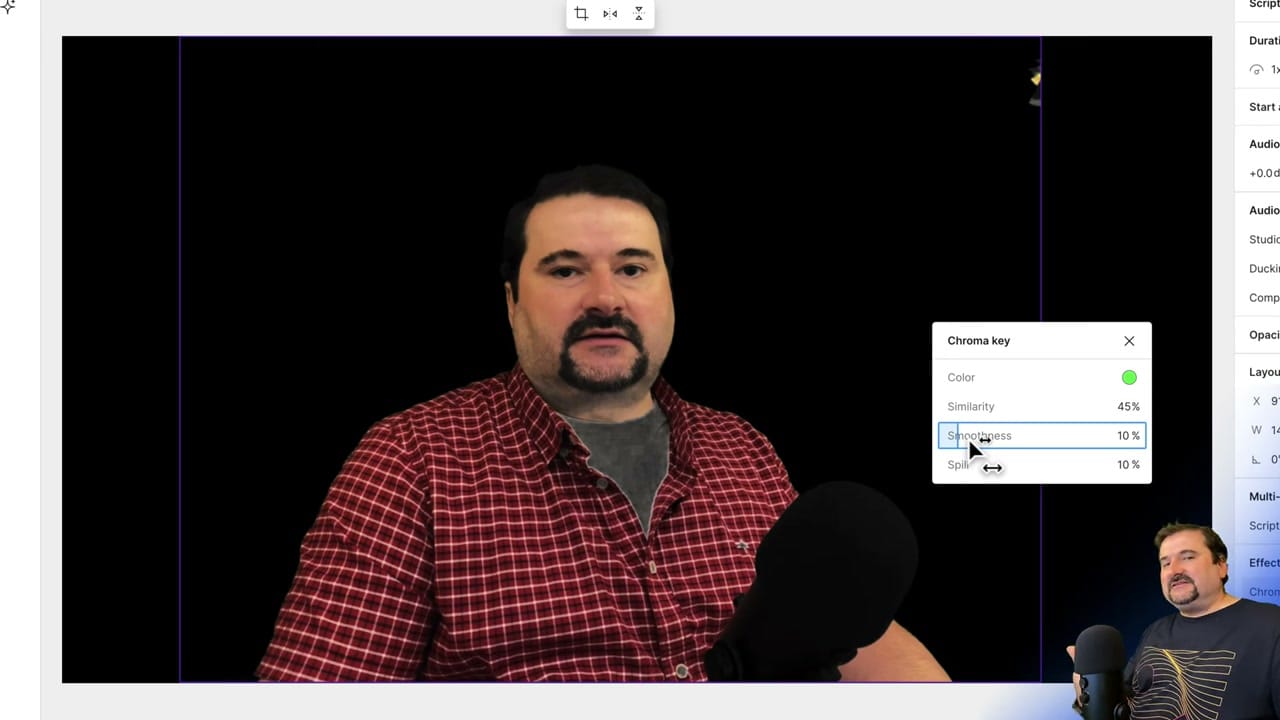
The Chroma Key panel gives you four controls to fine-tune the result:
- Color — Pick the exact background colour to key out
- Similarity — How much variation from the selected colour to include (higher = more aggressive removal)
- Smoothness — Softens the edge between subject and removed background
- Spill — Removes colour spillover from the background onto your subject
Pros: Precise control, works well with proper green screen setups and even green surface.
Cons: Requires an actual green/blue screen backdrop. Poor lighting will produce messy edges and uneven removal.
Method 2: AI Green Screen
The AI Green Screen effect uses machine learning to detect and separate the subject from the background — no physical green screen required. Simply add the Green Screen effect from the Effects panel and Descript handles the rest.
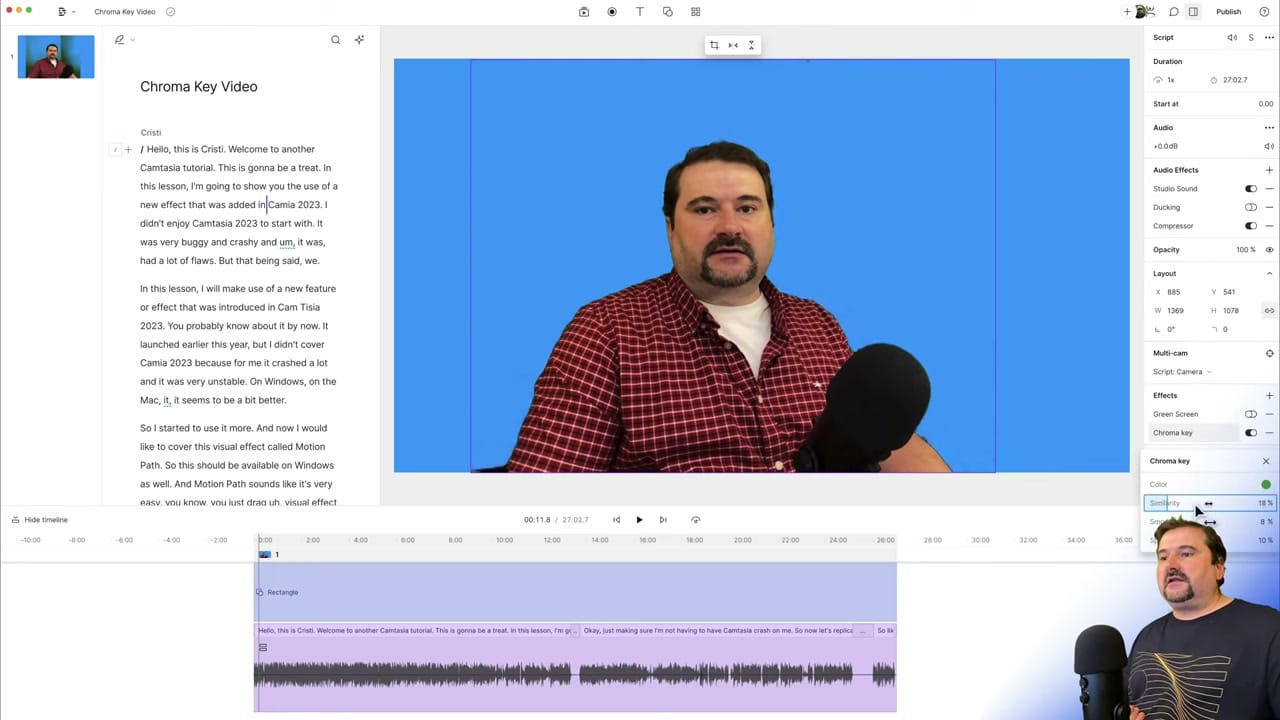
Pros: No green screen needed, works with any background, quick to apply.
Cons: Edge detection can be imperfect, especially with complex hair or fast movement. Less manual control than Chroma Key. If you have a microphone in front of you, it might poke a hole where the microphone is, right in your torso 😄
Which Should You Use?
If you filmed with a green screen, use Chroma Key — it gives you more control and cleaner edges. If you didn't use a green screen but still want to remove the background, the AI Green Screen is your best option. You can even stack both effects if needed.
Do you need help or wish to learn Descript the right way? Join me on a one-on-one Descript coaching session. Book a call with me.
I’m here to help you with any questions you have and to guide you through the best workflows, tips, workarounds, or just answer any questions you may have!



