
How to Reveal More Content in a Riverside Magic Clip
Here's how to reveal more content around the magic clip and include the parts that were trimmed by Riverside.


When Riverside generates a Magic Clip, it trims your recording down to what the AI thinks is the most interesting segment. But sometimes the clip cuts off just before a great point, or starts too late. Here's how to reveal more content around the clip and include the parts that were trimmed.
Extend the Clip with + Add
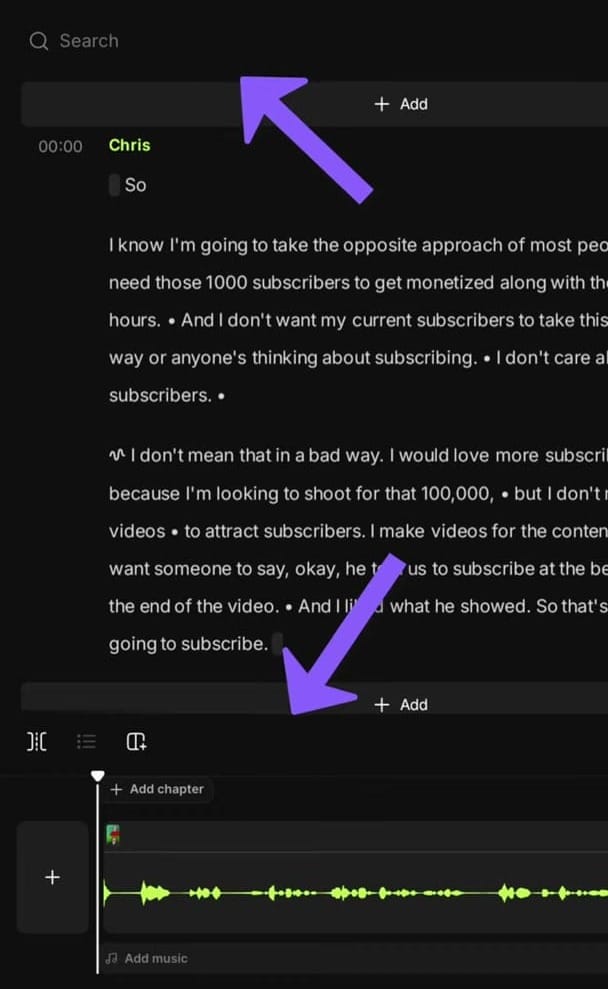
Open any Magic Clip in the Riverside editor. You'll see + Add buttons at the top and bottom of the transcript. They don't help because they are just for adding new content into this edit.
See What Was Trimmed
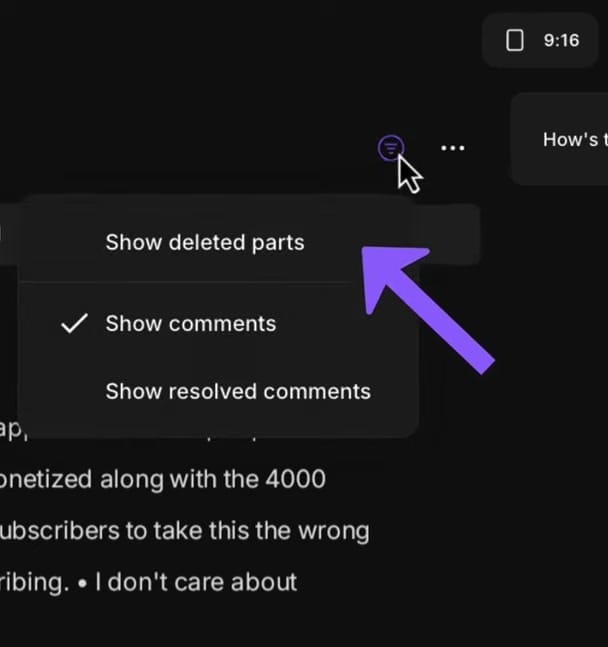
To see exactly what content was cut from the original recording, click the filter icon (or three-dot menu) at the top of the transcript and enable Show deleted parts.
Restore Deleted Content
With "Show deleted parts" enabled, trimmed content appears as strikethrough text above or below your clip. This shows you exactly what was said before and after the clip boundary.
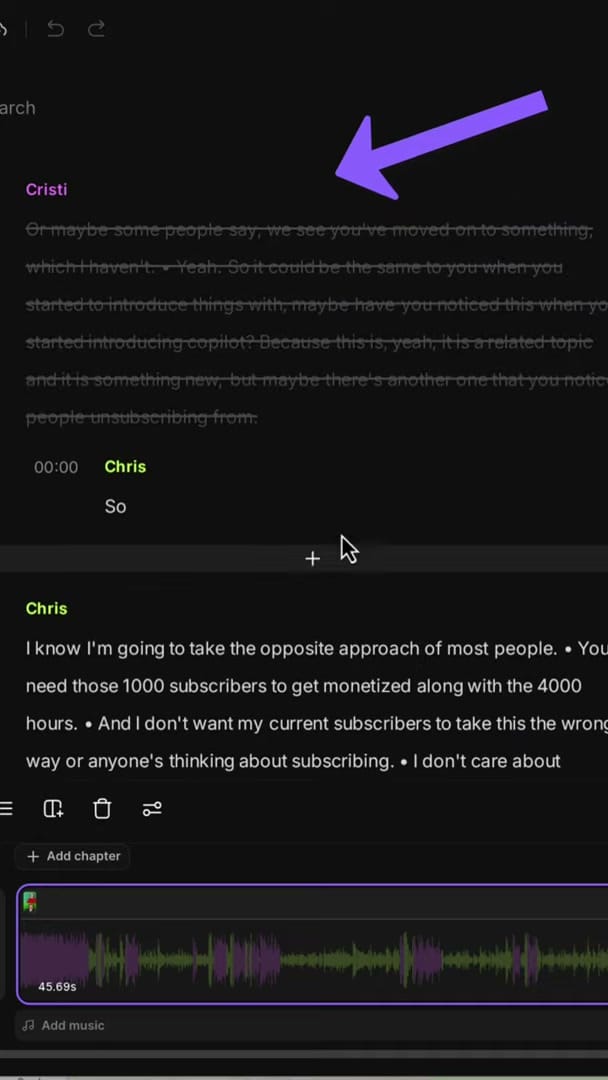
To restore any of the deleted content, simply click on the strikethrough text to select it, then either click R to restore it or click the restore icon.
When to Use This
- Context is missing — the clip starts mid-thought and needs the setup
- Great follow-up — the speaker said something great right after the clip ends
- Wrong speaker cut — the AI clipped one speaker but you want to include the other person's response too
- Longer clip needed — you need more content for a platform that requires minimum length
Want to create your own clips from scratch instead? Learn how to manually create Magic Clips by selecting transcript text.
If you’re eager to learn more about Riverside and wish to have a one-on-one Riverside coaching session, feel free to book a call with me.
I’m here to help you with any questions you have and to guide you through the best workflows, tips, workarounds, or just answer any questions you may have!



