
What Is Aligned Video in Riverside and When to Use It

When you download recordings from Riverside, you'll notice two video options: Raw video and Aligned video. If you plan to edit in external software like Premiere Pro, DaVinci Resolve, or Descript, the aligned video is the one you want, especially if you've had more than one participant in your recording, people came late or you had glitches and interruptions.
Where to Find It
After your recording finishes processing, go to your project, the Recordings tab, and you'll see each participant's track listed with duration and resolution.
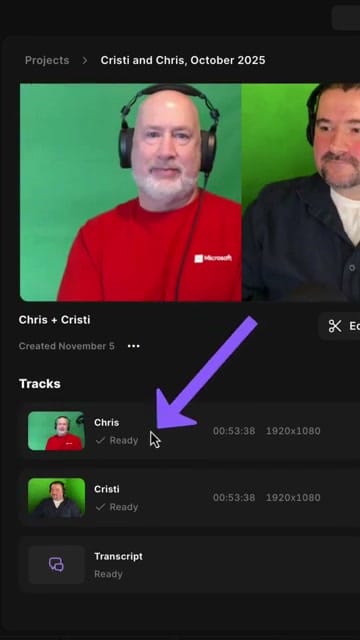
Click the Download button next to any track and you'll see the download options menu.
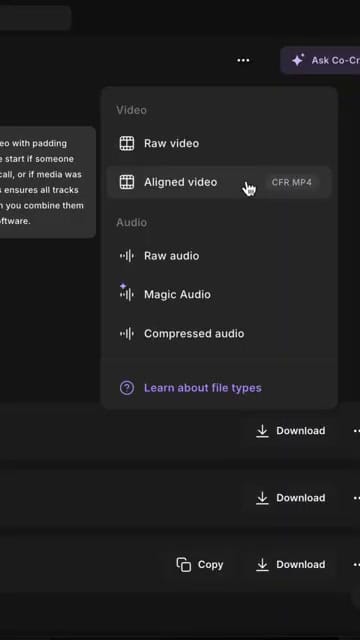
Raw Video vs. Aligned Video
Raw Video
The original recording file exactly as captured. Each participant's file starts when they joined the call, which may be at slightly different times. Raw video uses variable frame rate, which can cause sync issues in some editors.
Aligned Video
Aligned video solves both problems:
- Padding at the start — if someone joined the call late, their file gets padded with silence/blank frames so all tracks start at the exact same point
- Constant frame rate (CFR) — converted from VFR to CFR, which editing software handles much better
- Same duration — all tracks are the same length, making it easy to drop them onto a timeline and have everything line up
When to Use Each
- Use Aligned video when editing in Premiere Pro, DaVinci Resolve, Final Cut Pro, Descript, or any external NLE. The files will sync perfectly when placed on the same timeline.
- Use Raw video when you need the absolute highest quality original file, or you're archiving the recording.
If you want to skip the download entirely and edit directly in Riverside, you can use the built-in precision editor instead.
Ready to record and edit? Get started with Riverside.
If you’re eager to learn more about Riverside and wish to have a one-on-one Riverside coaching session, feel free to book a call with me.
I’m here to help you with any questions you have and to guide you through the best workflows, tips, workarounds, or just answer any questions you may have!



