How to Navigate Faster Between Edits in Riverside Studio


When you have multiple edits inside a single Riverside project, switching between them used to require going back to the project page each time. Riverside's updated editor now lets you navigate between edits directly from inside the editor — no need to leave your current view.
The Editor View
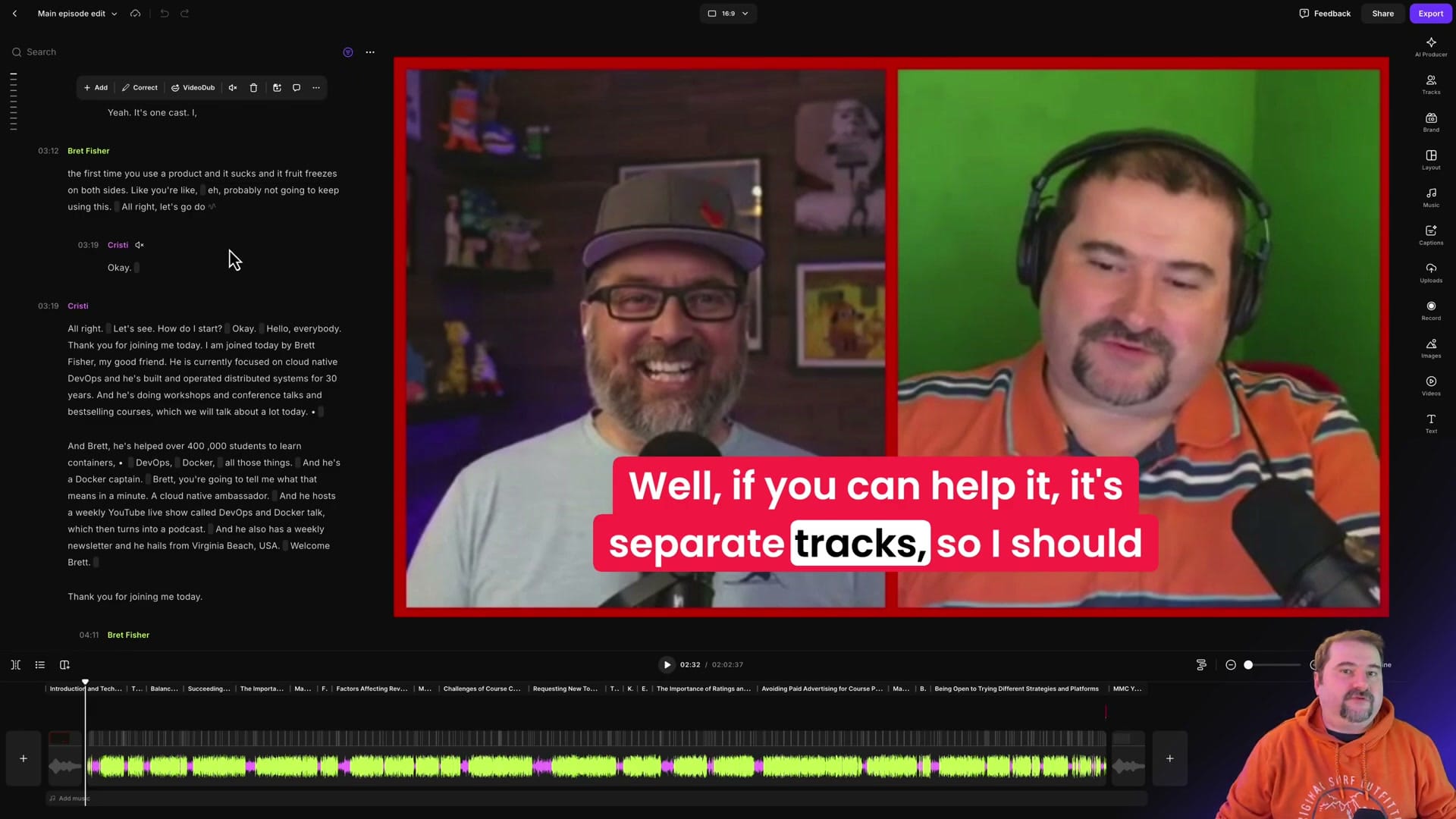
When you open an edit in Riverside, you get the full editing workspace: transcript on the left, video preview with captions on the right, and the timeline with scene markers at the bottom.
Navigating Between Edits
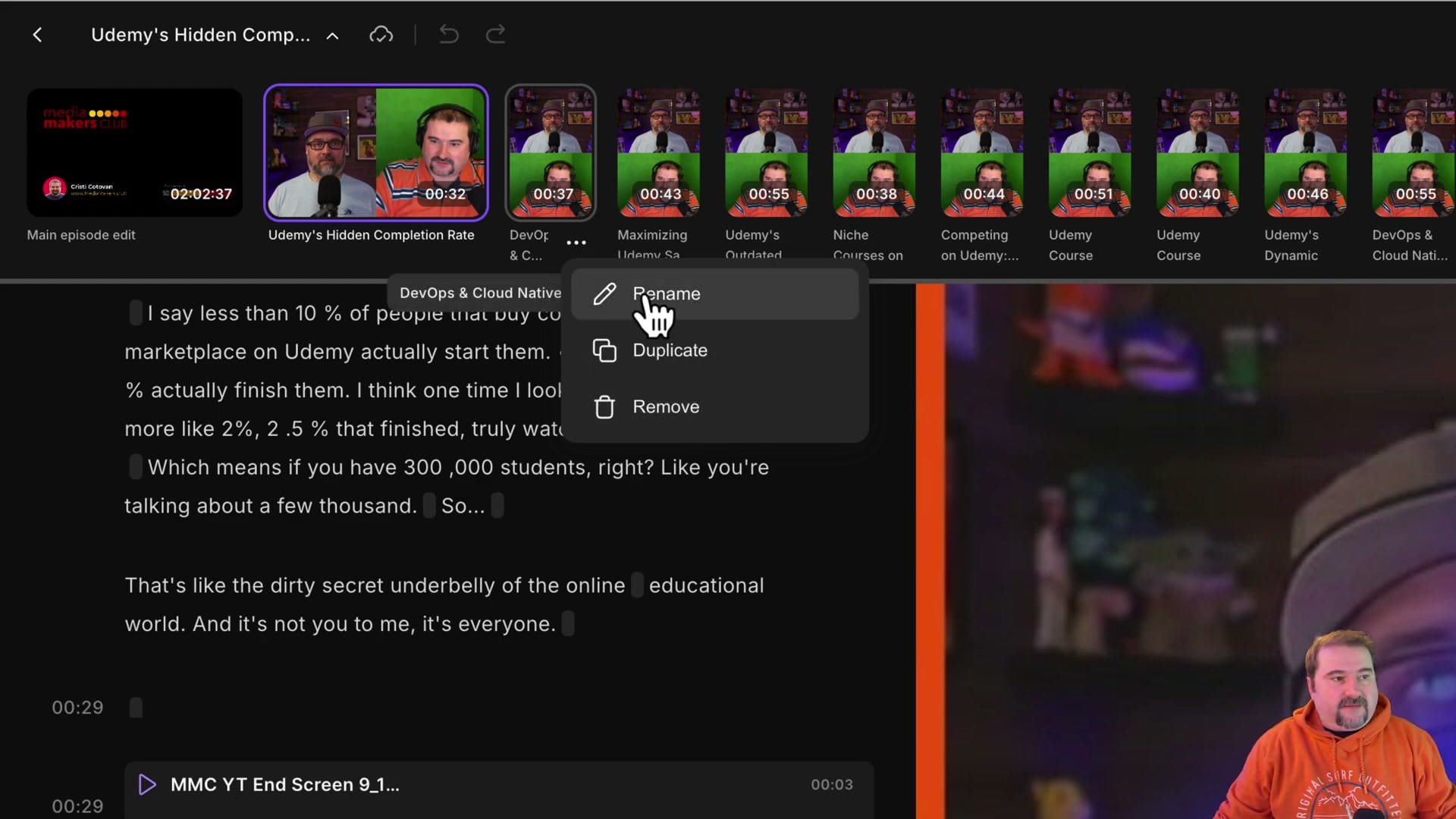
At the top of the editor, you'll see a row of edit thumbnails — each one representing a different edit in your project. Click any thumbnail to instantly switch to that edit without leaving the editor.
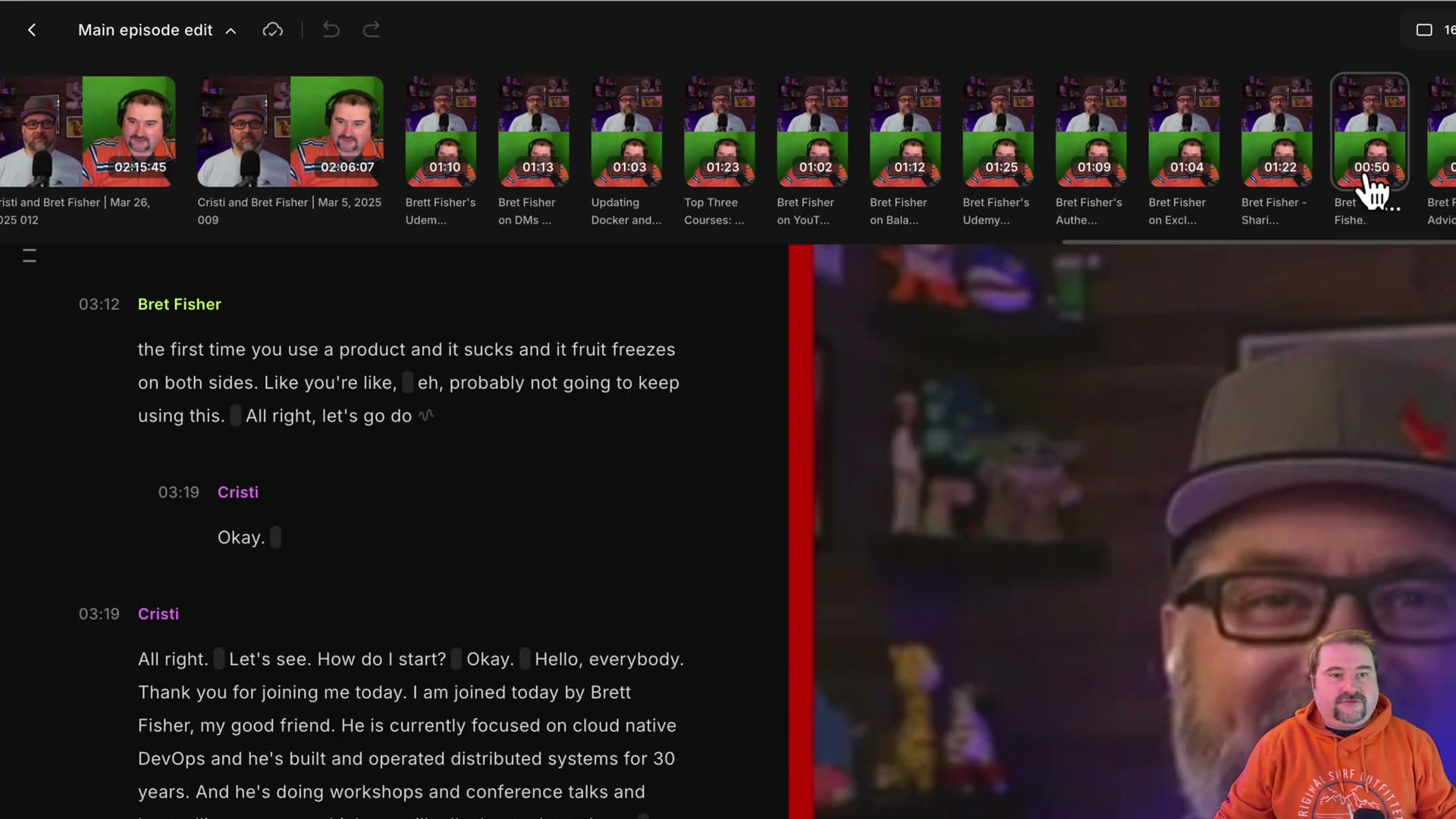
You can scroll through the thumbnails horizontally to see all available edits. Each thumbnail shows a preview image and the edit's duration, making it easy to identify which edit you want.
Managing Edits from the Navigation Bar
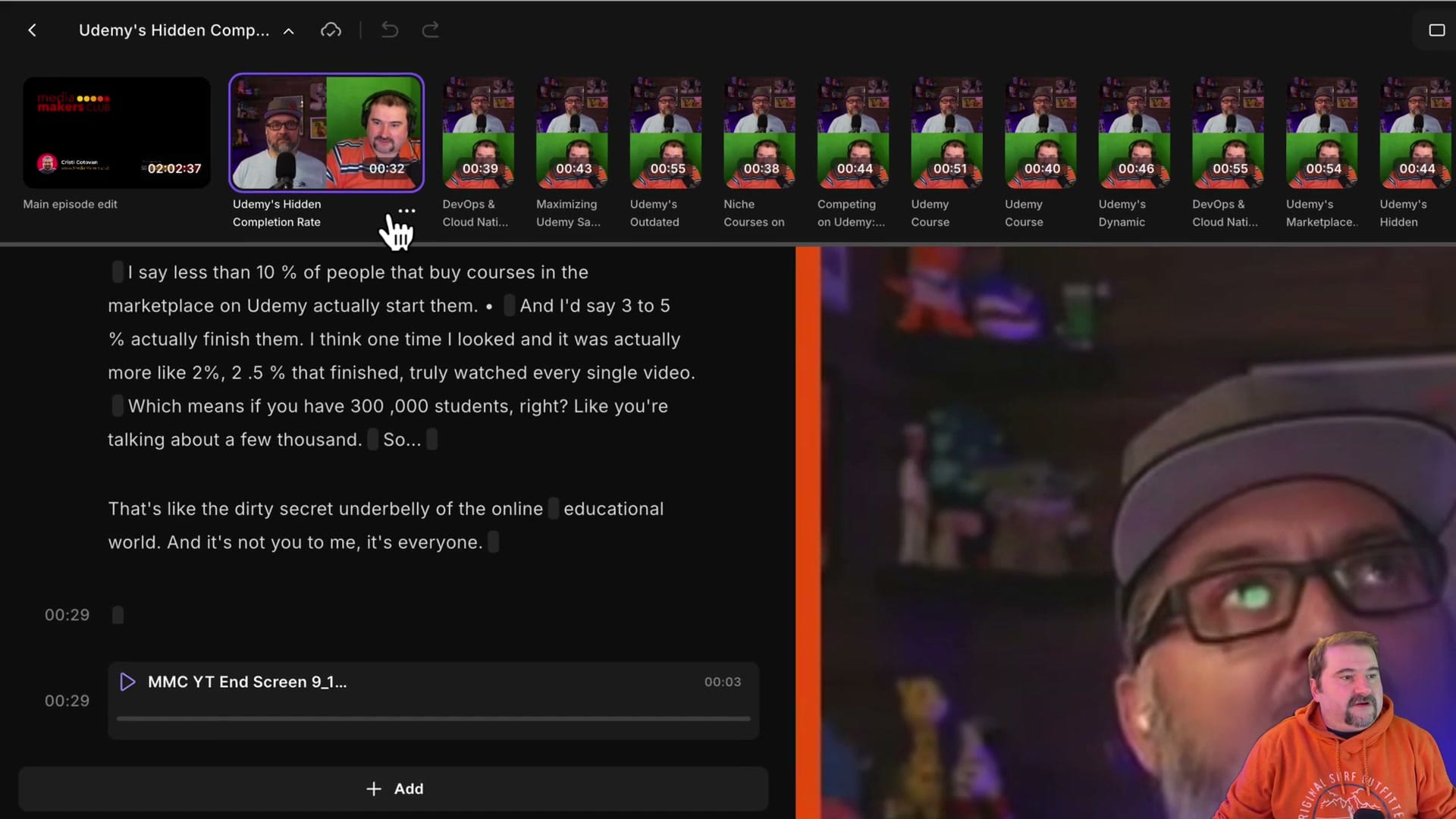
Right-click (or click the three-dot menu) on any edit thumbnail to see management options: Rename, Duplicate, or Remove the edit — all without leaving the editor view.
Why This Matters
If you create multiple edits from the same recording — for example, a full episode, a highlight clip, and social media shorts — this feature saves significant time. Instead of navigating back to the project page and reopening each edit, you stay in the editor and switch with a single click.
Try Riverside
Want faster editing workflows? Try Riverside free — the editor keeps improving with features like this that speed up your production process.
If you’re eager to learn more about Riverside and wish to have a one-on-one Riverside coaching session, feel free to book a call with me.
I’m here to help you with any questions you have and to guide you through the best workflows, tips, workarounds, or just answer any questions you may have!