How to Add Scrolling Ticker Tape Banners in Riverside Studio

Riverside Studio now lets you turn any banner into ticker tape text: a strip of rolling text that scrolls across the top or bottom of your screen, over and over. I've wanted this since I started live streaming on YouTube. It looks like a small feature, but it's a very practical way to keep a link, an offer or an announcement in front of your viewers while you're live streaming or hosting a webinar.
This is a live feature. It doesn't help with editing, and it doesn't end up in your recordings. Let's set one up, style it, and get a few ready before the show.
Open the Banners Panel
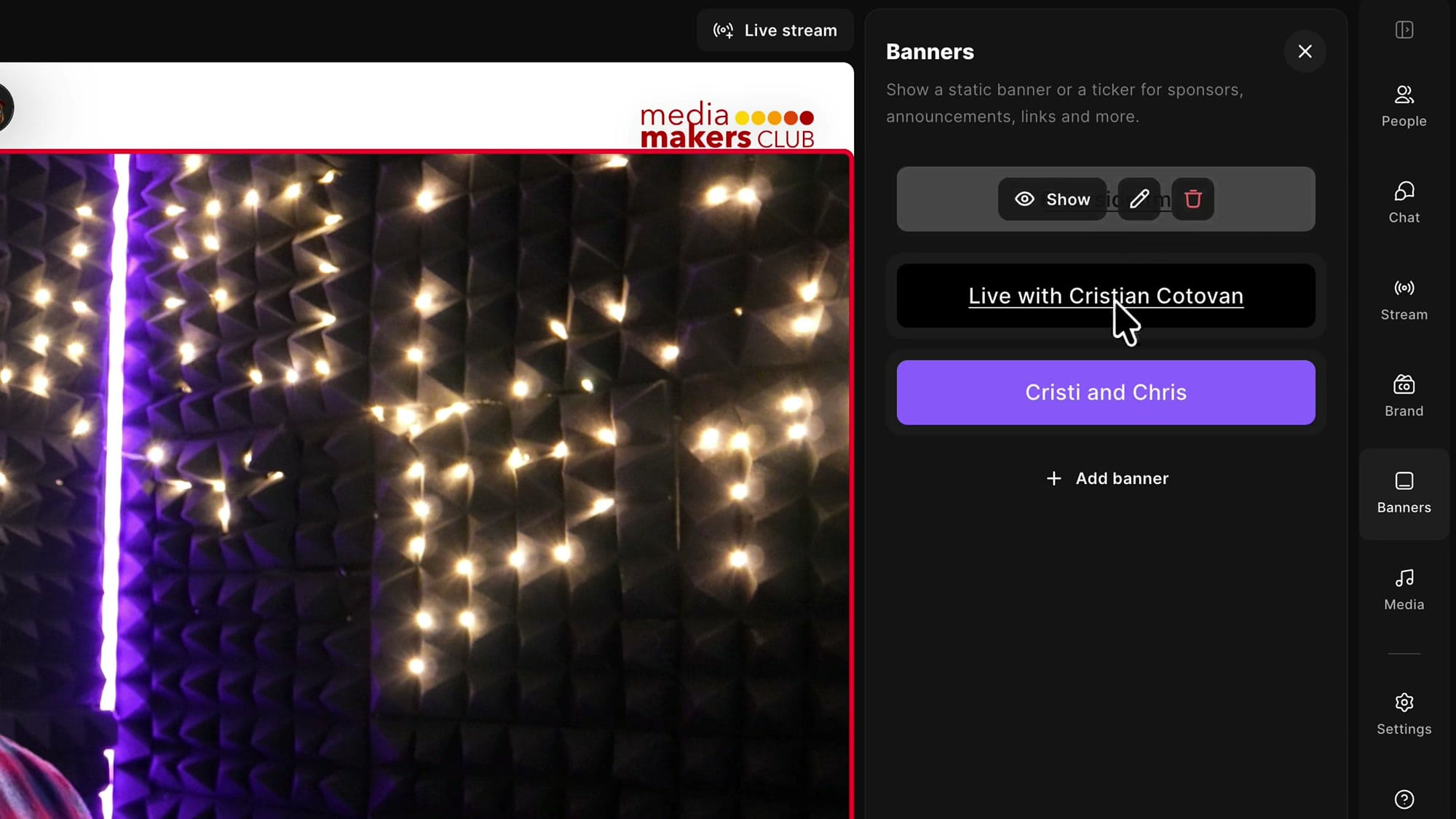
From your Riverside dashboard, go into your studio. You don't need to be recording or streaming to set up banners. On the right-hand side, click Banners. Any banners you've already created are listed here. Click Add banner to create a new one.
Add a Banner and Make It a Ticker
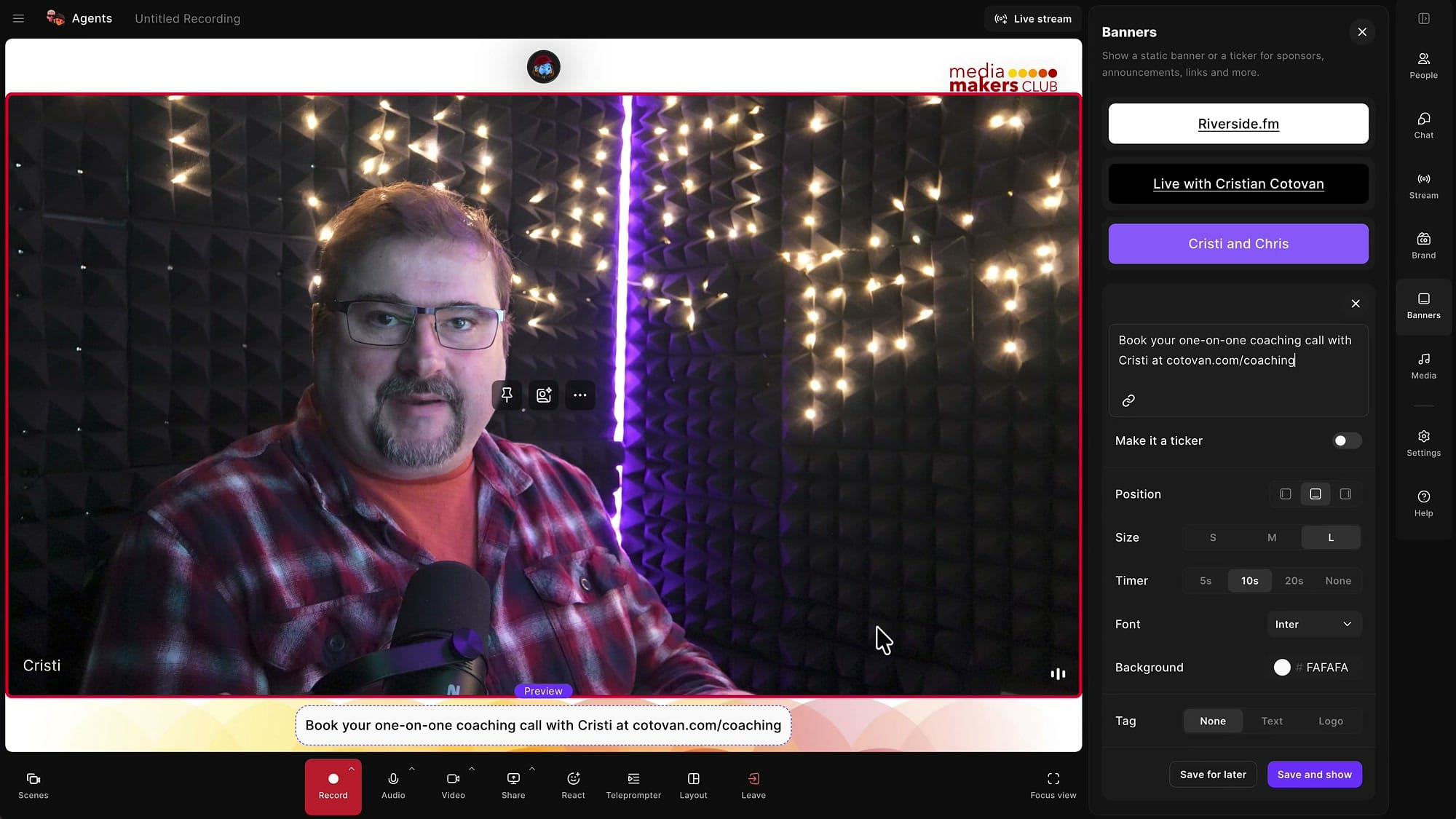
Type your text into the banner field. I used my coaching link: Book your one-on-one coaching call with Cristi at cotovan.com/coaching. Below the text field you'll see the new option, Make it a ticker.
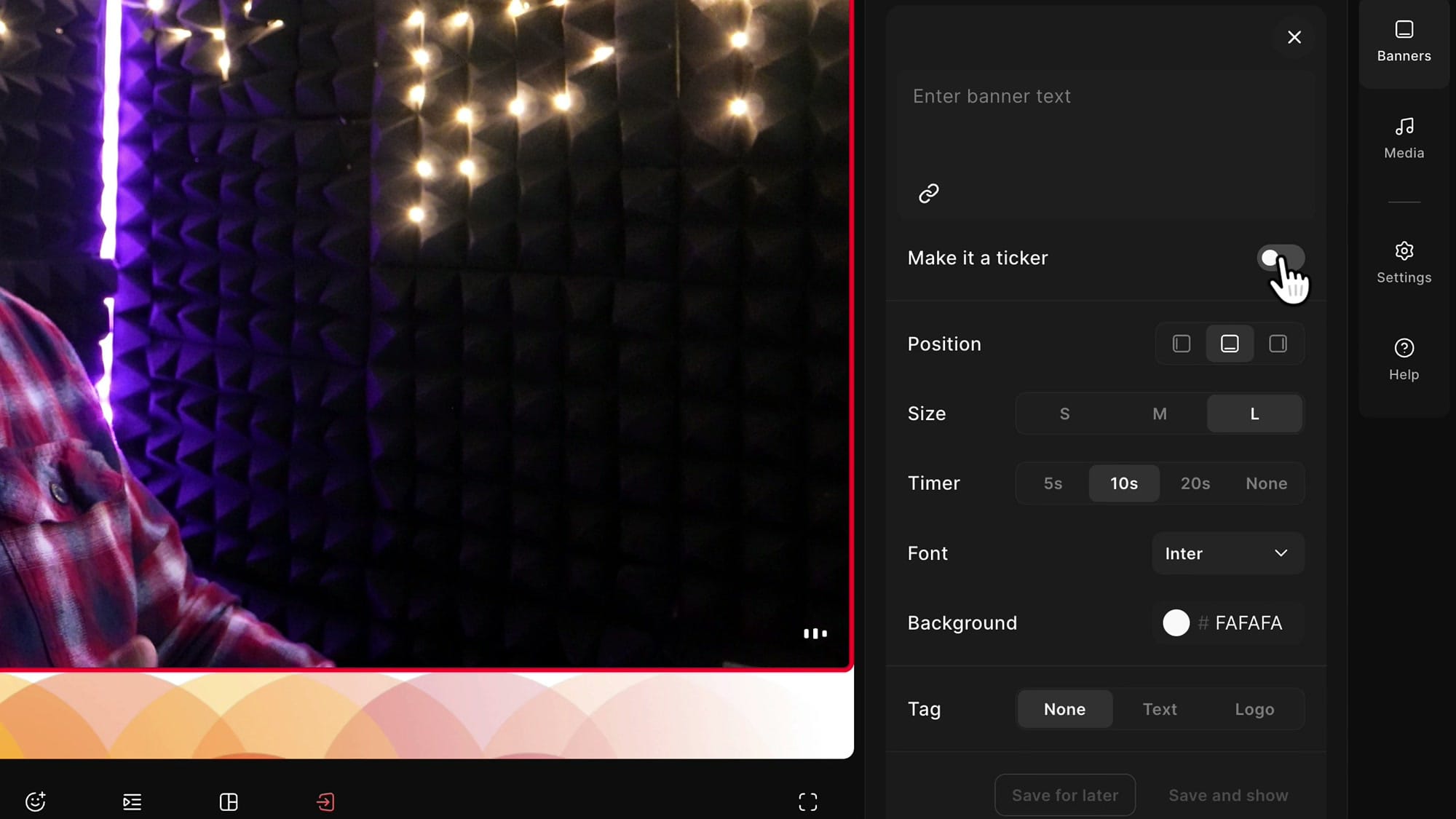
With the toggle off, the text appears as a classic static banner at the bottom of the screen. The preview updates as you type.
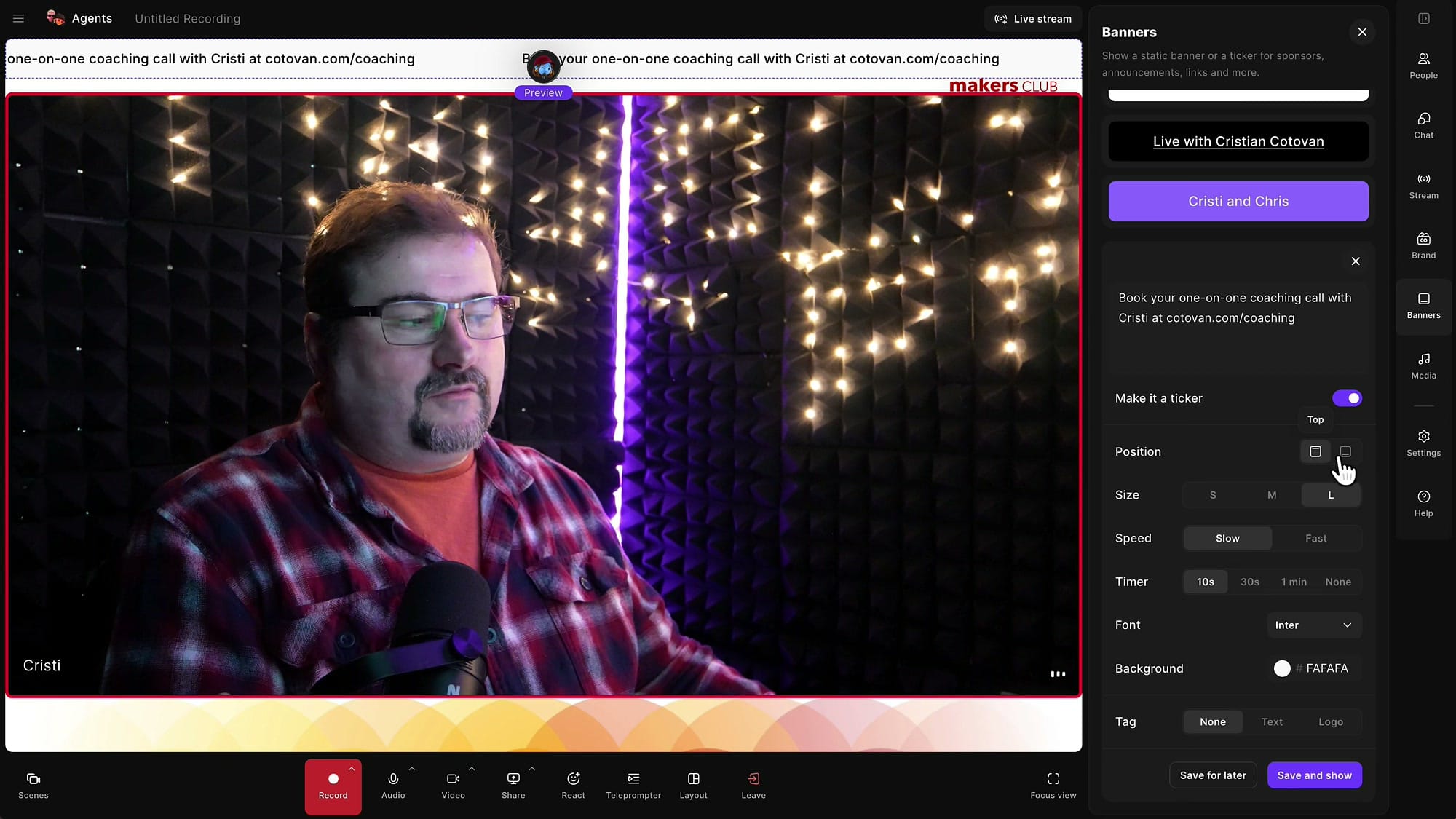
Turn Make it a ticker on and the same text starts scrolling across the screen, repeating continuously.
Set the Position, Size, Speed and Timer
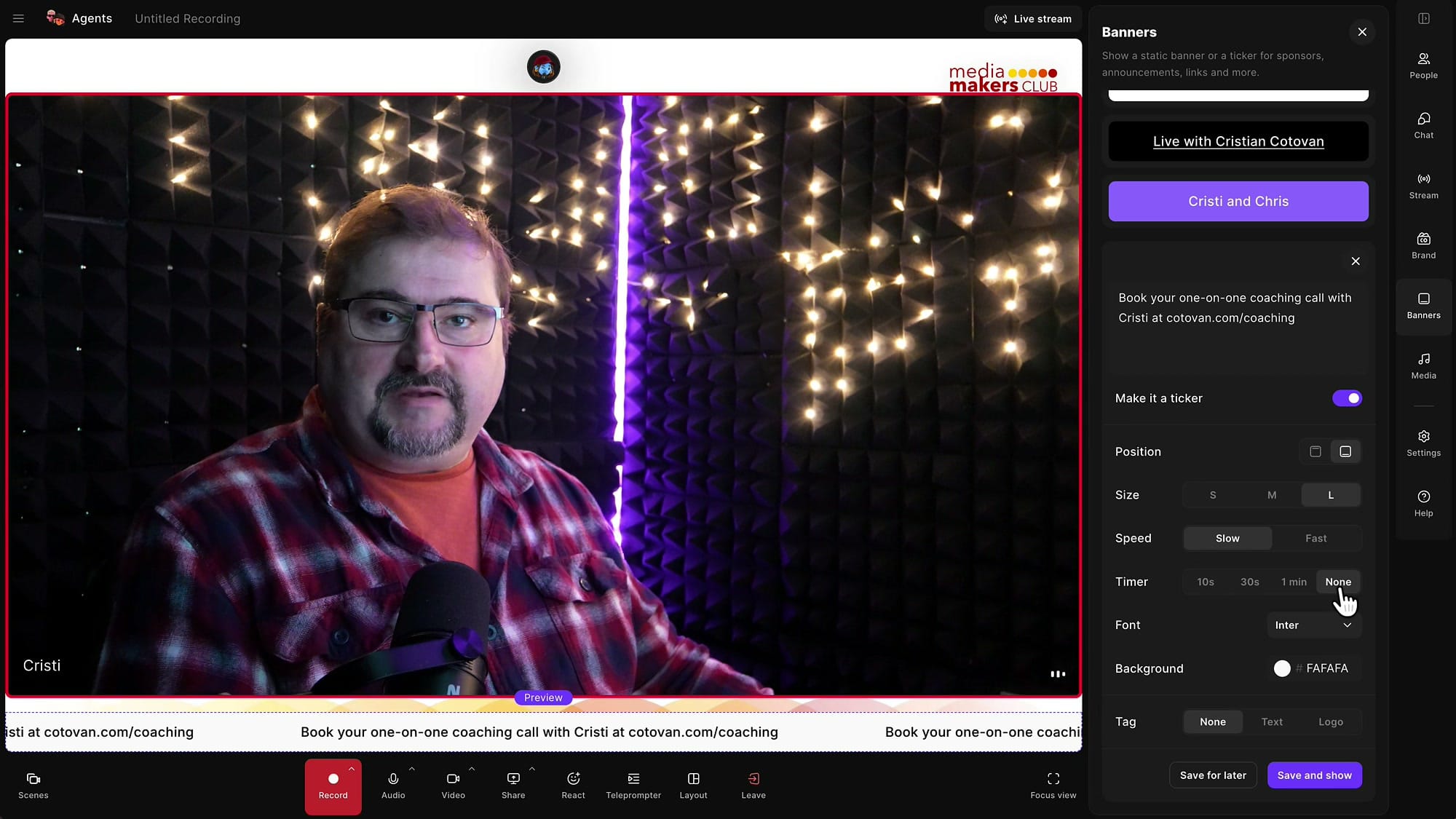
Once the banner is a ticker, you get a few layout options:
- Position — show the ticker at the top or the bottom of the screen.
- Size — small, medium or large text.
- Speed — slow or fast scrolling. I usually leave it on slow so people can read it.
- Timer — how long the ticker stays on screen once you show it: 10 seconds, 30 seconds, 1 minute, or None.
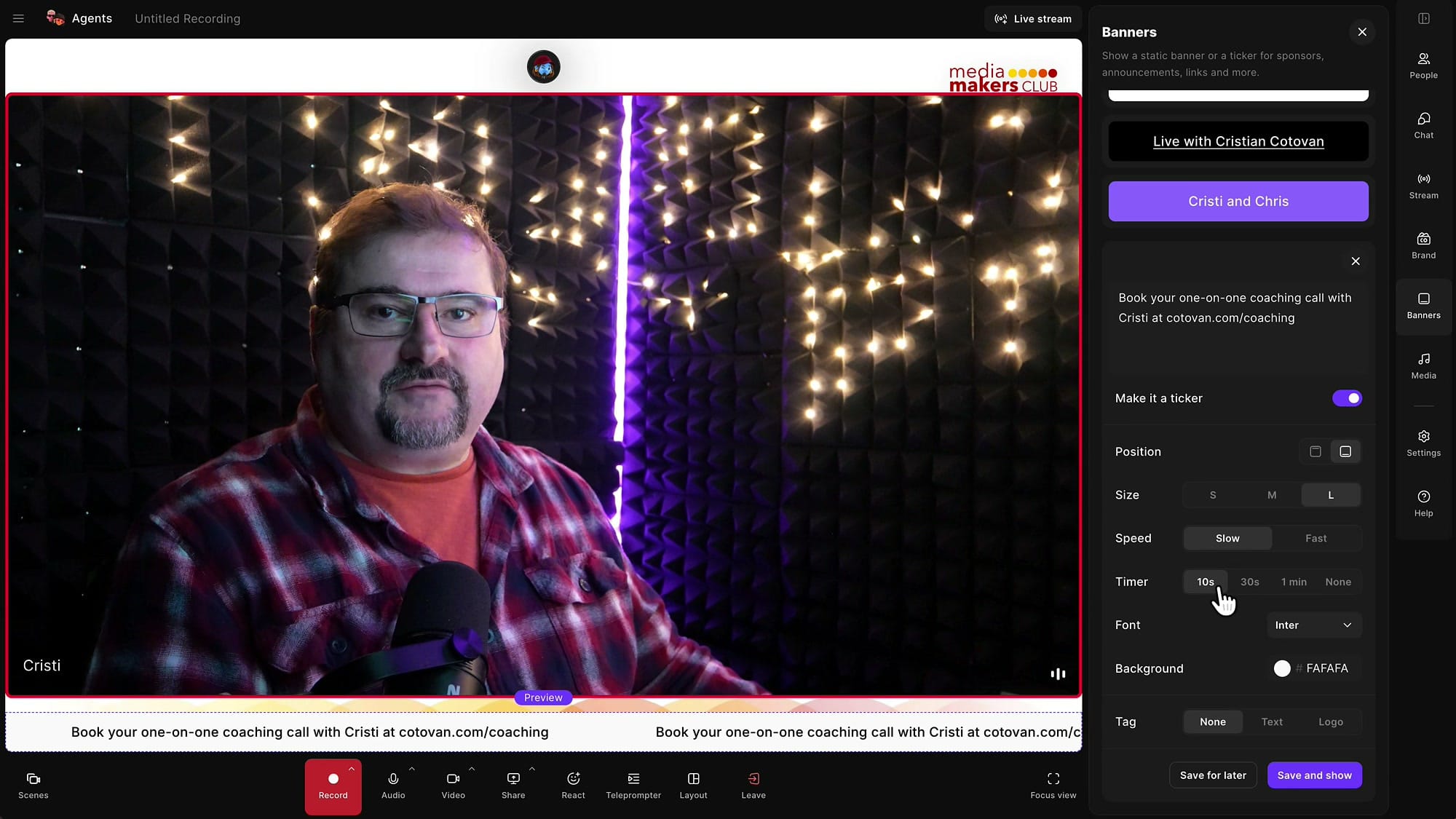
None means the ticker stays up until you turn it off yourself. The timed options are more useful when you're on your own. When you're live streaming without a producer, you don't want to think about extra things like turning banners off. Show a one-minute ticker when you take a break or change topics, and it disappears on its own.
If someone else is running the show with you, a producer can handle the banners while you focus on the conversation.
Tickers Don't Appear in Your Recordings
Ticker banners are not burned into your recordings. Riverside still stores your recordings raw and unedited, with nothing added on top, so you can do whatever you like with them in editing. The ticker is only for your viewers during the live stream or webinar.
Choose the Font and Background Color
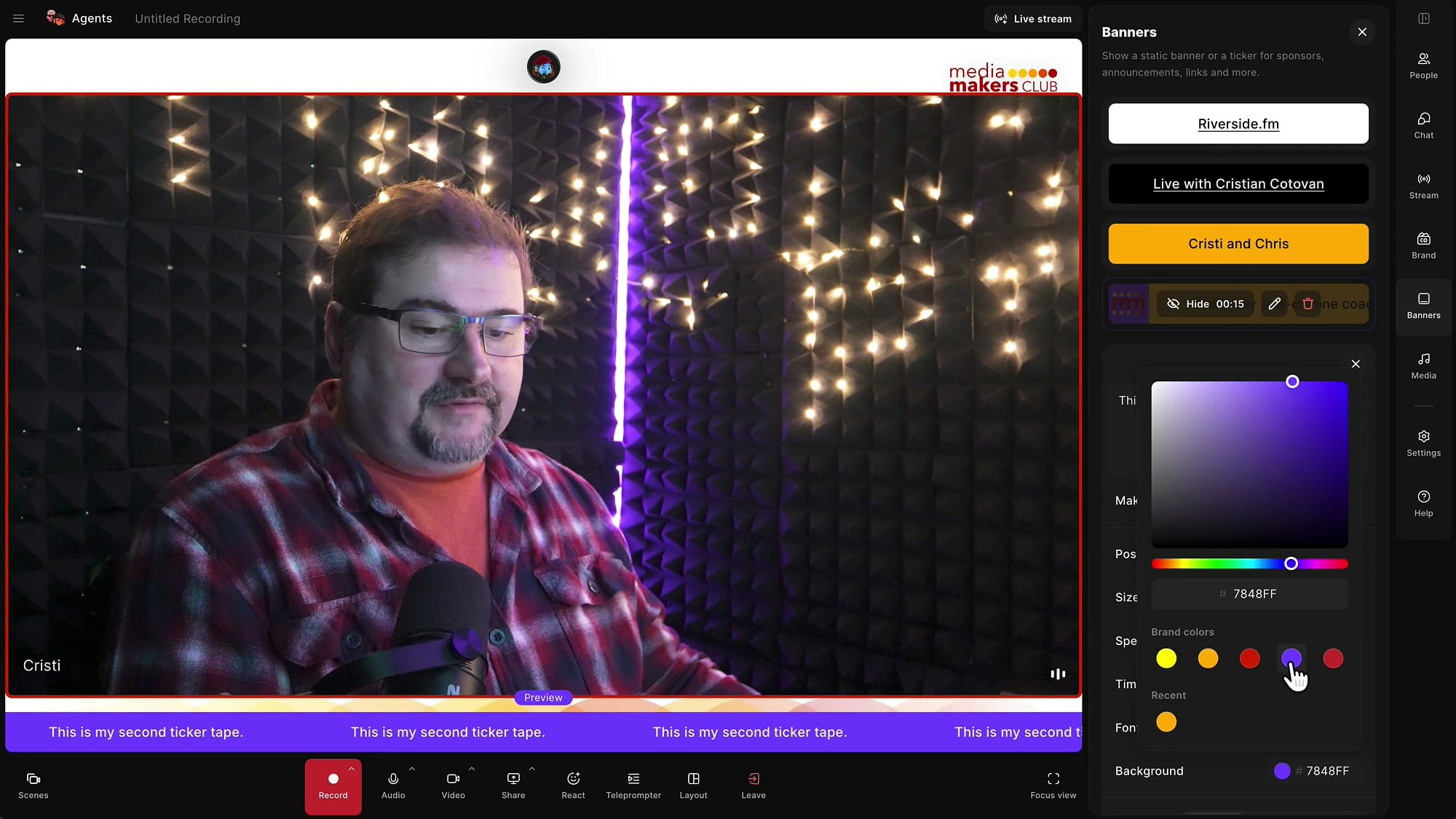
Next, choose the font. I left mine on Inter. Then click the Background color. Below the color picker, under Brand colors, you'll see the colors from your Riverside brand kit. I picked my yellow. It draws attention, and the black text on it has great contrast.
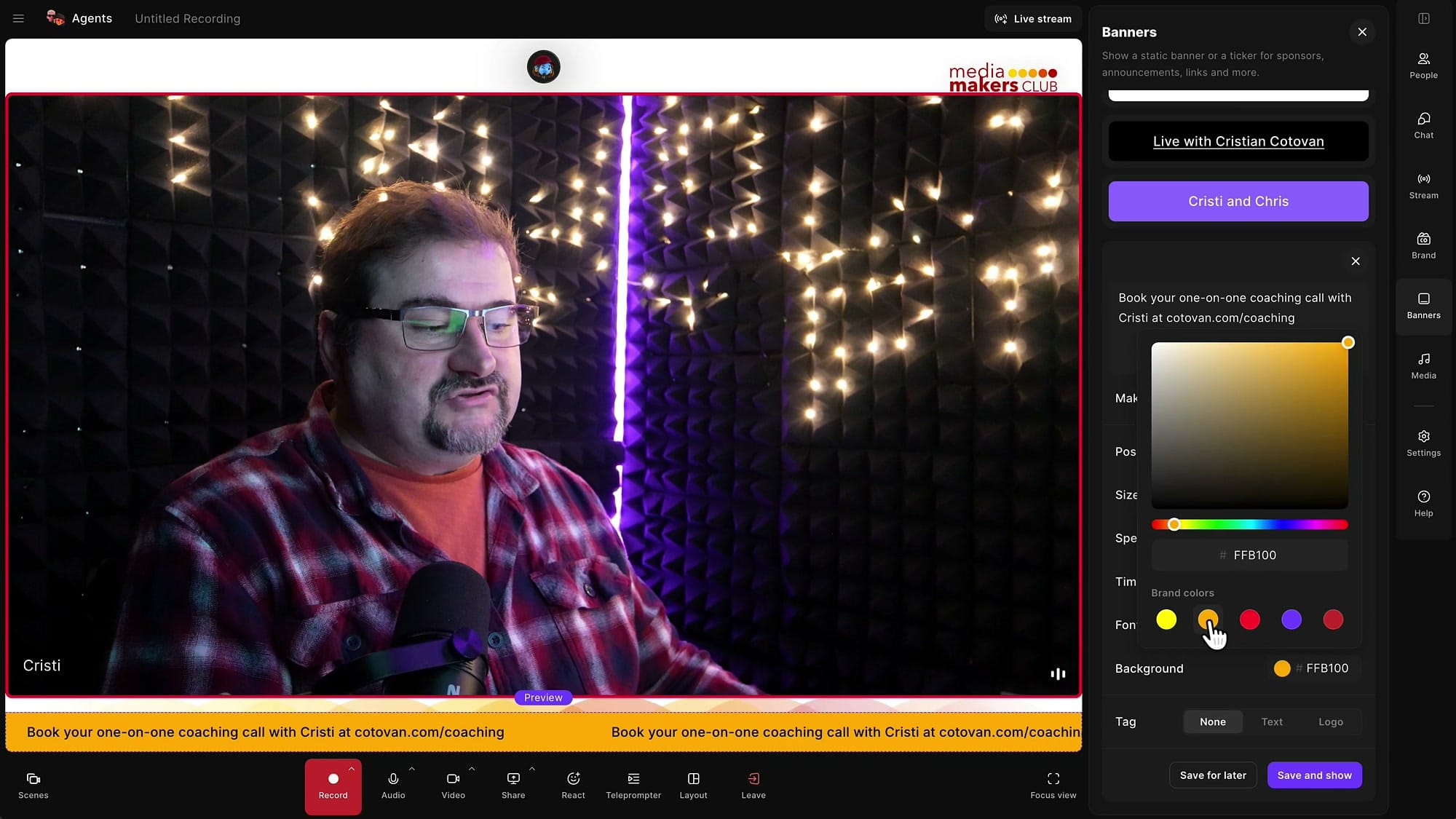
One warning: while I was setting this up, I clicked outside the banner form and lost everything I'd typed. Don't click outside the form until you've saved, or you'll have to start again.
Add a Tag or Logo
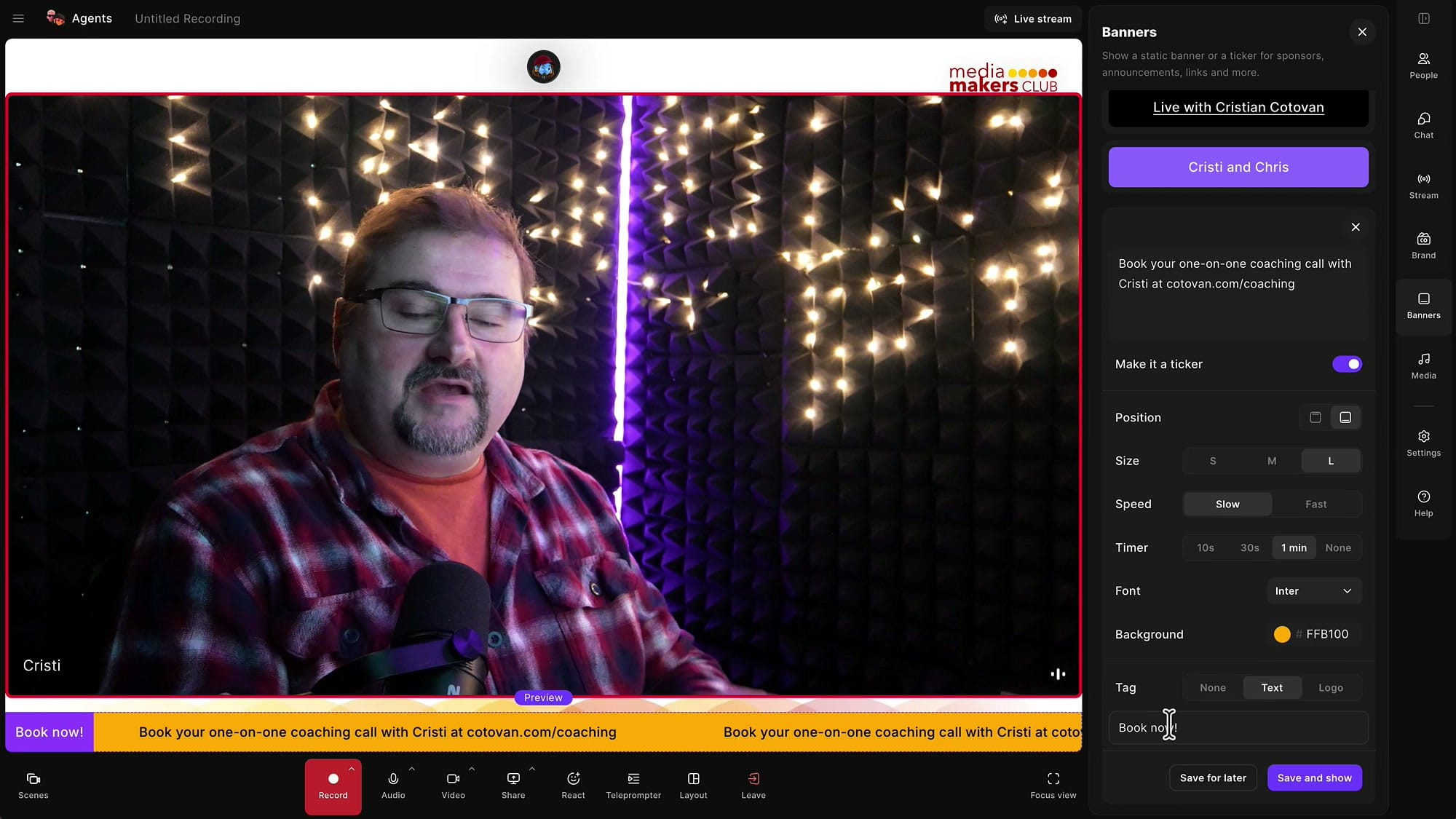
The Tag option adds a fixed label at the start of the ticker, in the bottom-left corner. You can choose Text and type something short like Book now!.
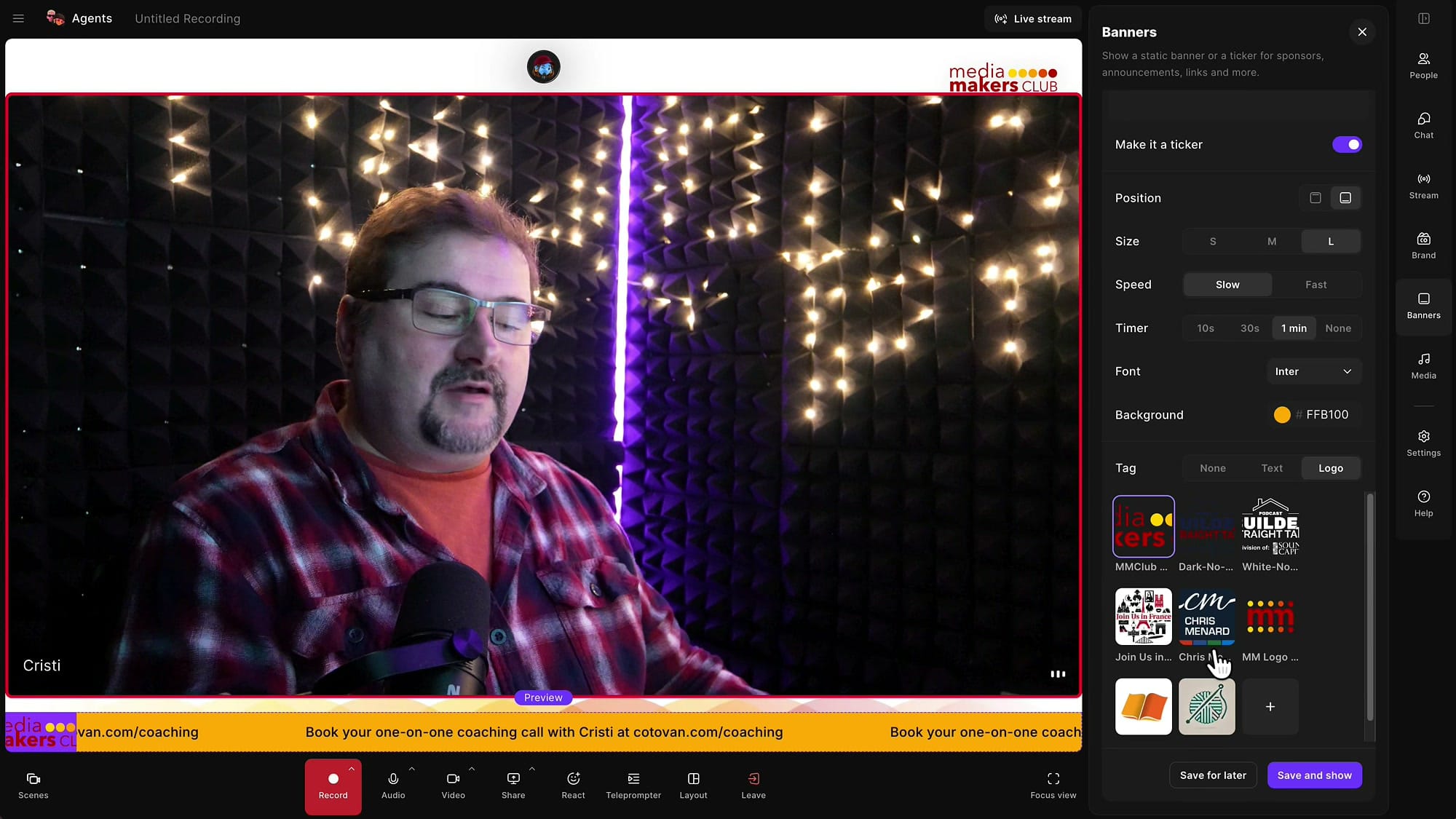
What I prefer is Logo. You can pick from the logos you've already uploaded to your account. I picked one that matches my branding.
When you're happy with it, click Save and show to put it on screen right away, or Save for later to keep it ready. I saved mine for later.
Work Around the Logo Background Color
There's one thing I don't like. The logo tag sits on a colored block, and in my case Riverside filled that block with purple. If your logo has a transparent background and doesn't contrast with that color, it's hard to see.
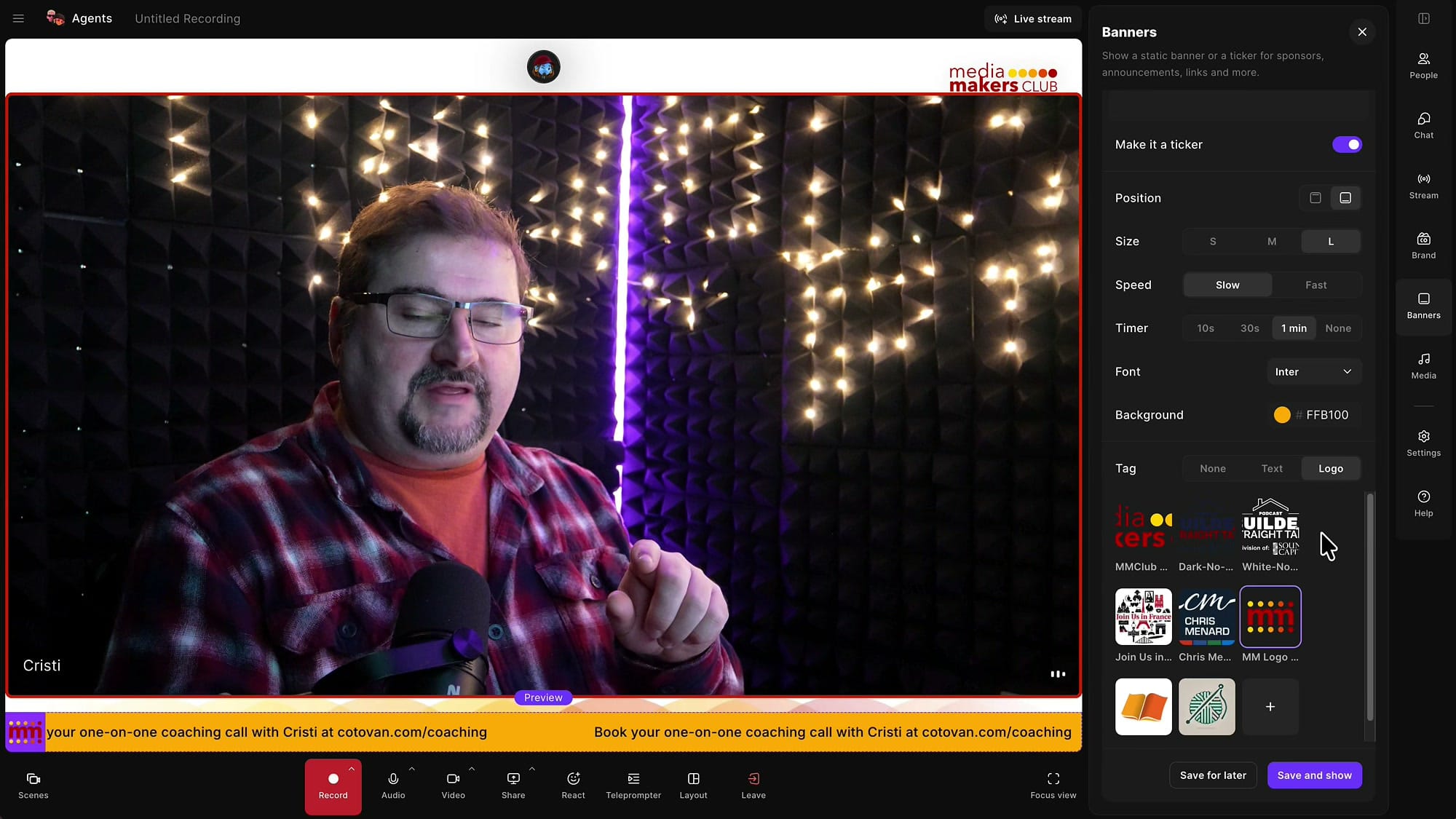
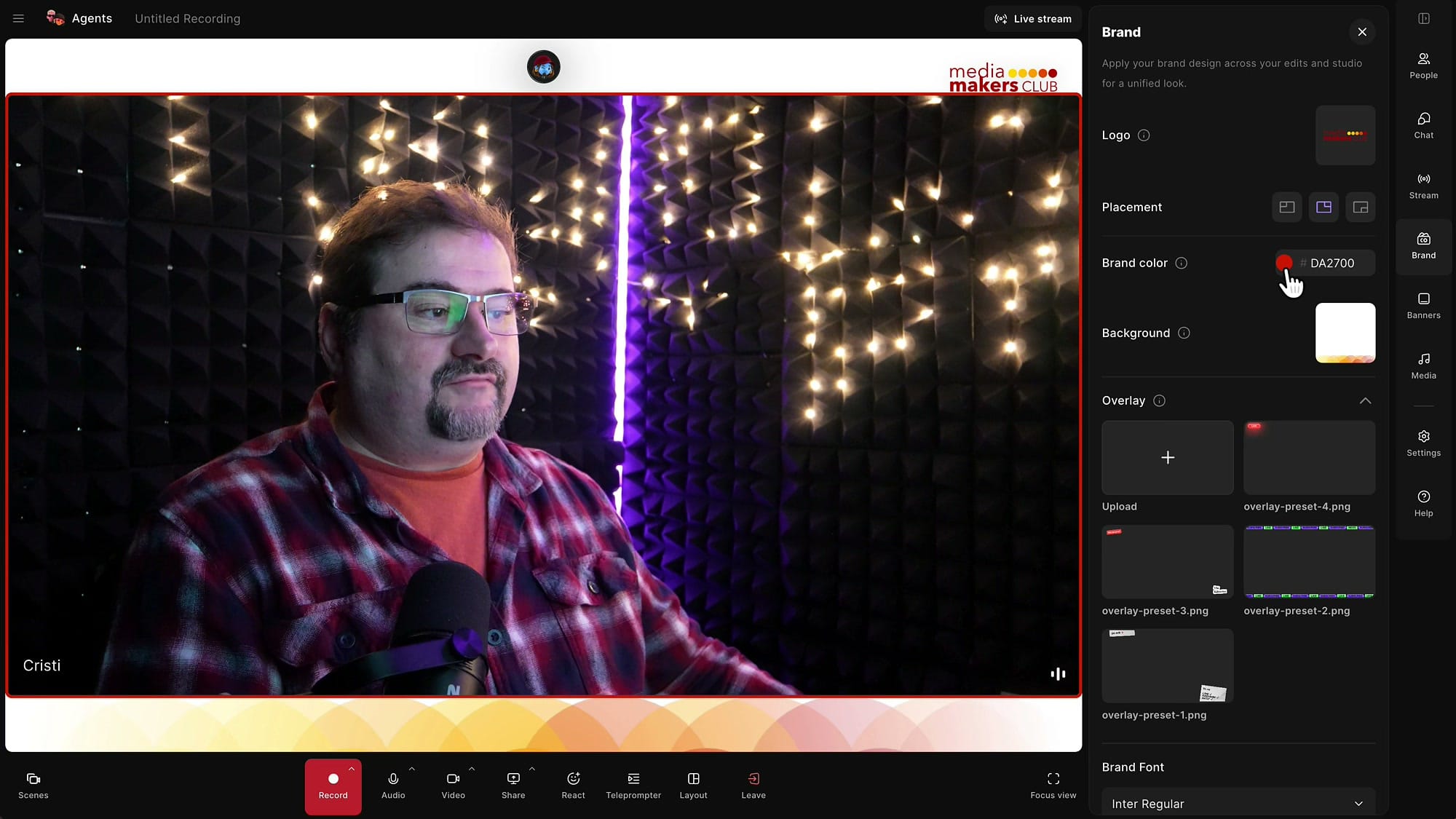
I hoped that block would use my brand color, but it doesn't. My main brand color in the Brand panel is red, not purple, so the purple seems to be a Riverside default. For now, you can't change it.
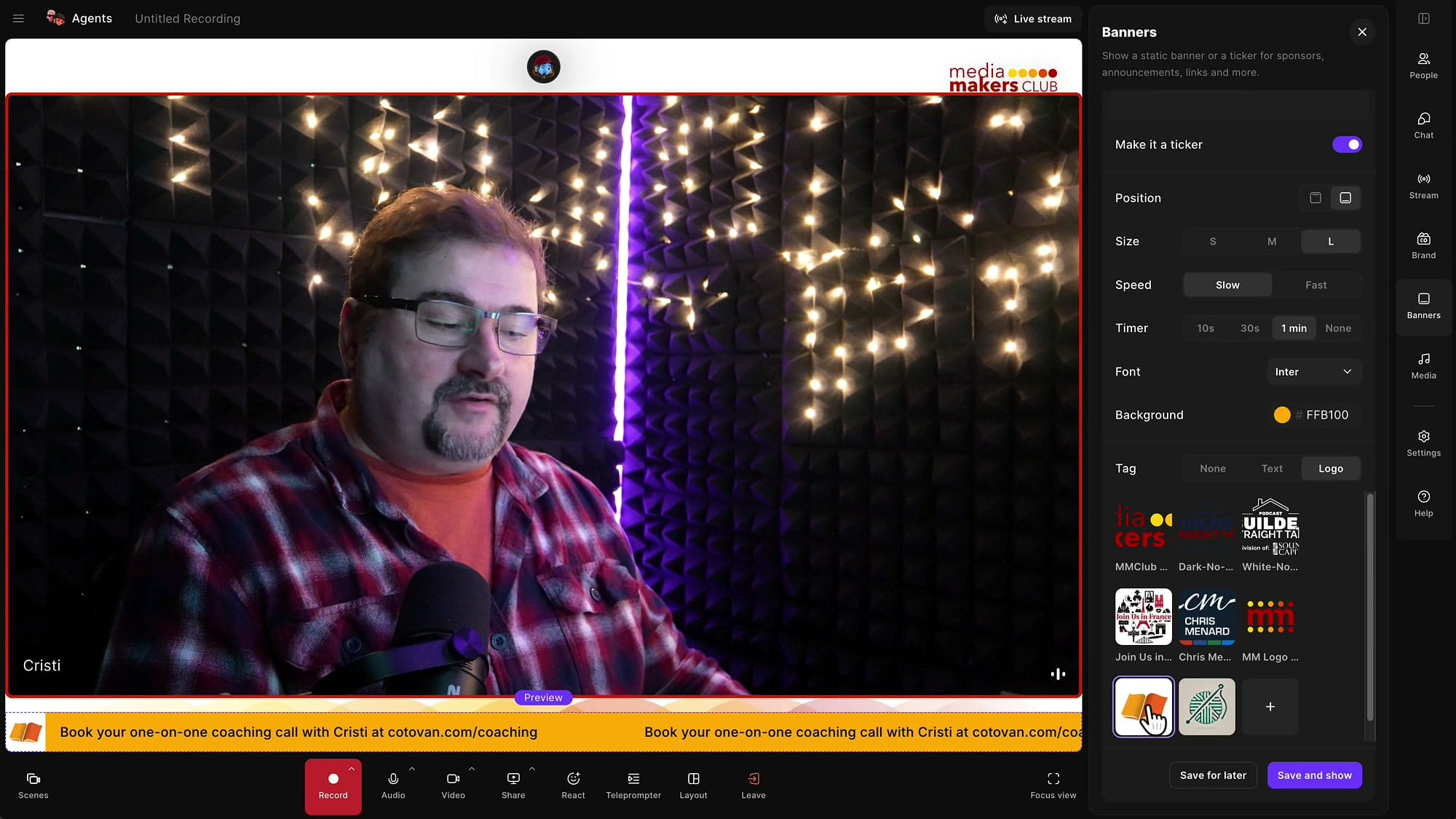
The workaround: make a version of your logo with its own background and upload that. A logo with a solid background covers the block completely, so the purple doesn't show.
Show the Ticker While You're Live
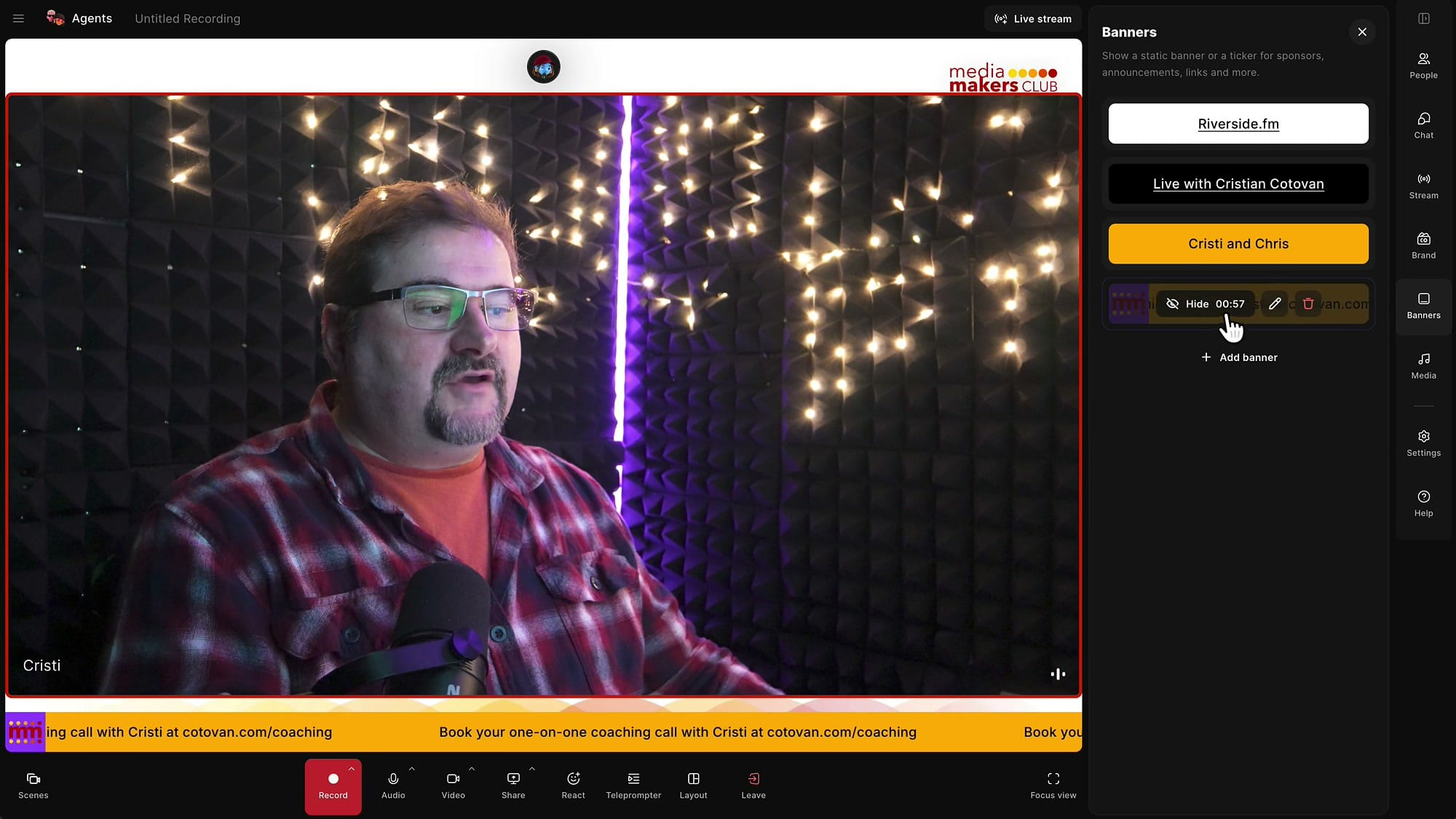
While you're creating and editing a ticker, nobody else can see it, even if you're actively streaming. It only goes on air when you hover over the saved banner and click Show.
Because I set the timer to one minute, the banner shows a Hide button with a countdown. When it reaches zero, the ticker disappears on its own. You can also click Hide to take it down early.
It's a handy way to send people to your website, ask them to subscribe, or point them to something they can book while you keep talking.
Prepare Multiple Tickers for Your Show
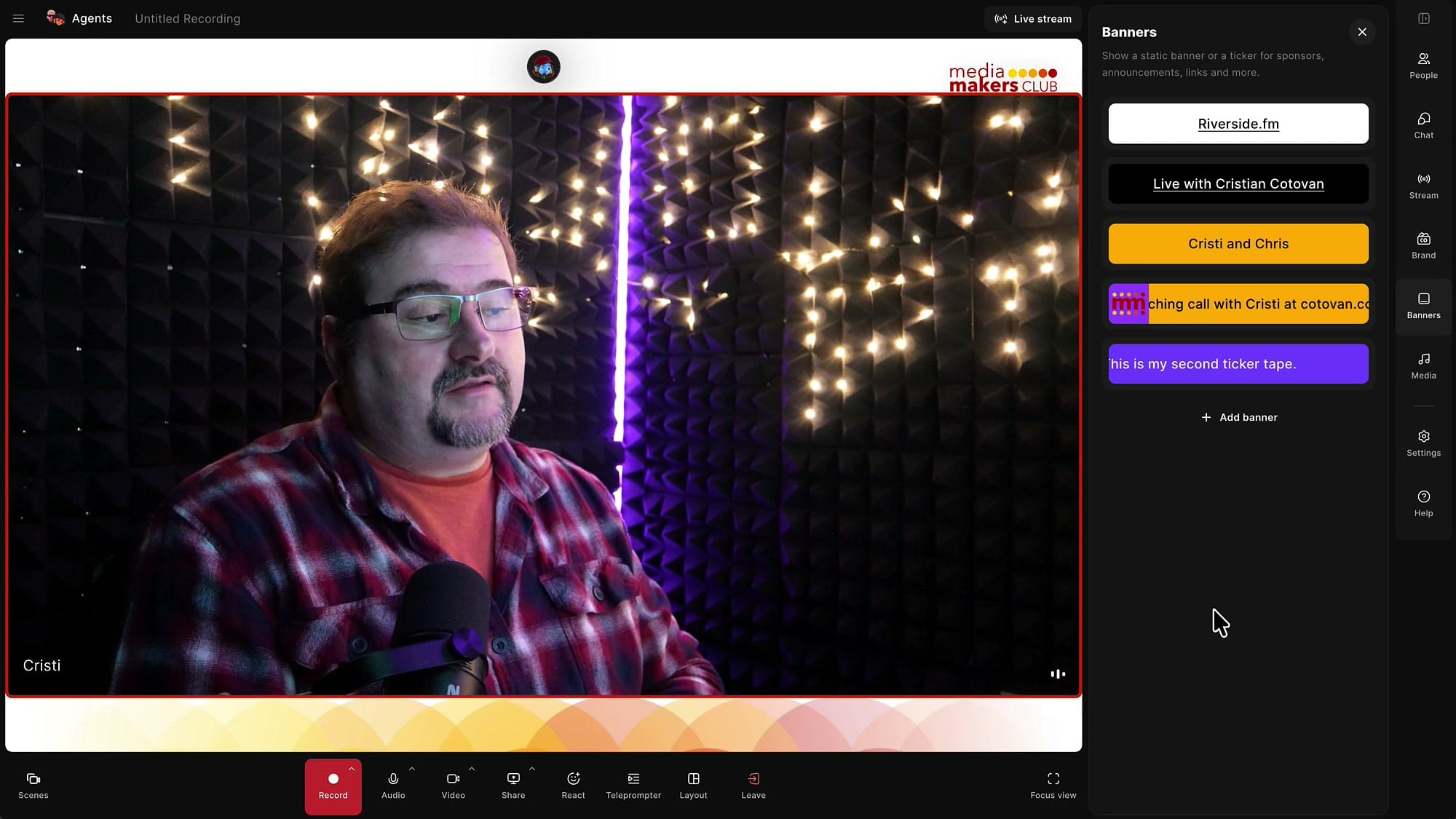
You can create more than one ticker. If you run a show with several segments, like a weekly news roundup, prepare them all before you go live and put them in order. Click Add banner again, type the text, turn on Make it a ticker, and set it up. For my second one I chose large text, fast speed and one minute, and picked purple as the background so it looks different from the first.
Click Save for later, and both tickers sit in your Banners list. During the show, hover over the one you want and click Show. It works well for sponsor messages or anything you want to show in quick succession. If you also switch scenes live, prepare your tickers at the same time so everything is ready before you start.
A Feature Request: Scheduled Banners
One thing I'd like Riverside to add is a way to make banners show automatically. When I'm live streaming, I don't want to stop and think about what to put on screen next. I'd rather set everything up at the start and tell Riverside something like: every 10 minutes, show the ticker with my website, my channel or my coaching link.
If a ticker ever covered something I was showing at the bottom of the screen, I could turn it off at that moment. Otherwise, I always forget to put promotional banners on screen while I'm live, and scheduling would fix that. It would be great for the standard text banners with website links too, all managed in one place.
Quick Recap
- In the studio, open Banners → Add banner, type your text and turn on Make it a ticker.
- Set the position (top or bottom), size, speed and timer. A timer hides the ticker automatically.
- Tickers only appear in the live stream or webinar. Your recordings stay clean.
- Pick a background from your brand colors and add a text or logo tag.
- If the logo block's purple clashes with your logo, upload a version of the logo with its own background.
- Save several tickers for later and click Show on each one when you need it.
If you'd like help setting up your Riverside workflow, book a one-on-one coaching call with me.
Related guides
 Cristi Cotovan
 Cristi Cotovan
 Cristi Cotovan
 Cristi Cotovan
 Cristi Cotovan
If you're eager to learn more about Riverside and wish to have a one-on-one Riverside coaching session, feel free to book a call with me. I'm here to help you with any questions you have and to guide you through the best workflows, tips, workarounds, or just answer any questions you may have!