How to Create Best-Of Compilations in Riverside: Extract and Combine Clips


If you've recorded multiple podcast episodes or interviews in Riverside, you can pull the best moments from each one and combine them into a single "best-of" compilation — all without leaving the platform. No need to export clips individually or use external editing software.
The Big Picture
The workflow has three phases:
- Extract — Go through each episode, mark and isolate the best moments
- Rename — Create standalone clips from each episode's highlights
- Combine — Import all the best-of clips into a new episode and arrange them into a compilation
This works because Riverside stores all your recordings as individual projects, and edits from different projects can be imported into new ones.
Step 1: Start from Your Projects
Your Riverside dashboard shows all your recorded episodes organized as projects. Each project contains the original recording plus any edits you've created.
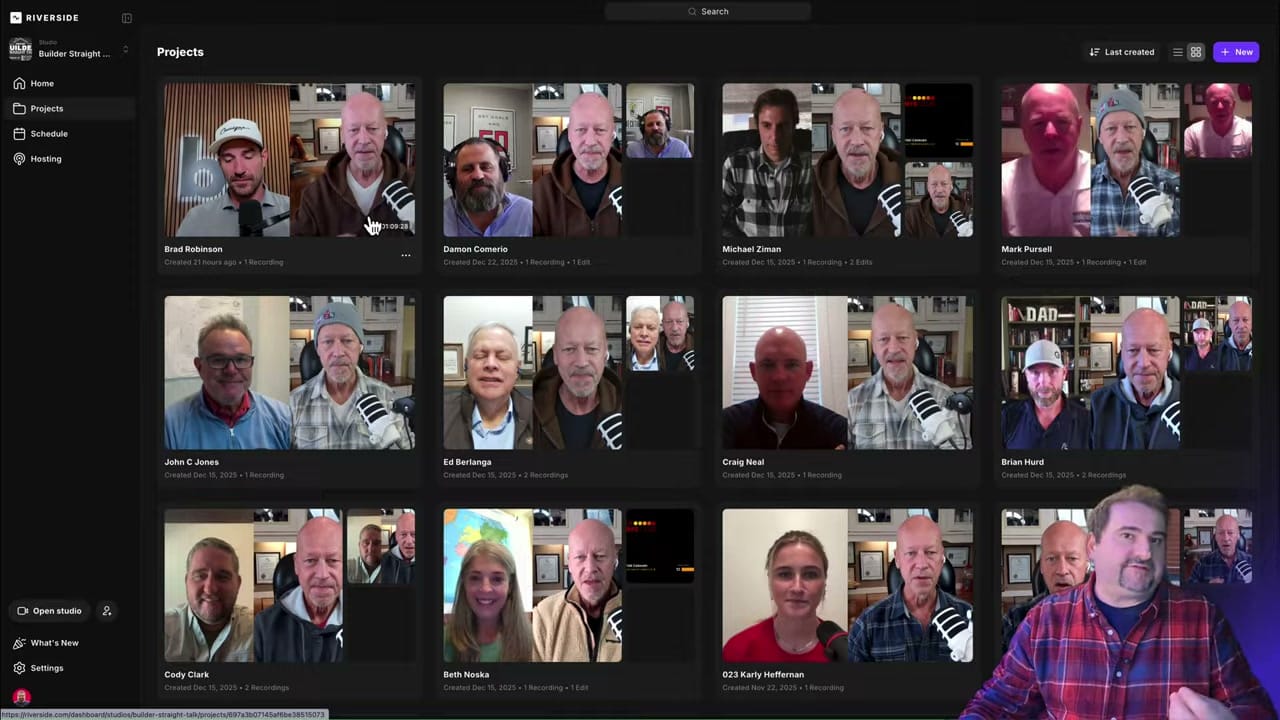
For a best-of compilation, you'll open each episode one at a time to find the highlight moments.
Step 2: Mark Best-Of Sections in the Transcript
Open an episode's edit and use the transcript view to find your best moments. Riverside's text-based editing makes this easy — you're reading through the conversation and can quickly identify compelling segments.
To mark a section as a "best of" clip:
- Navigate to the start of the highlight in the transcript
- Add a chapter marker or text note labeling it (e.g., "BEST OF Clip")
- At the end of the highlight, add another marker (e.g., "END OF BEST OF Clip")
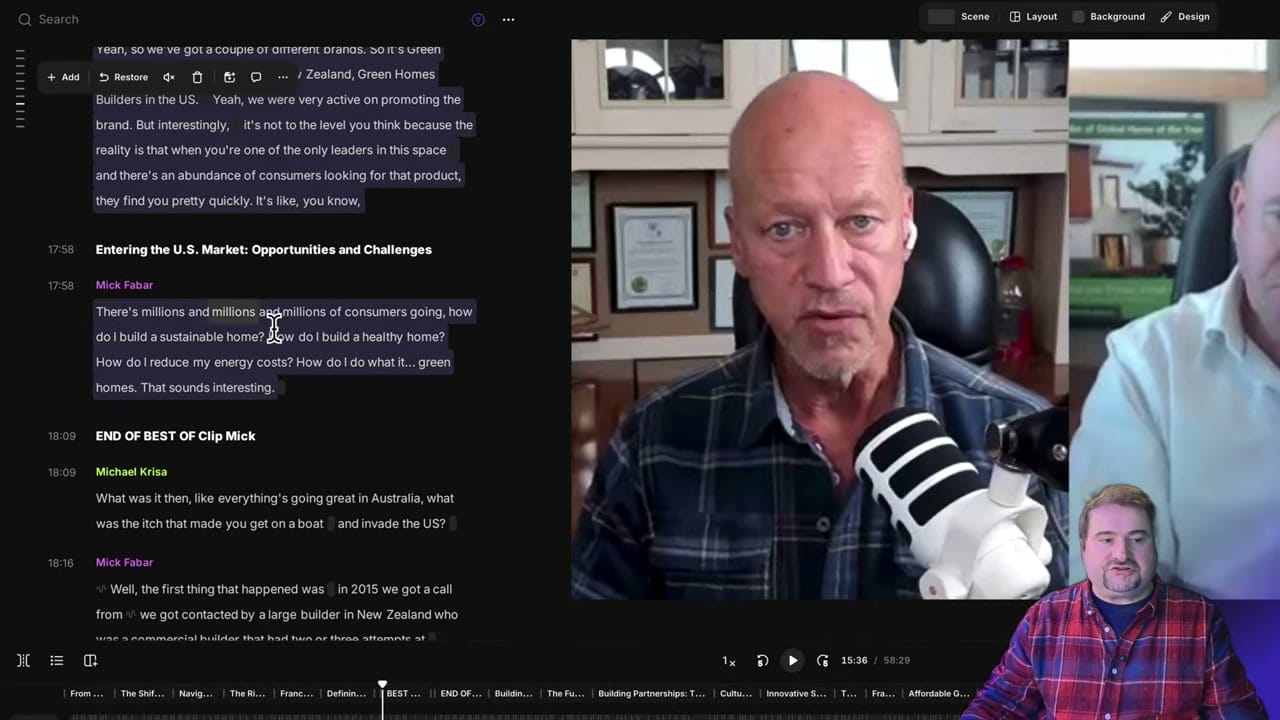
Do this for every episode you want to pull clips from. The markers help you find the sections later when extracting.
Step 3: Duplicate and Isolate the Clip
Once you've identified a best-of section, you need to create a standalone clip from it:
- Right-click on the edit (or click the three-dot menu)
- Select Duplicate to create a copy of the full episode
- Rename the duplicate to something identifiable (e.g., "BEST OF 5 (Mick)")
- Open the duplicate and delete everything except your marked best-of section
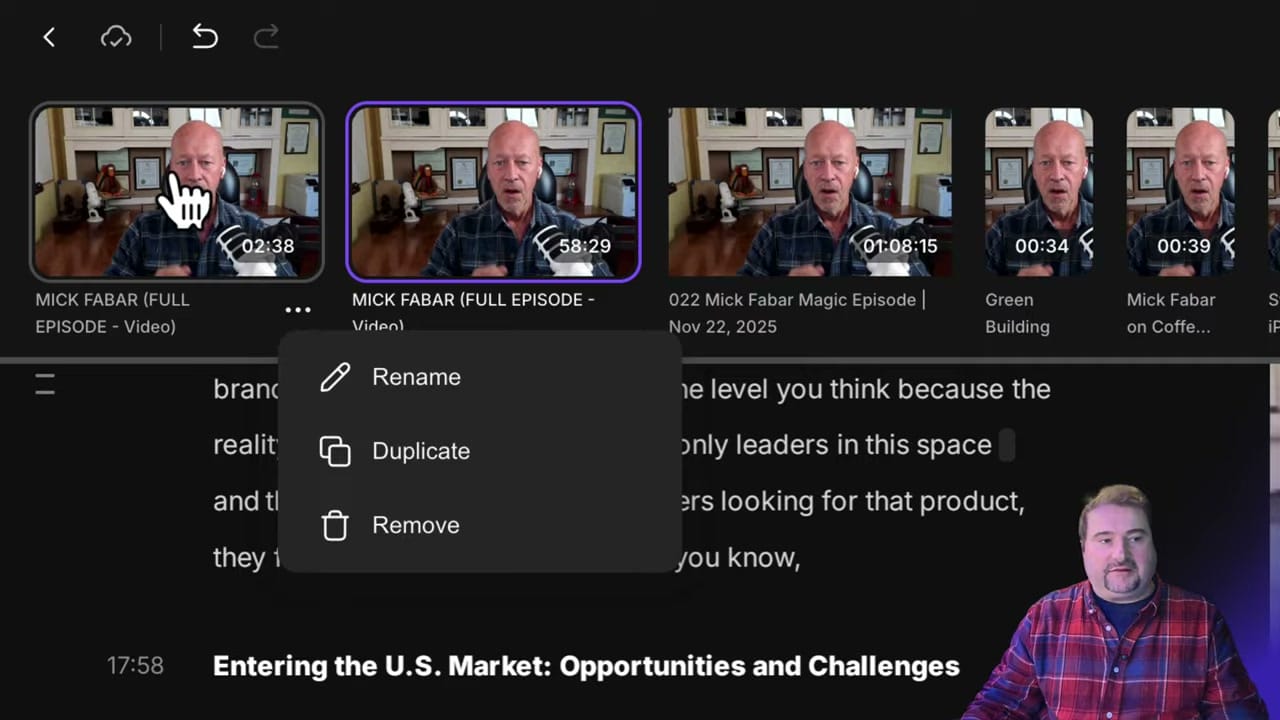
Repeat this for each episode — you'll end up with a collection of standalone best-of clips, each named clearly.
Step 4: Create a New Episode and Import Clips
Now for the magic — combining everything:
- Create a new episode in Riverside
- Instead of recording or uploading, choose "My files"
- Browse your Edits and search for "best of"
- All your prepared clips appear — select the ones you want to combine
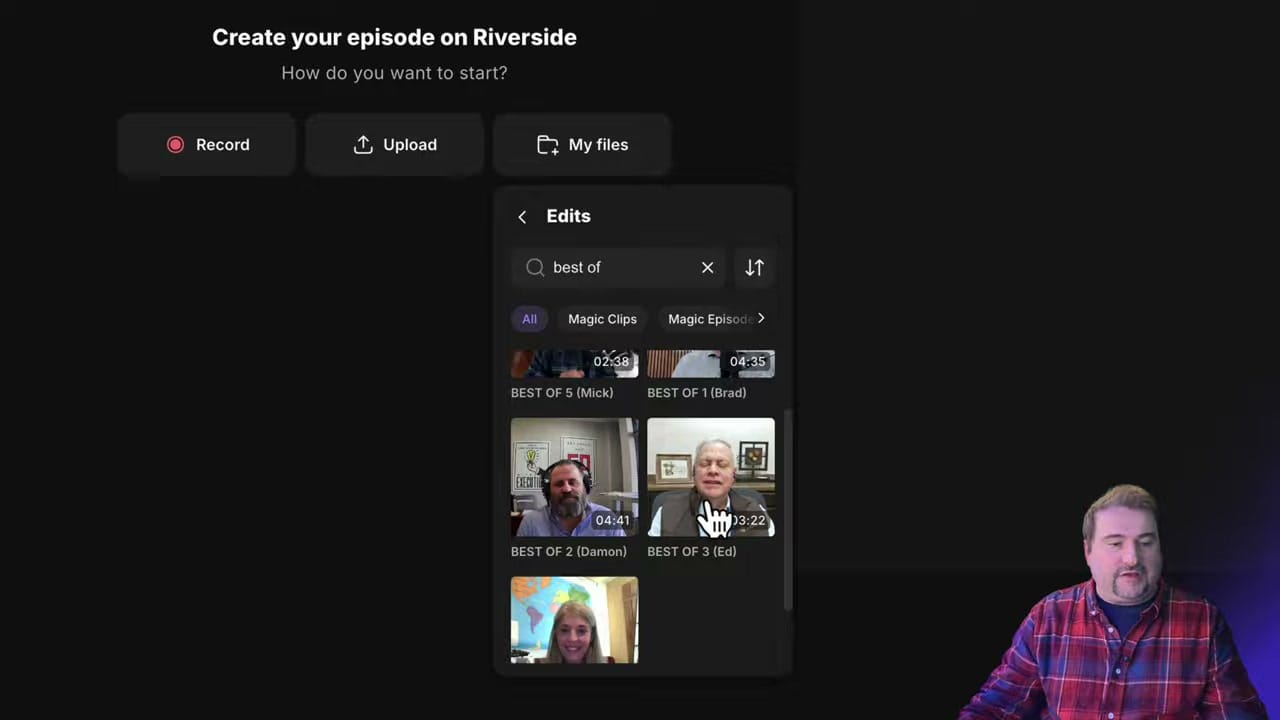
Import them one by one or in batch. Each clip arrives as a segment in your new compilation timeline.
Step 5: Arrange and Edit the Compilation
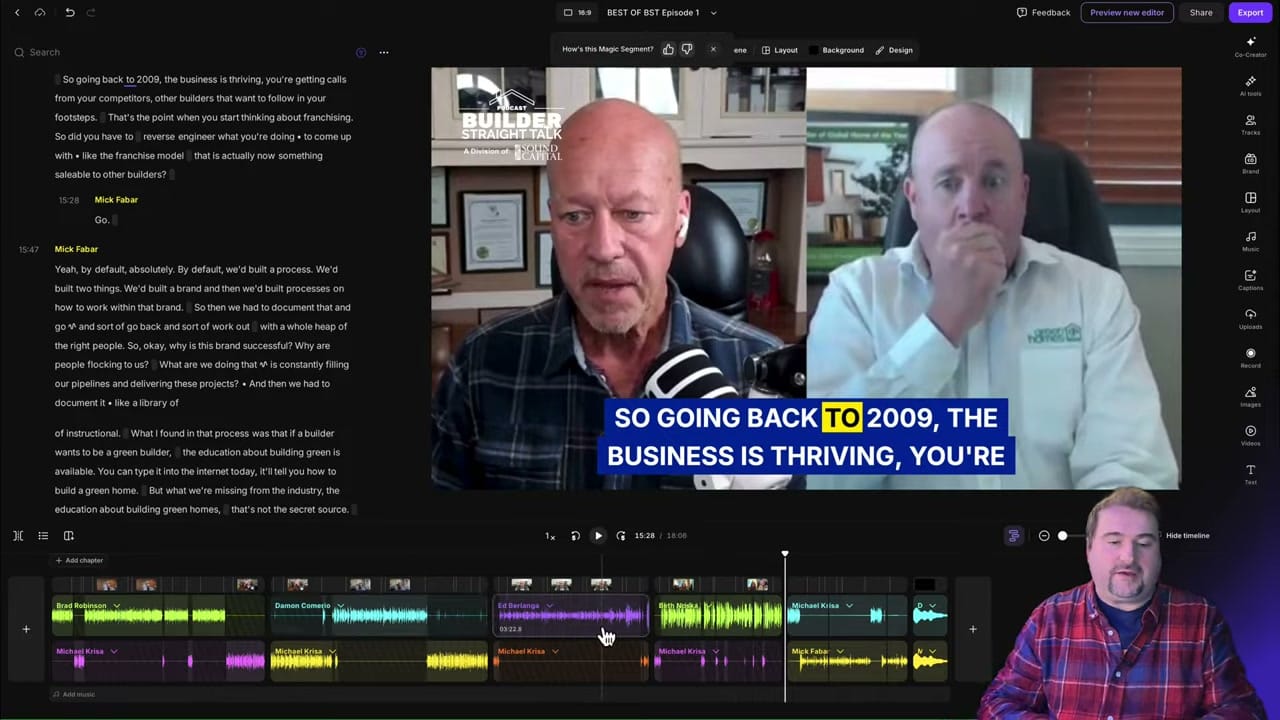
Once all clips are imported, you have a full multi-segment timeline:
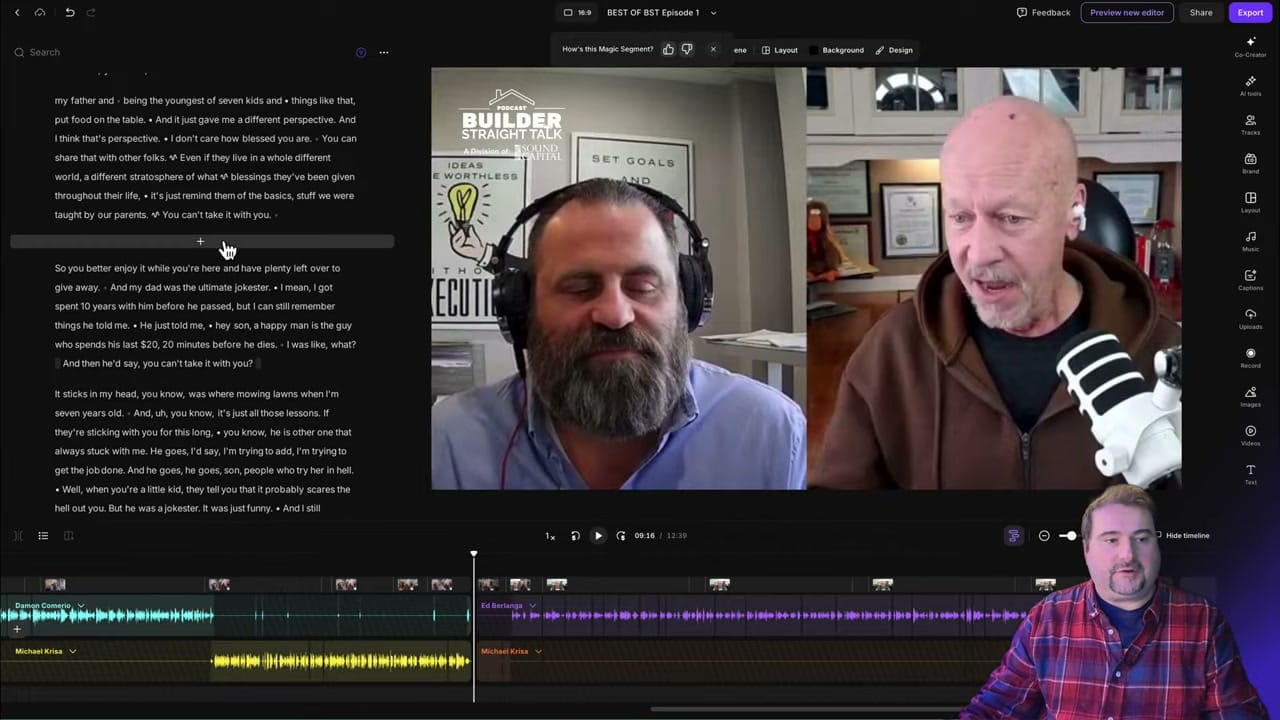
From here you can:
- Reorder clips by dragging segments in the timeline
- Add transitions between guest segments
- Add chapter markers for each guest's segment
- Apply branding — logo, colors, captions style — consistently across all clips
- Add intro/outro to bookend the compilation
When to Use This
- Year-end recap episodes — pull the best moments from a full season
- Theme compilations — group clips by topic across multiple episodes
- Promotional content — create a "best of" reel to showcase your podcast
- Highlight reels — shorter compilations for social media or YouTube
Tips
- Name clips consistently — "BEST OF [number] ([guest name])" makes searching easy
- Use the search function — Riverside's edit search lets you find all your best-of clips instantly
- Add chapter markers in the final compilation so viewers can jump between guests
- Consider using Magic Clips to auto-identify compelling moments as a starting point
- For per-scene branding, see placing captions differently per scene
Ready to create your own best-of compilation? Get started with Riverside.
If you’re eager to learn more about Riverside and wish to have a one-on-one Riverside coaching session, feel free to book a call with me.
I’m here to help you with any questions you have and to guide you through the best workflows, tips, workarounds, or just answer any questions you may have!