How to Review and Remove Filler Words in Riverside With the New Review Panel

Filler word detection in Riverside has been improved. It now detects more kinds of filler words and more audio events, tags them in your transcript as soon as the transcription finishes, and gives you a review panel where you can listen to each suggestion and decide what happens to it.
Until now, Riverside only detected the standard fillers, the ums and uhs, and you could remove those with one click. Anything else, such as "you know", "I mean", "like", or "so", you had to find and cut manually. Those are now included, and the way you manage all of them is much better.
Spot Filler Words in the Transcript
The first thing you will notice is in the transcript. Filler words are now shown in yellow, and non-verbal sounds get a small yellow squiggle. The squiggle is not always a filler word. Often it marks a gap, a breath, or a mouth sound between two words.
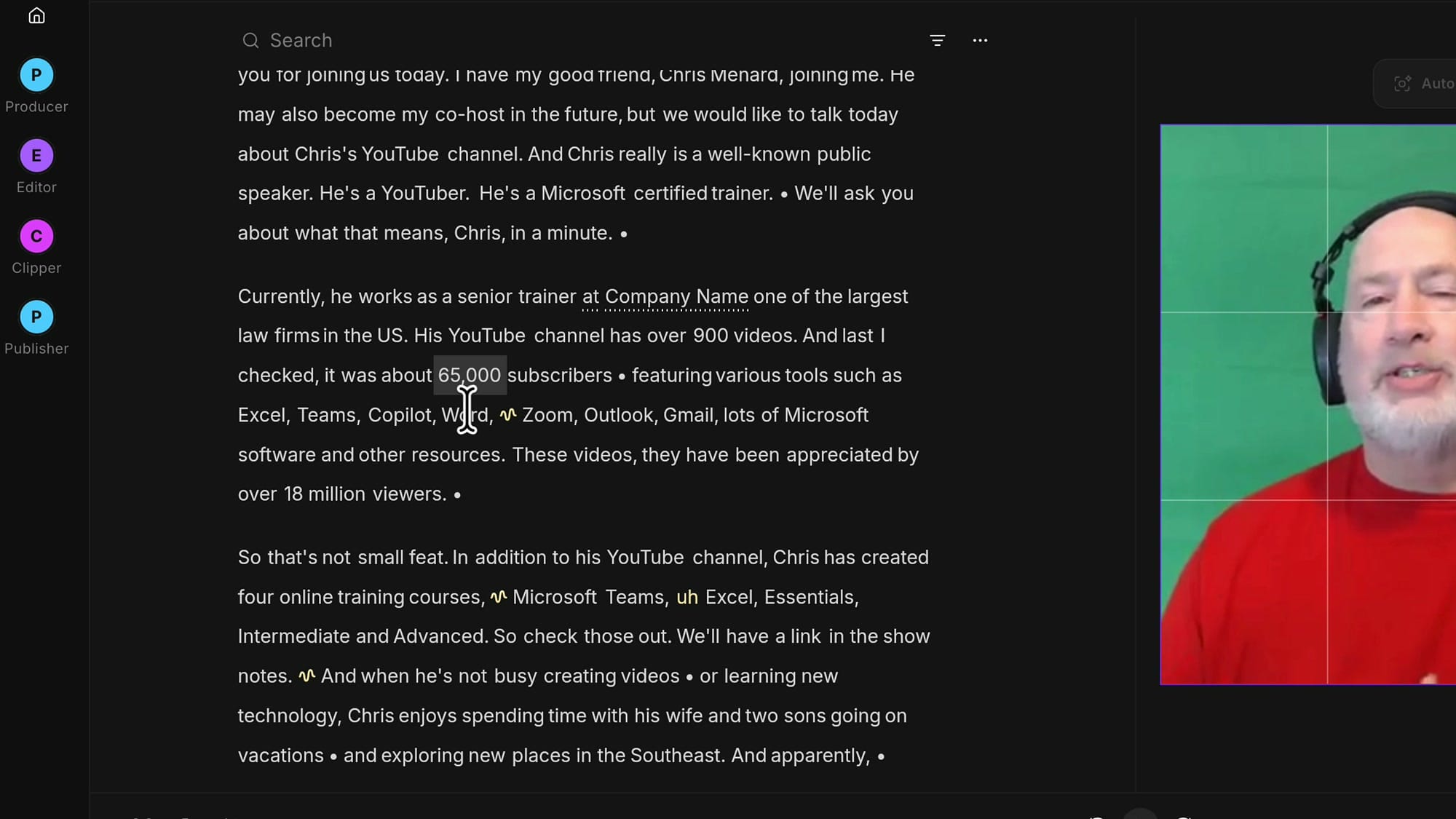
These markers sit alongside the fluff detection underlines you may already use. As you scroll through a long transcript, the yellow makes them easy to spot without reading every line.
Open the Review Panel
The bigger change is a completely new panel for managing filler words. It lists everything Riverside detected and lets you play, approve, reject, or restore each item and move on.
To open it, click AI tools in the sidebar. Under Refine content, the Remove filler words row used to be a single action that removed everything. Now it tells you how many fillers were found and has a Review button. On my 53-minute episode it found 72 with the default detection.
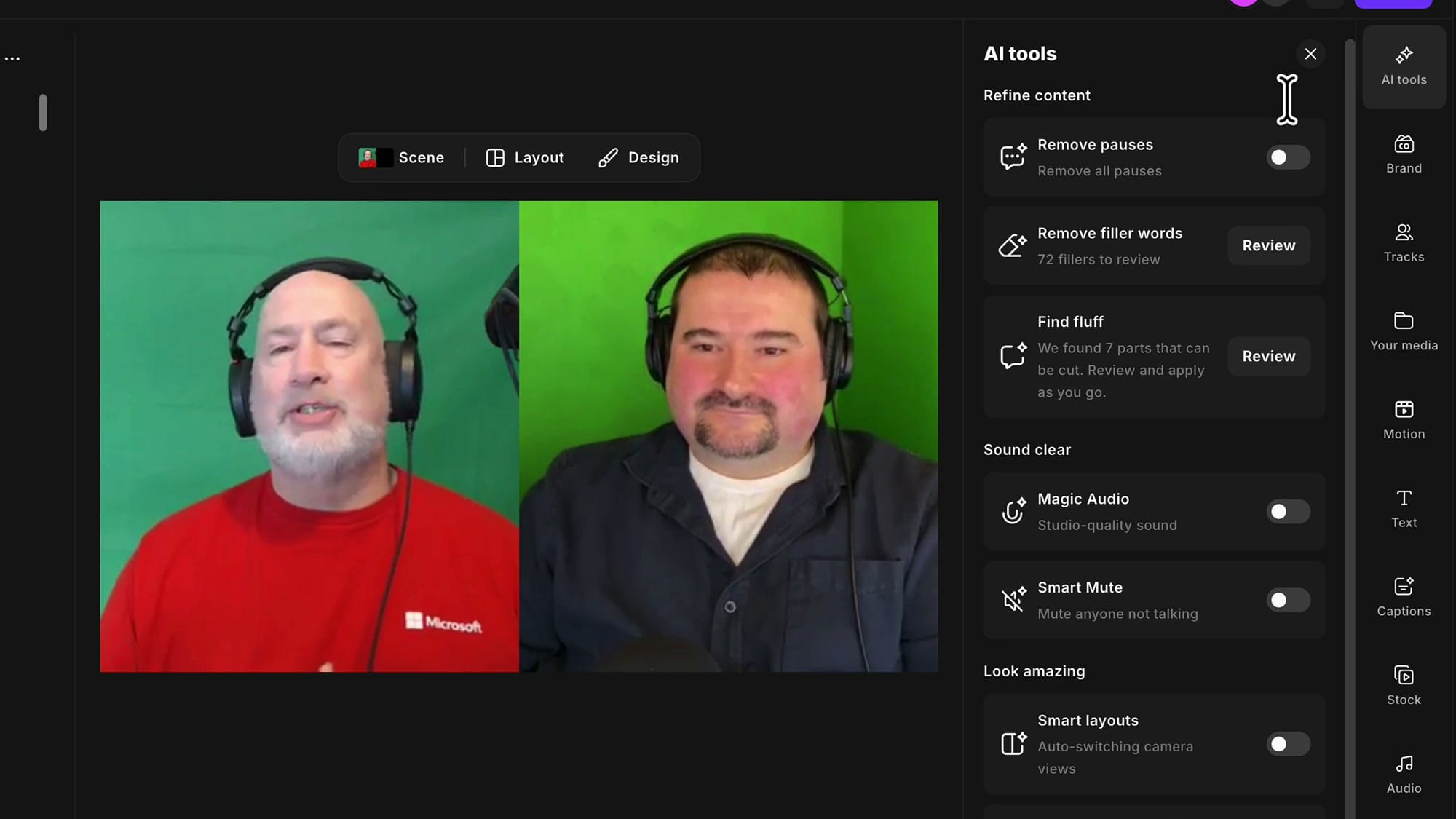
Click Review and you get a list of every detection, each with its timestamp and the surrounding words so you can see the context.
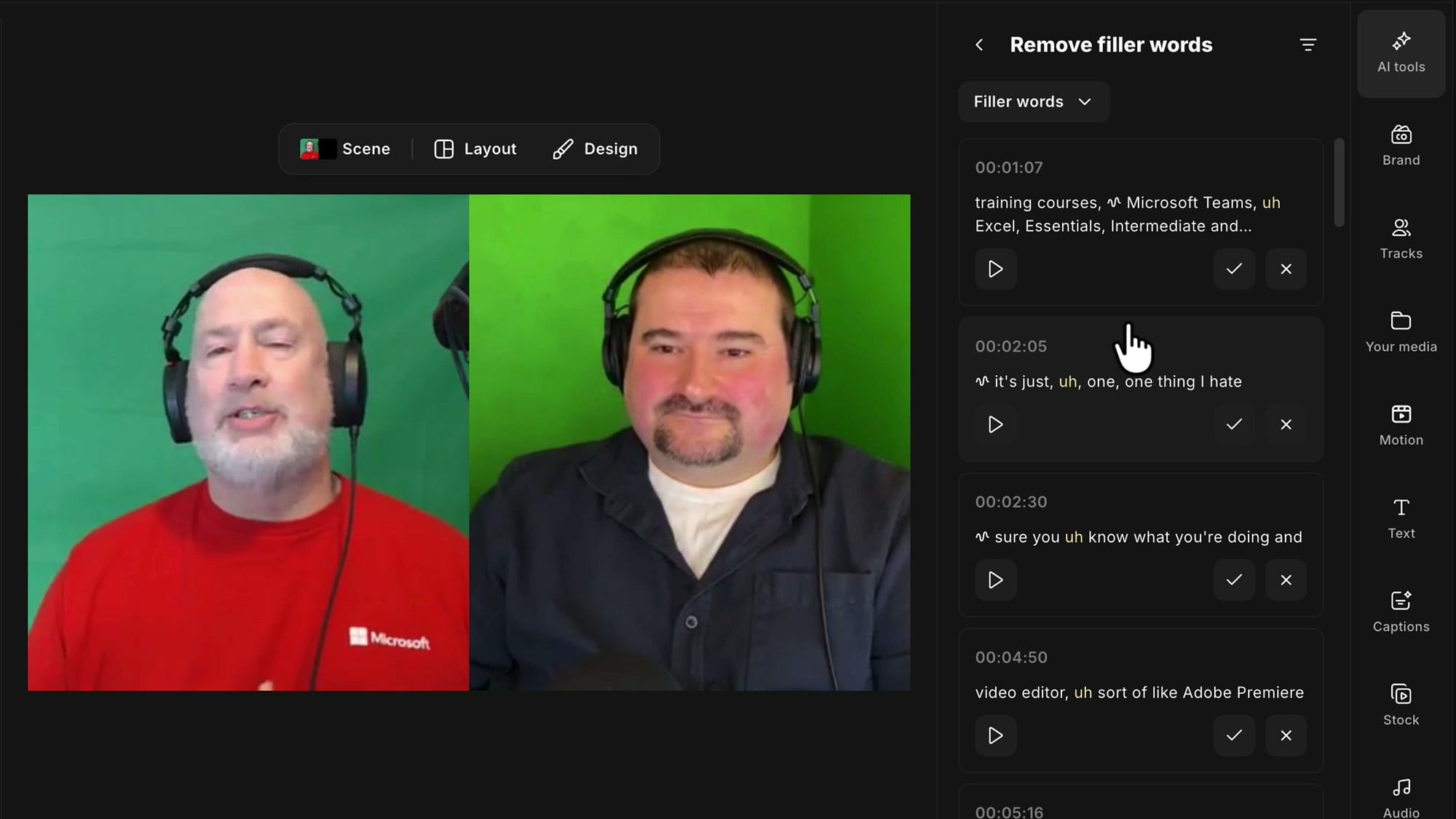
Every card has three buttons:
- Play — listen to that spot. Is it really a filler word or not?
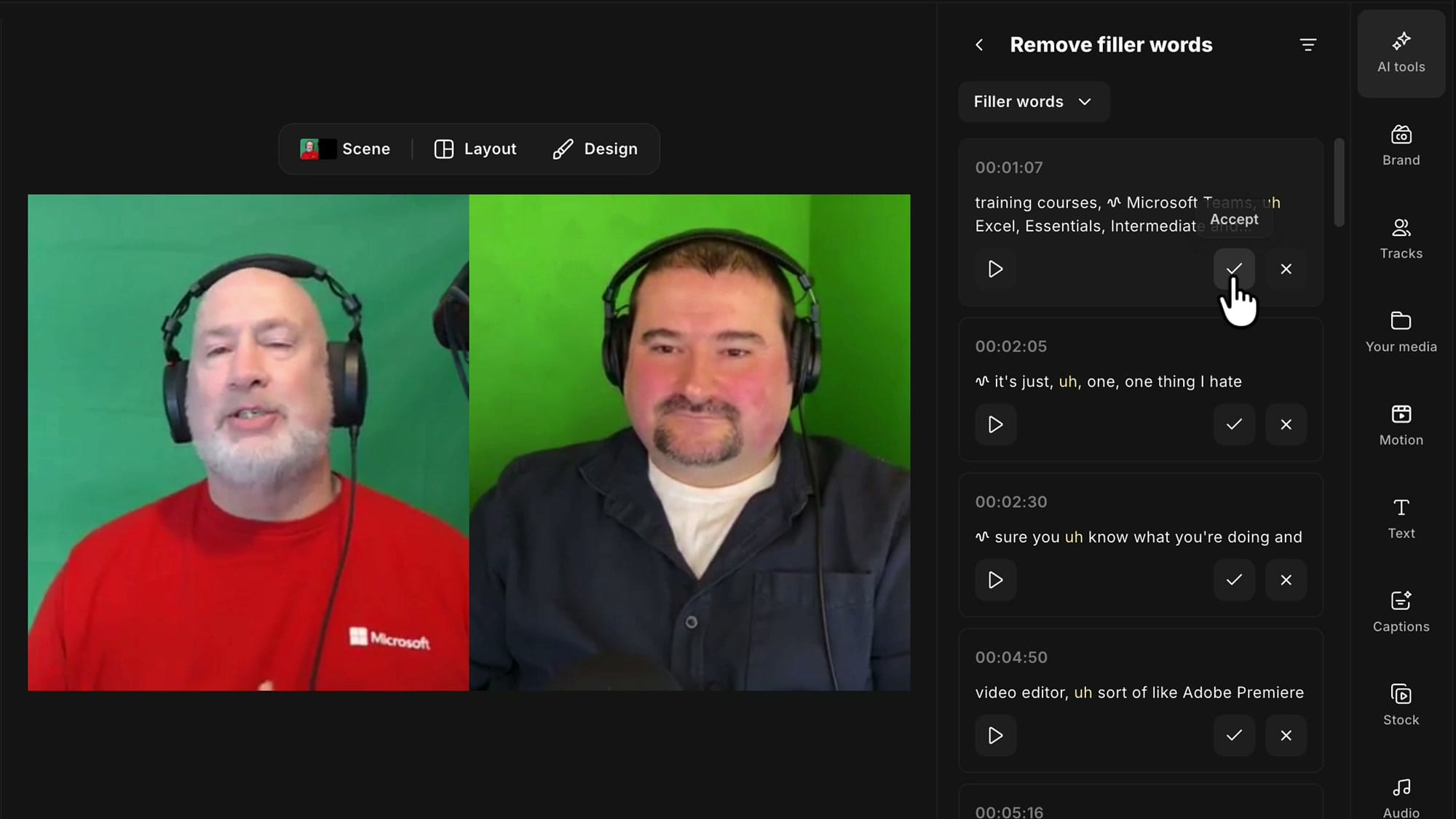
- Accept (the checkmark) — remove it.
- Discard (the X) — reject the suggestion and leave the audio alone.
Why I Review Instead of Removing Everything
This is the way I prefer to do filler word removal. I do not like having the AI take control and remove everything wholesale without me being able to review it.
That is also why I recommend dealing with filler words up front in a long episode, before your full listen-through. When you then play the whole episode back and check it, you hear whether the AI did a good job or not.
The review panel gives you a hybrid of the two. You still get the automatic detection, but you decide on each one.
Choose What Riverside Detects
At the top of the panel there is a dropdown that controls which kinds of detections appear in the list. Open it and you will see Filler types:
- Filler words — "um", "uh", "hmm". The standard ones.
- Contextual fillers — "like", "you know", "I mean".
- Noises — breaths, throat clears, sighs.
Below those, under Also include, there is Screen share & media.
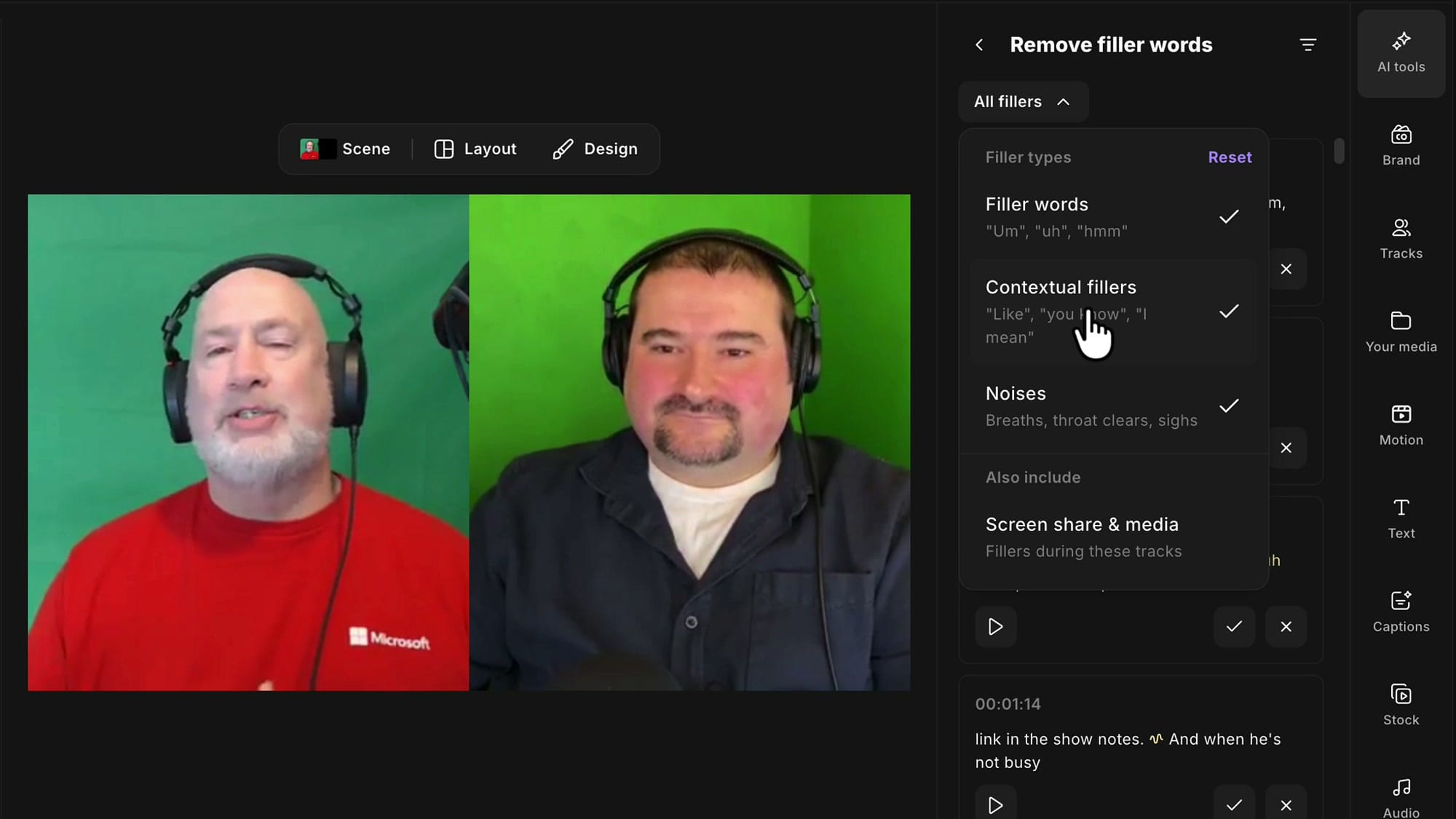
Contextual fillers are called that because the same words are often a legitimate part of a sentence. "I like strawberries" or "you know what you're talking about" are not filler words. Riverside analyzes each one to work out whether it is really a filler or part of what the speaker is saying.
Noises tags audio events: breaths, throat clears, and sighs. I am not sure about coughing yet.
Screen share & media extends detection to those tracks. If you recorded a shared screen with a video playing, or someone talking in an audio file, you can have fillers on those tracks listed for review as well. It is off by default, and in most cases you will want to leave it off.
I turned all three filler types on. The count on my episode went from 72 to 232, so expect the list to grow a lot once noises are included.
Listen, Then Accept or Discard
Now let's review a few. The first suggestion on my list sits in a run of product names: "Excel, Teams, Copilot, Word, Zoom, Outlook, Gmail". I played it, and there is no filler word there. Riverside interpreted a small gap between two words as something to remove. I clicked the X to discard the suggestion.
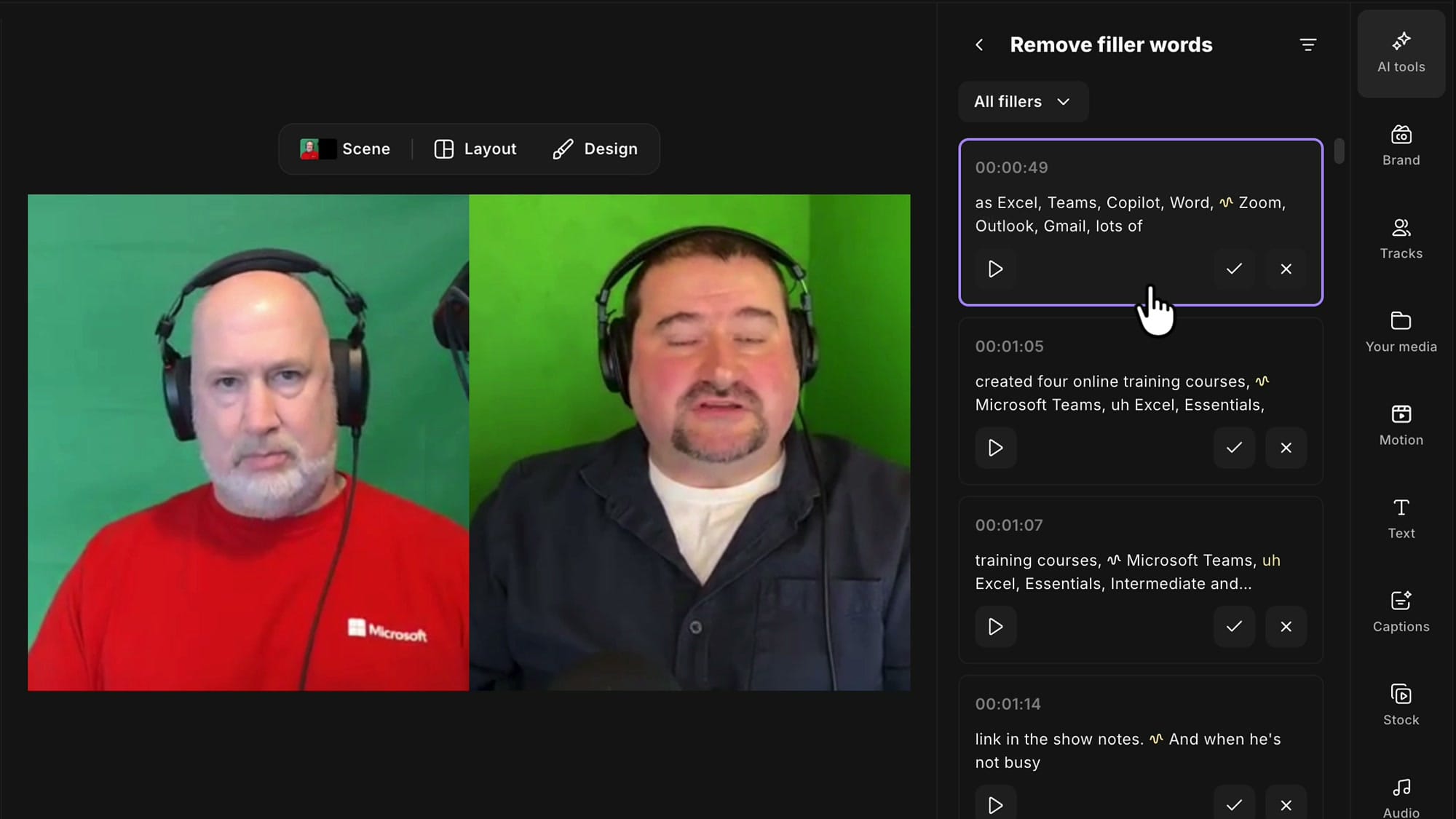
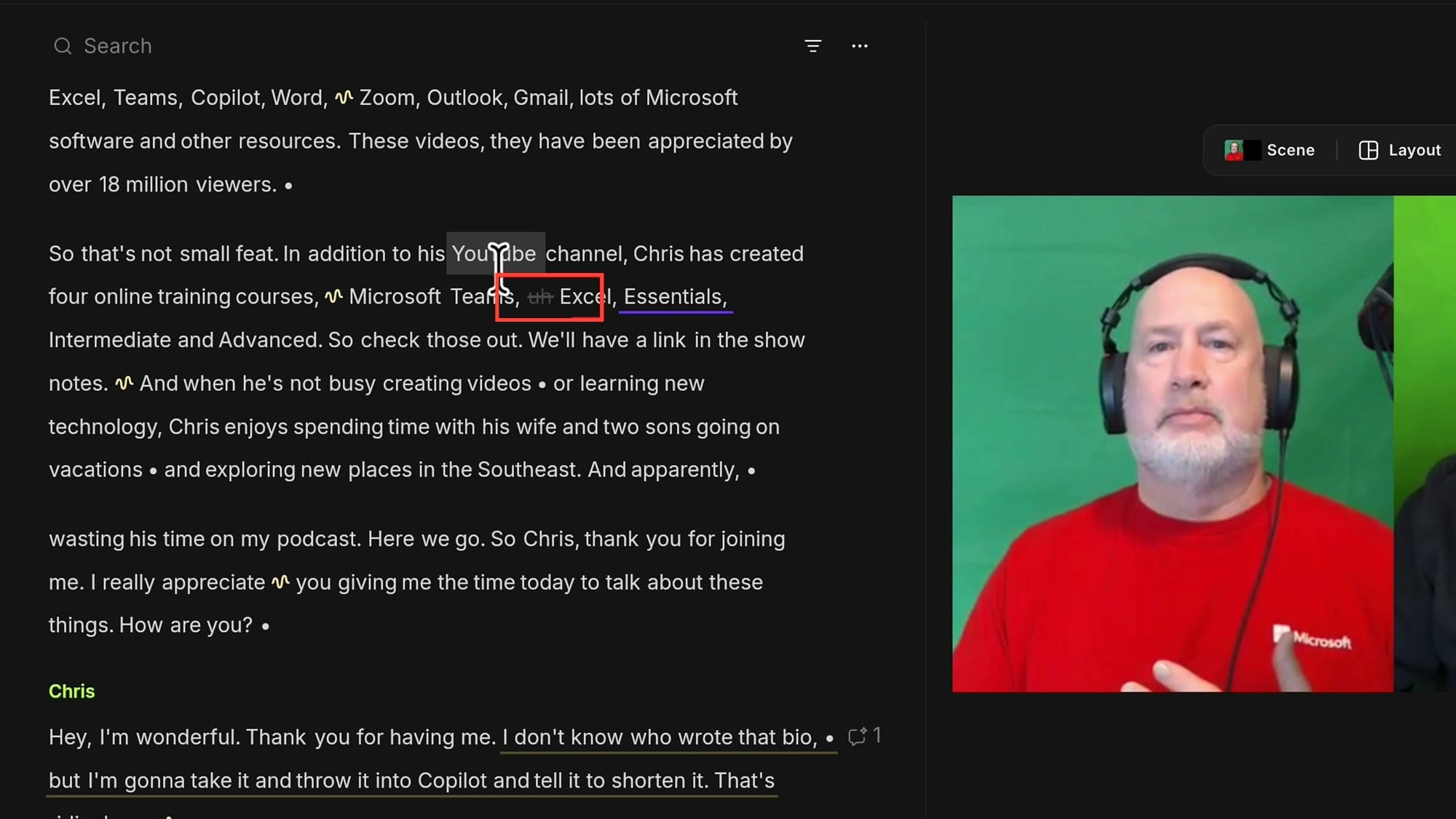
The next one, "training courses, uh, Microsoft Teams, uh, Excel", is a real filler word. I clicked the checkmark to accept it, and the "uh" is now crossed out in the transcript.
If wish to learn more about Riverside and would like to have a one-on-one Riverside coaching session, feel free to book a call with me.
I’m here to help you with any questions you have and to guide you through the best workflows, tips, workarounds, or just answer any questions you may have!
Replay the Edit and Restore a Bad Cut
Accepting is not the end of it. Once you accept a suggestion, its card collapses into a single row with two buttons: Play and Restore. Use play to hear the result and judge whether it is a clean cut.
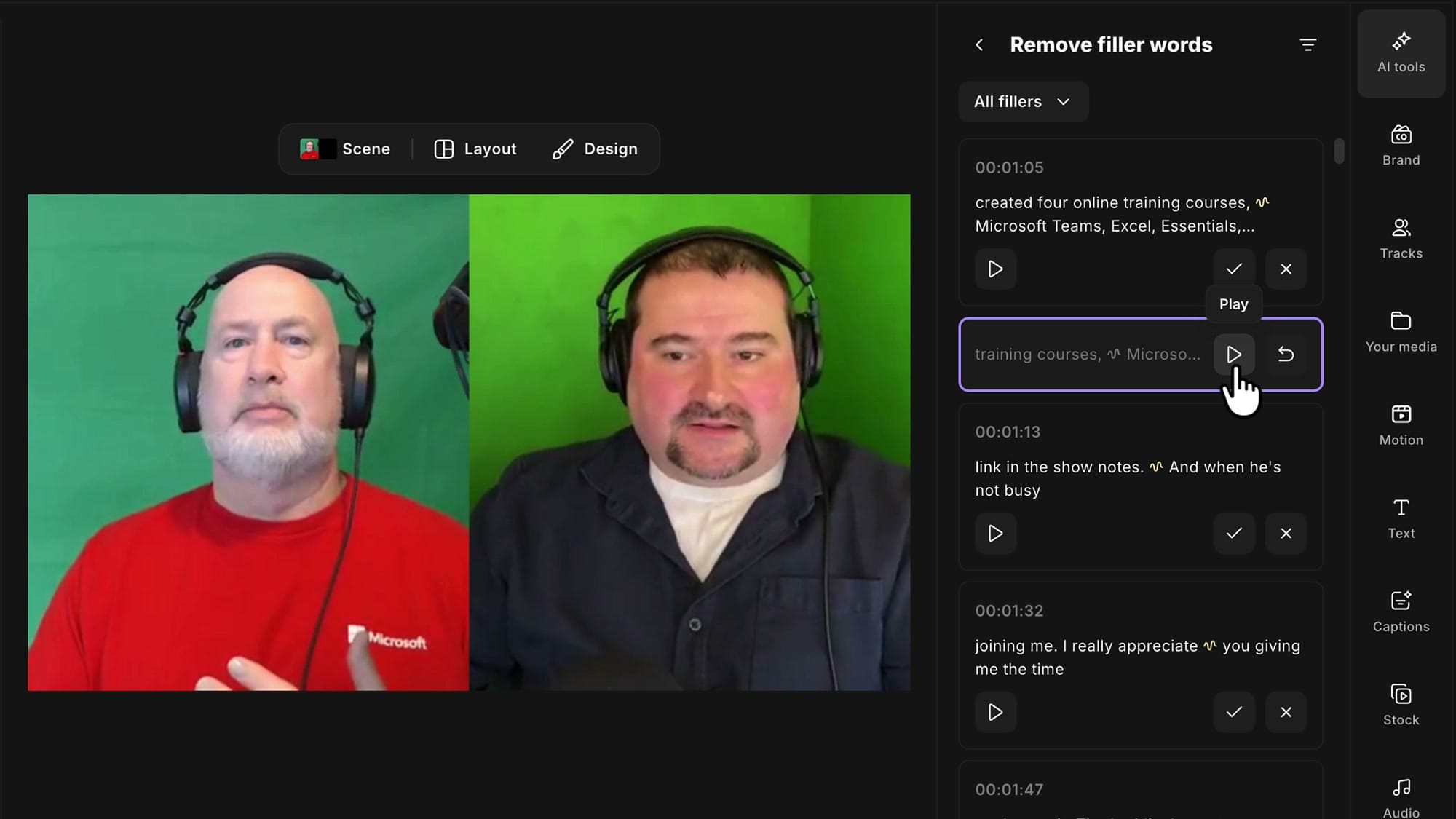
When I played mine back, the cut was a bit jumpy. The "uh" was gone, but the words on either side ran into each other. So I clicked Restore. The full card comes back with all three buttons, and this time I discarded the suggestion so it goes away and the audio stays as it was recorded.
This is the part I like most. A filler word that is correctly detected is not always a filler word worth removing. If taking it out sounds worse than leaving it in, leave it in.
Review Breaths and Check the Timeline
I scrolled through the list looking for a contextual filler, and Riverside did not find any in this particular episode. What it did find were breaths. I breathe a lot, or my microphone was too close, or my level was too high.
One of them sits between "link in the show notes" and "And when he's not". Played back, it is a very loud breath. I accepted the suggestion and played it again. The breath was gone, but it was not obvious what Riverside had done, so I opened the timeline to check.
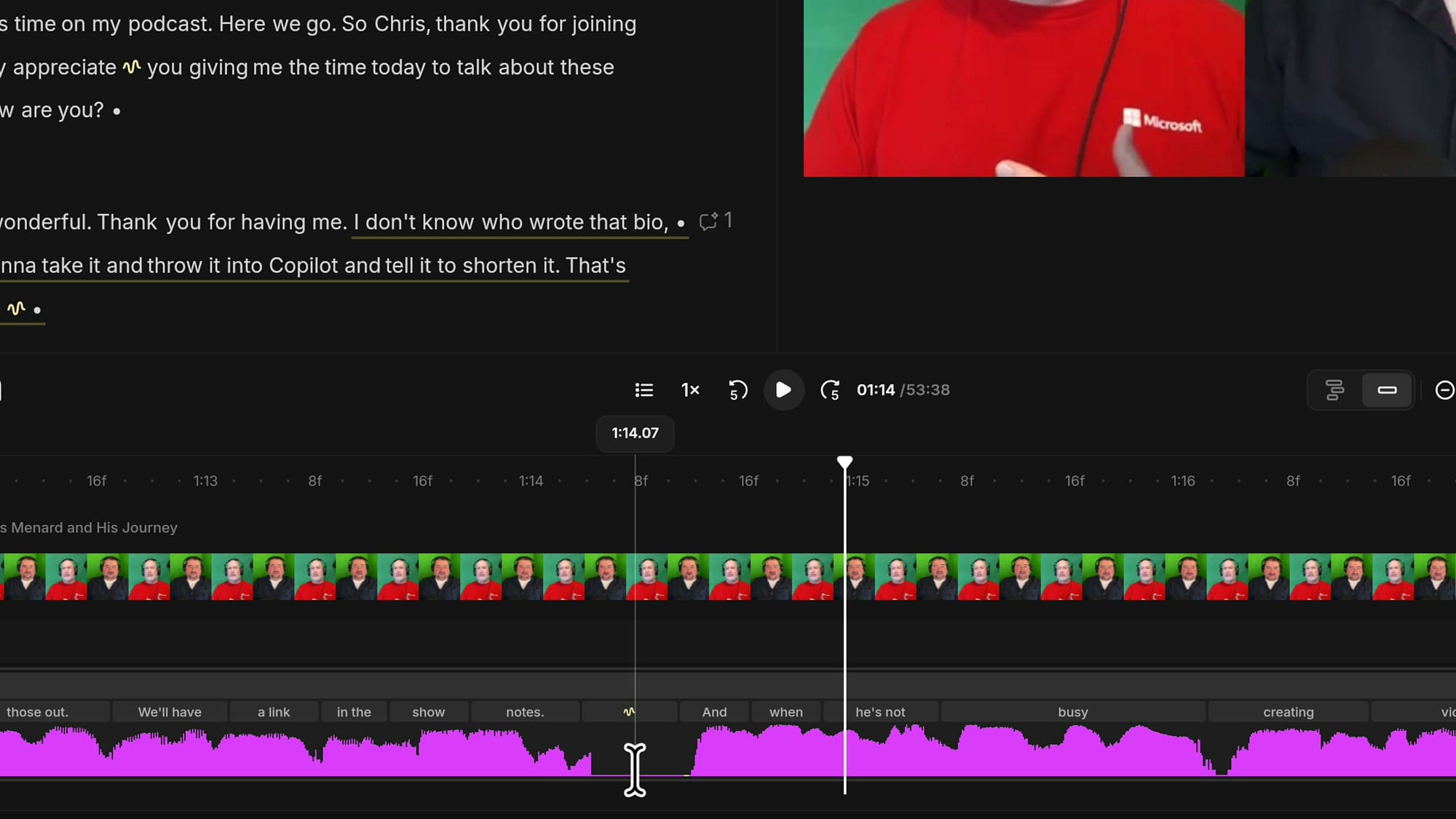
There is no cut. The breath was muted. You can see the waveform is completely flat at that point while the clip keeps its original length. That is the right call for a breath, because cutting it would pull the two sentences together and change the pacing.
You can also see that the same squiggle markers appear in the word track on the timeline, so the events are tagged there as well as in the transcript. Not all of them are gaps. Many are mouth sounds or breaths, and how many you deal with depends on how strict you want to be.
Compare Breath Cleanup With Magic Audio
I have found that Magic Audio takes care of these sounds many times. I did not have it applied to this recording, so I turned it on to compare. Go to AI tools, and under Sound clear, switch on Magic Audio. It is added to all of the tracks.
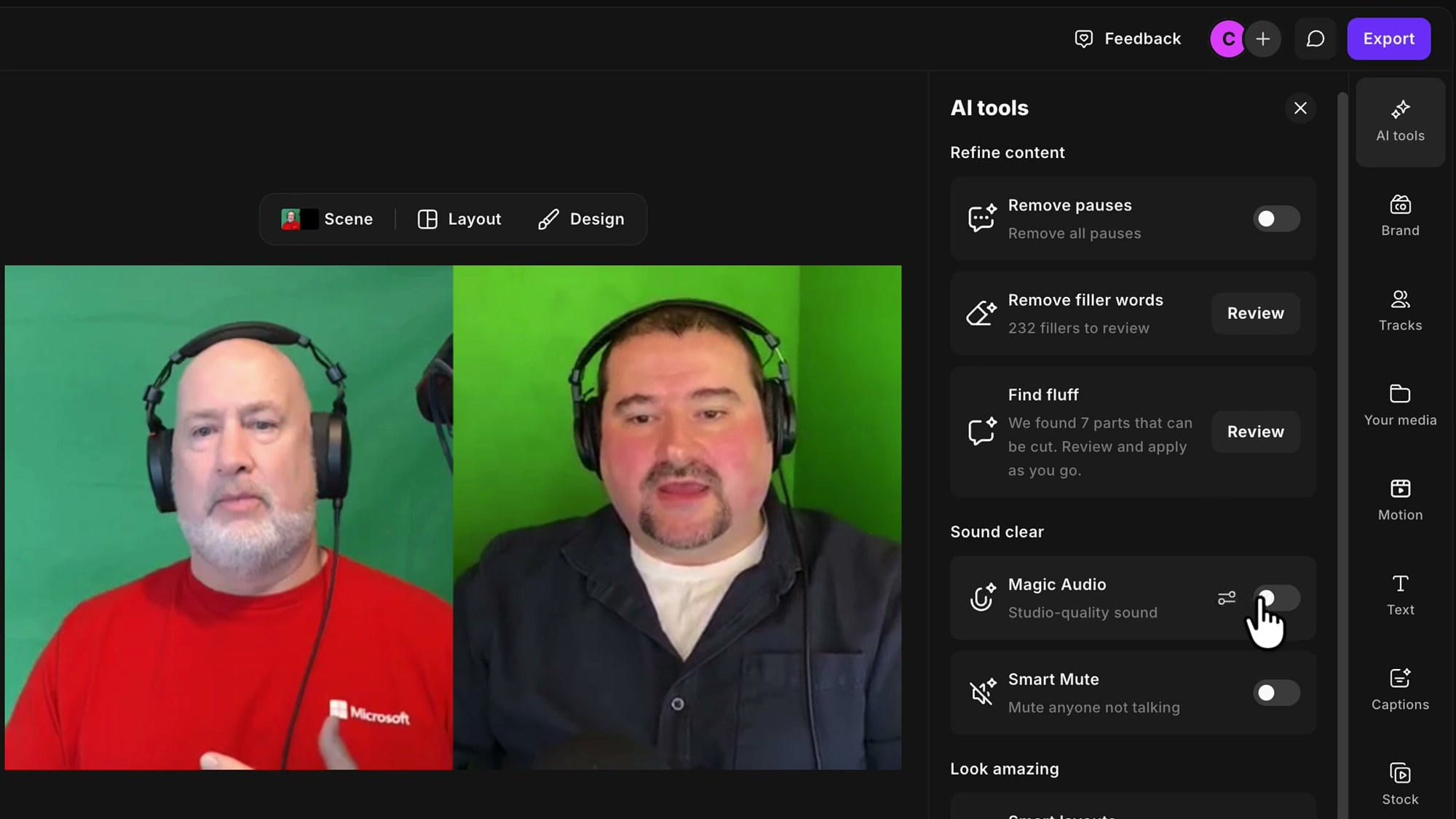
With Magic Audio on, most of the breaths in the opening section were no longer audible or reduced. Not all of them, though. One very strong breath after a sentence was left in. I would mute that one myself, as long as it is not attached to a word.
So the two tools do different jobs. Magic Audio cleans up the overall sound and often reduces breaths along the way. The noises detection lets you target the specific ones that are still there.
Fewer Manual Timeline Edits
This is a much improved workflow, and it lets me stay in the panel for most of the cleanup. I was not working that way before, because I like to look at the timeline. I still do. But this saves me a lot of clicks and drags down there, because I no longer have to surgically remove each sound by hand. I can review, remove, and bring things back as I see fit, depending on how severe each one is.
Remove in Bulk and Restore Individual Items
You can still work in bulk. If you were used to the previous version, where you applied the removal, got rid of everything, and moved on, that option is still there. Scroll to the bottom of the panel and click Remove all. The button shows how many items it will remove.
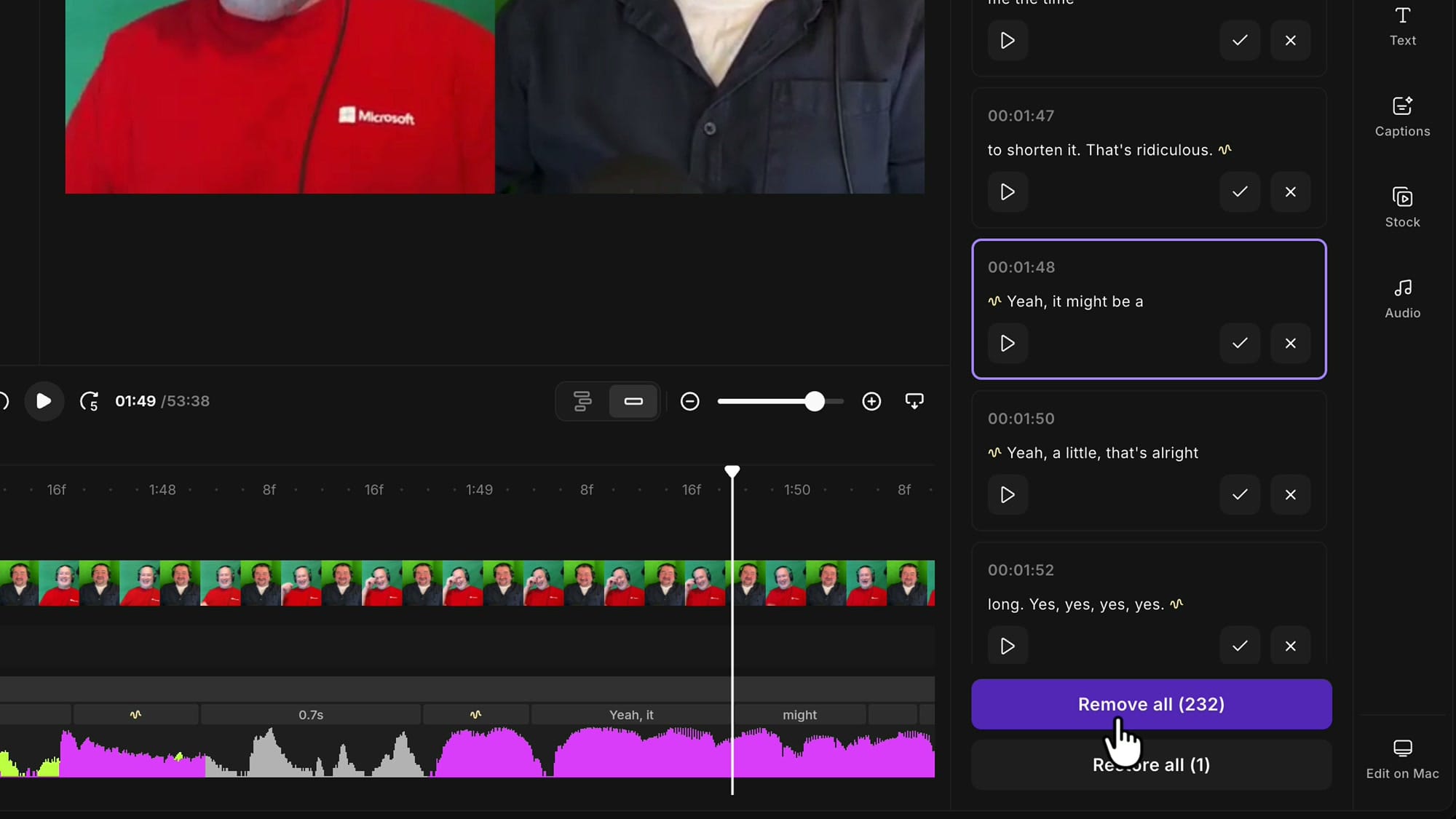
One click, and they are all gone. Every item in the list switches to its collapsed row, and the markers in the transcript are greyed out.
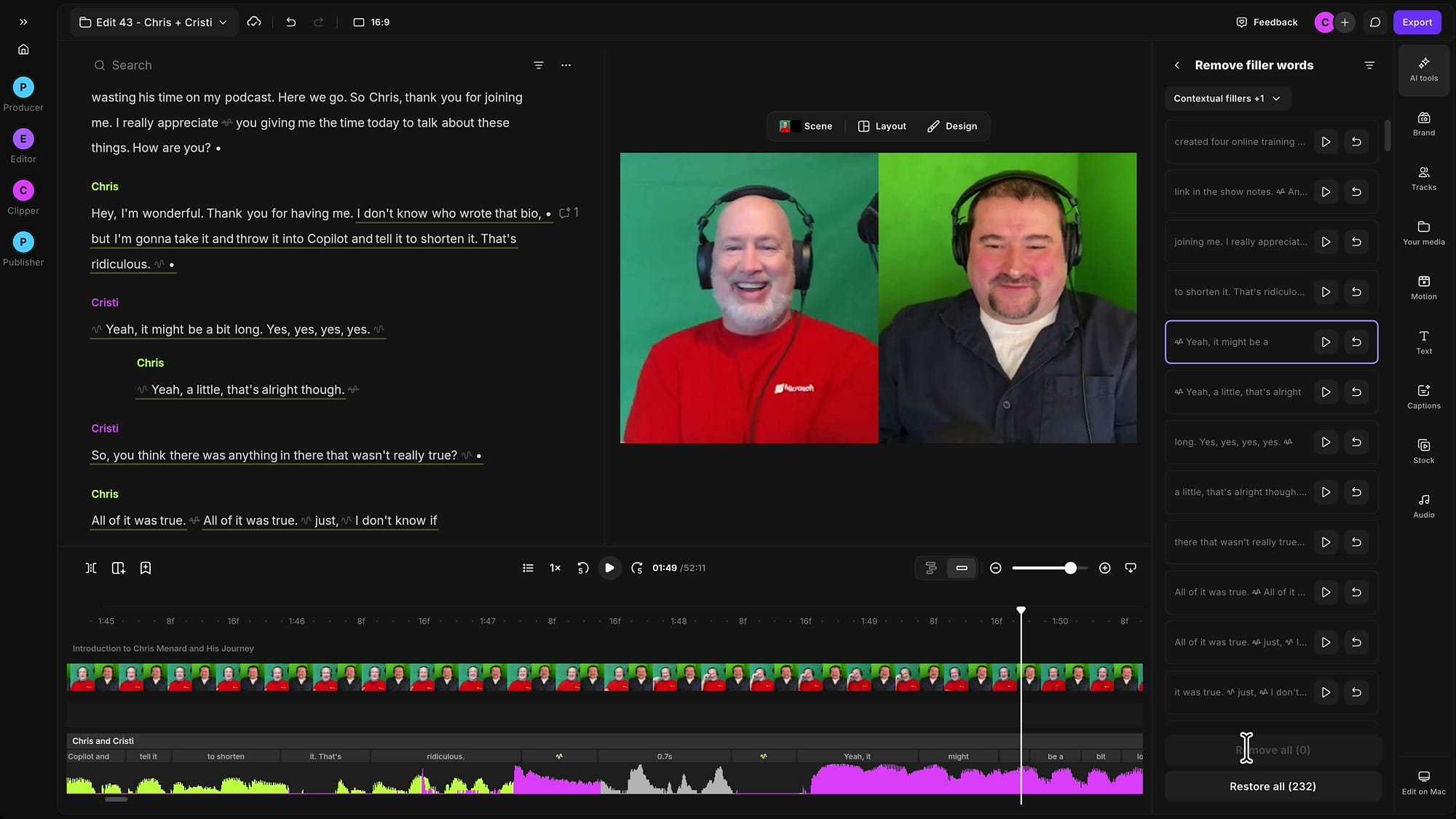
You keep the ability to bring them back. The detections remain tagged in your project, so you can play any one of them, restore it on its own, or use Restore all to undo the whole thing.
Quick Recap
- Filler words show in yellow in the transcript, and audio events get a yellow squiggle in both the transcript and the timeline.
- Open AI tools → Remove filler words → Review to see every detection in a list.
- Use the dropdown at the top to include Filler words, Contextual fillers, Noises, and optionally Screen share & media.
- Play each suggestion, then accept it with the checkmark or discard it with the X.
- Play an accepted edit again, and click Restore if the cut sounds abrupt.
- Accepted breaths are muted, not cut, so your timing stays intact.
- Remove all still gives you the one-click option, and every item can be restored afterward.
You get more detection, more control, and a faster way to work through a long episode without giving up the final say on how it sounds.
Related guides
 Cristi Cotovan
 Cristi Cotovan
 Cristi Cotovan
 Cristi Cotovan
 Cristi Cotovan
If you're eager to learn more about Riverside and wish to have a one-on-one Riverside coaching session, feel free to book a call with me. I'm here to help you with any questions you have and to guide you through the best workflows, tips, workarounds, or just answer any questions you may have!